1. Okwu mmalite
This manual provides detailed instructions for the installation, operation, and maintenance of your D-Link DCS-8350LH 2K QHD Indoor Wi-Fi Camera. Please read this manual thoroughly before using the product to ensure proper setup and functionality.
The D-Link DCS-8350LH is designed to provide precise and detailed surveillance for your home or small office. It features 2K QHD resolution, color night vision, AI-based detection, and two-way audio for comprehensive monitoring.
2. Ozi nchekwa
- Ensure the camera is installed in a stable location to prevent it from falling.
- Use only the power adapter supplied with the camera.
- Do not expose the camera to water or moisture. This product is for indoor use only.
- Zere idobe igwefoto n'akụkụ ebe okpomọkụ ma ọ bụ na ìhè anyanwụ.
- Do not attempt to open or repair the camera yourself. Refer all servicing to qualified personnel.
- Debe igwefoto na ihe ndị ọzọ dị na ya ka ụmụaka ghara iru ya aka.
3. Ngwaahịa gafereview
Familiarize yourself with the components of your D-Link DCS-8350LH camera.
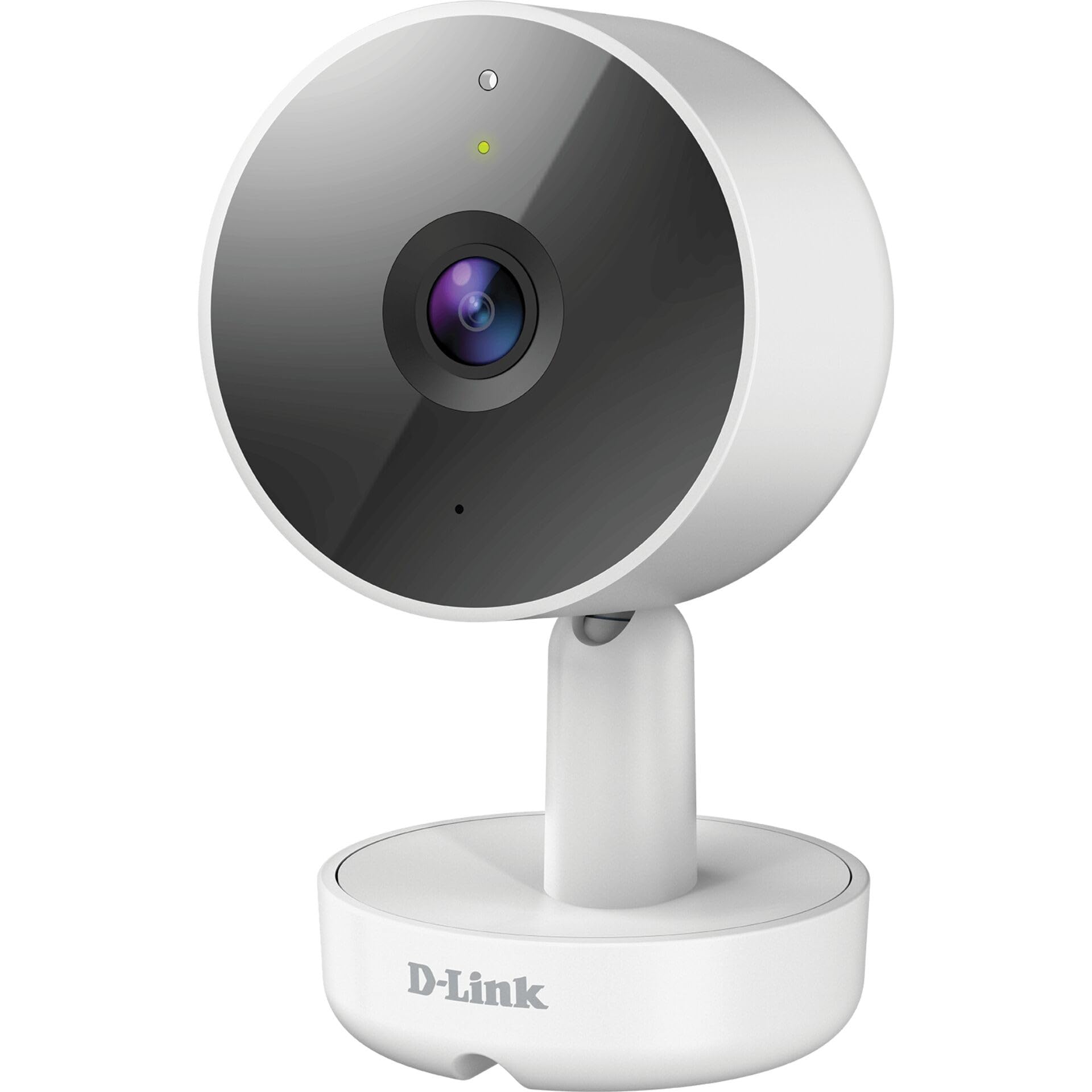
Foto 3.1: N'ihu View nke Igwefoto
- 1. oghere: Na-esetịpụ vidiyo.
- 2. LED ọnọdụ: Na-egosi ọnọdụ igwefoto (dịka ọmụmaatụ, ike, njikọ).
- 3. Igwe okwu: Na-ejide ọdịyo maka nkwukọrịta ụzọ abụọ.
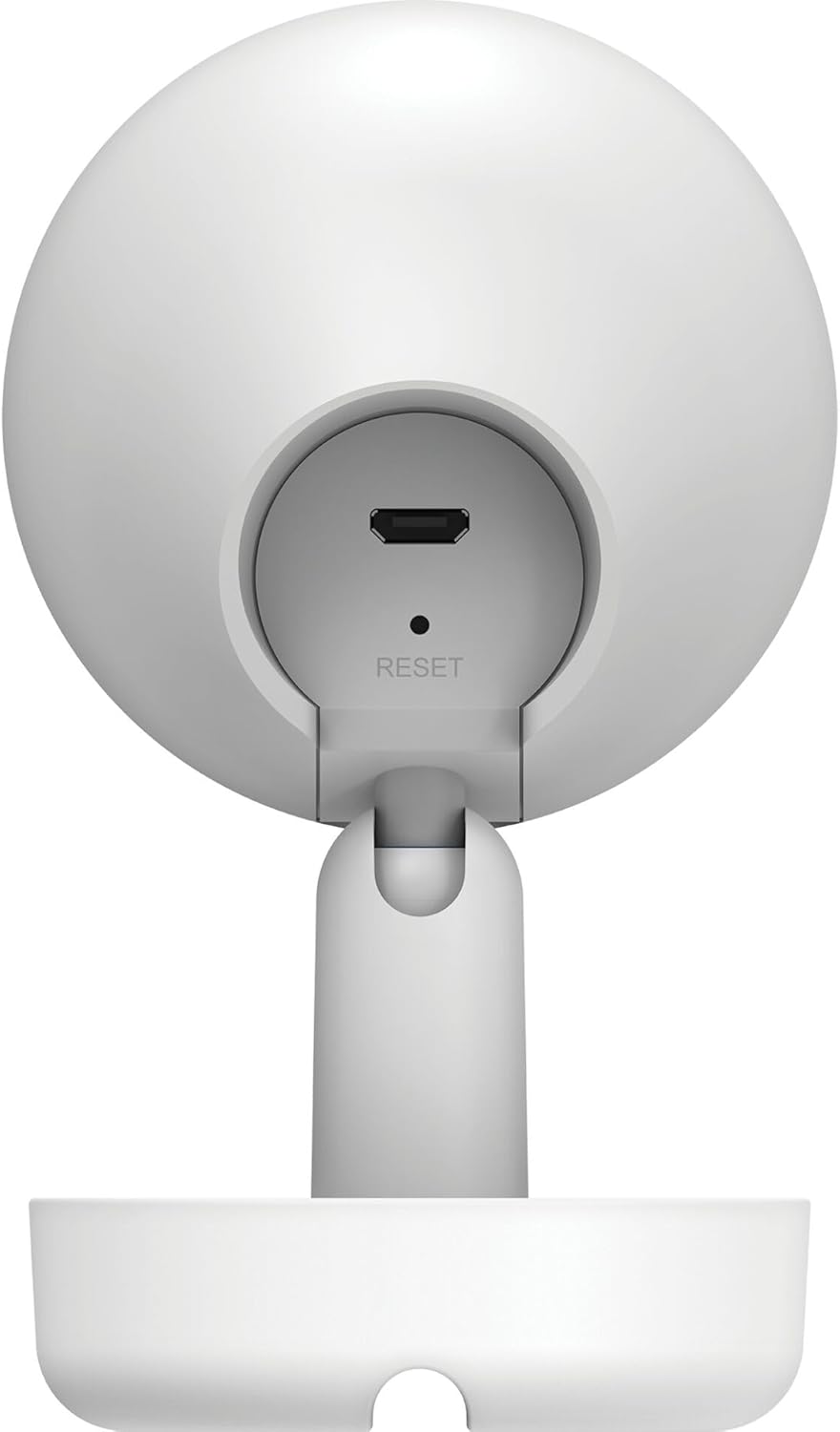
Foto 3.2: N'azụ View nke Igwefoto
- 1. Micro USB Power Port: Jikọọ na nkwụnye ọkụ.
- 2. Tọgharia bọtịnụ: A na-eji weghachi ntọala ntọala ụlọ ọrụ.
- 3. Ọkà okwu: Na-ewepụta ụda maka nkwukọrịta ụzọ abụọ.
- 4. Oghere Kaadị MicroSD: For local video storage (located on the side or bottom, not visible in this specific image, but mentioned in features).
4. Nhazi
Soro usoro ndị a ka ịtọlite igwefoto D-Link DCS-8350LH gị:
- Budata ngwa mydlink: Chọọ maka "mydlink" on the App Store (iOS) or Google Play (Android) and download the official mydlink app.
- Create a mydlink Account: Open the app and follow the on-screen instructions to create a new mydlink account or log in if you already have one.
- Ike Na Igwefoto: Connect the provided power adapter to the camera's Micro USB port and plug it into a power outlet. The status LED will begin to blink.
- Tinye ngwaọrụ: In the mydlink app, tap the menu icon (usually three lines) and select "Add a Device". Scan the QR code located on the camera or its packaging.
- Jikọọ na Wi-Fi: Follow the app's instructions to connect your camera to your home Wi-Fi network. Ensure your mobile device is connected to the same Wi-Fi network during setup.
- Nkwanye: Position your camera in the desired indoor location.

Foto 4.1: Camera and mydlink App Integration
5. Nwụnye
The D-Link DCS-8350LH camera supports wall mounting for optimal placement.
- Họrọ ebe: Họrọ ebe dị n'ime ụlọ nke nwere oghere dị ọcha view of the area you wish to monitor and within range of your Wi-Fi network.
- Elu ugwu: Gbaa mbọ hụ na mgbidi ma ọ bụ elu siri ike nke ọma iji kwado igwefoto.
- Chekwaa ntọala ahụ: Use appropriate screws and anchors (not included) to secure the camera's base to the chosen surface.
- Gbanwee akụkụ: Once mounted, adjust the camera's angle to cover the desired viewing area. The camera has a 108-degree viewakụkụ n'akuku.
6. Ntuziaka ọrụ
Once set up, you can access and control your camera using the mydlink app.
6.1. Ndụ View
Open the mydlink app and select your DCS-8350LH camera from the device list to view the live feed. The camera provides 2K QHD (1440p) resolution for clear images.
6.2. Ọhụụ Agba nke Abalị
The camera automatically switches to color night vision in low-light conditions, allowing you to see detailed color video even when it's dark.
6.3. AI-based Event Detection
The camera features intelligent detection capabilities:
- Nchọpụta onye: Identifies human presence, reducing false alarms from pets or moving objects.
- Nchọpụta ụda: Alerts you to specific sounds, including carbon monoxide and smoke alarm sounds.
Configure detection zones and sensitivity settings within the mydlink app to customize alerts.
6.4. Audio Ụzọ Abụọ
Use the built-in microphone and speaker to communicate with people or pets near the camera. Tap the microphone icon in the live view within the mydlink app to speak.
6.5. Ndekọ na Nchekwa Vidiyo
The DCS-8350LH offers multiple recording options:
- Kaadị MicroSD: Insert a microSD card (not included) into the camera's slot for local storage of recorded video clips.
- mydlink Cloud Recording: Utilize the mydlink Cloud service for secure off-site storage. Free and paid subscription plans are available.
- Smartphone Recording: Capture snapshots and video clips directly to your smartphone via the mydlink app.
7. Nlekọta
7.1. Nhicha
To clean the camera, gently wipe the lens and exterior surfaces with a soft, dry cloth. Do not use liquid cleaners or abrasive materials.
7.2. Mmelite firmware
Regularly check for firmware updates through the mydlink app. Keeping your camera's firmware up-to-date ensures optimal performance, security, and access to new features.
8. Nchọpụta nsogbu
Ọ bụrụ na ị zutere nsogbu na igwefoto D-Link DCS-8350LH gị, rụtụ aka na ngwọta ndị a na-ahụkarị:
- Camera Offline / Wi-Fi Disconnection:
- Gbaa mbọ hụ na igwefoto nọ n'ime oke nke rawụta Wi-Fi gị.
- Check your Wi-Fi network status.
- Restart the camera by unplugging and re-plugging the power adapter.
- If the issue persists, try resetting the camera to factory defaults (see below) and re-adding it to the mydlink app.
- Ogo vidiyo na-adịghị mma:
- Gbaa mbọ hụ na oghere igwefoto dị ọcha.
- Check your internet connection speed. A stable and fast connection is required for 2K QHD streaming.
- Adjust the camera's position to avoid glare or obstructions.
- Ịtọgharịa igwefoto:
To restore the camera to its factory default settings, use a paperclip or a thin object to press and hold the recessed Tọgharia button (refer to Figure 3.2) for approximately 10 seconds while the camera is powered on. The status LED will change, indicating a reset. You will then need to reconfigure the camera through the mydlink app.
9. Nkọwapụta
| Njirimara | Nkọwa |
|---|---|
| Aha Nlereanya | DCS-8350LH |
| Mkpebi ndekọ vidiyo | 1440p (2K QHD) |
| Viewna n'akuku | 108 ogo |
| Protocol Njikọta | Wi-Fi |
| Teknụzụ nzikọrịta ozi ikuku | Bluetooth (for initial setup) |
| Ojiji ime ime/n'èzí | Ime ụlọ |
| Isi Iyi Ike | Igwe ọkụ eletrik |
| Oriri ike | 8 Watt |
| Ụdị Ihe | Dome |
| Ụdị nkwụnye | Ugwu mgbidi |
| Ihe onwunwe | Plastic |
| Akụkụ ihe (L x W x H) | 6.67 x 6.57 x 11.14 cm |
| Ibu | 320 grams |
| Ngwa gụnyere | Igwefoto ime ụlọ |
| Ụdị njikwa | Amazon Alexa |
10. Akwụkwọ ikike na nkwado
For warranty information, technical support, and further assistance, please visit the official D-Link website or contact D-Link customer service. Keep your purchase receipt as proof of purchase.
You can find the latest support resources, FAQs, and contact details at www.dlink.com.