1. Okwu mmalite
The D-Link DIR-808L Wireless AC600 Dual-Band Cloud Router provides high-speed Wi-Fi connectivity with dual-band technology and Fast Ethernet ports. This device is designed to deliver a reliable networking experience for home use, supporting activities such as HD media streaming, online gaming, and web browsing. It includes security features and mydlink Cloud Services for remote network management.
The DIR-808L is backward compatible with existing Wi-Fi devices (802.11a/b/g/n) for seamless integration into your current network setup.
2. Ihe ngwugwu
Chọpụta na ngwungwu gị nwere ihe ndị a:
- Wireless AC600 Dual Band Cloud Router (DIR-808L)
- Ihe nkwụnye ọkụ
- eriri Ethernet
- Ntuziaka ntinye ngwa ngwa
Ọ bụrụ na ihe ọ bụla n'ime ihe ndị a efughị ma ọ bụ mebie, biko kpọtụrụ onye na-ere ere D-Link nke mpaghara gị.
3. Opekempe System chọrọ
To set up and use the D-Link DIR-808L router, ensure your computer meets the following minimum requirements:
- Sistemụ nrụọrụ: Windows® 8, Windows® 7, Windows Vista®, Windows® XP SP3, or Mac OS® X (v10.4 or higher)
- Web Ihe nchọgharị: Internet Explorer® v6, Mozilla® Firefox®, Google Chrome, or Safari 4 or higher
- Akụrụngwa: Kaadị Interface Network (NIC)
For Internet access, you will also need:
- USB ma ọ bụ DSL Mọdem
- Ịdenye aha na onye na-eweta ọrụ ịntanetị (ISP)
4. Akụrụngwa Kwụsịrịview
Familiarize yourself with the physical components and ports of your DIR-808L router.

Foto 4.1: N'ihu view of the DIR-808L router with power and internet status indicators.

Foto 4.2: Rear panel of the DIR-808L router, detailing port layout.
Nkọwa Ogwe azụ:
- Ọdụ ụgbọ mmiri LAN (1-4): Four Fast Ethernet ports for connecting wired devices such as computers, gaming consoles, or network storage.
- Port ịntanetị: Jikọọ na modem gị maka ịnweta ịntanetị.
- Tọgharịa bọtịnụ: Press and hold for 10 seconds to restore the router to factory default settings.
- Ntinye ike: Jikọọ nkwụnye ọkụ gụnyere ebe a.
- WPS bọtịnụ: Use for easy, secure wireless connection to WPS-compatible devices.
5. Ntọala na nwụnye
Follow these steps to set up your D-Link DIR-808L router.
5.1 Njikọ anụ ahụ
- Gbanyụọ: Kwupu ike na modem gị na rawụta gị (ọ bụrụ na ọdabara).
- Jikọọ modem: Connect an Ethernet cable from your modem's Ethernet port to the Ịntanetị port on the back of your DIR-808L router.
- Jikọọ Kọmputa (Nhọrọ): For initial setup, connect an Ethernet cable from your computer's Ethernet port to any of the LAN ports (1-4) on the back of your DIR-808L router. You can also connect wirelessly using the default Wi-Fi name and password found on the device label.
- Ike na modem: Connect the power adapter to your modem and power it on. Wait for the modem's indicator lights to stabilize, indicating an active internet connection.
- Ike Na Router: Jikọọ nkwụnye ọkụ gụnyere na Ntinye ike on the back of your DIR-808L router and plug it into a power outlet. The power LED on the front of the router should illuminate.
5.2 Nhazi izizi (Web Ihe nchọgharị)
After physical connections are made, configure your router using a web ihe nchọgharị.
- Mepee a web browser (e.g., Chrome, Firefox, Edge) on a computer connected to the router.
- Na adreesị mmanya, pịnye
http://dlinkrouter.localor192.168.0.1wee pịa Tinye. - The D-Link Setup Wizard should appear. Follow the on-screen instructions to configure your Internet connection, wireless network name (SSID), and password.
- Create a unique password for your router's administration interface for security.
5.3 Quick Router Setup Mobile App
Alternatively, you can use the D-Link Quick Router Setup mobile app for convenient setup from your smartphone or tablet.
- Download the "D-Link QRS Mobile" app from the Apple App Store or Google Play Store.
- Connect your mobile device to the router's default Wi-Fi network (SSID and password are on the router's label).
- Launch the QRS Mobile app and follow the instructions to complete the setup.
6. Ọrụ
This section covers the basic operation of your DIR-808L router.
6.1 Dual-Band Wireless Performance
The DIR-808L operates on two frequency bands: 2.4 GHz and 5 GHz.
- 2.4 GHz band: Provides wider coverage and better penetration through walls, suitable for general internet use and older devices.
- 5 GHz band: Offers faster speeds and less interference, ideal for high-bandwidth activities like HD video streaming and online gaming, but with a shorter range.
You can configure separate SSIDs (network names) for each band or use a single SSID for both, allowing the router to intelligently assign devices to the optimal band.
6.2 Wired Connectivity
The four Fast Ethernet LAN ports allow you to connect up to four wired devices directly to the router for stable and fast connections.
6.3 mydlink Cloud Management
mydlink Cloud Services enable you to monitor and manage your network remotely from anywhere using the mydlink Lite app or the mydlink web portal.
- Nnweta dị anya: View connected devices, block unwanted users, and receive notifications.
- Njikwa nne na nna: Manage internet access schedules and block specific websaịtị.
To use mydlink services, you will need to register your router with a mydlink account during or after the initial setup process.
6.4 Nchekwa ikuku
The DIR-808L supports WPA/WPA2 encryption to secure your wireless network. It is recommended to use WPA2-PSK (AES) for the strongest security.
- WPS (Ntọala echedoro Wi-Fi): Provides a simple way to connect WPS-compatible devices to your wireless network by pressing the WPS button on the router and the device.
7. Nlekọta
Mmezi kwesịrị ekwesị na-eme ka arụmọrụ kachasị mma na ogologo oge nke rawụta gị dị.
- Mmelite femụwe: Lelee nkwado D-Link kwa oge website for firmware updates. Updating firmware can improve performance, add new features, and fix security vulnerabilities. Instructions for updating firmware are typically provided with the update package.
- Nhicha: Keep the router in a clean, dust-free environment. Use a soft, dry cloth to clean the exterior. Do not use liquid cleaners or aerosols.
- Nkwanye: Place the router in a central location, away from obstructions and devices that may cause interference (e.g., cordless phones, microwaves).
8. Nchọpụta nsogbu
This section addresses common issues you might encounter with your DIR-808L router.
8.1 Enweghị njikọ ịntanetị
- Lelee eriri: Gbaa mbọ hụ na ejikọrọ eriri Ethernet niile na ọdụ ụgbọ mmiri ziri ezi na rawụta na modem.
- okirikiri ike: Power off your modem, then your router. Wait 30 seconds, then power on your modem first. Once the modem is fully online (indicator lights stable), power on your router.
- Ọnọdụ modem: Verify that your modem has an active internet connection. Check its indicator lights or consult your modem's manual.
- Ntọala ISP: Confirm your Internet Service Provider (ISP) settings are correctly entered in the router's web interface.
8.2 Slow Wireless Speed or Poor Range
- Ndokwa rawụta: Position the router in a central location, elevated, and away from large metal objects, concrete walls, and other electronic devices that may cause interference.
- Ntinye aka: Other wireless devices (cordless phones, microwaves, Bluetooth devices) can interfere with Wi-Fi signals. Try changing the wireless channel in the router's settings.
- Ojiji Abụọ-Band: Connect devices that require high bandwidth (e.g., streaming devices) to the 5 GHz band, and other devices to the 2.4 GHz band.
- Firmware: Gbaa mbọ hụ na firmware nke rawụta gị emechiela.
8.3 Enweghị ike ịnweta Router's Web Interface
- Adreesị IP: Gbaa mbọ hụ na atọrọ kọmpụta gị ka ọ nweta adreesị IP na-akpaghị aka (DHCP).
- Adreesị ziri ezi: Lelee ugboro abụọ na ị na-ede adreesị ziri ezi:
http://dlinkrouter.localor192.168.0.1. - Temporary Disable Firewall/Antivirus: Gbanyụọ nwa oge ọ bụla firewall ma ọ bụ sọftụwia antivirus dị na kọmputa gị nke nwere ike igbochi ohere.
- Tọgharịa rawụta: If all else fails, perform a factory reset by pressing and holding the Reset button on the back of the router for 10 seconds. Mara: Nke a ga-ehichapụ ntọala omenala gị niile.
9. Nka na ụzụ nkọwa
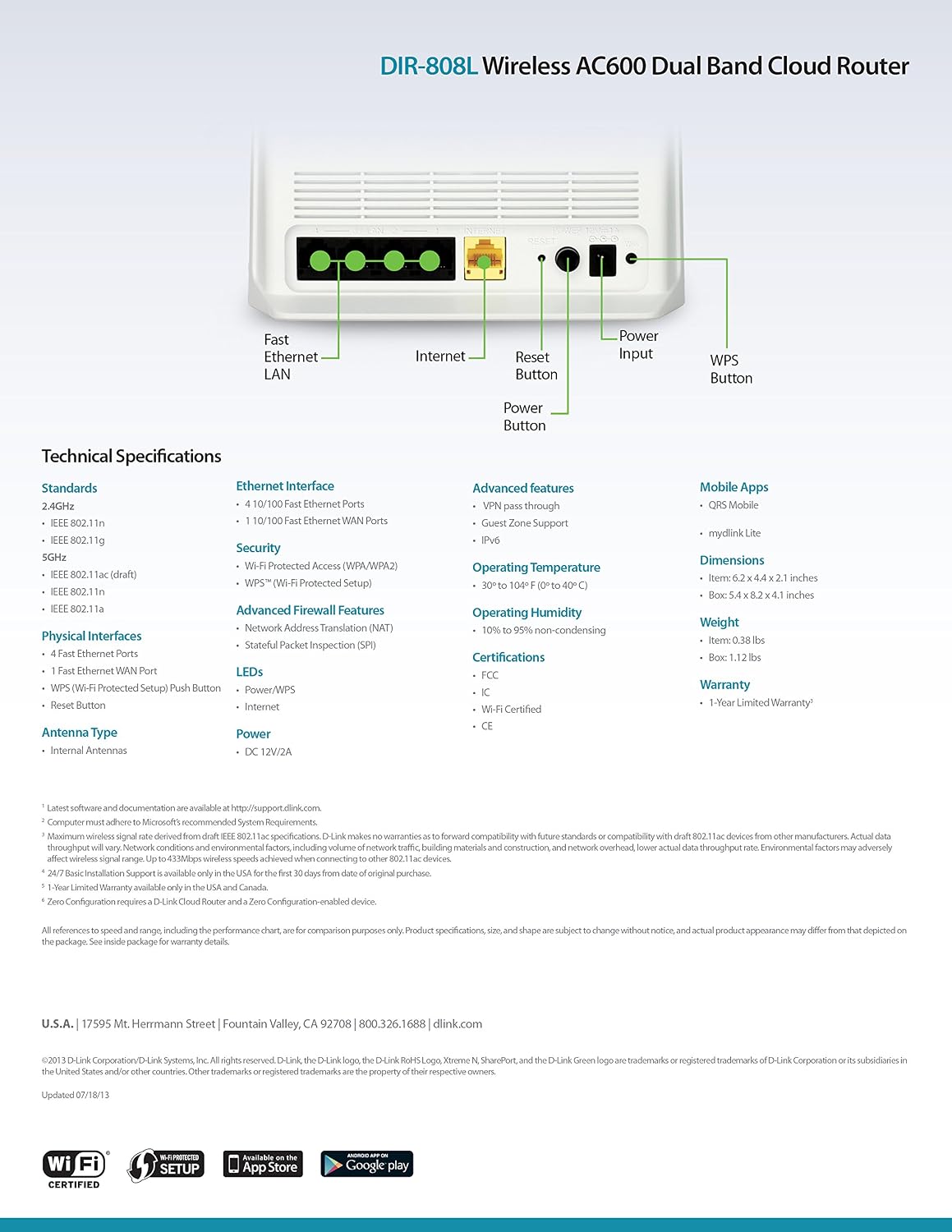
Foto 9.1: Technical specifications and rear panel diagram of the DIR-808L router.
| Njirimara | Nkọwa |
|---|---|
| Aha Nlereanya | DIR-808L |
| Ụdị ikuku | 802.11ac (AC600), 802.11a/b/g/n |
| Klaasị ugboro ugboro | Dual-band (2.4 GHz na 5 GHz) |
| Njikọ ikuku | 4 x Fast Ethernet LAN Ports, 1 x Fast Ethernet WAN Port |
| Nchekwa | WPA/WPA2, WPS (Wi-Fi Protected Setup) |
| Ndakọrịta sistemụ arụmọrụ | Windows, Mac, Android |
| Akụkụ (LxWxH) | 2.1 x 6.1 x 4.4 sentimita asatọ |
| Ibu Ibu | 7.2 ounce (0.45 pound) |
| Ntinye ike | 12V DC, 1a |
| Okpomọkụ na-arụ ọrụ | 0 ruo 40°C (32 ruo 104°F) |
| Iru mmiri na-arụ ọrụ | 10% ruo 95% na-abụghị condensing |
| Asambodo | FCC, Wi-Fi Certified, CE |
10. Akwụkwọ ikike Ozi
The D-Link DIR-808L Wireless AC600 Dual-Band Cloud Router comes with a Akwụkwọ ikike nke afọ 1 site na ụbọchị ịzụrụ. Akwụkwọ ikike a na-ekpuchi ntụpọ dị na ngwa na arụ ọrụ n'okpuru ojiji nkịtị.
For full warranty terms and conditions, please refer to the warranty card included with your product or visit the official D-Link websaịtị.
Legal Disclaimer: D-Link is not responsible for honoring warranty claims from unauthorized resellers. Please contact the manufacturer directly for official warranty service.
11. Nkwado nka na ụzụ
If you encounter problems that are not addressed in this manual, or require further assistance, please contact D-Link Technical Support.
- Nkwado D-njikọ Websaịtị: Gaa leta nkwado.dlink.com for FAQs, documentation, and firmware downloads.
- Phone Support (U.S.): You may contact D-Link customer support at 1-877-453-5465. Please have your product model number (DIR-808L) and serial number ready when calling.


