1. Okwu mmalite
The Canon PowerShot S110 is a compact digital camera designed for high-quality imaging and versatile shooting. It features a 12.1 Megapixel High-Sensitivity CMOS sensor, a DIGIC 5 Image Processor, and a bright f/2.0 lens with 5x Optical Zoom. This camera also includes built-in Wi-Fi for convenient image sharing and a capacitive touch panel LCD for intuitive operation. This manual provides essential information for setting up, operating, and maintaining your PowerShot S110 camera.

Foto 1.1: N'ihu view of the Canon PowerShot S110 Digital Camera. This image displays the camera's lens, flash, and overall compact design.
2. Kedu ihe dị na Igbe ahụ
Nyochaa na agụnyere ihe niile ndị a na ngwugwu gị:
- Canon PowerShot S110 Digital Camera
- Ngwungwu batrị
- Chaja batrị
- eriri USB
- HDMI USB
- Eriri aka
- Software CD-ROM (for bundled software)
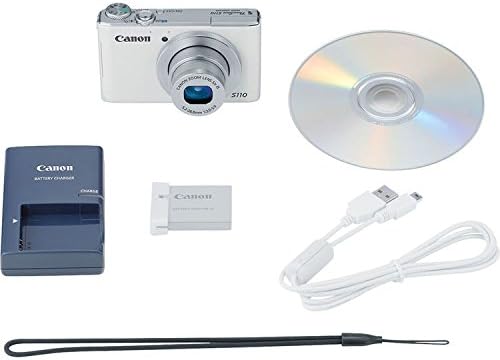
Foto 2.1: The Canon PowerShot S110 camera alongside its standard accessories, including the battery, charger, cables, and software disc.
3. Nhazi
3.1. Ịchaji batrị
- Insert the battery pack into the provided battery charger.
- Tinye chaja ahụ n'ime ebe a na-esi enweta ọkụ eletrik. Ọkụ ihe ngosi chaja ga-enwu.
- Once charging is complete, the indicator light will change or turn off. Remove the battery.
3.2. Ịtinye Batrị na Kaadị Ebe Nchekwa
- Open the battery/card compartment cover on the bottom of the camera.
- Insert the charged battery pack firmly until it clicks into place.
- Insert an SD/SDHC/SDXC memory card into the card slot with the label facing the correct direction, pushing until it clicks.
- Mechie mkpuchi nkebi ahụ nke ọma.
3.3. Ntọala mbụ
Upon first power-on, you will be prompted to set the date, time, and language. Follow the on-screen instructions using the camera's controls or touch screen.
3.4. Ijikọ na Wi-Fi
The PowerShot S110 features built-in Wi-Fi for image transfer. To connect:
- Pịa MENU button and navigate to the Wi-Fi settings.
- Select your desired connection method (e.g., connect to a smartphone, computer, or Wi-Fi printer).
- Follow the on-screen prompts to establish a connection. For smartphone connectivity, download the free Canon CameraWindow app.
4. Ọrụ
4.1. Foto ndị bụ isi
Ka ịse foto:
- Gbanwuo igwefoto site na ịpị IKE bọtịnụ.
- Jiri ihuenyo LCD nke dị sentimita 3.0 mee ka foto gị dị nkọ.
- Pịa bọtịnụ mkpuchi ahụ ọkara ala iji lekwasị anya. Efere anya ahụ ga-agbanwe akwụkwọ ndụ akwụkwọ ndụ mgbe emechara ilekwasị anya.
- Pịa bọtịnụ mkpuchi ahụ nke ọma iji seta foto ahụ.
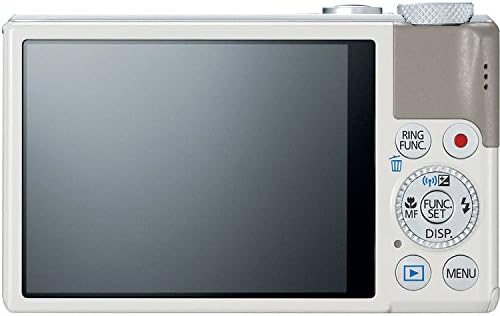
Foto 4.1: N'azụ view of the Canon PowerShot S110, showing the LCD screen, control buttons, and the control ring.
4.2. Ụdị agbapụ
The PowerShot S110 offers various shooting modes accessible via the mode dial or menu:
- Smart AUTO: The camera automatically selects optimal settings based on the scene.
- Program AE (P): The camera sets aperture and shutter speed, while you control other settings like ISO and white balance.
- Shutter-priority AE (Tv): You set the shutter speed, and the camera adjusts the aperture. Ideal for controlling motion blur.
- Aperture-priority AE (Av): You set the aperture, and the camera adjusts the shutter speed. Useful for controlling depth of field.
- Akwụkwọ ntuziaka (M): Njikwa zuru oke na oghere, ọsọ shutter na ISO.
- Custom (C): Save and recall your preferred settings.
- Special Scene Modes (SCN): Includes modes like Portrait, Smooth Skin, Handheld Night Scene, Snow, and Fireworks for specific situations.
- Ihe nzacha okike: Apply effects such as Toy Camera Effect, Miniature Effect, Super Vivid, and Color Accent.
- Movie Digest: Records a short video clip before each still image and compiles them into a daily video.
4.3. Ndekọ vidiyo
To record Full HD (1080p) video:
- Pịa raara onwe ya nye Ihe nkiri button (red dot icon) located on the rear of the camera.
- Pịa bọtịnụ ọzọ ka ịkwụsị ndekọ.
The camera supports zooming during video recording, and audio is captured in stereo. Videos can be viewed on an HDTV via the HDMI output.
4.4. Image Stabilization (Intelligent IS)
The Intelligent IS system automatically selects the optimal image stabilization mode for your shooting conditions:
- Normal IS: Corrects general camera movement for stills.
- Panning IS: Disables vertical shake correction when panning horizontally.
- Macro (Hybrid) IS: Corrects shift-type shake common in close-up photography.
- Dynamic IS: Effective for video shooting at wide-angle, reducing shake while walking.
- Powered IS: Compensates for hand movement during telephoto video recording.
- Tripod IS: Automatically disables IS when a tripod is detected.
4.5. Touch Panel LCD and Control Ring
The 3.0-inch capacitive touch panel allows for intuitive control:
- Touch Shutter: Tap the screen to focus and take a picture.
- Playback Gestures: Use pinch-to-zoom and swipe gestures to navigate images.
- Ndozi ntọala: Quickly select camera settings by tapping.
The control ring around the lens barrel can be customized to adjust settings such as focus, aperture, shutter speed, ISO, or exposure compensation. Use the dedicated RING FUNC. button to select its function.
4.6. RAW+JPEG Recording
The camera supports simultaneous recording of RAW and JPEG images, providing maximum flexibility for post-processing. RAW files capture all sensor data, while JPEG files are processed in-camera for immediate use.
4.7. GPS Tagging
Utilize the Canon CameraWindow app on your smartphone to record GPS data. This data can then be wirelessly transferred to your camera to tag images with location information, aiding in organization.
4.8. Image Transfer and Printing
Images and videos can be transferred wirelessly to social networking sites via CANON iMAGE GATEWAY, to a PC, or to iOS/Android devices using the Canon CameraWindow app. You can also print directly to Wi-Fi compatible printers.
5. Nlekọta
5.1. Na-ehicha igwefoto
- Igwe igwefoto: Jiri ákwà dị nro ma kpọọ nkụ hichaa ya. Maka unyi siri ike, jiri ákwà dị nro.ampa na-eji mmiri eme ka ọ kpọọ nkụ nke ọma.
- oghere: Jiri ihe na-afụ ọkụ lens wepụ uzuzu, wee jiri ákwà nhicha lens hichaa ya nke ọma. Zere imetụ elu lens ahụ aka na mkpịsị aka gị.
- Ihuenyo LCD: Use a soft, dry cloth. For smudges, use a screen cleaner specifically designed for electronics.
Do not use organic solvents such as alcohol, benzene, or paint thinner, as these can damage the camera finish.
5.2. Nlekọta batrị
- Chekwaa batrị n'ebe dị jụụ, kpọrọ nkụ mgbe anaghị eji ya.
- Zere ịchaji batrị ugboro ugboro ka ọ gbatịa ndụ ya.
- Ọ bụrụ na a gaghị eji igwefoto ahụ ruo ogologo oge, wepụ batrị ahụ.
5.3. Nchekwa
Store the camera in a dry, well-ventilated area, away from direct sunlight, high temperatures, and humidity. Consider using a desiccant to prevent mold growth, especially in humid environments.
6. Nchọpụta nsogbu
6.1. Camera Does Not Turn On
- Gbaa mbọ hụ na chajịrị batrị zuru oke yana itinye ya nke ọma.
- Lelee ma mkpuchi nke ebe batrị ahụ emechiela nke ọma.
6.2. Lens Error / Lens Not Extending
- Check for any obstructions around the lens barrel.
- Turn the camera off and then on again. If the error persists, contact customer support.
6.3. Foto na-adịghị mma
- Gbaa mbọ hụ na oghere ahụ dị ọcha.
- Confirm that the camera has focused correctly (focus frame turns green).
- In low light, use a higher ISO setting or enable flash.
- Hold the camera steady or use a tripod, especially with slower shutter speeds.
6.4. Nsogbu Njikọ Wi-Fi
- Ensure your smartphone or computer's Wi-Fi is enabled and within range.
- Verify that the correct password or network settings are entered.
- Malitegharịa ma igwefoto ahụ ma ngwaọrụ njikọ ahụ.
- Ensure the Canon CameraWindow app is updated to the latest version.
7. Nkọwapụta
| Aha Nlereanya | Canon PowerShot S110 |
| Mkpebi ihe mmetụta foto | 12.1 MP |
| Ụdị ihe mmetụta foto | CMOS |
| Mbugharị anya | 5x |
| Ogologo Fokalụ kacha nta | 24 mm |
| Ogologo Focal kacha | 120 mm |
| Oghere kacha | f/2.0 |
| Ndozi onyonyo | Ngwa anya |
| Ụdị ngosi | Ihuenyo Mmetụ Aka LCD nke sentimita iri na abụọ |
| Mkpebi vidiyo | Full HD 1000p |
| Njikọta | HDMI, USB, Wi-Fi |
| Akwadoro File Usoro | JPEG, RAW |
| Ụdị ebe nchekwa Flash | SD/SDHC/SDXC |
| Ibu Ibu | 6.98 ounces |
8. Akwụkwọ ikike na nkwado
8.1. Akwụkwọ ikike Ozi
The Canon PowerShot S110 Digital Camera comes with a Akwụkwọ ikike afọ 1 nwere oke. This warranty covers defects in materials and workmanship under normal use. For full terms and conditions, please refer to the warranty card included with your product or visit the official Canon websaịtị.
8.2. Nkwado ndị ahịa
For technical assistance, service, or additional information, please contact Canon customer support. You can find contact details and support resources on the official Canon websaịtị: www.usa.canon.com/support.
Before contacting support, please have your camera's model name (PowerShot S110) and serial number ready.