1. Pendahuluan
Thank you for choosing the ZDK Native 1080P FHD 15000 Lumens Mini WiFi Bluetooth 4K Projector. This manual provides essential information for setting up, operating, maintaining, and troubleshooting your projector. Please read it thoroughly before use to ensure optimal performance and longevity of your device.
This projector features native 1920x1080P resolution, 15000 lumens brightness, 20000:1 dynamic contrast, and supports 4K decoding. It includes 5G+2.4G WiFi and Bluetooth 5.0 connectivity, a fully sealed optical engine, and a Hi-Fi stereo speaker. It is designed for a maximum display of 300 inches and offers wide compatibility with various devices.

Image 1.1: ZDK Mini Projector overview, highlighting key features and entertainment options.
2. Pengaturan
2.1 Pembongkaran dan Penempatan
Carefully remove all components from the packaging. Ensure the projector is placed on a stable, flat surface. For optimal projection, position the projector perpendicular to the screen or projection surface. Maintain adequate ventilation around the projector to prevent overheating.
2.2 Sambungan Daya
- Hubungkan kabel daya ke port input daya proyektor.
- Sambungkan ujung lain kabel daya ke stopkontak listrik yang sesuai.
- Tekan tombol daya pada proyektor atau remote control untuk menghidupkan perangkat.
2.3 Fokus dan Koreksi Keystone
After powering on, adjust the focus ring on the projector lens until the image appears sharp and clear. Use the keystone correction feature (typically a dial or digital setting) to correct any trapezoidal distortion, ensuring a rectangular image. The projector supports ±15° keystone correction.
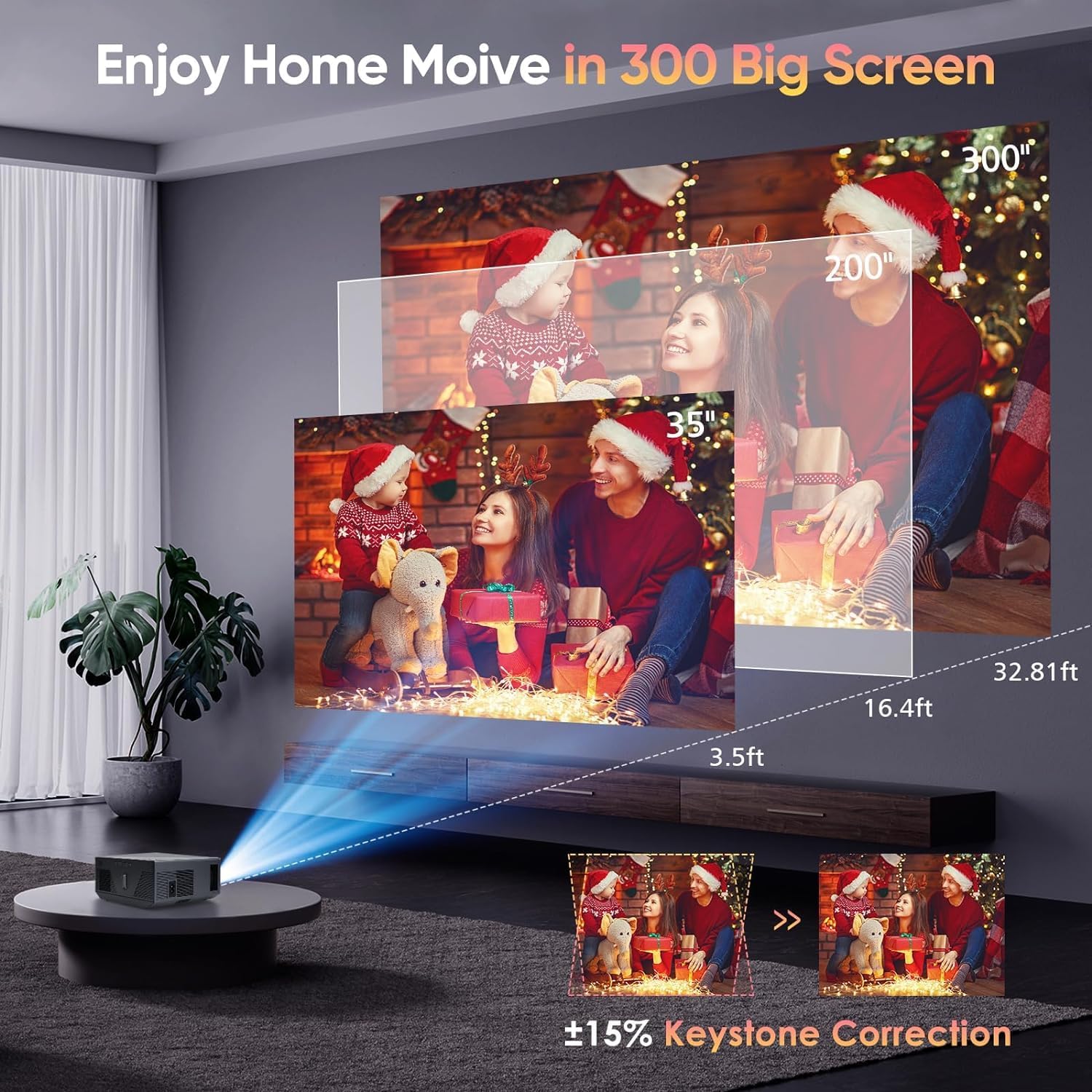
Image 2.1: Illustration of projection distance, screen size, and keystone correction.
2.4 Screen Installation (Optional)
A portable 100-inch screen is included for outdoor or temporary setups. Follow the screen's instructions for assembly and mounting. The projector supports rear, front, and ceiling installation methods.

Image 2.2: Various installation options for the projector: table, tripod, and ceiling.
2.5 Konektivitas
The projector offers multiple connection options:
- HDMI: Connect to laptops, gaming consoles (PS5, Xbox), TV sticks, etc. (HDMI cable included).
- Kabel USB: For USB flash disks.
- DARI: Untuk perangkat lama.
- TF: For TF cards.
- VGA: For computers.
- Jack Headphone 3.5mm: For external audio output.

Image 2.3: Wide multimedia compatibility of the ZDK projector.
2.5.1 WiFi Connection (5G+2.4G)
- Navigate to the projector's network settings.
- Select your desired 2.4G or 5G WiFi network.
- Masukkan kata sandi untuk terhubung.
2.5.2 Bluetooth Connection (5.0)
- Access the Bluetooth settings on the projector.
- Enable Bluetooth on your external speaker or headphones.
- Pilih perangkat Anda dari daftar perangkat yang tersedia untuk dipasangkan.

Image 2.4: Bluetooth 5.0 connectivity for external audio devices.
2.5.3 Pencerminan Layar (iOS/Android)
The projector supports wireless screen mirroring for iOS and Android devices using 5G+2.4G WiFi. Follow the on-screen instructions for your specific device to initiate screen mirroring.
Catatan:
- Due to copyright protections, streaming services like Netflix, Amazon Prime, and Hulu may require an HDMI cable connection to your laptop or TV stick for screen mirroring. Direct wireless mirroring of these apps from a phone may be restricted.

Image 2.5: 5G+2.4G WiFi wireless screen mirroring in action.
3. Petunjuk Pengoperasian
3.1 Navigasi Dasar
Use the included remote control or the buttons on the projector to navigate the on-screen menu. Select input sources, adjust volume, and access settings.
3.2 Pemilihan Sumber Input
Press the 'Source' button on the remote control or projector to cycle through available input options (HDMI, USB, AV, TF, VGA, Screen Mirroring).
3.3 Image and Audio Settings
Access the projector's menu to adjust image settings such as brightness, contrast, color, and aspect ratio (4:3/16:9). Adjust the volume for the built-in 5W stereo speaker or connected external audio devices.
3.4 MEMC Technology
The projector is equipped with MEMC (Motion Estimation, Motion Compensation) technology, which reduces image latency and motion blur, providing a smoother viewing experience for fast-paced content like sports and action films.

Image 3.1: Clarity comparison with and without MEMC technology.
4. Pemeliharaan
4.1 Dust Prevention
The projector features a fully sealed dust-proof optical engine design, which significantly reduces light leakage and the occurrence of black spots. This design minimizes the need for frequent internal cleaning.

Image 4.1: Illustration of the sealed dust-proof optical engine and cooling technology.
4.2 Pembersihan
- Luar: Gunakan kain lembut dan kering untuk membersihkan bagian luar proyektor. Untuk noda membandel, bersihkan sedikitampen kain dengan air atau pembersih lembut non-abrasif.
- Lensa: Gently clean the projector lens with a lens cleaning cloth or specialized lens paper. Avoid touching the lens with your fingers.
- Ventilasi: Ensure the ventilation ports are clear of dust and obstructions. Use a soft brush or compressed air to gently clean the vents.
4.3 Lamp Kehidupan
The projector utilizes an energy-saving LED light source designed for a lifespan of up to 50,000 hours, reducing the need for frequent lamp penggantian.
5. Penyelesaian masalah
If you encounter issues with your ZDK projector, refer to the following common problems and solutions:
| Masalah | Kemungkinan Penyebab | Larutan |
|---|---|---|
| Tidak ada gambar atau gambar buram | Loose cable connection, incorrect input source, out of focus, keystone not adjusted. | Check all cable connections. Select the correct input source. Adjust the focus ring. Adjust keystone correction. |
| Tidak ada suara | Volume too low, incorrect audio output selected, external speaker not connected. | Increase volume. Ensure external speakers are properly connected via Bluetooth or 3.5mm jack. Check audio settings. |
| WiFi/Bluetooth connection issues | Incorrect password, out of range, interference. | Verify WiFi password. Ensure devices are within range. Restart projector and router/Bluetooth device. |
| Kontrol jarak jauh tidak berfungsi | Baterai mati, penghalang, sensor jarak jauh terhalang. | Ganti baterai. Pastikan tidak ada penghalang antara remote dan proyektor. Arahkan remote langsung ke sensor IR proyektor. |
| Streaming apps (Netflix, Hulu) not mirroring wirelessly | Copyright protection restrictions. | Connect your laptop or TV stick via an HDMI cable for these applications. |
| Projector is noisy | Normal fan operation, obstructed vents. | Ensure vents are clear. The projector's cooling system generates some operational noise. |
6. Spesifikasi
Below are the technical specifications for the ZDK Native 1080P FHD 15000 Lumens Mini WiFi Bluetooth 4K Projector:
- Merek: ZDK
- Nomor Model: ZDK-1080P-4K-300
- Resolusi Asli: 1920 x 1080P Full HD
- Dukungan 4K: Ya
- Kecerahan: 15000 lumen cahaya
- Rasio Kontras Dinamis: 20000:1
- Ukuran Tampilan Maksimum: 300 inci
- Koreksi Keystone: ±15°
- Konektivitas WiFi: Dual Band 5G + 2.4G
- Bluetooth dapat digunakan untuk berbagai keperluan, seperti: Versi 5.0
- Mesin Optik: Fully Sealed Dust-Proof
- Sumber Cahaya Kehidupan: Hingga 50,000 jam
- Speaker internal: 5W Stereo Speaker
- Port Input: HDMI, AV, USB, TF, VGA
- Port Keluaran: Soket Headphone 3.5 mm
- Berat Barang: 5.46 pon
- Dimensi Paket: 12.76x9.92x5.98 inci
- Aksesoris yang disertakan: HDMI Cable, Tripod Stand, 100" Portable Screen
7. Garansi dan Dukungan
ZDK is committed to providing excellent customer service and product reliability.
- Jaminan: Your ZDK projector comes with a 2-year warranty from the date of purchase.
- Dukungan Pelanggan: ZDK offers 12/7 service and lifelong technical support.
For warranty claims, technical assistance, or any product-related inquiries, please contact ZDK customer support through the retailer's platform or the official ZDK website. Please have your model number (ZDK-1080P-4K-300) and purchase information ready when contacting support.


