1. Entwodiksyon
This manual provides essential information for setting up, operating, maintaining, and troubleshooting your HP Slim Desktop S01-aF0011. This compact desktop computer is designed for everyday computing tasks, featuring an AMD Athlon Silver 3050U processor, 4GB of RAM, a 256GB Solid State Drive (SSD), and running on Windows 11. Please read this manual thoroughly to ensure proper use and longevity of your device.

Imaj: Devan view of the HP Slim Desktop S01-aF0011.
2. Ki sa ki nan bwat la
Verify that all items are present in the packaging before proceeding with the setup.
- HP Slim Desktop S01-aF0011
- USB Nwa Branche klavye ak sourit Combo
- 65 W Smart AC pouvwa adaptè

Image: The HP Slim Desktop S01-aF0011 and its included accessories.
3. Enstalasyon
3.1 Debake
Carefully remove the desktop computer and all accessories from the packaging. Place the desktop on a stable, flat surface with adequate ventilation.
3.2 Konekte periferik
Connect your keyboard, mouse, and monitor to the appropriate ports on the desktop.
- Klavye ak sourit: Plug the USB connectors of the wired keyboard and mouse into any available USB ports on the front or back of the desktop.
- Siveye: Connect your monitor to one of the video output ports (HDMI, DisplayPort, or DVI) on the back of the desktop using a compatible cable. Ensure the monitor is also connected to a power source.
- Adaptè pouvwa: Connect the 65W Smart AC power adapter to the power input port on the back of the desktop, then plug the other end into a wall outlet.
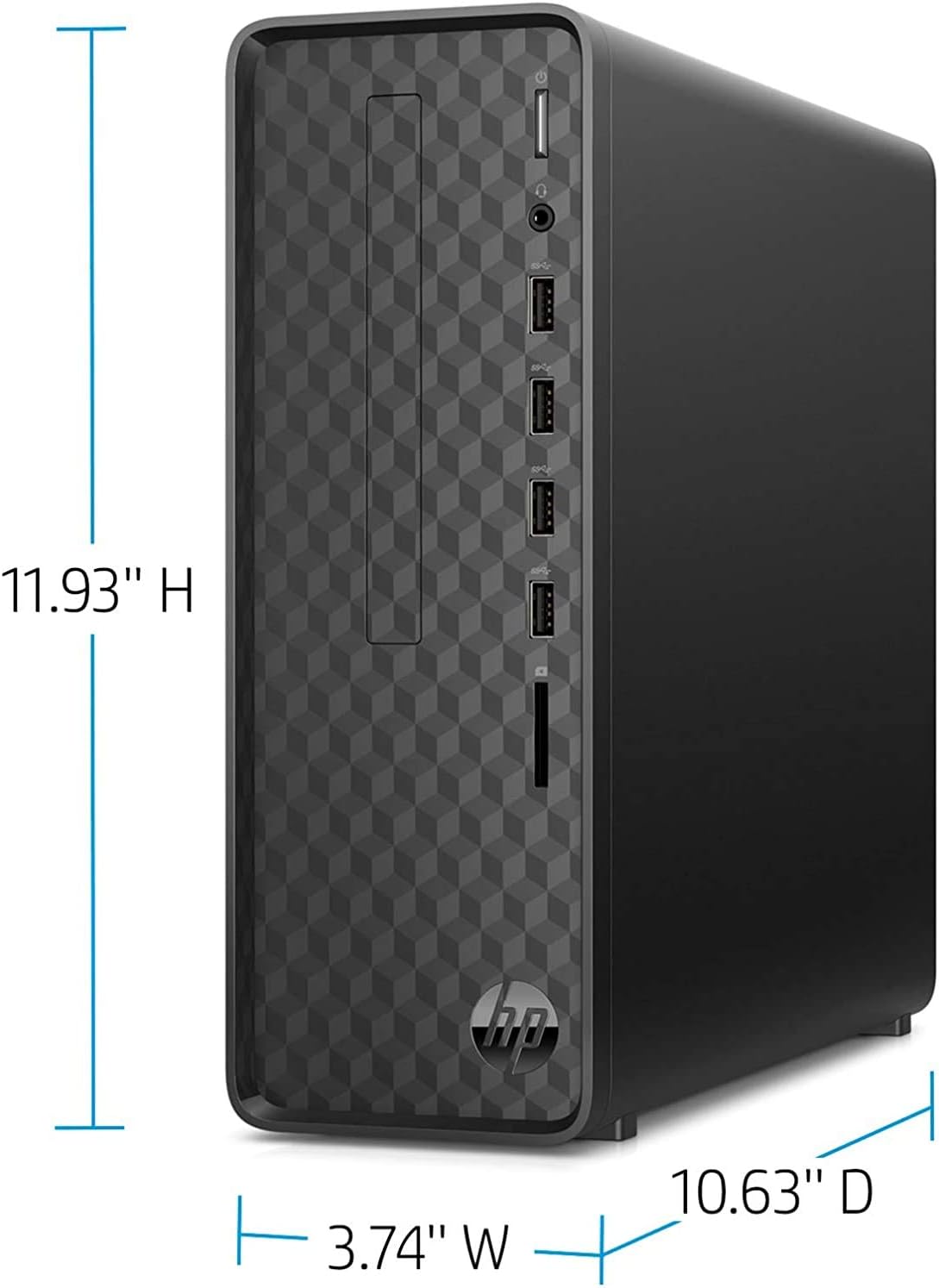
Imaj: Devan ak bò view of the HP Slim Desktop, highlighting port locations and dimensions.
3.3 Limen
Press the power button located on the front of the desktop. The system will boot up, and you will be guided through the initial Windows 11 setup process.

Image: Close-up of the HP Slim Desktop's front panel, showing the power button and various front ports.
4. Operasyon Enstriksyon
4.1 Premye Enstalasyon Windows 11
Upon first boot, follow the on-screen instructions to complete the Windows 11 setup. This includes selecting your region, connecting to a network, creating a user account, and configuring privacy settings.
4.2 Itilizasyon debaz
Once Windows 11 is set up, you can begin using your desktop. Navigate the operating system using the mouse and keyboard. Open applications from the Start menu or desktop shortcuts.
4.3 Konekte sou entènèt la
- Koneksyon filaire (Ethernet): Connect an Ethernet cable from your router or modem to the Ethernet port on the back of the desktop.
- Koneksyon san fil (Wi-Fi): During Windows 11 setup or via the Network & Internet settings, select your Wi-Fi network and enter the password. The desktop supports 802.11ac wireless standards.
4.4 Using USB Ports and Optical Drive
- Pò USB: The desktop features multiple USB 2.0 ports for connecting external devices such as printers, external hard drives, or USB flash drives.
- Optical Drive: The integrated BD-R optical drive allows you to read and write Blu-ray discs, DVDs, and CDs. Insert the disc into the drive slot on the front panel.
5. Antretyen
5.1 Netwayaj
Regularly clean the exterior of the desktop with a soft, dry, lint-free cloth. For stubborn marks, slightly dampen the cloth with water. Avoid using harsh chemicals or abrasive cleaners. Ensure ventilation openings are free from dust buildup.
5.2 Mizajou lojisyèl
Keep your operating system and drivers updated. Windows 11 automatically checks for updates, but you can manually check via Anviwònman > Mizajou Windows. Driver updates for components like graphics or network adapters can be found on the HP support websit.
5.3 Sovgad Done
Regilyèman fè bak enpòtan ou files to an external hard drive, USB flash drive, or cloud storage service to prevent data loss.
NAN. Depanaj
This section addresses common issues you might encounter with your HP Slim Desktop S01-aF0011.
- Pa gen pouvwa:
Solisyon: Ensure the power adapter is securely connected to both the desktop and a working wall outlet. Try a different outlet if necessary. - Pa gen ekspozisyon sou monitè kè bebe:
Solisyon: Check that the monitor is powered on and the video cable is securely connected to both the desktop and the monitor. Ensure the correct input source is selected on your monitor. - Pèfòmans Ralanti:
Solisyon: Close unnecessary applications. Check for and install any pending Windows updates. Ensure your storage drive (SSD) has sufficient free space. - Pwoblèm koneksyon Entènèt:
Solisyon: For wired connections, check the Ethernet cable. For Wi-Fi, ensure you are connected to the correct network and have entered the password correctly. Restart your router/modem and the desktop. - Peripheral Not Responding (Keyboard/Mouse):
Solisyon: Try plugging the peripheral into a different USB port. Ensure the peripheral is clean and free from obstructions.
7. Espesifikasyon
| Karakteristik | Detay |
|---|---|
| Nimewo Modèl | S01-aF0011 |
| Sistèm operasyon | Windows 11 |
| Processeur | AMD Athlon Silver 3050U (2.3 GHz) |
| RAM | 4 GB DDR4 (2400 MHz) |
| Depo | 256 GB SSD |
| Koprosesè grafik | AMD Radeon (Integrated, 4 GB RAM) |
| Kalite kondwi optik | BD-R |
| Koneksyon san fil | 802.11ac, Bluetooth |
| Pò USB 2.0 | 6 |
| Rezolisyon ekran maksimòm | 3840x2160 |
| Pwa atik | 6.66 liv |
| Dimansyon pwodwi (LxWxH) | 11.93 x 10.63 x 3.74 pous |
| Koulè | Jet Black |
8. Garanti ak sipò
For warranty information, technical support, or service inquiries, please refer to the documentation included with your product or visit the official HP support website. You can typically find support resources, driver downloads, and contact options at support.hp.com.