Uvod
This manual provides essential instructions for setting up, operating, maintaining, and troubleshooting your new Tesla 65-inch 4K UHD Smart TV (Model 65E635SUS). Please read this manual thoroughly before using the television to ensure proper operation and to maximize your viewiskustvo. Sačuvajte ovaj priručnik za buduću upotrebu.
Važne sigurnosne informacije: Always follow basic safety precautions when using this product to reduce the risk of fire, electric shock, and injury. Do not attempt to service this product yourself. Refer all servicing to qualified service personnel.
1. Postavljanje
1.1 Unpacking and Contents Check
Pažljivo izvadite TV iz ambalaže. Provjerite jesu li sve komponente prisutne:
- Tesla 65-inch 4K UHD Smart TV
- Daljinski upravljač
- AAA baterije za daljinski upravljač
- TV stalak (2 komada)
- Vijci za TV stalak
- Kabel za napajanje
- Korisnički priručnik (ovaj dokument)

Slika 1.1: Prednja strana view of the Tesla 65-inch Smart TV with its stand.
1.2 Pričvršćivanje TV stalka
- Postavite televizor licem prema dolje na meku, ravnu površinu kako biste spriječili oštećenje zaslona.
- Poravnajte svaki dio postolja s odgovarajućim utorima na dnu televizora.
- Pričvrstite svaki dio postolja priloženim vijcima. Pazite da su čvrsto zategnuti.

Slika 1.2: straga view of the TV, illustrating the stand attachment points.
Bilješka: If you plan to wall-mount the TV, refer to the wall-mount kit instructions (sold separately) and skip this step. Ensure proper ventilation when wall-mounting.
1.3 Povezivanje struje
Spojite kabel za napajanje na ulaz za napajanje televizora, a zatim na zidnu utičnicu. Televizor će ući u stanje pripravnosti.
1.4 Početno postavljanje
Prilikom prvog uključivanja, televizor će vas voditi kroz postupak početnog postavljanja:
- Odabir jezika: Odaberite željeni jezik.
- Mrežna veza: Povežite se s Wi-Fi mrežom ili upotrijebite Ethernet kabel za žičanu vezu.
- Prijava na Google račun: Sign in with your Google account to access Google Play Store, Google Assistant, and other Android TV features.
- Skeniranje kanala: Scan for available TV channels if you are using an antenna or cable connection.
- Postavke privatnosti: Review i prilagodite postavke privatnosti prema želji.
2. Upute za rad
2.1 Daljinski upravljačview
The provided remote control allows you to navigate the TV's features. Insert the AAA batteries into the remote control before use.

Image 2.1: Bluetooth remote control for the Tesla Smart TV.
- Gumb za napajanje: Uključuje ili isključuje televizor (stanje pripravnosti).
- Navigacijska tipka (gore/dolje/lijevo/desno/u redu): Navigira kroz izbornike i odabire stavke.
- Gumb Natrag: Povratak na prethodni ekran.
- tipka za početak: Pristupa početnom zaslonu Android TV-a.
- Pojačavanje/stišavanje glasnoće: Podešava razinu glasnoće.
- Gumb za isključivanje zvuka: Isključuje ili uključuje zvuk.
- Gumb Google asistenta: Aktivira glasovno upravljanje.
- Gumbi prečaca aplikacije: Izravan pristup popularnim streaming servisima (npr. Netflix, YouTube).
2.2 Android TV 11 Interface Navigation
The Android TV 11 interface provides access to apps, settings, and content. Use the navigation pad on your remote to move through the home screen.
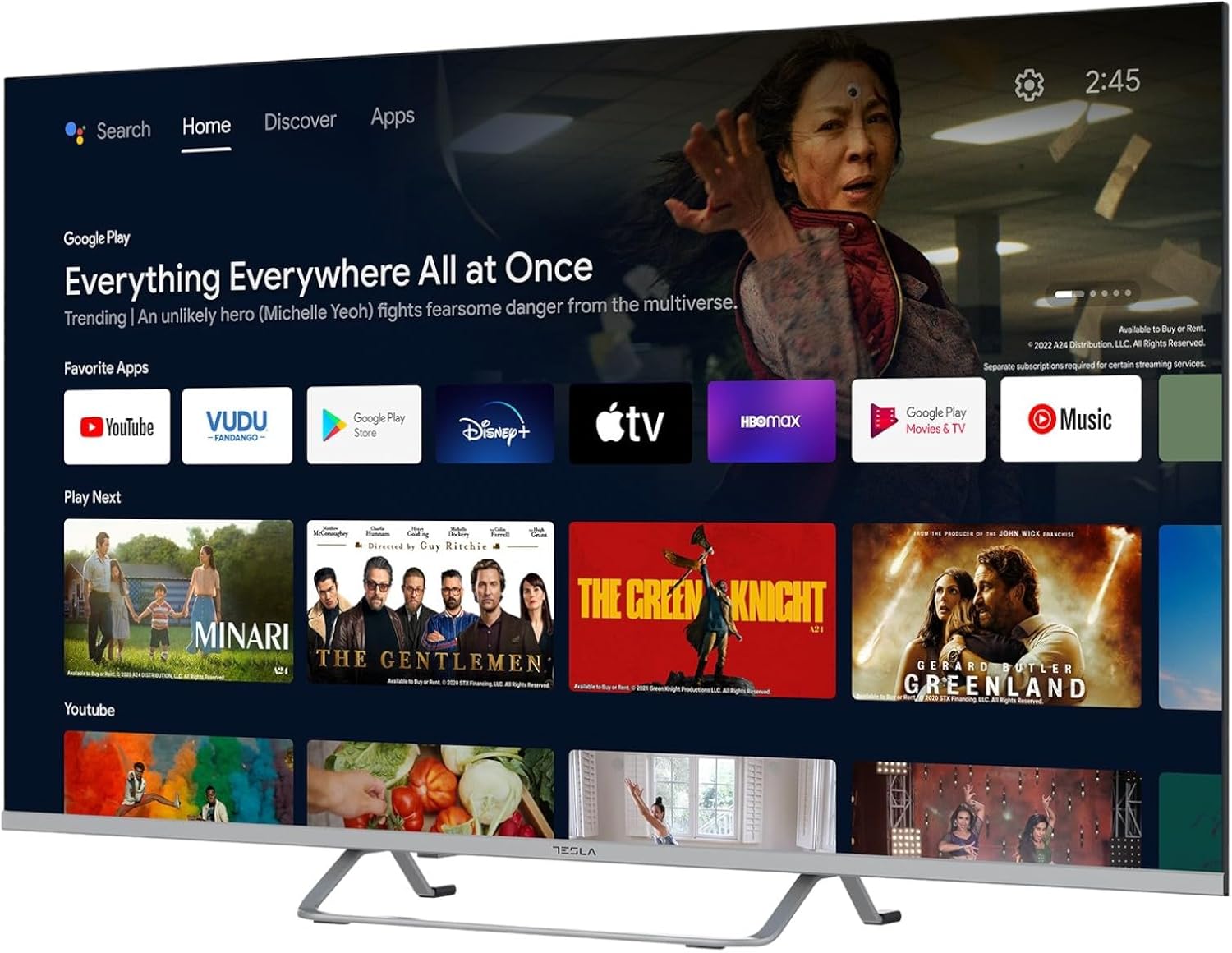
Image 2.2: The Android TV 11 home screen, displaying various applications and content suggestions.
- Početni zaslon: Prikazuje preporučeni sadržaj, instalirane aplikacije i ulazne izvore.
- Apps Section: Pristup svim instaliranim aplikacijama.
- postavke: Configure TV settings, network, accounts, and device preferences.
2.3 Korištenje Google asistenta
Press the Google Assistant button on your remote and speak into the microphone to control your TV, search for content, get information, and more.
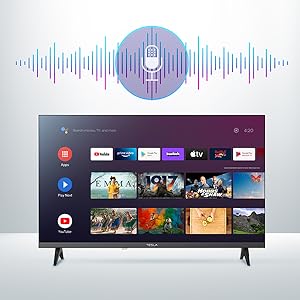
Image 2.3: Visual representation of Google Assistant activation on the TV screen.
Examples of commands:
- "Otvori Netflix"
- "Tražiti akcijski filmovi"
- "Kakvo je vrijeme?"
- "Pojačaj zvuk"
2.4 Chromecast ugrađen
Use Chromecast built-in to cast content from your compatible smartphone, tablet, or computer directly to your TV. Ensure your device is connected to the same Wi-Fi network as the TV.

Image 2.4: A smartphone casting content to the TV via Chromecast.
2.5 Spajanje vanjskih uređaja
Vaš televizor nudi više mogućnosti povezivanja:
- HDMI priključci (x4): Connect Blu-ray players, game consoles, set-top boxes, etc.
- USB portovi (x2): Connect USB drives for media playback or external keyboards/mice.
- Ethernet (LAN): Za žičanu internetsku vezu.
- Wi-Fi: Za bežičnu internetsku vezu.
- Bluetooth: Spojite bežične slušalice, zvučnike ili druge Bluetooth uređaje.

Slika 2.5: Bočni profesionalacfile of the TV, highlighting accessible ports.
2.6 Postavke slike i zvuka
Access the TV's settings menu to customize picture and sound options.
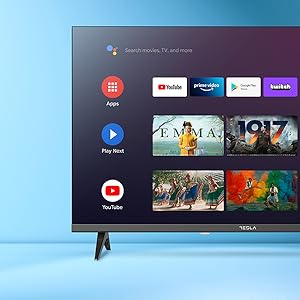
Slika 2.6: Primjerample of the TV's settings menu for customization.
- Načini slike: Select from Standard, Vivid, Sport, Movie, Game, or User (custom) modes. Adjust brightness, contrast, color, and sharpness.
- HDR10: The TV supports HDR10 for enhanced contrast and color with compatible content.
- Načini zvuka: Choose from Standard, Music, Movie, Sport, or User (custom) modes. Use the equalizer to fine-tune audio frequencies.
- Govornici: The TV features 2 x 12W speakers.
3. Održavanje
3.1 Čišćenje televizora
- Zaslon: Nježno obrišite zaslon mekom krpom koja ne ostavlja dlačice. Za tvrdokorne mrlje laganoampIsperite krpu vodom ili specijaliziranim sredstvom za čišćenje ekrana. Nikada ne prskajte sredstvo za čišćenje izravno na ekran.
- Tijelo: Obrišite kućište televizora mekom, suhom krpom. Izbjegavajte korištenje abrazivnih sredstava za čišćenje ili otapala.
- Uvijek isključite televizor iz električne utičnice prije čišćenja.
3.2 Ažuriranja softvera
Your Tesla Smart TV may receive software updates to improve performance and add new features. Ensure your TV is connected to the internet to receive these updates automatically or check for them manually in the settings menu.
4. Rješavanje problema
Prije kontaktiranja podrške, isprobajte sljedeća rješenja za uobičajene probleme:
| Problem | Moguće rješenje |
|---|---|
| Nema struje | Check if the power cord is securely connected to the TV and the wall outlet. Ensure the outlet is working. |
| Nema slike, ali je zvuk prisutan | Provjerite je li odabran ispravan ulazni izvor. Provjerite kabelske veze s vanjskim uređajima. Pokušajte ponovno pokrenuti televizor. |
| Nema zvuka, ali je slika prisutna | Provjerite razinu glasnoće i uvjerite se da televizor nije utišan. Provjerite postavke zvuka i priključke vanjskih zvučnika ako je primjenjivo. |
| Daljinski upravljač ne radi | Replace the batteries. Ensure there are no obstructions between the remote and the TV. Re-pair the Bluetooth remote if necessary (refer to TV settings). |
| Problemi s mrežnom vezom | Ponovno pokrenite usmjerivač i modem. Provjerite lozinku za Wi-Fi. Ako je moguće, pokušajte s žičanom Ethernet vezom. |
| Aplikacije su spore ili se ruše | Close unused apps. Clear app cache (Settings > Apps > [App Name] > Clear cache). Restart the TV. |
5. Specifikacije
| Značajka | Detalj |
|---|---|
| Marka | TESLA |
| Broj modela | 65E635SUS |
| Veličina zaslona | 65 inča (165 cm) |
| Tehnologija zaslona | LED |
| Rezolucija | 4K (3840 x 2160) |
| Brzina osvježavanja | 60 Hz |
| Operativni sustav | Android TV 11 |
| Posebne značajke | High Dynamic Range (HDR10), Google Play, Chromecast Built-in, Google Assistant, Personalized Surround Sound |
| Povezivost | Wi-Fi, Bluetooth, Ethernet (LAN) |
| HDMI priključci | 4 |
| USB priključci | 2 |
| Audio izlaz | 2 x 12 W zvučnika |
| Dimenzije proizvoda (sa stalkom) | 25D x 25W x 144.5H cm (approximate) |
6. Jamstvo i podrška
For warranty information, please refer to the warranty card included with your product or visit the official Tesla webstranicu. Sačuvajte dokaz o kupnji za slučaj reklamacije.
For technical support or service inquiries, please contact Tesla customer service through their official channels. Contact details can typically be found on the manufacturer's webmjestu ili pakiranju proizvoda.


