1. Taw qhia
Thank you for choosing the WEYMIC F7 Professional Mixer. This 7-channel, 2-bus mixer with a built-in USB audio interface is designed for a wide range of audio applications, including recording, DJ performances, stage events, and karaoke. Its compact design and versatile features make it an ideal tool for both beginners and experienced audio enthusiasts. This manual provides detailed instructions for setup, operation, and maintenance to ensure optimal performance and longevity of your device.
2. Cov ntaub ntawv kev nyab xeeb
Thov nyeem thiab nkag siab txog txhua cov lus qhia kev nyab xeeb ua ntej siv lub cuab yeej no. Khaws phau ntawv qhia no rau yav tom ntej.
- Fais fab mov: Tsuas yog siv lub adapter fais fab uas tau teev tseg xwb. Xyuas kom tseeb tias lub voltage phim koj lub zog hauv zos.
- Dej thiab noo noo: Do not expose the unit to rain, moisture, or any liquids. Do not place objects filled with liquids on the unit.
- Qhov cua: Xyuas kom muaj qhov cua txaus. Tsis txhob thaiv qhov qhib qhov cua.
- Thaum tshav kub kub: Keep the unit away from heat sources such as radiators, heat registers, stoves, or other heat-producing appliances.
- Ntxuav: Clean only with a dry cloth. Disconnect power before cleaning.
- Kev pab: Tsis txhob sim ua haujlwm pab pawg no koj tus kheej. Xa tag nrho cov kev pabcuam rau cov neeg ua haujlwm tsim nyog.
- Zog Phantom: When using condenser microphones, ensure 48V phantom power is activated only when necessary and after connecting the microphone.
3. Khoom Tshajview
The WEYMIC F7 mixer is a compact yet powerful audio mixing console. It features multiple input channels, comprehensive equalization, built-in effects, and a USB audio interface for seamless integration with computers and other devices.

Duab 1: Sab saum toj view of the WEYMIC F7 Professional Mixer, showing all controls and input/output jacks.
Cov yam ntxwv tseem ceeb:
- 7-channel mixer with high headroom design.
- 5 microphone/line inputs with studio-level audio quality and inserts.
- Built-in 48V Phantom Power for condenser microphones.
- Integrated USB Audio Interface for recording and playback.
- Bluetooth wireless connectivity for audio streaming.
- 3-band EQ (High, Mid, Low) on each channel for precise tone shaping.
- Auxiliary and Effect sends for external processing or monitoring.
- Built-in digital effects (DSP) for enhanced sound.
- Ultra-thin and durable body design.

Image 2: Visual representation of key features including Bluetooth, USB, 3-band EQ, DSP, Damping Fader, 48V Phantom Power, Real-time Monitoring, and Smart Chip.
4. Kev Tswj Xyuas thiab Kev Sib Txuas
This section details the various controls and connection points on your WEYMIC F7 mixer.
4.1 Input Channels (Channels 1-5)

Duab 3: Paub meej view of input channels 1 and 2, highlighting Microphone Input, Instrument Interface, Line Interface, Gain Adjustment, Pan Adjustment, High/Mid/Low EQ, and Volume Fader Adjustment.
- MIC INPUT (XLR): Balanced input for microphones.
- LINE INPUT (1/4" TRS/TS): Balanced/unbalanced input for line-level signals (keyboards, drum machines, etc.).
- INSERT (1/4" TRS): Send/return point for connecting external effects processors to individual channels.
- QHIA: Adjusts the input sensitivity for the channel. Use to set the signal level before it reaches the mixer's internal processing.
- HIGH, MID, LOW (EQ): 3-band equalizer to adjust the treble, midrange, and bass frequencies of the channel's signal.
- AUX: Sends a portion of the channel's signal to the AUX SEND output, typically used for monitor mixes or external effects.
- EFF: Sends a portion of the channel's signal to the internal effects processor or EFF SEND output.
- YIAS: Adjusts the stereo position of the channel's signal (left to right).
- VOLUME FADER: Controls the output level of the channel to the main mix.
- PEAK LED: Illuminates when the channel's signal is too high, indicating potential clipping. Adjust GAIN to prevent this.
4.2 Stereo Input Channel (Channels 6/7 / USB)
This channel typically handles stereo line-level inputs or the USB/Bluetooth audio stream.
- LINE IN (1/4" TS): Stereo inputs for line-level devices.
- USB/MP3 Controls: Play/Pause, Skip Tracks, Mode selection for USB/Bluetooth playback.
- GAIN, EQ, AUX, EFF, PAN, VOLUME FADER, PEAK LED: Similar controls as channels 1-5, but for the stereo input.
4.3 Master Section and Outputs

Duab 4: Paub meej view of the master section, highlighting Monitor Headphone Jack, Left and Right Channel Main Output, Effects Output, Auxiliary Output, Stereo Output, Phantom Power Switch, Delay Time, Effects Feedback Level Adjustment, Monitor Volume Adjustment, USB Socket, Auxiliary Output Volume Adjustment, and Effect Output Volume Adjustment.
- MAIN OUTPUT (RCA): Stereo output for connecting to an amplifier, powered speakers, or recording device.
- XOV TOOJ (1/4" TRS): Headphone output for monitoring the main mix.
- AUX SEND (1/4" TS): Output for the auxiliary mix, typically sent to stage saib xyuas lossis cov teebmeem sab nraud.
- EFF SEND (1/4" TS): Output for the effects mix, typically sent to external effects processors.
- HWJ CHIM (+48V) Hloov: Activates phantom power for condenser microphones connected to XLR inputs.
- LEVEL METERS: LED indicators showing the overall output level of the main mix. Aim for levels in the green/yellow range, avoiding red (clipping).
- DELAY/REP (Effects Controls): Adjusts the parameters of the built-in digital effects.
- MAIN VOLUME FADER: Controls the overall output level of the main mix.
- PHONE VOLUME: Kho qhov ntim ntawm lub mloog pob ntseg tso zis.
- AUX VOLUME: Controls the overall level of the AUX SEND output.
- EFF VOLUME: Controls the overall level of the EFF SEND output.
- USB qhov (socket): Connects the mixer to a computer for audio interface functions or for USB drive playback.
4.4 Rov qab vaj huam sib luag txuas
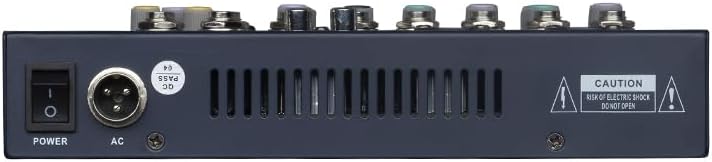
Image 5: Rear panel of the WEYMIC F7 Mixer, showing the Power switch and AC power input.
- Hwj chim Hloov: Tig lub tov khoom rau lossis tawm.
- AC tswv yim: Connects the power adapter to the mixer.
5. Teeb tsa
Follow these steps for initial setup of your WEYMIC F7 mixer.
- Unpacking: Carefully remove the mixer and all accessories from the packaging. Inspect for any damage.
- Kev sib txuas fais fab: Ensure the mixer's POWER switch is in the OFF position. Connect the provided power adapter to the AC input on the rear panel of the mixer, then plug the adapter into a suitable power outlet.
- Connecting Output Devices: Connect the MAIN OUTPUT (RCA) of the mixer to your amplifier, powered speakers, or recording interface using appropriate cables.
- Txuas Input Devices:
- Microphones: Connect dynamic microphones to the XLR MIC INPUTs. For condenser microphones, connect them first, then activate the +48V PHANTOM POWER switch.
- Cov Cuab Yeej/Cov Khoom Siv Kab: Connect instruments (e.g., keyboards, guitars with a DI box) or line-level devices to the 1/4" LINE INPUTs.
- Lub mloog pob ntseg: Connect your headphones to the PHONE (1/4" TRS) jack for monitoring.
- Kev sib txuas USB (yeem): To use the mixer as an audio interface with a computer, connect a USB cable from the mixer's USB socket to an available USB port on your computer.
- Hwj chim On: Once all connections are made, turn on your amplifier/powered speakers first, then turn on the WEYMIC F7 mixer using its POWER switch.
6. Cov lus qhia ua haujlwm
This section covers the basic operation of your mixer for various audio tasks.
6.1 Basic Mixing
- Set Initial Levels: Before playing any audio, set all channel VOLUME FADERs and the MAIN VOLUME FADER to their lowest positions. Set all GAIN knobs to minimum and EQ knobs to the center (flat) position.
- Txuas qhov chaw: Plug in your microphones and instruments as described in the Setup section.
- Adjust Input Gain: For each active channel, gradually increase the GAIN knob while the source is playing (e.g., speaking into the microphone, playing an instrument). Watch the PEAK LED; it should flash only occasionally on the loudest peaks. If it stays lit, reduce the GAIN.
- Set Channel Volume: Slowly raise the channel's VOLUME FADER to bring the sound into the mix.
- Adjust Main Volume: Gradually increase the MAIN VOLUME FADER until the desired overall listening level is achieved. Monitor the main LEVEL METERS, keeping them in the green/yellow range.
- Use EQ: Adjust the HIGH, MID, and LOW EQ knobs on each channel to shape the tone of the individual sound source.
- Yias: Use the PAN knob to position the sound source in the stereo field.
6.2 Using Built-in Effects

Image 6: Graphic illustrating the built-in multiple reverb effects and DSP chip for realistic sound calculation.
The WEYMIC F7 includes built-in digital effects (DSP) to enhance your sound.
- Send to Effects: On the desired channel, increase the EFF knob to send a portion of that channel's signal to the internal effects processor.
- Adjust Effect Parameters: Use the DELAY and REP (Repeat) knobs in the master section to adjust the characteristics of the chosen effect (e.g., delay time, feedback).
- Control Effect Return: The overall level of the returned effect is controlled by the EFF VOLUME knob in the master section.
6.3 Bluetooth Playback

Image 7: The WEYMIC F7 Mixer shown with a smartphone, illustrating built-in Bluetooth for wireless playback and stable transmission.
- Qhib Bluetooth: Press the MODE button in the USB/MP3 section until 'BT' or 'Bluetooth' is displayed. The mixer will enter pairing mode.
- Pair Device: On your smartphone or Bluetooth-enabled device, search for available Bluetooth devices and select 'WEYMIC Mixer' (or similar).
- Ua si Suab: Once paired, play audio from your device. The sound will be routed through the stereo input channel (6/7 / USB).
- Tswj Playback: Use the Play/Pause and Skip Track buttons on the mixer, or control playback directly from your paired device.
6.4 USB Playback thiab Recording
The mixer supports playback from USB flash drives and functions as a USB audio interface for computers.
- USB Flash Drive Playback: Ntxig ib USB flash drive uas muaj MP3 files into the USB socket. Press the MODE button to select USB mode. Use the Play/Pause and Skip Track buttons to control playback.
- USB Audio Interface (Computer):
- Connect the mixer to your computer via a USB cable. The computer should recognize the mixer as an audio device.
- For Playback: Select the mixer as your computer's audio output device. Audio from your computer will play through the stereo input channel (6/7 / USB).
- Rau Kev Sau Npe: Select the mixer as your computer's audio input device in your Digital Audio Workstation (DAW) software. The main mix of the mixer will be sent to the computer for recording. Note: Some users have reported that the USB functionality is primarily for playback. Ensure your DAW settings are correctly configured for input if experiencing issues with recording.
7. Kev tu
Kev tu kom zoo ua kom lub neej ntev thiab kev ua haujlwm zoo ntawm koj lub tov khoom.
- Ntxuav: Use a soft, dry cloth to clean the exterior of the mixer. Do not use abrasive cleaners, solvents, or waxes.
- Cia: When not in use, store the mixer in a clean, dry environment, away from extreme temperatures and direct sunlight.
- Faders and Knobs: Avoid excessive force when operating faders and knobs. Periodically check for smooth operation.
- Cov kab: Always use high-quality cables and ensure they are properly connected and disconnected to prevent damage to the jacks.
8. Kev daws teeb meem
If you encounter issues with your mixer, refer to the following common problems and solutions.
- Tsis muaj suab tso zis:
- Check if the mixer is powered on and connected to an active power outlet.
- Ensure all channel VOLUME FADERs and the MAIN VOLUME FADER are raised.
- Xyuas kom tseeb tias koj amplifier/powered speakers are on and their volume is up.
- Check all cable connections (inputs and outputs).
- Ensure the GAIN knob for the active channel is sufficiently turned up.
- Distorted suab:
- Reduce the GAIN knob for the input channel if the PEAK LED is constantly lit.
- Lower the channel VOLUME FADER or MAIN VOLUME FADER if the main LEVEL METERS are consistently in the red.
- Tshawb xyuas seb puas muaj cov xov hlau puas lawm lossis cov khoom siv nkag tsis zoo.
- Hu nkauj los yog suab nrov:
- Xyuas kom tag nrho cov cables raug thaiv kom raug thiab txuas nrog.
- Check for ground loops by trying different power outlets or using a ground loop isolator.
- Khaws cov xov hluav taws xob kom deb ntawm cov xov hluav taws xob.
- Phantom Fais Fab Tsis Ua Haujlwm:
- Ensure the +48V PHANTOM POWER switch is engaged.
- Verify that your condenser microphone requires 48V phantom power.
- Check the XLR cable for damage.
- Teeb Meem Rov Ua Si USB/Bluetooth:
- Ensure the correct MODE (USB or BT) is selected.
- For Bluetooth, ensure the device is paired and within range.
- For USB, ensure the flash drive is formatted correctly (FAT32) and contains compatible audio files (MP3).
- Check the volume level of the stereo input channel (6/7 / USB).
9. Cov lus qhia tshwj xeeb
Technical specifications for the WEYMIC F7 Professional Mixer.
| Feature | Specification |
|---|---|
| Hom | WEYMIC |
| Qauv nab npawb | F7 |
| Tus naj npawb ntawm Channel | 7 |
| Kev Kho Vajtse Interface | USB |
| Connectivity Technology | USB, Bluetooth |
| Hwj chim Source | Corded Electric |
| Voltage | 220 Volts |
| Khoom Dimensions (WxHxD) | 13.4 "x 1.96" x 7.68" (340mm x 50mm x 240mm) |
| Yam Nyhav | 4.10 lbs (1.86 kg) |
| Phantom Lub Zog | yog, 48v |
| Built-in Cov Teeb Meem | DSP (Digital Signal Processor) with Reverb/Delay |
10. Warranty thiab Support
WEYMIC products are designed for reliability and performance. For warranty information, please refer to the documentation provided at the time of purchase or contact your retailer. For technical support or service inquiries, please contact WEYMIC customer service through their official channels.


