Gabatarwa
This manual provides essential information for setting up, operating, maintaining, and troubleshooting your HP 15.6 inch HD Laptop. Please read this guide thoroughly before using your device to ensure optimal performance and longevity.
Saita
Unpacking the Laptop
A hankali cire duk abubuwan da aka gyara daga marufi. Tabbatar cewa abubuwa masu zuwa sun kasance:
- HP 15.6 inch HD Laptop
- Adaftar Wutar Lantarki ta AC da Igiyar Wuta
- Jagoran Farawa Mai sauri (idan an haɗa)
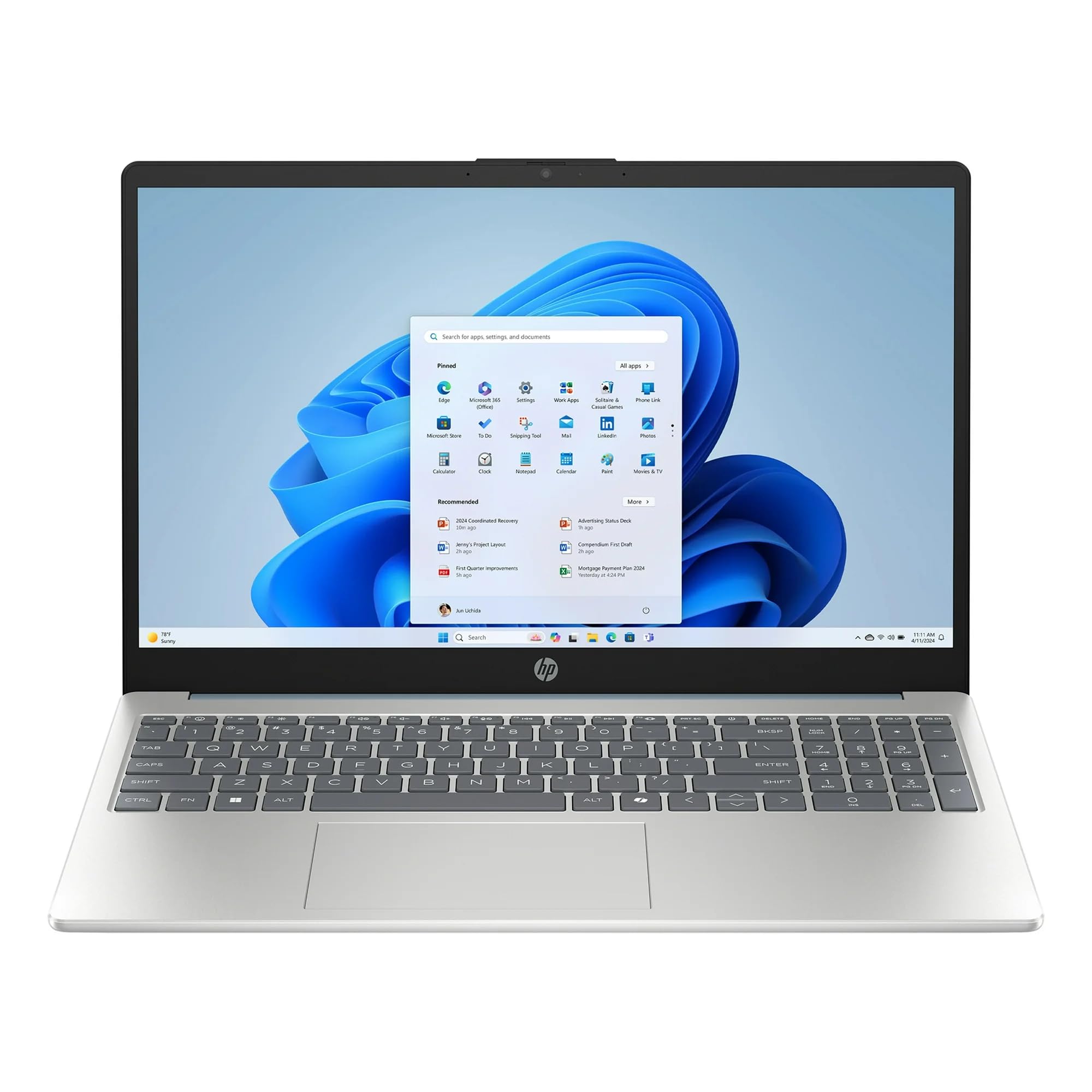
Image: The HP 15.6 inch HD Laptop, showcasing its display and keyboard layout. This is the main unit.
Haɗin Wuta
- Haɗa adaftar wutar AC zuwa mahaɗin wutar da ke gefen kwamfutar tafi-da-gidanka.
- Toshe igiyar wutar lantarki cikin mashin bango.
- Allow the battery to charge for at least 30 minutes before initial use, or until the battery indicator shows a full charge.
Initial Boot-up and Windows 11 Setup
Press the power button to turn on the laptop. Follow the on-screen instructions to complete the Windows 11 Home setup process. This includes selecting your region, language, connecting to a Wi-Fi network, and creating a user account.
Aiki da Laptop
Keyboard da Touchpad
The laptop features a full-size keyboard and a multi-touch touchpad. Refer to the Gajerun hanyoyin Allon madannai section for common key combinations.
Abubuwan Haɗawa
Yi amfani da tashoshin jiragen ruwa da ake da su don haɗa na'urorin waje:
- Tashoshin USB: For mice, keyboards, external storage, etc.
- HDMI Port: For connecting to external monitors or TVs (if available).
- Jack Audio: Don belun kunne ko lasifikan waje.
Haɗin mara waya
The laptop supports 802.11ac Wi-Fi and Bluetooth for wireless connections. Access network settings via the Windows 11 taskbar to connect to Wi-Fi networks or pair Bluetooth devices.
Kulawa
Share Laptop
- Yi amfani da laushi mai laushi mara laushi dampan haɗa shi da ruwa ko mai tsabtace allo don tsaftace nuni.
- Don amfani da madannai da chassis, yi amfani da kyalle mai laushi da busasshe. A guji sinadarai masu tsauri.
Kula da baturi
To prolong battery life, avoid extreme temperatures and allow the battery to discharge partially before recharging. Do not leave the laptop plugged in constantly for extended periods if not in use.
Sabunta software
Regularly check for and install Windows updates and HP driver updates to ensure system stability and security. Go to Saituna > Sabuntawar Windows don sarrafa sabuntawa.
Shirya matsala
| Matsala | Magani mai yiwuwa |
|---|---|
| Laptop baya kunnawa. | Tabbatar cewa an haɗa adaftar AC amintacce kuma tashar wutar lantarki tana aiki. Gwada wata hanyar fita daban. |
| Matsalolin haɗin Wi-Fi. | Duba ko Wi-Fi yana aiki a saitunan Windows. Sake kunna na'urar sadarwa da kwamfutar tafi-da-gidanka. Sabunta direbobin Wi-Fi. |
| A hankali aiki. | Close unnecessary applications. Check for background processes. Ensure sufficient free storage space on the 512GB SSD. Run a disk cleanup. |
| Baturi baya caji. | Verify the power adapter and cable are not damaged. Ensure the connection port is clean. |
Ƙayyadaddun bayanai
| Siffar | Daki-daki |
|---|---|
| Sunan Samfura | HP |
| Girman allo | 15.6 Inches (HD Display) |
| Mai sarrafawa | AMD Ryzen 5 (3.6 GHz) |
| RAM | 8GB DDR4 SDRAM |
| Adana | 512GB SSD (PCIE x 2) |
| Zane-zane | Integrated Intel UHD Graphics |
| Tsarin Aiki | Windows 11 Gida |
| Haɗin mara waya | Wi-Fi 802.11ac, Bluetooth |
| Girma (LxWxH) | 12.76 x 8.86 x 0.71 inci |
| Nauyi | 6 fam |
| Launi | Willow Green |
Lura: Bayanai na iya canzawa ba tare da sanarwa ba.
Bayanin Garanti
This HP laptop typically comes with a standard manufacturer's warranty. Please refer to the warranty card included with your product or visit the official HP support website for detailed terms and conditions, including warranty duration and coverage specifics. Keep your proof of purchase for warranty claims.
Taimako
Don taimakon fasaha, saukar da direbobi, ko ƙarin tallafi, da fatan za a ziyarci tallafin HP na hukuma website:
- HP Support Website: goyon baya.hp.com
- Takardun Kan layi: Additional manuals and guides may be available online.
When contacting support, have your laptop's serial number and model number ready. These can usually be found on a sticker on the bottom of the laptop or in the system information within Windows.