1. Gabatarwa
The IceRiver KS0 Ultra is a high-performance ASIC (Application-Specific Integrated Circuit) miner designed for efficient Kaspa (KAS) cryptocurrency mining. With an impressive hash rate of 400 GH/s and a low power consumption of 100W, it offers an energy-efficient solution for cryptocurrency enthusiasts. This manual provides essential information for setting up, operating, maintaining, and troubleshooting your IceRiver KS0 Ultra miner.
2. Bayanin Tsaro
- Always connect the miner to a grounded power outlet.
- Ensure proper ventilation around the device to prevent overheating. Do not block air vents.
- Keep the device away from water, moisture, and high humidity environments.
- Kada kayi ƙoƙarin buɗe ko gyara na'urar da kanka. Koma zuwa ƙwararrun ma'aikata don sabis.
- Use only the provided power supply and power cord.
3. Abubuwan Kunshin
Da fatan za a duba kunshin don abubuwa masu zuwa:
- IceRiver KS0 Ultra Miner Unit
- Rukunin Samar da Wuta
- Igiyar Wutar Lantarki
4. Samfurin Ya Ƙareview
Familiarize yourself with the IceRiver KS0 Ultra miner and its components.
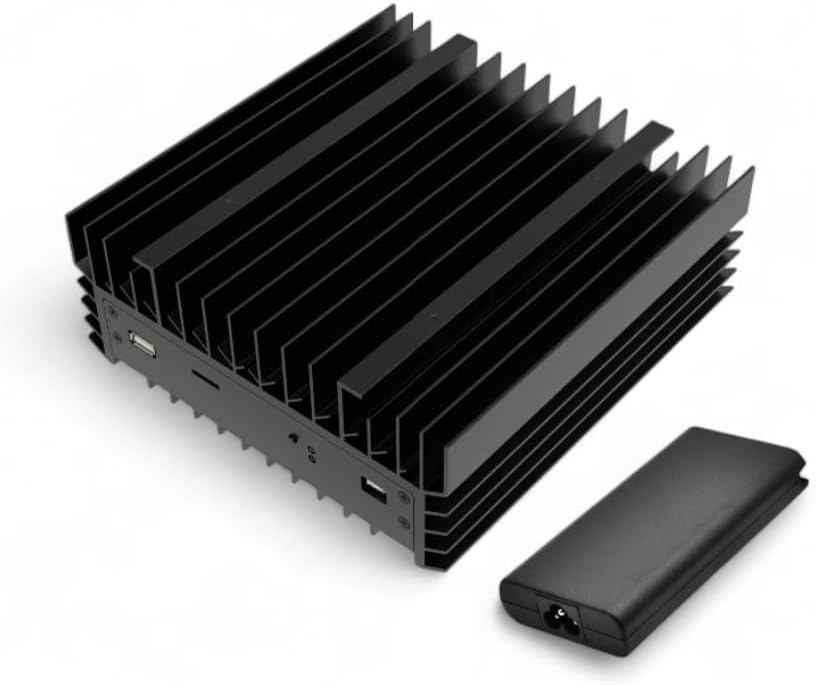
Hoto na 4.1: IceRiver KS0 Ultra Miner with included Power Supply Unit. The miner features a compact design with integrated heatsinks for efficient cooling.

Hoto na 4.2: Gaba view of the IceRiver KS0 Ultra, highlighting its 0.4 TH/s (400 GH/s) hash rate and 100W power consumption, optimized for Kaspa mining.
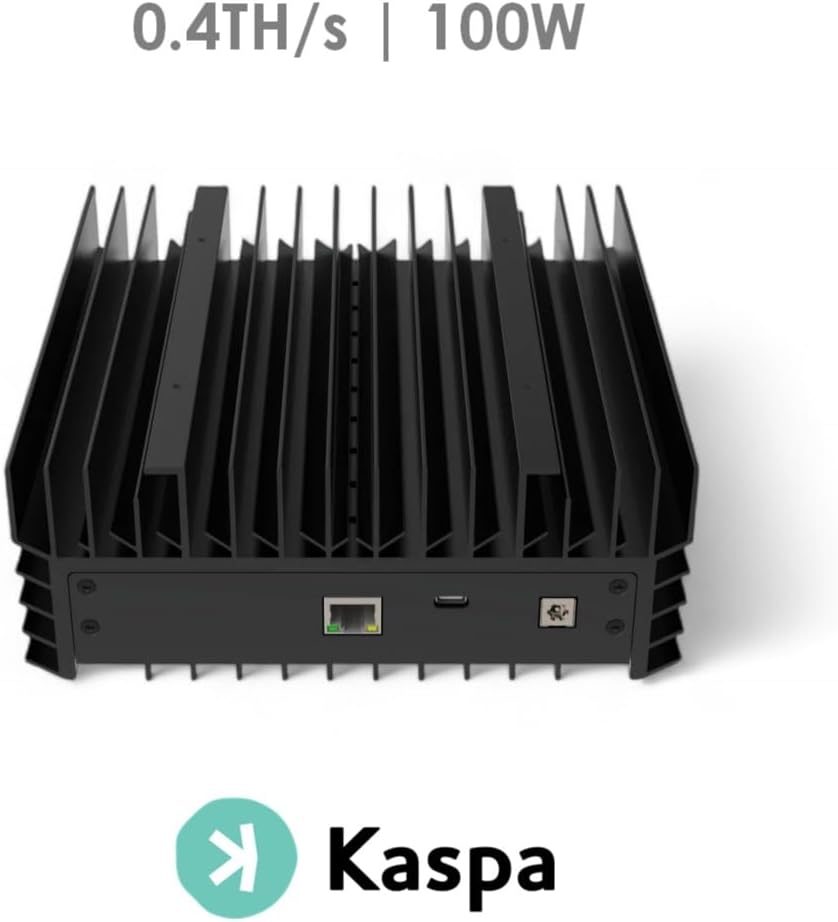
Hoto na 4.3: Na baya view of the IceRiver KS0 Ultra, showing the Ethernet port for network connectivity and the power input port.
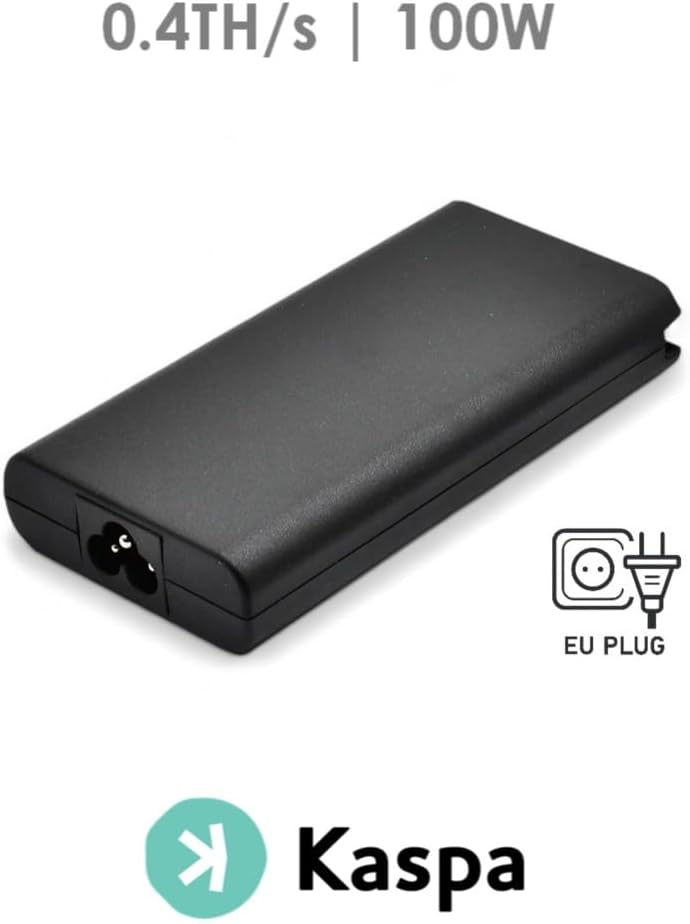
Hoto na 4.4: The dedicated power supply unit included with the IceRiver KS0 Ultra, featuring an EU plug type.
5. Jagorar Saita
Follow these steps to set up your IceRiver KS0 Ultra miner:
- Wuri: Place the miner on a stable, flat surface in a well-ventilated area. Ensure there is adequate space around the device for airflow.
- Haɗa Cable Network: Connect one end of an Ethernet cable to the Ethernet port on the rear of the miner and the other end to your router or network switch.
- Haɗa Ikon: Connect the power supply unit to the miner's power input port. Then, connect the power cord to the power supply unit and plug it into a grounded electrical outlet.
- Kunna Wuta: The miner should power on automatically. Observe the indicator lights for network activity and operational status.
- Shiga Web Interface: Once connected to the network, the miner will obtain an IP address. You can typically find this IP address through your router's connected devices list. Enter the miner's IP address into a web browser to access its configuration interface.
- Configure Mining Pool: A cikin web interface, navigate to the mining settings. Enter your Kaspa mining pool details (pool URL, worker name, password) and your Kaspa wallet address. Save the settings.
6. Umarnin Aiki
After successful setup, the miner will begin hashing. You can monitor its performance through the web dubawa:
- Status Dashboard: The main dashboard of the web interface will display real-time information such as current hash rate, temperature, fan speed, and network status.
- Hash Rate Monitoring: Regularly check the reported hash rate to ensure the miner is operating at its optimal performance (around 400 GH/s).
- Kula da Zazzabi: Keep an eye on the operating temperature. While the KS0 Ultra has an advanced cooling system, extreme ambient temperatures can affect performance and longevity.
- Sake yi: If the miner becomes unresponsive or experiences issues, a soft reboot can often resolve minor problems. This option is usually available in the web interface. For a hard reboot, disconnect and reconnect the power.
7. Kulawa
Regular maintenance helps ensure the longevity and optimal performance of your miner:
- Cire kura: Periodically clean the exterior of the miner and its vents using a soft brush or compressed air to prevent dust buildup, which can impede cooling.
- Kula da Muhalli: Maintain a cool, dry, and dust-free environment for the miner. Avoid placing it in direct sunlight or near heat sources.
- Na'urar USB: Ensure all cables are securely connected and not tangled, which could obstruct airflow or cause disconnections.
8. Shirya matsala
If you encounter issues with your IceRiver KS0 Ultra, refer to the following common problems and solutions:
| Matsala | Dalili mai yiwuwa | Magani |
|---|---|---|
| Miner does not power on | Loose power connection, faulty power supply, no power from outlet | Check all power connections. Test the power outlet with another device. Ensure the power supply unit is functioning. |
| Babu haɗin yanar gizo | Loose Ethernet cable, router issue, incorrect IP settings | Ensure Ethernet cable is securely connected. Reboot your router. Check network settings in the miner's web dubawa. |
| Low hash rate | Incorrect pool settings, network issues, overheating, hardware fault | Verify mining pool configuration. Check network stability. Ensure proper ventilation. If issues persist, contact support. |
| Miner is overheating | Poor ventilation, high ambient temperature, dust buildup | Ensure clear airflow around the miner. Reduce ambient temperature if possible. Clean dust from vents and heatsinks. |
9. Ƙayyadaddun bayanai
| Siffar | Ƙayyadaddun bayanai |
|---|---|
| Sunan Samfura | IceRiver KS0 Ultra |
| Alamar | db-tronic |
| Yawan Hash | 400 GH/s (0.4 TH/s) |
| Amfanin Wuta | 100 Watts |
| Hanyar sanyaya | Masoyi |
| Haɗuwa | Ethernet |
| Tushen wutan lantarki | Included (External) |
| Nau'in hawa | Tabletop |
10. Garanti da Tallafawa
For warranty information and technical support, please refer to the documentation provided with your purchase or contact the seller/manufacturer directly. Keep your proof of purchase for warranty claims.
For further assistance, you may visit the official db-tronic website ko tuntuɓi sabis na abokin ciniki.


