1. Gabatarwa
The Vimar 14597 Plana Gateway is an Internet of Things (IoT) device designed to integrate, configure, and supervise VIEW Wireless smart home systems. It utilizes both Bluetooth and Wi-Fi connectivity to enable seamless communication between your smart devices and the Vimar Cloud, accessible via dedicated smartphone and tablet applications. This gateway allows for advanced home automation control, including supervision through the View app and compatibility with popular voice assistants such as Amazon Alexa, Google Assistant, and Apple Siri.
The device is designed for modular installation, fitting into standard 2-module Plana sockets, and operates on a 100-240 V 50/60 Hz power supply.

Hoto na 1.1: Gaba view of the Vimar 14597 Plana Gateway, showing its compact design and integrated Bluetooth and Wi-Fi indicators.
2. Saita
2.1. Shigarwa ta jiki
Proper physical installation is crucial for the safe and effective operation of your Vimar 14597 Plana Gateway. If you are not comfortable with electrical installations, it is recommended to consult a qualified electrician.
- Kashe Haɗin Wuta: Before beginning any electrical work, ensure the main power supply to the installation area is completely disconnected to prevent electric shock.
- Wurin Hauwa: The Vimar 14597 Gateway is designed for modular, flush-mounted or wall-mounted installations. It occupies two standard module slots within a Vimar Plana socket.
- Waya: Connect the gateway to the electrical system. A neutral wire (N) connection is required for proper operation, in addition to the live wire (L). Refer to the markings on the back of the device for correct terminal identification. The device operates on 100-240 V ~ 50/60 Hz.
- Amintaccen Shigarwa: Once wired, securely fasten the gateway into its designated module slots.
- Sake Haɗin Wuta: After ensuring all connections are secure and correct, restore power to the installation area.
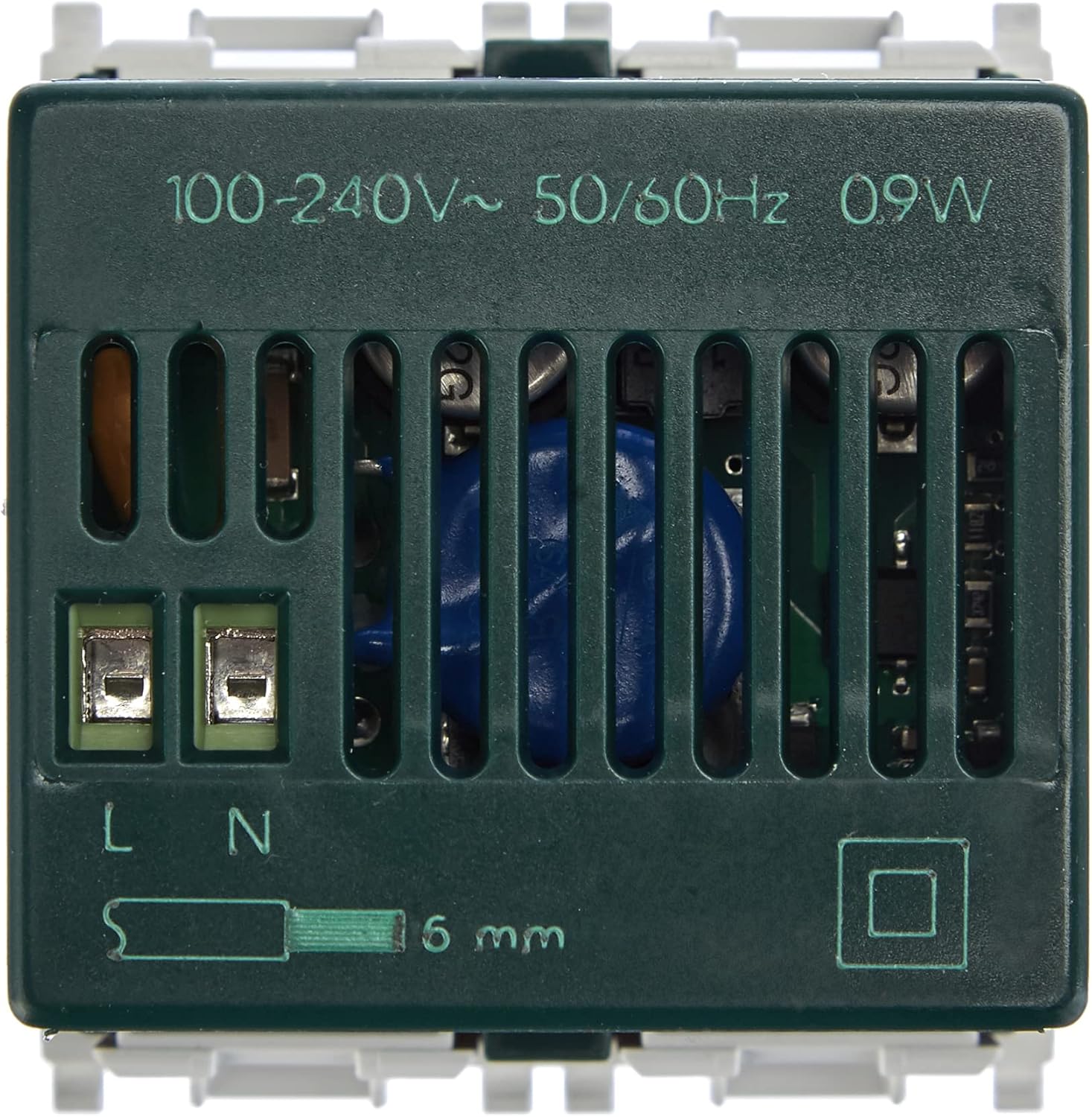
Hoto na 2.1: Na baya view of the Vimar 14597 Gateway, illustrating the power input terminals (L and N) and voltage specifications (100-240V~ 50/60Hz).

Hoto na 2.2: Kasa view of the Vimar 14597 Gateway, showing ventilation slots and mounting points.
2.2. Kanfigareshan Software
The Vimar system utilizes two distinct applications for configuration and daily operation:
- Vimar VIEW Wireless App: Used specifically for the initial configuration of the gateway and other VIEW Na'urori mara waya.
- Vimar VIEW App: Used for the daily control and supervision of all connected devices and scenarios.
- Ƙirƙirar Asusu: Create a Vimar account if you do not already have one. This is essential for accessing the Vimar Cloud services.
- Download Apps: Download both the "Vimar VIEW Wireless" app and the "Vimar VIEW" app from your smartphone's or tablet's app store.
- Gateway Configuration (VIEW Wireless App):
- Open the Vimar VIEW Wireless app.
- Follow the on-screen instructions to add and configure your Vimar 14597 Plana Gateway. This typically involves connecting the app to the gateway via Bluetooth or Wi-Fi.
- During this process, you may be prompted to update the gateway's firmware. It is recommended to proceed with firmware updates to ensure optimal performance and access to the latest features.
- Administrator Role: Ensure that an administrator role is assigned within the app for full system control. This is a necessary step for managing the system effectively.
- Device Pairing (VIEW App): Once the gateway is configured, use the Vimar VIEW app to pair and manage your other Vimar IoT devices (e.g., thermostats, switches, roller shutter controls).

Hoto na 2.3: Example of the Vimar VIEW app interface on a smartphone, used for managing connected devices and scenarios.

Hoto na 2.4: Da Vimar VIEW app icon, used for daily control and supervision of your smart home system.
3. Aiki da Gateway
Once configured, the Vimar 14597 Plana Gateway acts as the central hub for your VIEW Wireless smart home system, enabling various control methods.
3.1. Control via Vimar VIEW App
- Ikon na'ura: Use the Vimar VIEW app to control individual smart devices connected to the gateway, such as lights, shutters, and thermostats.
- Scenario Management: Create and activate custom scenarios (e.g., "Good Morning," "Away," "Movie Night") that trigger multiple actions simultaneously across different devices.
- Samun Nisa: The gateway enables remote control of your smart home devices from anywhere, provided you have an internet connection on your smartphone/tablet.
- Kula da Makamashi: The app may offer features for monitoring energy consumption of connected devices, if supported.

Hoto na 3.1: The Vimar Gateway seamlessly integrated into a wall plate, illustrating its connectivity with the Vimar App and voice assistants like Alexa, Google, and Siri.
3.2. Haɗin Mataimakin Murya
The Vimar 14597 Gateway supports integration with popular voice assistants, allowing for hands-free control of your smart home:
- Amazon Alexa: Link your Vimar account to your Alexa app to control devices using voice commands (e.g., "Alexa, turn on the living room lights").
- Mataimakin Google: Connect your Vimar system to Google Assistant for voice control (e.g., "Hey Google, set the thermostat to 22 degrees").
- Apple Siri: Utilize Siri shortcuts or HomeKit integration (if supported by specific Vimar devices) for voice commands (e.g., "Hey Siri, close the blinds").

Hoto na 3.2: A user interacting with a smart home system, demonstrating the convenience of voice control through the Vimar Gateway.
4. Kulawa
The Vimar 14597 Plana Gateway is designed for reliable, long-term operation with minimal maintenance. No routine user maintenance is required for the device itself. Ensure the device is kept free from dust and moisture. For optimal performance, regularly check for and apply firmware updates through the Vimar VIEW Wireless app.
5. Shirya matsala
This section addresses common issues you might encounter during the installation and operation of your Vimar 14597 Plana Gateway.
5.1. Configuration Difficulties
- Complex Setup Process: Users have reported that the initial software configuration can be complex due to the need for two separate apps (VIEW Wireless for setup, VIEW for daily use) and specific administrator role assignments. Carefully follow the step-by-step instructions provided in the Vimar VIEW Wireless app.
- Abubuwan Sabunta Firmware: If the gateway experiences issues after a firmware update, try repeating the configuration process. Ensure a stable internet connection during updates.
- Account and App Management: Verify that your Vimar account is correctly set up and that you are using the appropriate app for the task (VIEW Wireless for initial gateway setup, VIEW for device control). Ensure the administrator role is correctly assigned.
5.2. Matsalolin Haɗuwa
- Babu Haɗi: Ensure the gateway is powered correctly and that your Wi-Fi router is operational and within range. Check the LED indicators on the gateway for status.
- Matsalolin Haɗin Bluetooth: If experiencing problems with Bluetooth pairing during initial setup, ensure your smartphone's Bluetooth is enabled and that it is close to the gateway.
5.3. Sake saitin Na'urar
The Vimar 14597 Gateway does not feature a physical reset button. If a factory reset is required, this procedure must be initiated through the Vimar VIEW Wireless app. Refer to the app's help section or the official Vimar support documentation for detailed instructions on performing a software-based reset.
6. Ƙayyadaddun bayanai
| Siffar | Daki-daki |
|---|---|
| Alamar | VIMAR |
| Lambar Samfura | 14597 |
| Girman samfur | 4.9 x 4.48 x 4.78 cm |
| Nauyi | 50g ku |
| Tushen wutan lantarki | 100-240V ~ 50/60 Hz |
| Launi | Fari |
| Haɗuwa | IoT, Bluetooth, Wi-Fi |
| Girman Module | 2 modules (Plana series) |
| Ƙasar Asalin | Italiya |

Hoto na 6.1: The Vimar 14597 Gateway shown in hand, providing a visual reference for its compact size (approximately 5 cm in height).

Hoto na 6.2: Schematic diagram illustrating the Vimar 14597 Plana Gateway's form factor and key indicators.
7. Garanti da Tallafawa
7.1. Garanti Bayani
Specific warranty terms and conditions for the Vimar 14597 Plana Gateway are provided by Vimar. Please refer to the official Vimar website or the documentation included with your product for detailed warranty information.
7.2. Tallafin Abokin Ciniki
For further assistance, technical support, or to access additional manuals and instructions, please visit the official Vimar website. Vimar is known for responsive and knowledgeable customer support.
Official Vimar Website: www.vimar.com
8. Bidiyon Samfur na hukuma
Babu bidiyon samfur na hukuma daga mai siyarwa da aka bayar a cikin bayanan samfurin don sakawa a cikin wannan jagorar.


