Gabatarwa
The FRANKEVER Smart IR Remote Control (Model R4) is a universal Wi-Fi infrared remote control designed to centralize control of various IR-controlled entertainment and home equipment. It is compatible with popular voice assistants like Amazon Alexa and Google Assistant, allowing for convenient voice control of your devices. This manual provides detailed instructions for setting up, operating, and maintaining your Smart IR Remote Control.
Abubuwan Kunshin
- 1 x Smart IR Controller (Model: FK-UFO-R4)
- 1 x Type-C Kebul na USB
- 1 x Adaftar Wuta
- 1 x Manual mai amfani (wannan takarda)
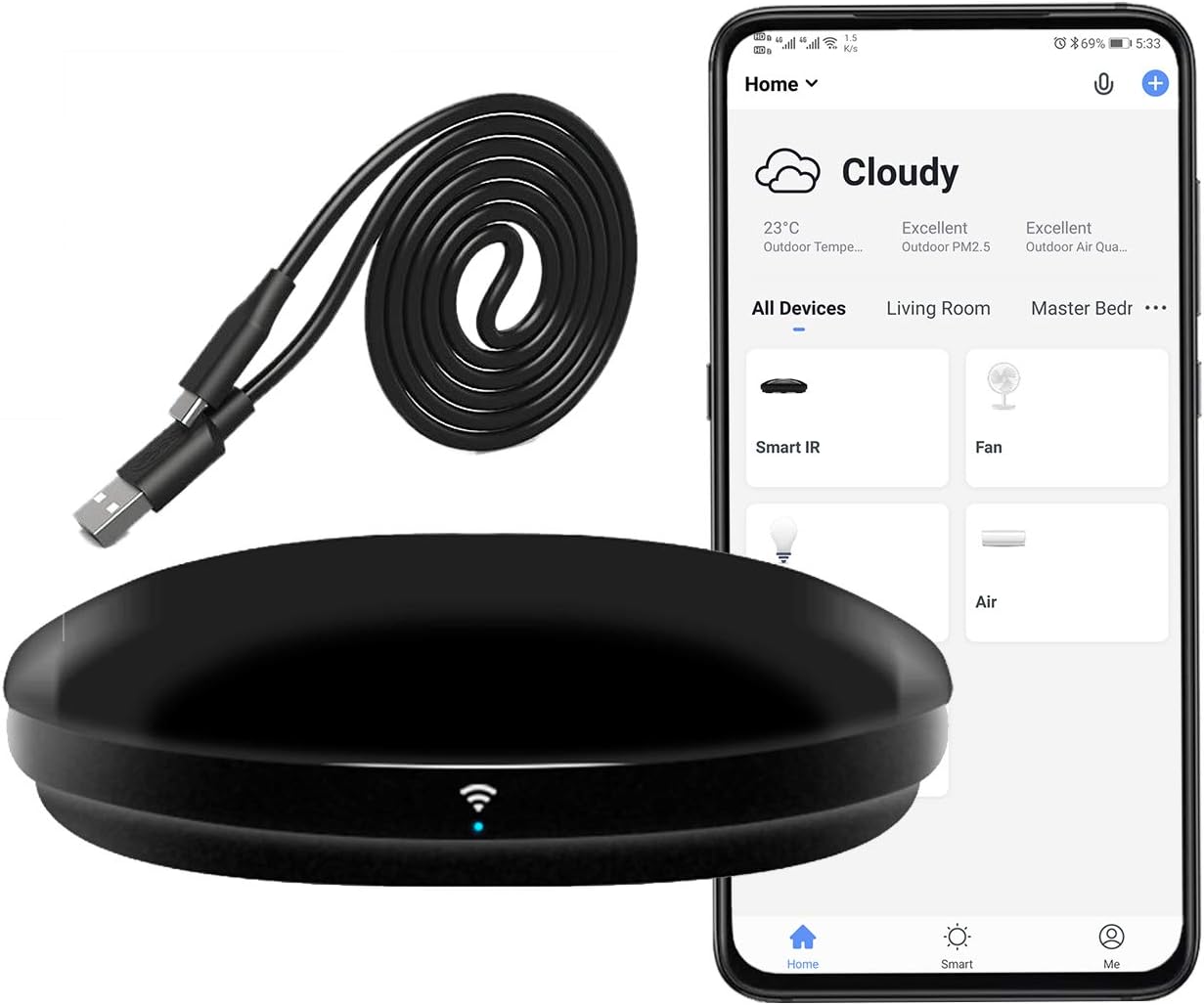
Image: The Smart IR Remote Control, its USB-C cable, and a smartphone displaying the Smart Life app interface.
Saita
1. Ƙarfafa Akan Na'urar
Connect the Smart IR Remote Control to a power source using the provided Type-C USB cable and power adapter. The device will power on automatically.
2. Shigar App da Haɗawa
Download the "Smart Life" app from your mobile device's app store (available for iOS and Android). Register for an account or log in if you already have one.
- Open the Smart Life app and tap the "Add Device" or "+" icon.
- Select "Universal Remote Control" or "Others (IR)" from the device list.
- On the Smart IR Remote Control, press and hold the small button on the bottom until the blue indicator light starts blinking rapidly (approximately 20 seconds).
- Confirm the indicator light is blinking rapidly in the app.
- Shigar da kalmar sirri ta hanyar sadarwar Wi-Fi ta 2.4GHz. Lura: The device requires a secured 2.4GHz Wi-Fi network. 5GHz networks are not supported.
- The app will begin connecting to the device. Ensure your mobile phone, the device, and your Wi-Fi router are as close as possible during this process.
- Once connected, the device will appear in your Smart Life app.
Video: Smart IR remote control connection demonstration. This video illustrates the steps for connecting the Smart IR remote to your mobile device and Wi-Fi network.
3. Adding IR Controlled Devices (DIY Learning Function)
The Smart IR Remote Control supports over 50,000 infrared controlled devices. If your device is not automatically recognized, you can use the DIY learning function.
- In the Smart Life app, select the Smart IR device.
- Choose the type of device you want to add (e.g., TV, Air Conditioner, STB, DVD, Fan).
- If your device's brand is listed, select it. If not, you may need to use the "DIY" or "Custom" option.
- Follow the on-screen prompts to "learn" buttons from your original remote control by pointing it at the Smart IR Remote Control and pressing the corresponding buttons.

Image: Illustration of the DIY learning function, showing how the Smart IR device can learn from various traditional IR remotes to control different appliances.
Umarnin Aiki
1. App Control
Once your devices are added to the Smart Life app, you can control them directly from your smartphone. This includes turning devices on/off, adjusting volume, changing channels, and setting air conditioner temperatures.
Video: TV Link Demo. This video demonstrates controlling a television using the Smart Life app interface.
2. Voice Control (Alexa/Google Assistant)
To enable voice control, link your Smart Life account with Amazon Alexa or Google Assistant through their respective apps. Once linked, you can use voice commands to control your IR devices. For example, "Alexa, turn on the TV" or "Hey Google, set the air conditioner to 22 degrees." Siri voice control is also available on iPhone.

Image: Depicts users controlling their TV with voice commands via Alexa, highlighting the convenience of smart home integration.
3. Creating Scenes and Timers
The Smart Life app allows you to create custom scenes and set timers for your devices. This enables automated control, such as turning on the air conditioner before you arrive home or scheduling devices to turn on/off at specific times.

Image: An illustration of a smart home ecosystem, demonstrating how various devices can be interconnected and controlled for automated convenience.
Kulawa
To ensure optimal performance and longevity of your Smart IR Remote Control, follow these general maintenance guidelines:
- Kiyaye na'urar ta hanyar goge ta da kyalle mai laushi da busasshe. A guji amfani da masu tsaftace goge ko abubuwan da ke rage zafi.
- Place the device in a central location within the room to ensure optimal infrared signal transmission to all controlled devices.
- Ka guji fallasa na'urar zuwa matsanancin zafi, hasken rana kai tsaye, ko zafi mai zafi.
- Ensure the device is always powered on and connected to your Wi-Fi network for continuous operation.
Shirya matsala
If you encounter issues with your Smart IR Remote Control, consider the following:
- Na'urar Ba Haɗawa: Ensure your Wi-Fi network is 2.4GHz. The device does not support 5GHz networks. Verify your Wi-Fi password is correct and that the device is within range of your router. Try resetting the device by holding the power button until the indicator light flashes.
- IR Control Issues: Confirm the Smart IR Remote Control has a clear line of sight to the device you are trying to control. Infrared signals require direct line of sight. Ensure the correct remote profile has been selected or that buttons have been successfully learned using the DIY function.
- Ikon Murya baya Aiki: Double-check that your Smart Life account is correctly linked to your Alexa or Google Assistant app. Ensure the devices are discovered and enabled within the voice assistant's app. For custom commands, verify that "Tap-to-Run" scenes are correctly set up in the Smart Life app and recognized by Alexa/Google Assistant.
- Ayyuka masu iyaka: This device is an infrared (38K kHz) remote control for IR equipment, not for RF (Radio Frequency) controlled devices. Ensure the appliance you are trying to control uses IR.
For further assistance, please refer to the official User Guide (PDF) or User Manual (PDF) available for download, or contact FRANKEVER customer service for professional installation and use instructions.
Ƙayyadaddun bayanai
| Siffar | Daki-daki |
|---|---|
| Mai ƙira | FRANKEVER |
| Lambar Sashe | FK-UFO-R4 |
| Nauyin Abu | 1.76 oz |
| Girman samfur | 1.97 x 1.97 x 0.39 inci |
| Ƙasar Asalin | China |
| Lambar Samfurin Abu | FK-UFO-R4 |
| Girman | 1 fakitin |
| Launi | R4 (IR) |
| Salo | Universal |
| Yawan Kunshin Abu | 1 |
| Siffofin Musamman | Universal |
| Ana Bukata Batura | A'a |
| Matsakaicin Yawan Na'urori masu Tallafi | 1 (referring to the hub itself, not devices it controls) |
| Na'urori masu jituwa | Home Theater, TV, DVD, Air Conditioner, STB, Fan, etc. (IR controlled) |
Garanti da Taimako
The FRANKEVER Smart IR Remote Control comes with a Garanti na watanni 12 from the date of purchase, as indicated on the product packaging.
For any questions regarding installation, operation, or technical support, please contact FRANKEVER customer service. You can also refer to the comprehensive User Guide and User Manual PDFs for detailed information:


