પરિચય
This manual provides essential information for setting up, operating, and maintaining your HP Essential 17t Laptop TPN-I139. Please read these instructions carefully to ensure proper use and to maximize the lifespan of your device.
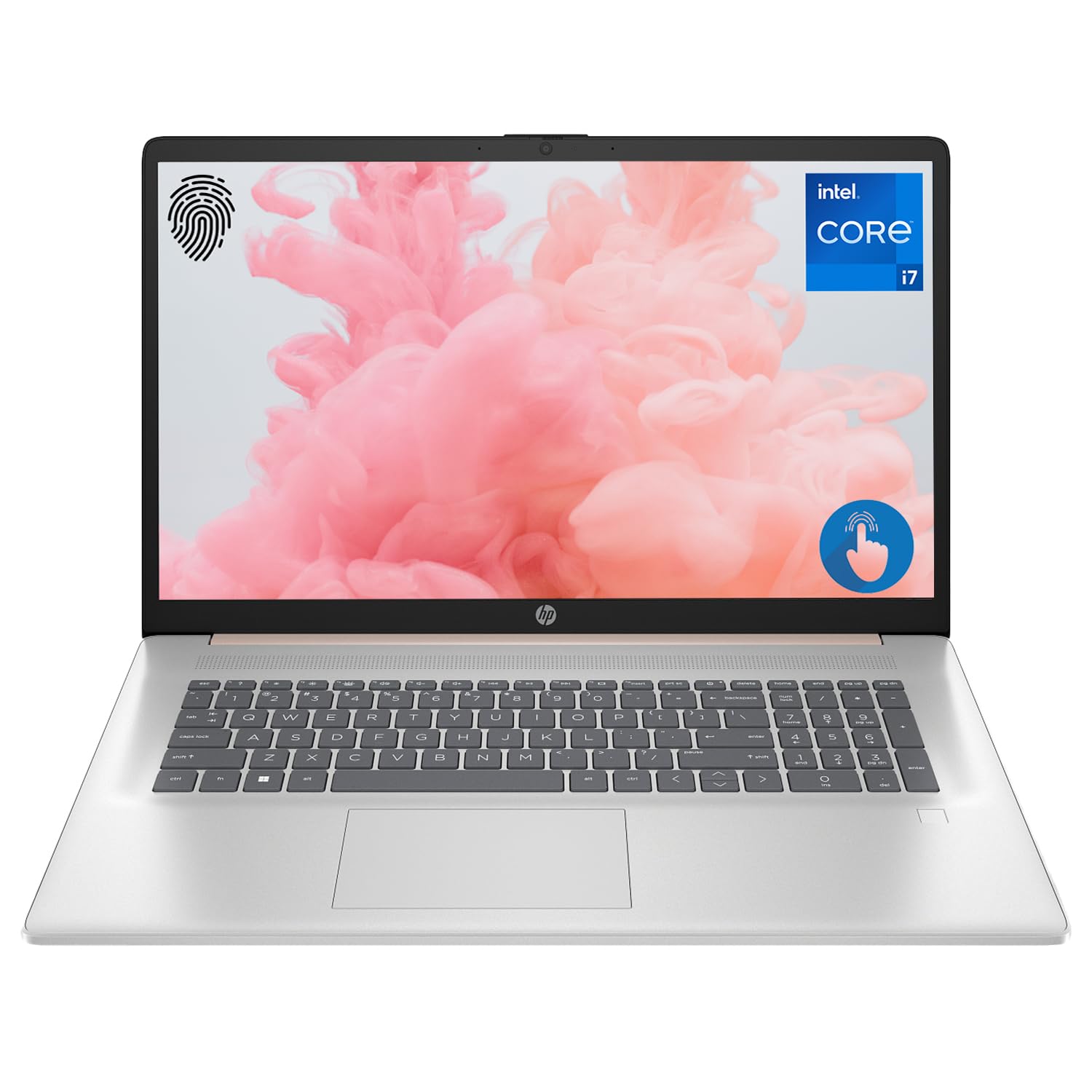
Figure 1: HP Essential 17t Laptop
The HP Essential 17t Laptop is designed for productivity and everyday use, featuring a 17.3-inch HD+ touchscreen, an Intel Core i7-1355U processor, 64GB of RAM, and a 2TB SSD. It comes pre-installed with Windows 11 Home.
શરૂઆત કરવી
1. બોક્સમાં શું છે
- HP Essential Touchscreen Laptop
- એસી પાવર એડેપ્ટર
- ઝડપી શરૂઆત માર્ગદર્શિકા (જો શામેલ હોય તો)
2. પ્રારંભિક પાવર ચાલુ અને સેટઅપ
- AC પાવર એડેપ્ટરને લેપટોપ અને પાવર આઉટલેટ સાથે જોડો.
- લેપટોપનું ઢાંકણ ખોલો અને પાવર બટન દબાવો, જે સામાન્ય રીતે કીબોર્ડ ડેક પર સ્થિત હોય છે.
- Follow the on-screen instructions to complete the Windows 11 Home setup. This includes selecting your region, connecting to a Wi-Fi network, creating a user account, and accepting the license agreement.

Figure 2: Windows 11 Home Interface
હાર્ડવેર ઓવરview
બંદરો અને કનેક્ટર્સ
Familiarize yourself with the various ports on your laptop for connecting external devices.

Figure 3: Laptop Ports and Connectors
- SuperSpeed USB Type-A (5Gbps signaling rate): ઉંદર, કીબોર્ડ અથવા બાહ્ય ડ્રાઇવ જેવા USB ઉપકરણોને કનેક્ટ કરવા માટે.
- HDMI 1.4b: બાહ્ય ડિસ્પ્લે અથવા પ્રોજેક્ટર સાથે જોડાવા માટે.
- SuperSpeed USB Type-C (5Gbps signaling rate): ડેટા ટ્રાન્સફર અને સુસંગત ઉપકરણોને કનેક્ટ કરવા માટે એક બહુમુખી પોર્ટ.
- હેડફોન/માઈક્રોફોન કોમ્બો જેક (૩.૫ મીમી): હેડફોન, બાહ્ય સ્પીકર્સ અથવા હેડસેટને માઇક્રોફોનથી કનેક્ટ કરવા માટે.
કીબોર્ડ અને ટચપેડ
The laptop features a full-size backlit keyboard for comfortable typing in various lighting conditions and a responsive touchpad for navigation.
ડિસ્પ્લે
Your HP Essential 17t Laptop is equipped with a 17.3-inch HD+ (1600 x 900) touchscreen display, offering intuitive interaction with Windows 11.

Figure 4: 17.3" HD+ Touchscreen Display
તમારા લેપટોપનું સંચાલન
પાવર મેનેજમેન્ટ
- પાવર ચાલુ/બંધ: Press the power button to turn the laptop on. To shut down, click the Start button, then Power > Shut down.
- નિદ્રા સ્થિતિ: Close the lid or click the Start button, then Power > Sleep to put the laptop into a low-power state.
- બેટરી સંભાળ: The laptop supports battery fast charge, reaching approximately 50% charge in 45 minutes. For optimal battery health, avoid consistently draining the battery to 0% or keeping it at 100% for extended periods.
ટચસ્ક્રીનનો ઉપયોગ કરવો
Interact with your laptop directly on the screen using touch gestures. Common gestures include tapping to select, pinching to zoom, and swiping to scroll.
ફિંગરપ્રિન્ટ રીડરનો ઉપયોગ કરવો
The integrated fingerprint reader allows for secure and quick login. Set up your fingerprints through Windows Hello in the Windows Settings app (Accounts > Sign-in options).
Wi-Fi થી કનેક્ટ થઈ રહ્યું છે
To connect to a wireless network, click the Wi-Fi icon in the taskbar, select your desired network, and enter the password if prompted. The laptop supports Wi-Fi 6 for fast and reliable wireless connectivity.
ઉત્પાદકતા લક્ષણો
This laptop integrates Copilot + AI capabilities to enhance productivity. These features can assist with scheduling, drafting emails, summarizing documents, and more, streamlining your workflow.

Figure 5: Copilot + AI for Enhanced Productivity
જાળવણી અને સંભાળ
તમારા લેપટોપને સાફ કરવું
- નરમ, લિન્ટ-ફ્રી કાપડનો ઉપયોગ કરોampડિસ્પ્લે સાફ કરવા માટે પાણી અથવા સ્ક્રીન ક્લીનરથી ભેળવી દો.
- કીબોર્ડ અને ચેસિસ માટે, નરમ, સૂકા કાપડનો ઉપયોગ કરો. કઠોર રસાયણો અથવા ઘર્ષક સામગ્રી ટાળો.
- સફાઈ કરતા પહેલા ખાતરી કરો કે લેપટોપ બંધ અને અનપ્લગ થયેલ છે.
સૉફ્ટવેર અપડેટ્સ
Regularly check for and install Windows updates to ensure your system has the latest security patches and performance improvements. Go to Settings > Windows Update.
મુશ્કેલીનિવારણ
જો તમને તમારા લેપટોપમાં સમસ્યાઓ આવે, તો નીચેના મૂળભૂત મુશ્કેલીનિવારણ પગલાં અજમાવો:
- કોઈ શક્તિ નથી: ખાતરી કરો કે AC એડેપ્ટર લેપટોપ અને કાર્યરત પાવર આઉટલેટ બંને સાથે સુરક્ષિત રીતે જોડાયેલ છે. અલગ આઉટલેટ અજમાવી જુઓ.
- ડિસ્પ્લે સમસ્યાઓ: જો સ્ક્રીન ખાલી હોય, તો લેપટોપના ડિસ્પ્લેમાં સમસ્યા છે કે નહીં તે તપાસવા માટે બાહ્ય મોનિટરને કનેક્ટ કરવાનો પ્રયાસ કરો.
- Wi-Fi કનેક્ટિવિટી: Restart your router and modem. Ensure Wi-Fi is enabled on your laptop.
- ધીમી કામગીરી: Close unnecessary applications. Check for available Windows updates.
વધુ જટિલ સમસ્યાઓ માટે, HP સપોર્ટનો સંદર્ભ લો. webHP ગ્રાહક સેવાની સાઇટ પર જાઓ અથવા સંપર્ક કરો.
વિશિષ્ટતાઓ
Below are the key technical specifications for the HP Essential 17t Laptop TPN-I139:

Figure 6: Intel Core i7-1355U Processor
| લક્ષણ | સ્પષ્ટીકરણ |
|---|---|
| મોડેલનું નામ | TPN-I139 |
| પ્રોસેસર | 13th Gen Intel Core i7-1355U (10 Cores, 12 Threads, up to 5.0 GHz) |
| રેમ | ૧૬ જીબી ડીડીઆર૪ એસડીઆરએએમ (૩૨૦૦ મેગાહર્ટ્ઝ) |
| સંગ્રહ | 2 ટીબી PCIe NVMe M.2 SSD |
| ડિસ્પ્લે | 17.3" HD+ (1600 x 900) Touchscreen, BrightView, 250 nits |
| ગ્રાફિક્સ | ઇન્ટેલ આઇરિસ Xe ગ્રાફિક્સ |
| ઓપરેટિંગ સિસ્ટમ | વિન્ડોઝ 11 હોમ |
| વાયરલેસ કનેક્ટિવિટી | Wi-Fi 6 (802.11ax) |
| બંદરો | 1x SuperSpeed USB Type-C (5Gbps), 2x SuperSpeed USB Type-A (5Gbps), 1x HDMI 1.4b, 1x Headphone/Microphone Combo |
| ખાસ લક્ષણો | બેકલાઇટ કીબોર્ડ, ફિંગરપ્રિન્ટ રીડર |
| પરિમાણો (LxWxH) | 15.78 x 10.15 x 0.78 ઇંચ |
| વજન | 5.25 પાઉન્ડ |

Figure 7: Intel Iris Xe Graphics
વોરંટી અને આધાર
Your HP Essential 17t Laptop comes with a standard manufacturer's warranty. For detailed warranty terms and conditions, please refer to the documentation included with your product or visit the official HP support website. For technical assistance, driver downloads, or service requests, please contact HP customer support directly.
ઉત્પાદન ઓવરview વિડિયો
વિઝ્યુઅલ ઓવર માટે આ વિડિઓ જુઓview of the HP Essential 17t Laptop's features and capabilities.
Video 1: HP Essential 17 Touchscreen 13th Gen i7 Laptop Overview by PCOnline US. This video highlights key features and design aspects of the laptop.