Hama MW-300 V2 Wireless Optical Mouse User Manual
Model: MW-300 V2
1. Introdución
This manual provides comprehensive instructions for the Hama MW-300 V2 Wireless Optical Mouse. It covers setup, operation, maintenance, and troubleshooting to ensure optimal performance and longevity of your device. The MW-300 V2 is designed for precise and smooth cursor control, featuring silent main buttons and a compact USB receiver for convenience.
2. Contido do paquete
Comprobe se o paquete contén os seguintes elementos:
- 1 Hama MW-300 V2 Wireless Optical Mouse
- 1 Receptor USB
- 2 AAA Micro Batteries
- 1 Manual de usuario
3. Configuración
3.1. Inserción das pilas
- Localiza o compartimento da batería na parte inferior do rato.
- Abra a tapa do compartimento da batería.
- Insert the two AAA Micro batteries, ensuring correct polarity (+/-).
- Pecha a tapa do compartimento da batería de forma segura.
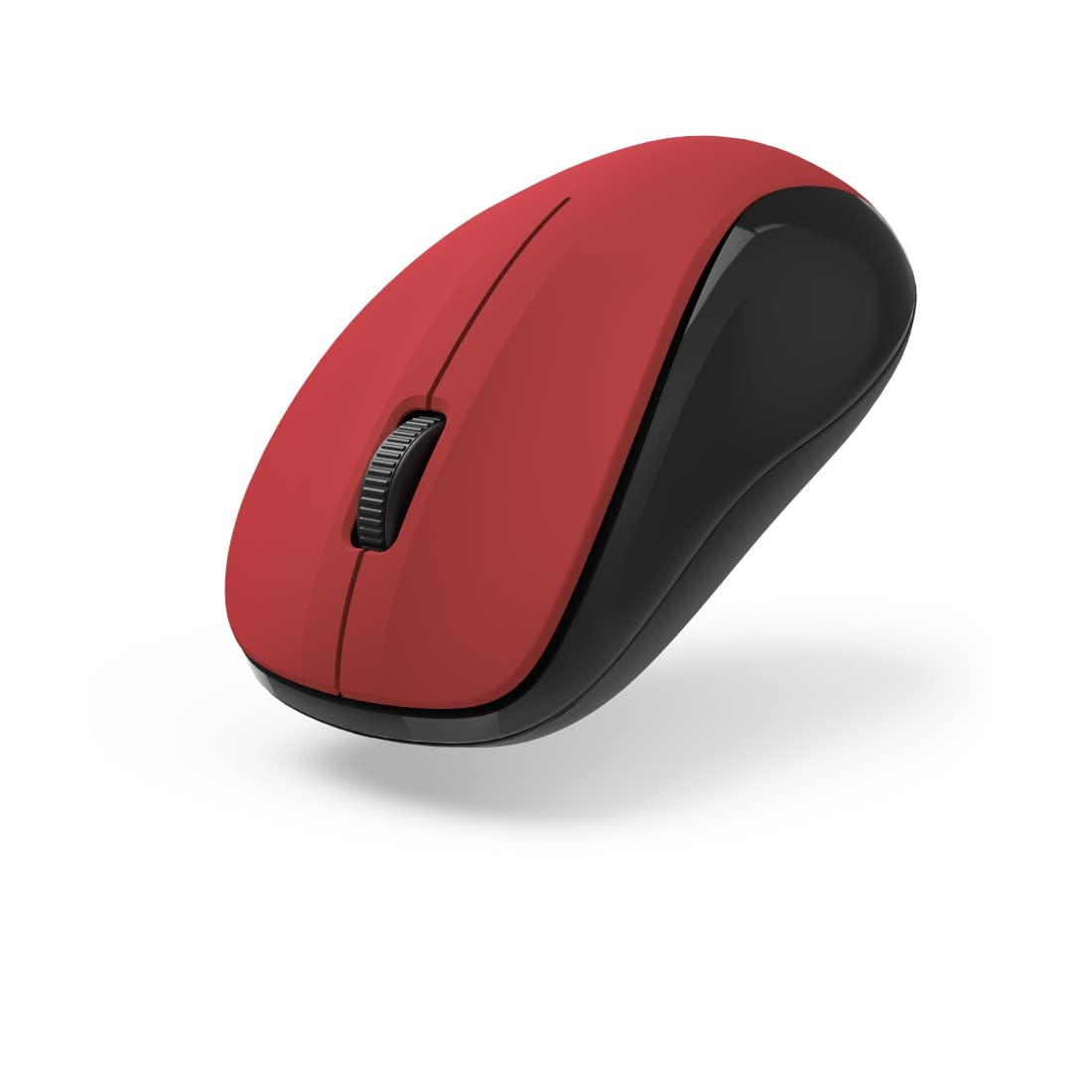
Figura 1: Arriba view of the Hama MW-300 V2 Wireless Optical Mouse. This image displays the mouse's ergonomic shape, the central scroll wheel, and the left and right click buttons. The red top surface contrasts with the black sides.
3.2. Conexión do receptor USB
- Remove the compact USB receiver from its storage slot, usually located within the battery compartment or near it.
- Plug the USB receiver into an available USB-A port on your computer (laptop or PC).
- The mouse will automatically connect to the receiver using Smart Link technology. No additional drivers are typically required for Windows or macOS.

Figura 2: En ángulo view of the Hama MW-300 V2 Wireless Optical Mouse. This perspective shows the comfortable curve of the mouse, designed for both left and right-handed users, and the textured scroll wheel.
4. Instrucións de funcionamento
4.1. Funcións básicas
- Clic esquerdo: Selección e activación primarias.
- Clic dereito: Abre menús contextuais.
- Roda de desprazamento: Pergamiña documentos e web pages vertically. The scroll wheel also functions as a middle click button.
4.2. Función de clic silencioso
The main buttons of the MW-300 V2 mouse are designed to be silent, providing a quiet working environment. This feature is integrated into the mouse's design and does not require any special activation.
4.3. Wireless Range and Power Saving
The mouse operates on a reliable 2.4 GHz wireless technology with a range of up to 10 meters, depending on environmental conditions. To conserve battery life, the mouse features an automatic power-saving mode that activates during periods of inactivity. To reactivate, simply move the mouse or click a button.
5. Mantemento
- Limpeza: Usa un pano suave e seco para limpar o rato. Evita o uso de produtos químicos agresivos ou materiais abrasivos.
- Substitución da batería: Replace batteries when the mouse performance degrades or stops responding. Always use new AAA Micro batteries.
- Almacenamento: When not in use for extended periods, remove the batteries to prevent leakage. The USB receiver can be stored inside the mouse for safe transport.
6 Solución de problemas
| Problema | Solución |
|---|---|
| O rato non responde |
|
| Movemento errático do cursor |
|
| Problemas de conexión |
|
7. Especificacións
| Nome do modelo | MW-300 V2 |
| Marca | Hama |
| Tecnoloxía de conectividade | 2.4 GHz RF Wireless, USB Receiver |
| Tipo de sensor | Óptica |
| Sensibilidade DPI | 1200 DPI |
| Número de botóns | 3 (Esquerda, Dereita, Roda de desprazamento/Clic central) |
| Orientación das mans | Ambidiestro |
| Características especiais | Silent Clicks, Power Saving Mode, Rubberized Surface, PTFE Gliding Pads |
| distancia wireless | Ata 10 metros |
| Sistemas operativos compatibles | Windows 11/10/8/7, macOS 10.10 or higher |
| Tipo de batería | 2 x AAA Micro (included) |
| Dimensións (W x H x D) | 5.8 x 3.7 x 10.3 cm |
| Cor | Vermello/Negro |
8. Garantía e soporte
Hama products are covered by a limited warranty. For detailed warranty information, please refer to the warranty card included with your product or visit the official Hama website. For technical support, product inquiries, or service, please contact Hama customer support through their official channels.
Conserve o comprobante de compra para reclamacións de garantía.
© 2023 Hama GmbH & Co KG. Todos os dereitos reservados.