1. Introdución
The COMFAST CF-E113A is a high-power outdoor wireless WiFi bridge designed for long-range wireless data transmission. It operates in the 5.8GHz frequency band, offering enhanced stability and reduced interference compared to 2.4GHz devices. This device is suitable for various outdoor applications, including video surveillance backhaul and extending network coverage over distances up to 3 kilometers.

Image: The COMFAST CF-E113A Wireless WiFi Bridge, a white rectangular outdoor unit with the Comfast logo.
Its robust design ensures reliable operation in diverse outdoor environments, featuring dustproof and waterproof capabilities, and resistance to extreme temperatures.
2. Contido do paquete
Verifique que todos os elementos que se indican a continuación estean presentes no seu paquete:
- 1x CF-E113A WiFi Bridge
- 2x PoE Power Adapter
- 2x Stainless Steel Ties
- 1x Manual de usuario (este documento)

Image: Contents of the CF-E113A package, including the WiFi bridge unit, PoE adapters, stainless steel ties, and user manual.
3. Produto rematadoview
The CF-E113A features a compact design with essential ports and indicators for easy setup and monitoring.

Imaxe: Detallada view of the CF-E113A showing its components: Rotating Base, Indicator LEDs, Reset button, Toggle Switches (STA/AP), WAN port, LAN port, Cover, and Wire Holes.
Compoñentes clave:
- Base xiratoria: Para unha montaxe flexible e axuste do ángulo.
- Indicadores LED: Provide status information, including signal strength.
- Botón de reinicio: Úsase para restaurar a configuración predeterminada de fábrica.
- Toggle Switches (STA/AP): For configuring the device as a Station (client) or Access Point.
- Porto WAN: Connects to the network source (e.g., router, NVR).
- Porto LAN: Connects to local devices (e.g., IP camera, computer).
- Portada: Protects the ports from environmental elements.
- Wire Holes: For cable management and weather sealing.
4. Especificacións
| Característica | Especificación |
|---|---|
| Modelo | CF-E113A |
| CPU | Qualcomm AR9344 560MHz |
| Chipset | CEO 85735 |
| Antena | 11dBi direccional |
| Estándar WiFi | IEEE 802.11a/an |
| Potencia de saída | 200 mW (23 dBm) |
| Sensibilidade de recepción | -96 dBm |
| Frecuencia RF | 5.180 GHz-5.825 GHz |
| Velocidade de transmisión | 300 Mbps |
| Interface de rede | 1x 10/100Mbps WAN + 1x LAN RJ45 Ethernet Port |
| Indicador | 8 LEDs |
| Poder | 9-24V PoE Supply Power |
| Consumo de enerxía | <8 W |
| Índice IP | IP65, 2KV Lightning protection |
| Instalación | Wall-mounted, pole-mounted, bracket |
| Temperatura de traballo | -40 ℃ ~ 55 ℃ |
| Temperatura de almacenamento | -55 ℃ ~ 75 ℃ |
| Humidade de traballo | 10% ~ 90%RH, non-condensing |
| Humidade de almacenamento | 5% ~ 90%RH, non-condensing |
| Dimensións | 165 x 95 x 31 mm (6.5 x 3.74 x 1.22 polgadas) |

Image: The CF-E113A device highlighting its outdoor protection features against snow, rain, sun exposure, and frost, indicating its IP65 rating and ability to withstand extreme temperatures.
5. Configuración e instalación
5.1. Instalación física
The CF-E113A supports wall-mounted, pole-mounted, and bracket installations. Use the provided stainless steel ties for pole mounting or appropriate hardware for wall mounting.
Ensure the device is positioned with a clear line of sight to the other bridge unit(s) for optimal signal transmission.
5.2. Alimentando o dispositivo
Connect the PoE power adapter to the WAN/LAN port of the CF-E113A and then plug the adapter into a power outlet. The device will power on automatically.
5.3. Emparellamento cun só clic
The CF-E113A features a simplified pairing process for establishing a wireless bridge connection:
- Configuración do transmisor: Set the toggle switch on the first CF-E113A unit to AP (Access Point) mode.
- Configuración do receptor: Set the toggle switch on the second CF-E113A unit to STA (Station) mode.
- Emparejamento: The devices will automatically attempt to pair. A successful pairing will be indicated by specific LED patterns (refer to the LED indicator section in the full manual for details).
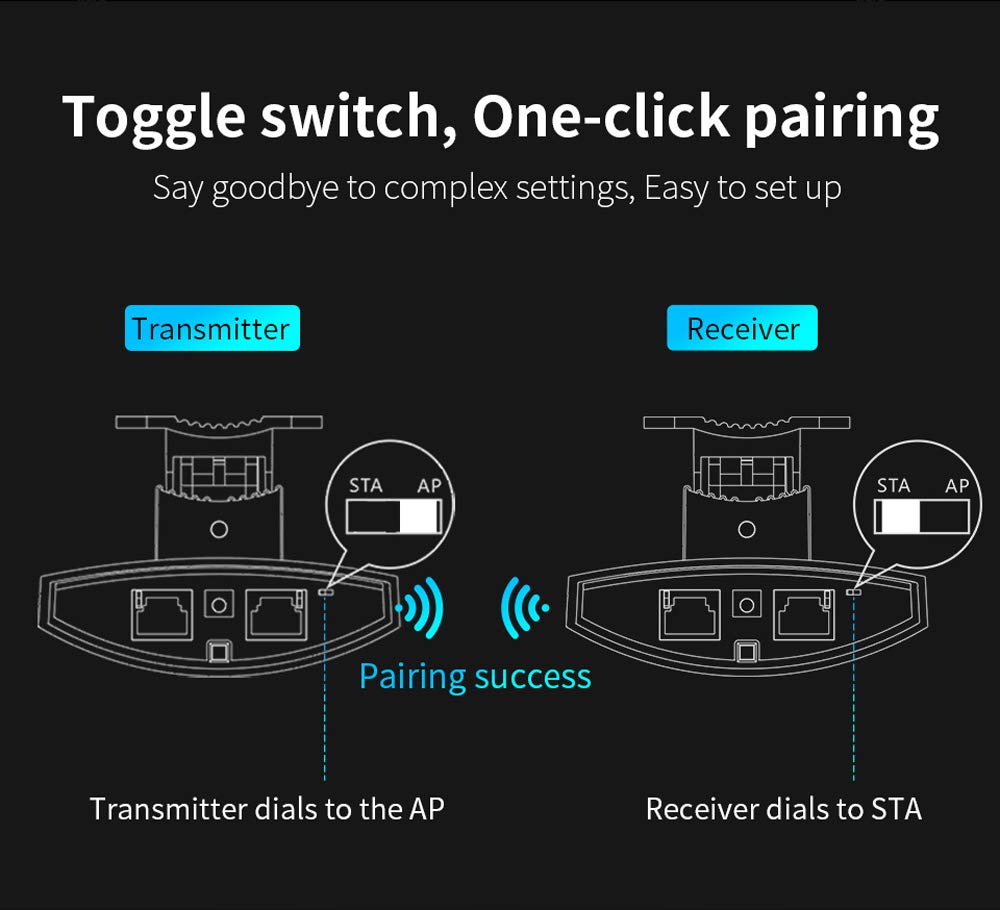
Image: Illustration of the one-click pairing process. One device is set to AP (Transmitter) and the other to STA (Receiver) using toggle switches, leading to a successful wireless connection.
5.4. Signal Alignment
After physical installation and initial pairing, optimize the signal strength by adjusting the angle of the CPE units. The device includes a signal strength indicator to assist with precise alignment.
- Very Strong: All indicator LEDs lit (e.g., green).
- Forte: Most indicator LEDs lit (e.g., green).
- Xeral: Some indicator LEDs lit (e.g., red/orange).
- Débil: Few or no indicator LEDs lit (e.g., red).
Adjust the device angle until the signal strength indicators show the strongest possible connection.

Image: Close-up of the CF-E113A's signal strength indicator LEDs, showing how different levels of illumination correspond to signal quality (very strong, strong, general, weak).
6. Modos de funcionamento
The CF-E113A can be configured for various wireless bridge scenarios.
6.1. Conexión punto a punto
This is the most common setup, involving two CF-E113A units to create a direct wireless link between two locations. One unit acts as an Access Point (AP) and the other as a Station (STA).
6.2. Point-to-Multi-Point Connection
For scenarios requiring multiple remote locations to connect to a central point, one CF-E113A can act as an AP, and several other CF-E113A units can act as STAs. This is suitable for applications like distributed video surveillance.
Importante: For optimal performance in a point-to-multi-point setup, ensure that the angle between the cameras/CPEs and the central monitoring CPE is less than 60 degrees. This configuration requires careful planning to meet broadband requirements and minimize signal degradation.

Image: Diagram illustrating a point-to-multi-point connection. Multiple cameras connected to individual CPEs transmit wirelessly to a central CPE, which then connects to an NVR and monitoring computer. The diagram emphasizes the 60-degree transmission angle requirement.
6.3. Example Application: Elevator Monitoring
The CF-E113A can be used to establish wireless links for elevator monitoring systems, providing connectivity between cameras inside elevators and a central security and monitoring center. This eliminates the need for complex wiring within elevator shafts.

Image: Two diagrams showing different ways to implement elevator monitoring using wireless CPEs. Both methods connect cameras within elevators wirelessly to a central security and monitoring center.
7. Mantemento
The COMFAST CF-E113A is designed for minimal maintenance due to its robust outdoor casing. However, periodic checks can ensure optimal performance:
- Inspección física: Periodically inspect the device and its mounting for any signs of damage, loose connections, or obstruction to the line of sight.
- Limpeza: Se é necesario, limpe con coidado o exterior do dispositivo cun pano suave eamp pano. Non use produtos químicos agresivos ou materiais abrasivos.
- Actualizacións de firmware: Check the official COMFAST websitio web para ver se hai actualizacións de firmware dispoñibles. Manter o firmware actualizado pode mellorar o rendemento, a estabilidade e a seguridade.
- Condicións ambientais: Asegúrate de que o dispositivo se manteña dentro dos intervalos de temperatura e humidade de funcionamento especificados.
8 Solución de problemas
This section addresses common issues you might encounter with your CF-E113A WiFi Bridge.
8.1. Sen poder
- Ensure the PoE adapter is correctly connected to the device and a working power outlet.
- Verifique que a toma de corrente funcione.
- Check the Ethernet cable connecting the PoE adapter to the CF-E113A for damage.
8.2. No Wireless Connection / Poor Signal
- Liña de visión: Ensure there is a clear, unobstructed line of sight between the two bridge units. Obstacles like trees, buildings, or hills can severely degrade signal quality.
- Aliñación: Re-adjust the angle of both CF-E113A units using the signal strength indicators to achieve optimal alignment.
- Configuración do modo: Confirm that one unit is set to AP mode and the other to STA mode using the toggle switches.
- Interferencia: The 5.8GHz band is less prone to interference than 2.4GHz, but other 5.8GHz devices or strong electromagnetic sources could still cause issues. Try repositioning the devices slightly if possible.
- Distancia: While rated for 3km, extreme weather or environmental factors can affect maximum range. Ensure the distance is within reasonable limits for your specific environment.
8.3. Network Connectivity Issues (After Wireless Link is Established)
- Conexións por cable: Check all Ethernet cables connecting the CF-E113A units to your network devices (router, NVR, PC).
- Conflito de enderezos IP: If you have manually configured IP addresses, ensure there are no conflicts on your network.
- Router/NVR Settings: Verify that your connected router or NVR is properly configured and functioning.
8.4. Resetting to Factory Defaults
If you encounter persistent issues or forget your configuration settings, you can reset the device to its factory defaults using the Reset button. Typically, this involves pressing and holding the Reset button for 5-10 seconds while the device is powered on, then releasing it. Refer to the full product manual for the exact procedure.
9. Garantía e soporte
The COMFAST CF-E113A typically comes with a 1 ano de garantía desde a data de compra. Esta garantía cobre defectos de fabricación e avarías en condicións de uso normais.
For technical support, warranty claims, or further assistance, please contact your retailer or visit the official COMFAST websitio web con información de contacto e recursos de apoio.
Garde o comprobante de compra para validar a garantía.


