1. Toradh thallview
The AUSDOM Full Size Multi-Device Wireless Keyboard offers versatile connectivity and a comfortable typing experience. It supports connection to up to three devices simultaneously via Bluetooth 5.0 or a 2.4Ghz USB receiver. Its low-profile keys feature a scissor-switch mechanism for quiet and precise input. The keyboard includes a full numeric keypad and dedicated shortcut keys, powered by a built-in rechargeable battery.

Ìomhaigh 1.1: Làn view of the AUSDOM Full Size Multi-Device Wireless Keyboard.
Susbaint a’ phacaid:
- AUSDOM Full Size Wireless Keyboard
- 2.4GHz USB Receiver (stored in the keyboard's battery compartment)
- Càball cosgais USB-C
- Leabhar-làimhe cleachdaiche
2. Setup agus Ceangal
2.1 A’ cur cosgais air a’ mheur-chlàr
Before first use, fully charge the keyboard. Connect the provided USB-C charging cable to the keyboard's charging port and the other end to a USB power source (e.g., computer USB port, USB wall adapter). The charging indicator light will illuminate during charging and turn off when fully charged. A full charge typically takes approximately 1.5 hours and provides up to 200 hours of working time.
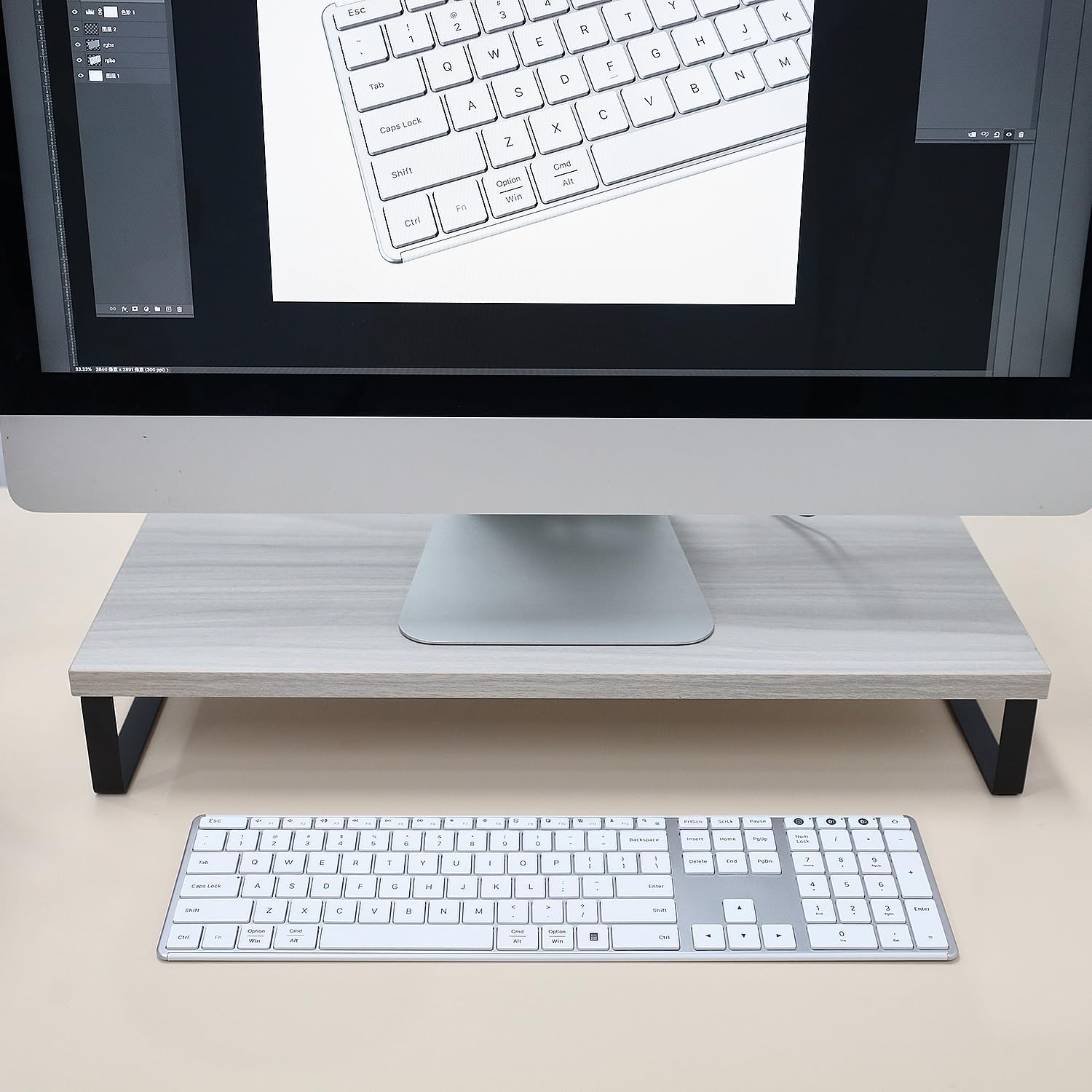
Image 2.1: The keyboard connected via USB-C cable, illustrating the charging process and battery features.
2.2 Connecting via 2.4G Wireless (Device 0)
- Locate the 2.4GHz USB receiver, typically stored in the battery compartment on the underside of the keyboard.
- Cuir a-steach an cuidhteas USB a-steach do phort USB a tha ri fhaighinn air do choimpiutair.
- Turn on the keyboard using the power switch located on the top edge.
- Brùth an 2.4g button (often labeled with a USB icon or '0') on the keyboard. The indicator light for the 2.4G connection will blink, then become solid when connected.
- Your keyboard is now ready for use with the 2.4G wireless connection.
2.3 Connecting via Bluetooth (Device 1 & 2)
The keyboard supports two separate Bluetooth connections (BT1 and BT2).
- Tionndaidh air a 'mheur-chlàr a' cleachdadh an tionndadh cumhachd.
- Brùth agus cum an dàrna cuid an BT1 or BT2 button for 3-5 seconds until its indicator light starts blinking rapidly. This indicates the keyboard is in pairing mode.
- On your device (computer, tablet, smartphone), go to Bluetooth settings and enable Bluetooth.
- Lorg airson new devices. The keyboard should appear as "AUSDOM Keyboard" or similar.
- Select the keyboard from the list to pair. The indicator light on the keyboard will become solid when successfully paired.
- Repeat these steps for the second Bluetooth connection (BT2) with another device, if desired.

Image 2.2: The keyboard demonstrating its ability to connect to a laptop, monitor, and tablet simultaneously.
2.4 Ag atharrachadh eadar innealan ceangailte
To switch between your connected devices, simply press the corresponding connection button:
- Brùth 2.4g (or '0') for the 2.4GHz wireless connection.
- Brùth BT1 for the first Bluetooth connection.
- Brùth BT2 for the second Bluetooth connection.
Ceanglaicheas am meur-chlàr ris an inneal taghte gu fèin-ghluasadach.
3. Stiùireadh Obrachaidh
3.1 Clò-sgrìobhadh Bunasach
The keyboard features a standard QWERTY layout with low-profile keys designed for a quiet and comfortable typing experience. The scissor-switch mechanism ensures consistent key travel and responsiveness.

Image 3.1: Close-up of keyboard keys with an illustration of the scissor switch mechanism, highlighting low-profile dealbhadh.
3.2 Function Keys and Shortcut Keys
The top row of keys (F1-F12) serves dual functions. By default, they may perform multimedia or system control actions. To access the standard F1-F12 functions, press the Fn iuchair aig an aon àm ris an iuchair F a tha thu ag iarraidh.
Common shortcut functions include:
- Fn + F1-F3: Volume control (Mute, Volume Down, Volume Up)
- Fn + F4-F6: Media playback control (Previous Track, Play/Pause, Next Track)
- Fn + F7-F8: Brightness adjustment (if supported by your device)
- Fn + F9-F12: Other system functions (e.g., Search, Share, Settings)

Image 3.2: The full keyboard layout, including the numeric keypad and dedicated shortcut keys.
3.3 Meur-chlàr àireamhach
The dedicated numeric keypad on the right side of the keyboard allows for efficient data entry. Ensure the Glasadh Àireamh key is activated for the numeric keys to function as numbers. When Num Lock is off, these keys may function as navigation keys (Home, End, PgUp, PgDn).
3.4 Modh Sàbhaladh Cumhachd
To conserve battery life, the keyboard will automatically enter sleep mode after 30 minutes of inactivity. To wake the keyboard, press any key. There may be a slight delay (approximately 1-2 seconds) for the connection to re-establish.
4. Cumail suas
4.1 Glanadh
Gus am meur-chlàr agad a ghlanadh, cuir dheth e an toiseach. Cleachd clò bog, gun lint, beagan bog.ampened with water or a mild cleaning solution. Avoid using harsh chemicals, abrasive cleaners, or excessive moisture, as these can damage the keyboard. For cleaning between keys, a can of compressed air can be used to remove dust and debris.
4.2 Cùram Bataraidh
The keyboard contains a built-in rechargeable lithium battery. To prolong battery life:
- Seachain a bhith a’ leigeil às a’ bhataraidh gu tur gu tric.
- Charge the keyboard when the low battery indicator appears.
- If storing the keyboard for an extended period, charge it to approximately 50% and store it in a cool, dry place.
4.3 Stòradh
When not in use for a long period, turn off the keyboard to prevent battery drain. Store it in a clean, dry environment away from extreme temperatures and direct sunlight.
5. A ’dèanamh trioblaid
If you encounter issues with your AUSDOM keyboard, please refer to the following common solutions:
5.1 Keyboard Not Responding / Connection Issues
- Thoir sùil air cumhachd: Dèan cinnteach gu bheil am meur-chlàr air a thionndadh air agus gu bheil bataraidh gu leòr ann. Ath-lìon e ma tha sin riatanach.
- Ath-stèidhich an ceangal: For 2.4G, unplug and re-insert the USB receiver. For Bluetooth, go to your device's Bluetooth settings, "forget" or "remove" the keyboard, and then re-pair it following the instructions in Section 2.3.
- Atharraich seanalan: Ensure you have selected the correct channel (2.4G, BT1, or BT2) for your active device.
- Eadar-theachd: Gluais am meur-chlàr nas fhaisge air an inneal agad agus air falbh bho innealan gun uèir eile a dh’ fhaodadh bacadh adhbhrachadh.
- Co-fhreagarrachd inneal: Verify that your device's operating system and Bluetooth version are compatible with the keyboard.
5.2 Keys Not Registering or Delayed Input
- Ìre bataraidh: Low battery can cause intermittent key presses. Charge the keyboard fully.
- Dùisg bho Chadal: If the keyboard was in sleep mode, press any key and wait a moment for it to reconnect.
- Iuchraichean Glan: Ensure no debris is lodged under the keys. Refer to Section 4.1 for cleaning instructions.
5.3 Numeric Keypad Not Working
- Àireamh Lock: Brùth an Glasadh Àireamh key to activate the numeric keypad. The Num Lock indicator light should be on.
If these steps do not resolve your issue, please contact AUSDOM customer support for further assistance.
6. Sònrachaidhean
| Modail | AUSDOM Full Size Multi-Device Wireless Keyboard (B0DGL7ZJS8) |
| Teicneòlas ceangail | Gun uèir 2.4GHz, Bluetooth 5.0 |
| Innealan co-fhreagarrach | Laptop, PC, Smart TV, Smartphone, Tablet (Windows, Mac, iOS, Android) |
| Tuairisgeul meur-chlàr | Full Size, Low-Profile Keys, Numeric Keypad, Shortcut Keys |
| Feartan sònraichte | Lightweight, Low-Profile Key, Rechargeable, Silent, Quiet |
| Bataraidh | 1 bataraidh lithium-ion (air a ghabhail a-steach), 280 mAh |
| Ùine cosgais | Mu thuairmeas. 1.5 uairean |
| Àm Obrach | Suas ri 200 uairean (air aon chosgais) |
| Modh cadail fèin-ghluasadach | Às deidh 30 mionaidean de neo-ghnìomhachd |
| Meudan toraidh | 16.73 x 4.49 x 0.5 òirleach (42.42 x 11.43 x 1.27 cm) |
| Cuideam nì | 1.72 not (0.78 kg) |
| Stuth | Aluminium, plastaig |
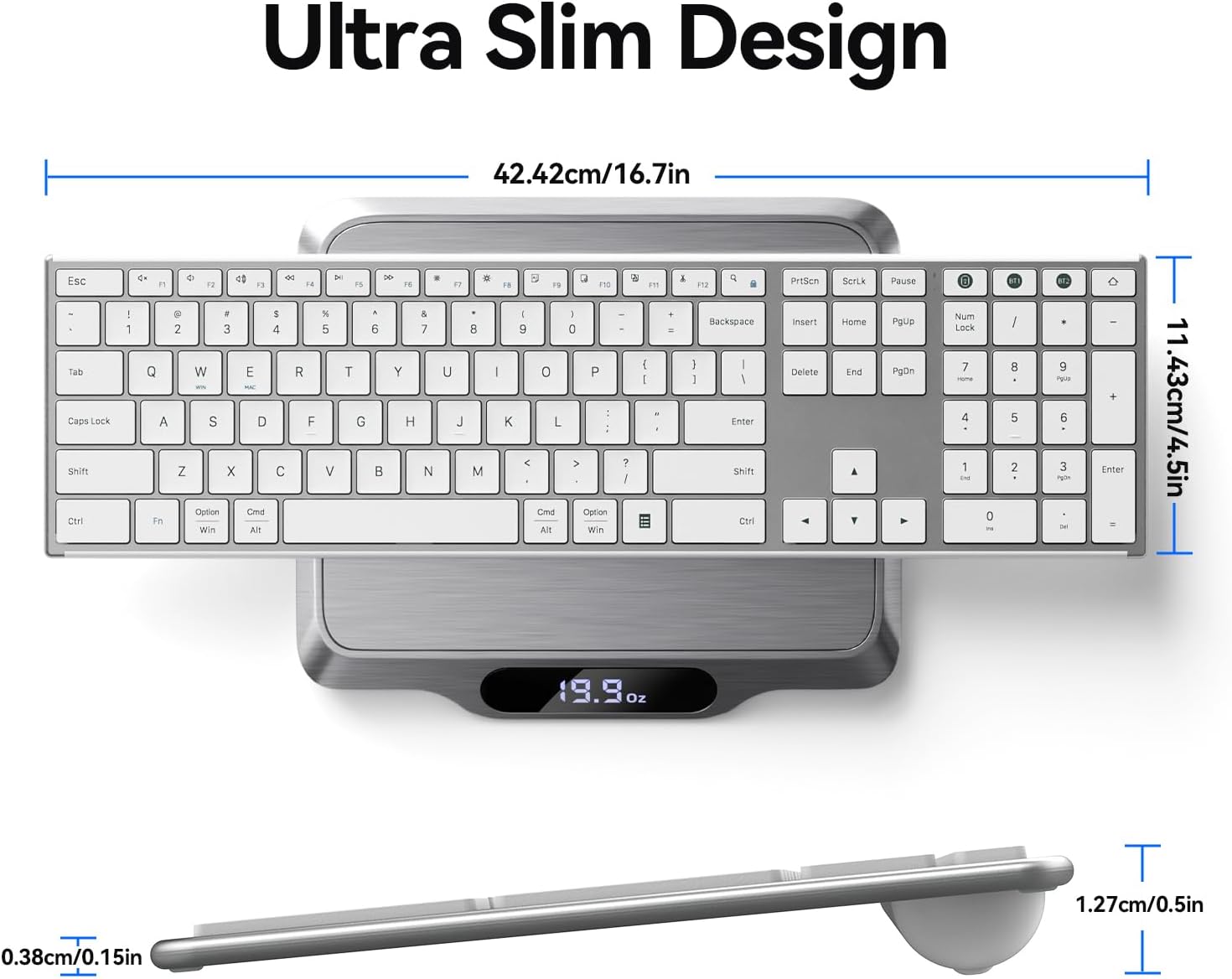
Ìomhaigh 6.1: Bho mhullach gu bonn view of the keyboard on a scale, showing its dimensions and weight.
7. Barantas agus Taic
This AUSDOM keyboard comes with a one-year warranty from the date of purchase. This warranty covers manufacturing defects and issues arising from normal use.
For warranty claims, technical support, or any questions regarding your product, please contact AUSDOM customer service. Contact information can typically be found on the AUSDOM official weblàrach-lìn no tron àrd-ùrlar ceannach agad.
Cùm dearbhadh do cheannach airson dearbhadh barantais.


