1. Introduction
The dockteck M.2 NVMe SATA SSD Enclosure Adapter (Model DH0005) provides a convenient and efficient solution for converting your M.2 NVMe or SATA SSD into a portable external storage device. Featuring a tool-free design and high-speed USB 3.2 Gen 2 interface, this enclosure supports data transfer rates up to 10Gbps for NVMe SSDs and 6Gbps for SATA SSDs. It is compatible with various M.2 SSD sizes (2230, 2242, 2260, 2280) and operating systems, making it a versatile accessory for data management and expansion.
2. Contenu du colis
Veuillez vérifier que tous les articles sont présents dans votre colis :
- 1 x dockteck M.2 SSD Enclosure Adapter
- 1 x USB-C to C Cable (approx. 9.8 inches / 25 cm)
- 1 x USB-A to C Cable (approx. 9.8 inches / 25 cm)
- 1 x coussin thermique
- 1 x Spare Mounting Pin
- 1 x Manuel d'utilisation (ce document)
3. Caractéristiques
- Transfert de données à haut débit : USB 3.2 Gen 2 Type-C interface supports up to 10Gbps for NVMe SSDs and 6Gbps for SATA SSDs.
- UASP/TRIM Protocol Support: Enhances SSD read and write speeds for efficient large file transferts.
- Installation sans outil : Easy slide-open design for quick SSD insertion and removal without tools.
- Dissipation thermique efficace : Constructed with an aluminum alloy shell and includes a silicone thermal pad to maintain optimal operating temperatures and ensure data stability.
- Large compatibilité: Supports M-Key and B+M Key M.2 NVMe and SATA SSDs of sizes 2230, 2242, 2260, and 2280, up to 4TB capacity.
- Prise en charge étendue des appareils : Compatible with Windows, Mac OS, Linux, and Android systems, connecting to PCs, laptops, tablets, smartphones, game consoles, and smart TVs.
- Mode veille automatique : Enters sleep mode after 15 minutes of inactivity to protect your SSD and conserve power.
4. Configuration et installation
Suivez ces étapes pour installer votre SSD M.2 dans le boîtier :
- Ouvrez le boîtier : Press the button on the end of the enclosure and slide the internal tray out.
- Insérez le SSD : Gently insert your M.2 SSD into the slot at a 45-degree angle. Ensure the key type (M-Key or B+M Key) matches the enclosure's slot.
- Sécurisez le SSD : Push the SSD down until it is flat, then secure it with the provided rubber mounting pin at the end of the SSD.
- Appliquer le tampon thermique : Peel off the protective films from both sides of the thermal pad and place it onto the SSD chip. This helps dissipate heat to the aluminum casing.
- Fermez l'enclos : Slide the internal tray back into the aluminum shell until it clicks into place.

Figure 1: Easy Installation Steps for M.2 SSD
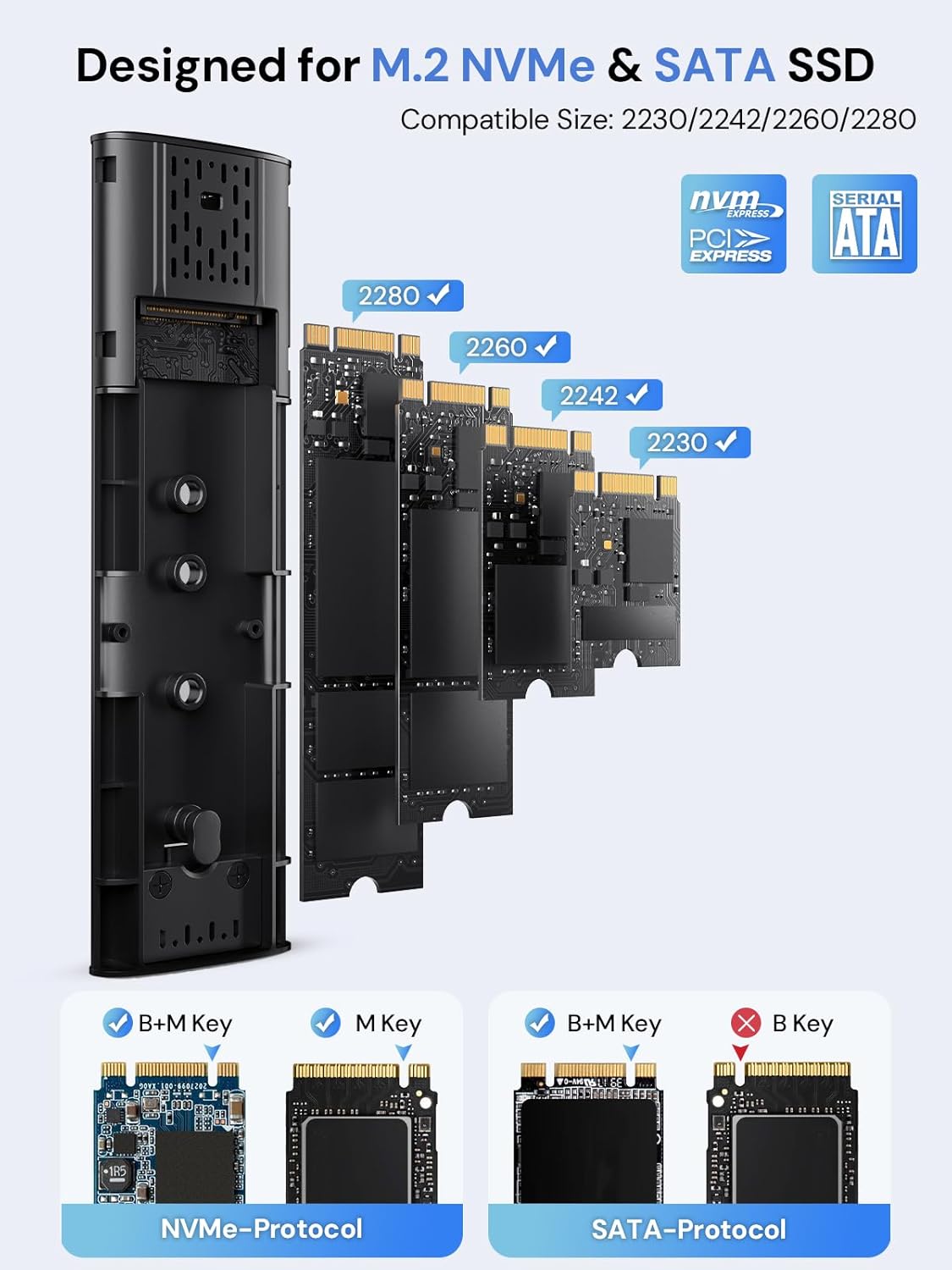
Figure 2: Compatible M.2 SSD Sizes and Key Types
5. Mode d'emploi
Once your SSD is installed, connect the enclosure to your device using one of the provided USB cables. The enclosure is plug-and-play, requiring no additional drivers for most operating systems.
- Connexion: Use the USB-C to C cable for devices with a USB-C port, or the USB-A to C cable for devices with a standard USB-A port.
- Transfert de données : The enclosure will appear as an external drive on your computer or compatible device. You can drag and drop files, ou utilisez les fonctions de votre système file outils de gestion pour le transfert de données.
- Indicateur LED : A clear LED indicator on the enclosure will show activity during data transfer.
- Veille automatique: To protect your SSD and conserve power, the enclosure will automatically enter sleep mode after 15 minutes of no read/write activity.
Video 1: Demonstration of M.2 SSD Enclosure Adapter usage, including tool-free installation, high-speed data transfer, heat dissipation features, and connectivity with various devices like smartphones and laptops.
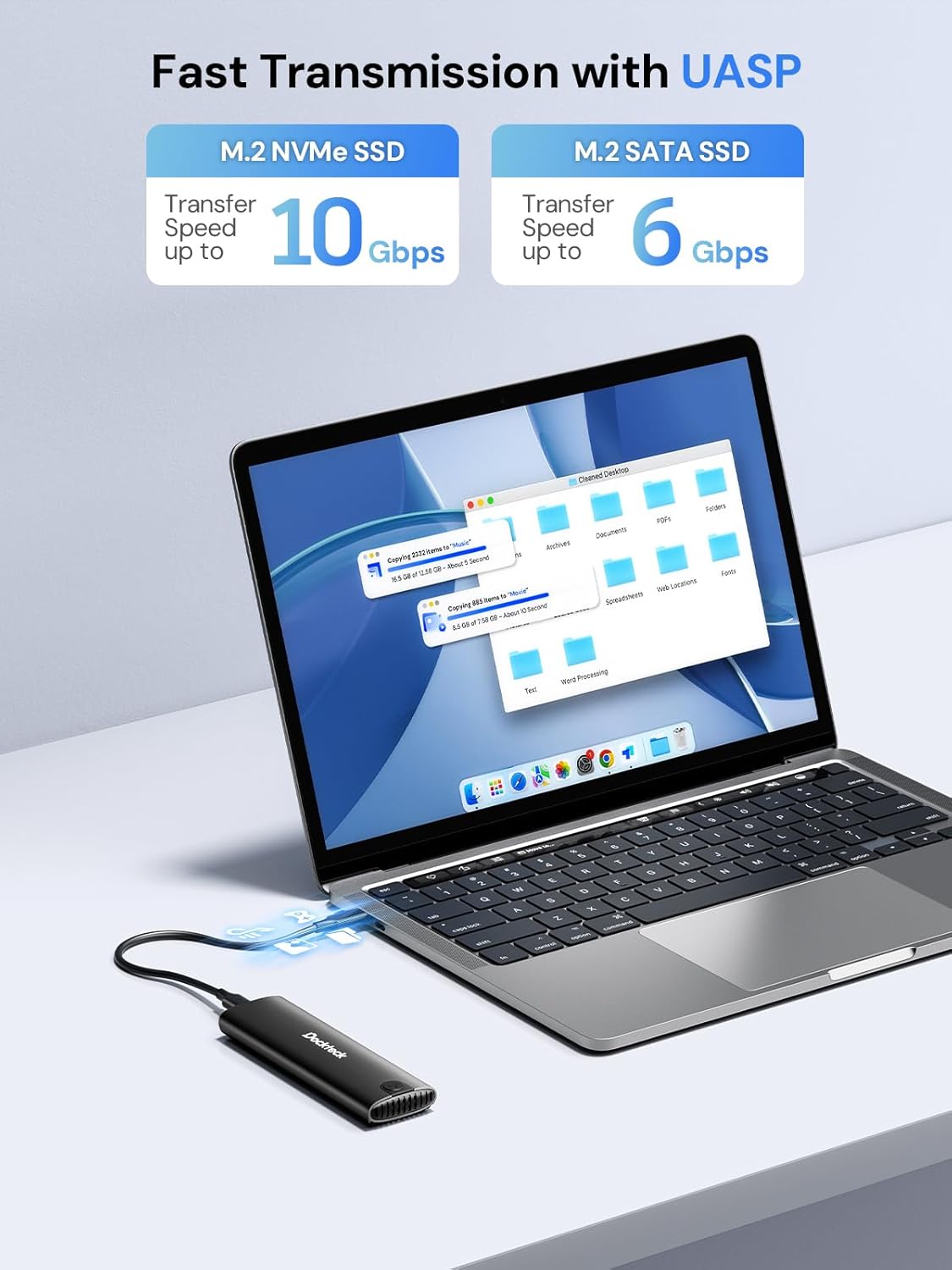
Figure 3: Fast Data Transmission with UASP
6. Dissipation de chaleur
The dockteck M.2 SSD Enclosure is designed with effective heat dissipation in mind to ensure stable performance and prolong the life of your SSD.
- Coque en alliage d'aluminium : Le robuste aluminium casing acts as a heatsink, drawing heat away from the SSD.
- Coussinet thermique en silicone : The included thermal pad creates efficient contact between the SSD and the aluminum shell, further enhancing heat transfer.
- Trous de dissipation thermique : Strategically placed holes on the enclosure facilitate airflow and heat release.

Figure 4: Effective Heat Dissipation Design
7. Compatibilité
This enclosure offers broad compatibility with various M.2 SSDs and host devices.
- SSD Protocols: Supports both NVMe (PCIe) and SATA protocols.
- SSD Key Types: Compatible with M-Key and B+M Key M.2 SSDs. (Note: B-Key only SATA SSDs are not supported).
- Capacités des SSD : Supports M.2 SSDs of form factors 2230, 2242, 2260, and 2280.
- Capacité maximale : Prend en charge les SSD M.2 jusqu'à 4 To.
- Systèmes d'exploitation : Works with Windows, Mac OS, Linux, and Android systems.
- Appareils compatibles : Can be connected to PCs, laptops, tablets, smartphones (with USB-C), game consoles, and smart TVs.

Figure 5 : Compatibilité étendue avec les appareils et les systèmes
8. Dépannage
En cas de problème, veuillez vous référer aux étapes de dépannage courantes suivantes :
- SSD non détecté :
- Assurez-vous que le SSD M.2 est correctement inséré et fixé dans le boîtier.
- Verify that your SSD is either NVMe (M-Key or B+M Key) or SATA (B+M Key). B-Key only SATA SSDs are not supported.
- Check if the SSD is initialized and formatted. New SSDs typically need to be initialized and formatted in Disk Management (Windows) or Disk Utility (Mac OS) before use.
- Essayez de connecter le boîtier à un autre port USB de votre appareil.
- Essayez avec un autre câble USB si possible.
- Vitesses de transfert lentes :
- Ensure your device's USB port supports USB 3.2 Gen 2 (10Gbps) for optimal performance. Older USB 2.0 or 3.0 ports will result in lower speeds.
- Vérifiez que votre système d'exploitation et vos pilotes sont à jour.
- Confirm that the SSD itself is capable of high speeds (e.g., NVMe SSDs are faster than SATA SSDs).
- Évitez de transférer de nombreux petits montants. filesimultanément, car cela peut réduire la vitesse de transfert globale.
- L'enceinte se réchauffe :
- Il est normal que le boîtier en aluminium chauffe lors d'une utilisation intensive, car il est conçu pour dissiper la chaleur du SSD.
- Ensure the thermal pad is correctly installed on the SSD to facilitate heat transfer to the enclosure.
- Évitez de placer le boîtier dans des espaces clos qui restreignent la circulation de l'air.
- Déconnexions intermittentes :
- Assurez-vous que le câble USB est correctement connecté à la fois au boîtier et à votre appareil.
- Essayez un autre port USB ou un autre câble.
- Check for power management settings on your computer that might be turning off USB ports to save power.
9. Spécifications
| Fonctionnalité | Détail |
|---|---|
| Numéro de modèle | DH0005 |
| Dimensions du produit | 4.9 x 1.5 x 0.6 pouces (12.4 x 3.8 x 1.5 cm) |
| Poids de l'article | 1.92 onces (54.4 g) |
| Interface | USB 3.2 Gen 2 Type-C |
| Vitesse de transfert des données | Up to 10Gbps (NVMe), Up to 6Gbps (SATA) |
| Protocoles SSD pris en charge | NVMe (PCIe) and SATA |
| Supported SSD Key Types | M-Key, B+M Key |
| Tailles de SSD prises en charge | 2230, 2242, 2260, 2280 |
| Capacité SSD maximale | 4 To |
| Systèmes d'exploitation compatibles | Windows, Mac OS, Linux, Androïd |
| Matériel | Alliage d'aluminium |
| Couleur | Noir |
| Fabricant | dockteck |
10. Garantie et assistance
dockteck products are designed for reliability and performance. For warranty information, technical support, or any inquiries regarding your M.2 NVMe SATA SSD Enclosure Adapter, please contact dockteck customer service through their official website ou le détaillant où le produit a été acheté.
You can visit the official dockteck store for more information: dockteck Store on Amazon.


