Introduction
This manual provides detailed instructions for the setup, operation, maintenance, and troubleshooting of your ProtoArc KM100-A Backlit Bluetooth Keyboard and Mouse. Please read this manual thoroughly before using the product to ensure optimal performance and longevity.
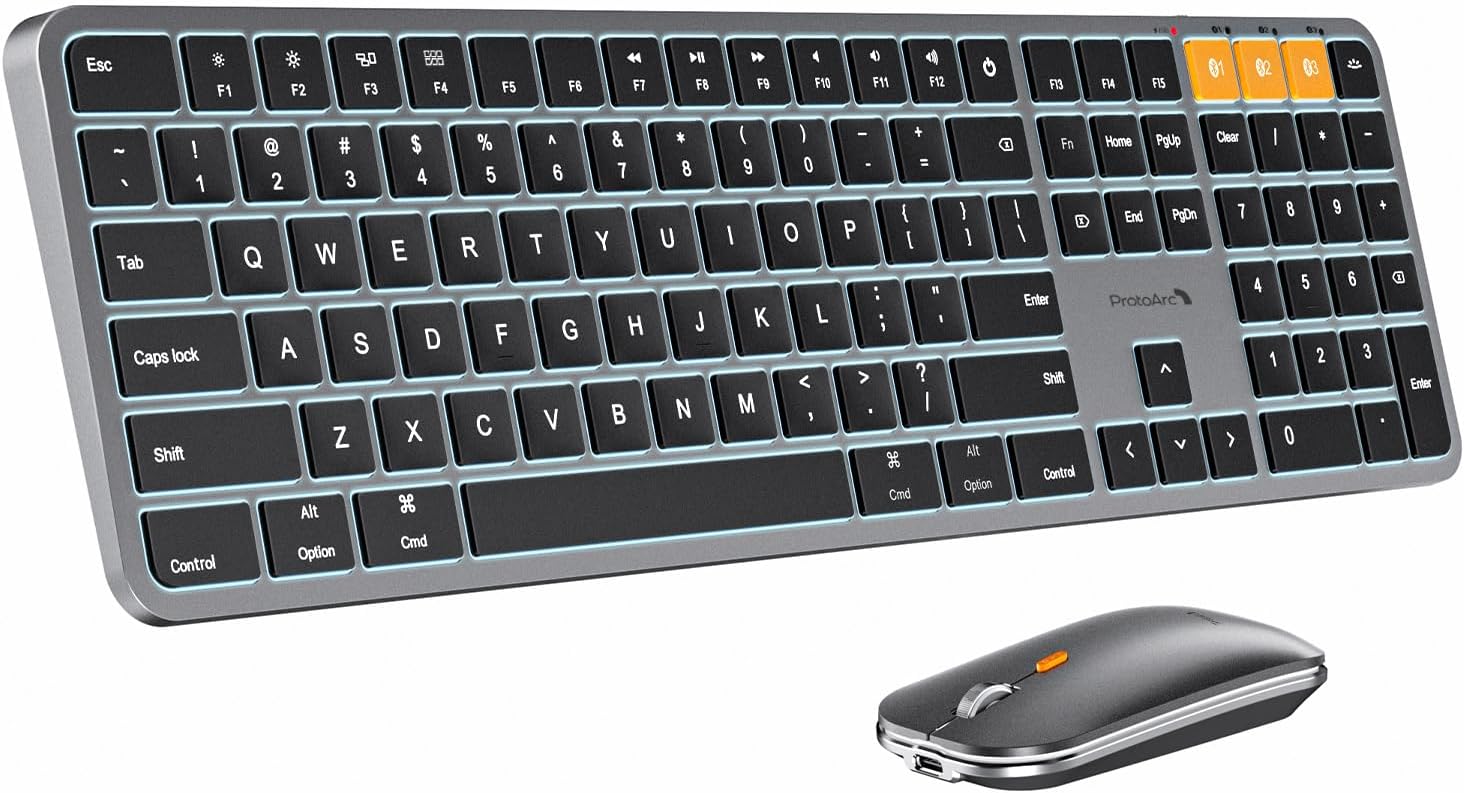
Image: The ProtoArc KM100-A keyboard and mouse combo, showcasing the full-size keyboard with numeric keypad and the slim mouse.
Contenu du colis
À l'ouverture du colis, vérifiez que tous les articles sont présents :
- ProtoArc KM100-A Backlit Bluetooth Keyboard
- ProtoArc Bluetooth Mouse
- Câble de chargement USB-C
- Manuel de l'utilisateur (ce document)

Image: The ProtoArc KM100-A keyboard and mouse laid out with its packaging and charging cable.
Guide d'installation
1. Chargement des appareils
Both the keyboard and mouse feature built-in rechargeable batteries. Before first use, it is recommended to fully charge both devices.
- Connect the provided USB-C charging cable to the charging port on the keyboard (located on the top edge) and the mouse (located on the front edge).
- Connectez l'autre extrémité du câble à une source d'alimentation USB (par exemple, un port USB d'ordinateur, un adaptateur secteur USB).
- Le voyant de charge s'allume pendant la charge et s'éteint une fois la charge complète. Une charge complète prend généralement entre 2 et 3 heures.

Image: Close-up of the keyboard and mouse showing the USB-C charging ports and cables connected, indicating their rechargeable nature.
2. Mise sous tension
- Clavier: Locate the power switch on the top edge of the keyboard and slide it to the "ON" position.
- Souris: Repérez l'interrupteur d'alimentation situé sous la souris et faites-le glisser sur la position « ON ».
3. Couplage Bluetooth
The KM100-A supports connection to up to three devices simultaneously via Bluetooth. You can switch between connected devices using the dedicated channel buttons.
- Couplage du clavier :
- Press and hold one of the Bluetooth channel buttons (BT1, BT2, ou BT3Maintenez le bouton enfoncé pendant 3 à 5 secondes, jusqu'à ce que le voyant correspondant clignote rapidement. Cela indique que le clavier est en mode appairage.
- On your Mac device, go to Paramètres du système (ou Préférences système) > Bluetooth.
- Look for "ProtoArc KM100-A Keyboard" in the list of available devices and click "Connect".
- Follow any on-screen prompts to complete the pairing process. The indicator light will stop flashing and remain solid when connected.
- Appairage de la souris :
- Press the channel switch button on the bottom of the mouse to select a channel (BT1, BT2, or BT3). The corresponding indicator light will flash.
- Maintenez le bouton de changement de canal enfoncé pendant 3 à 5 secondes jusqu'à ce que le voyant clignote rapidement. Cela indique que la souris est en mode appairage.
- On your Mac device, go to Paramètres du système (ou Préférences système) > Bluetooth.
- Look for "ProtoArc KM100-A Mouse" in the list of available devices and click "Connect".
- The indicator light will stop flashing and remain solid when connected.
Note: The keyboard and mouse connect solely via Bluetooth and do not include a USB dongle. Ensure your device supports Bluetooth 5.1 or above and runs Mac OS 10.12 or later for full compatibility.

Image: A setup showing the keyboard and mouse connected via Bluetooth to a MacBook, an iPhone, and an external monitor, illustrating multi-device connectivity.

Image: Diagram showing the keyboard and mouse connecting to multiple devices (laptop, monitor, phone) via Bluetooth, with a note that no USB dongle is included.
Mode d'emploi
Fonctions du clavier
The KM100-A keyboard is designed with a full-size layout, including a numeric keypad, and optimized for macOS.
- Commutation multi-appareils : Appuyez sur le BT1, BT2, ou BT3 buttons to instantly switch between paired devices.
- Contrôle du rétroéclairage :
- Presse F1 pour diminuer la luminosité du rétroéclairage.
- Presse F2 pour augmenter la luminosité du rétroéclairage.
- There are three adjustable brightness levels (low-mid-high).
- Media and Function Keys: The top row of keys provides quick access to various macOS functions:
- F3: Vitrine
- F4: Ouvrir la barre de lancement
- F7: Piste précédente
- F8: Lecture/Pause
- F9: Piste suivante
- F10: Muet
- F11: Baisser le volume
- F12: Augmenter le volume
- Bouton d'alimentation : Long press to pop-up window to select shutdown (For Mac); Short press for screen lock (For iOS).
- Expérience de frappe : The keyboard features responsive scissor-switch keys and a low-profile design for quiet and comfortable typing.
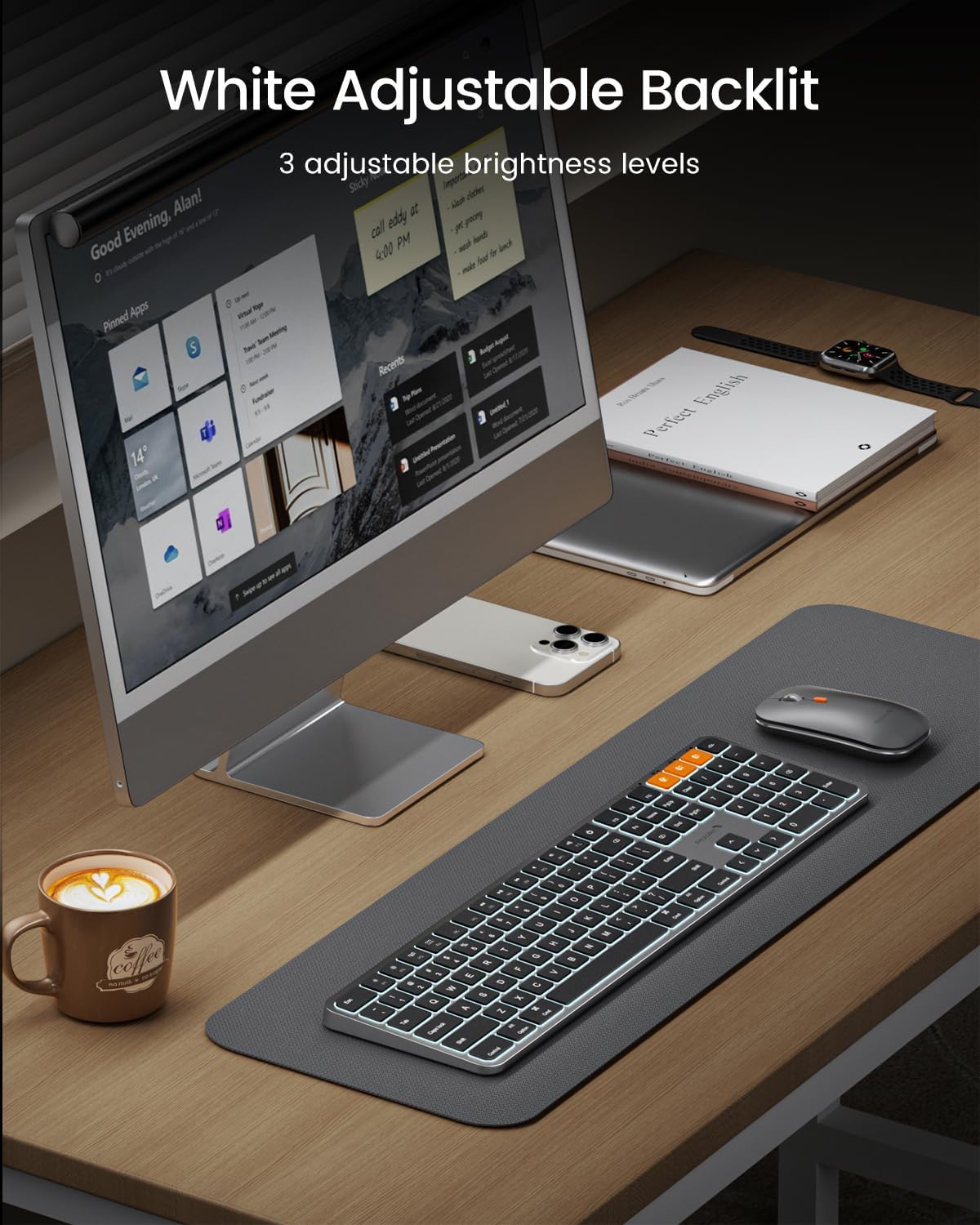
Image: The keyboard with its white LED backlighting illuminated, demonstrating the adjustable brightness feature.

Image: A detailed diagram of the keyboard layout, highlighting the function keys and their corresponding macOS actions, along with the multi-device switching buttons.
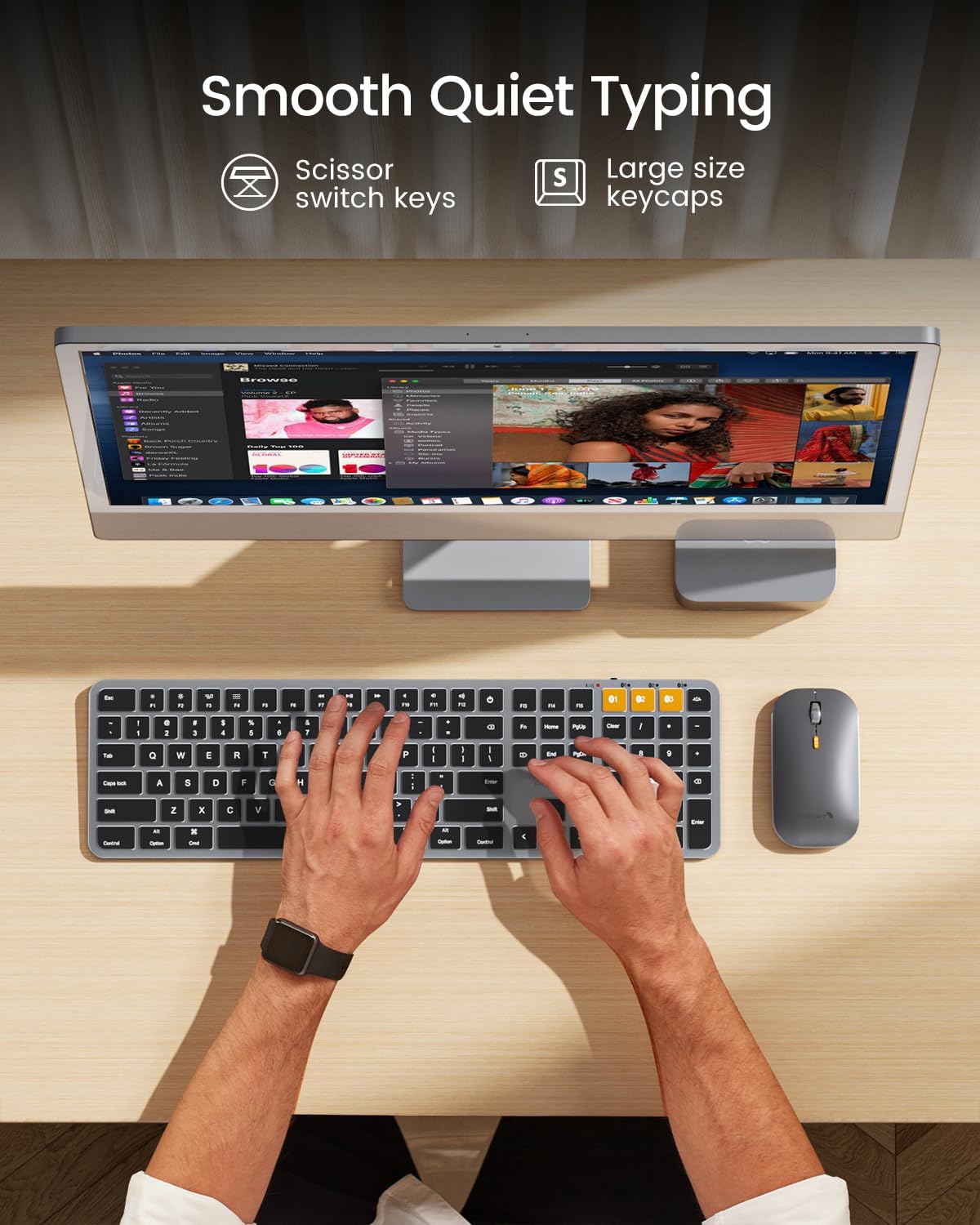
Image: An overhead shot of hands typing on the keyboard, emphasizing the smooth and quiet typing experience provided by the scissor-switch keys.
Fonctions de la souris
- Ajustement PPP : The mouse features three adjustable DPI levels (1000/1600/2400). Press the Bouton DPI (located near the scroll wheel) to cycle through the sensitivity settings.
- Clic silencieux : The mouse is designed for quiet operation, reducing click noise.
- Commutation multi-appareils : Use the channel switch button on the bottom of the mouse to switch between paired devices (BT1, BT2, BT3).

Image: A close-up of the mouse highlighting the DPI button and indicating the three adjustable DPI levels (1000, 1600, 2400) and silent click feature.

Image: Detailed diagrams of the top and bottom of the mouse, labeling its various buttons and indicators, including the DPI button, charging port, and Bluetooth channel indicators.
Entretien
- Nettoyage: Utilisez un chiffon doux, sec et non pelucheux pour nettoyer le clavier et la souris. Pour les saletés tenaces, frottez légèrement avec un chiffon doux.ampNettoyez le chiffon avec de l'eau ou un nettoyant doux non abrasif. Évitez l'humidité excessive.
- Stockage: En cas de non-utilisation prolongée, éteignez les deux appareils afin de préserver la batterie. Rangez-les dans un endroit frais et sec, à l'abri de la lumière directe du soleil et des températures extrêmes.
- Entretien de la batterie: To prolong battery lifespan, avoid fully discharging the devices frequently. Recharge them when the low power indicator appears.
- Mode économie d'énergie: If the keyboard is not used for 60 minutes, it will enter sleep mode. Press any key to wake it up. The backlighting will need to be turned on again manually after waking from sleep.

Image: A composite image showing various features of the keyboard, including low-profile key stroke, silent click mouse, extended layout, and a visual representation of a waterproof cover, suggesting ease of cleaning.
Dépannage
| Problème | Cause possible | Solution |
|---|---|---|
| L'appareil ne se connecte pas via Bluetooth. | Low battery; Device not in pairing mode; Bluetooth disabled on host device; Interference. | Charge the device. Ensure the device is in pairing mode (indicator flashing rapidly). Enable Bluetooth on your computer/device. Move closer to the host device or away from other wireless devices. |
| Le clavier et la souris se déconnectent fréquemment. | Low battery; Too far from host device; Interference. | Recharge the device. Ensure the device is within the effective Bluetooth range (up to 10 meters). Reduce interference from other wireless devices. |
| Keys not responding or mouse cursor erratic. | Low battery; Software issue; Dirty sensor (mouse). | Charge the device. Restart your computer/device. Clean the mouse sensor with a soft cloth. |
| Le rétroéclairage ne fonctionne pas. | Backlight turned off or at lowest setting; Low battery. | Press F2 to increase brightness. Ensure the keyboard is charged. Note: Backlight needs to be turned on again after waking from sleep mode. |
| Function keys (F1-F12) not working correctly on Windows. | Keyboard designed primarily for macOS. | The KM100-A keyboard is optimized for macOS. Media keys and function keys may not be fully compatible or work as expected on Windows operating systems. |
Caractéristiques
| Fonctionnalité | Détail |
|---|---|
| Numéro de modèle | KM100-A |
| Marque | ProtoArc |
| Technologie de connectivité | Bluetooth 5.1 (or above) |
| Appareils compatibles | MacBook Air, iPad, MacBook Pro, Mac (Mac OS 10.12 or later) |
| Disposition du clavier | Full Size with Numeric Keypad |
| Clavier rétro-éclairage | White LED, 3 adjustable brightness levels |
| Batterie du clavier | 1200mAh rechargeable Lithium Ion |
| Niveaux de DPI de la souris | 1000/1600/2400 adjustable |
| Batterie de souris | 300mAh rechargeable Lithium Ion |
| Port de chargement | USB-C |
| Dimensions du produit (clavier) | Environ. 16.5 x 4.7 x 0.55 pouces (42 x 12 x 1.4 cm) |
| Dimensions du produit (souris) | Environ. 3.9 x 2.3 x 0.79 pouces (10 x 5.9 x 2.01 cm) |
| Poids de l'article | 13.8 ounces (Keyboard and Mouse combined) |
| Pays d'origine | Chine |

Image: A diagram illustrating the precise dimensions of both the ProtoArc KM100-A keyboard and mouse.
Garantie et assistance
ProtoArc products are designed for reliability and performance. For specific warranty details, please refer to the warranty card included with your product or visit the official ProtoArc website.
For technical support, troubleshooting assistance, or inquiries about your ProtoArc KM100-A Keyboard and Mouse, please contact ProtoArc customer service through their official channels. You may also find additional resources and FAQs on the ProtoArc support page.
Une version numérique du manuel d'utilisation est disponible en téléchargement : Télécharger le manuel d'utilisation (PDF)