1. مقدمه
Thank you for choosing the Acer 10 Gbps USB C Hub. This 5-in-1 multiport adapter is designed to expand the connectivity of your USB-C enabled devices, offering high-speed data transfer and efficient power delivery. Please read this manual carefully to ensure proper use and optimal performance of your device.
Important Note: This USB C Hub does NOT support video output (HDMI/DP). External monitors and TVs are NOT supported for display extension or mirroring.
2. محصول تمام شدview
The Acer 10 Gbps USB C Hub provides essential ports for modern computing needs, all within a compact and durable design.
- انتقال داده فوق سریع 10 گیگابیت بر ثانیه: Equipped with 4 USB-C 3.2 Gen 2 ports, allowing for high-speed data transfer of 1GB files in approximately 1 second. For full 10Gbps speed, connect to a 10Gbps-capable port and use a high-speed device.
- 100W Power Delivery (PD) Port: Features a 100W PD port for efficient charging of your host device. Ensure your laptop's USB-C port supports PD protocol and use a 65W+ charger for best performance.
- عملکرد Plug and Play: No drivers required. Simply connect the hub to your device and begin use immediately. Compatible with Windows, macOS, Linux, iPadOS, iOS, and Android.
- Stylish Aluminum Enclosure: Constructed with a high-quality aluminum alloy casing for excellent heat dissipation and enhanced safety, ensuring stable performance during prolonged use.
- High-Performance Compatibility: Compatible with a wide range of devices including MacBook Pro, MacBook, iPad Pro, iPad Mini, iPhone 16/16 Pro Max, Surface Pro, XPS 15/13, Galaxy S24/23/S22/S21, and other smartphones, laptops, tablets, and PCs.
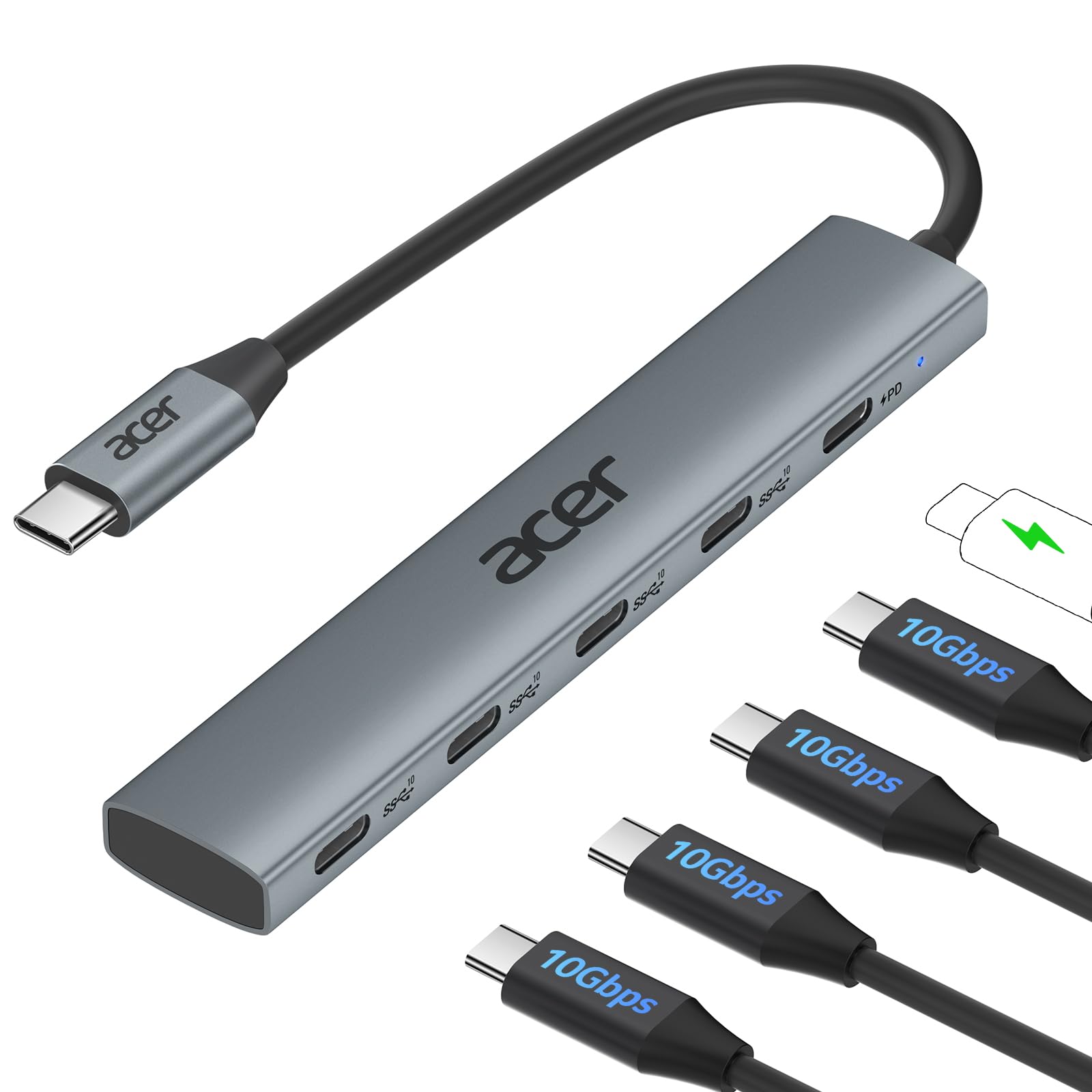
Figure 1: Acer 10 Gbps USB C Hub with its five ports and indicator light.
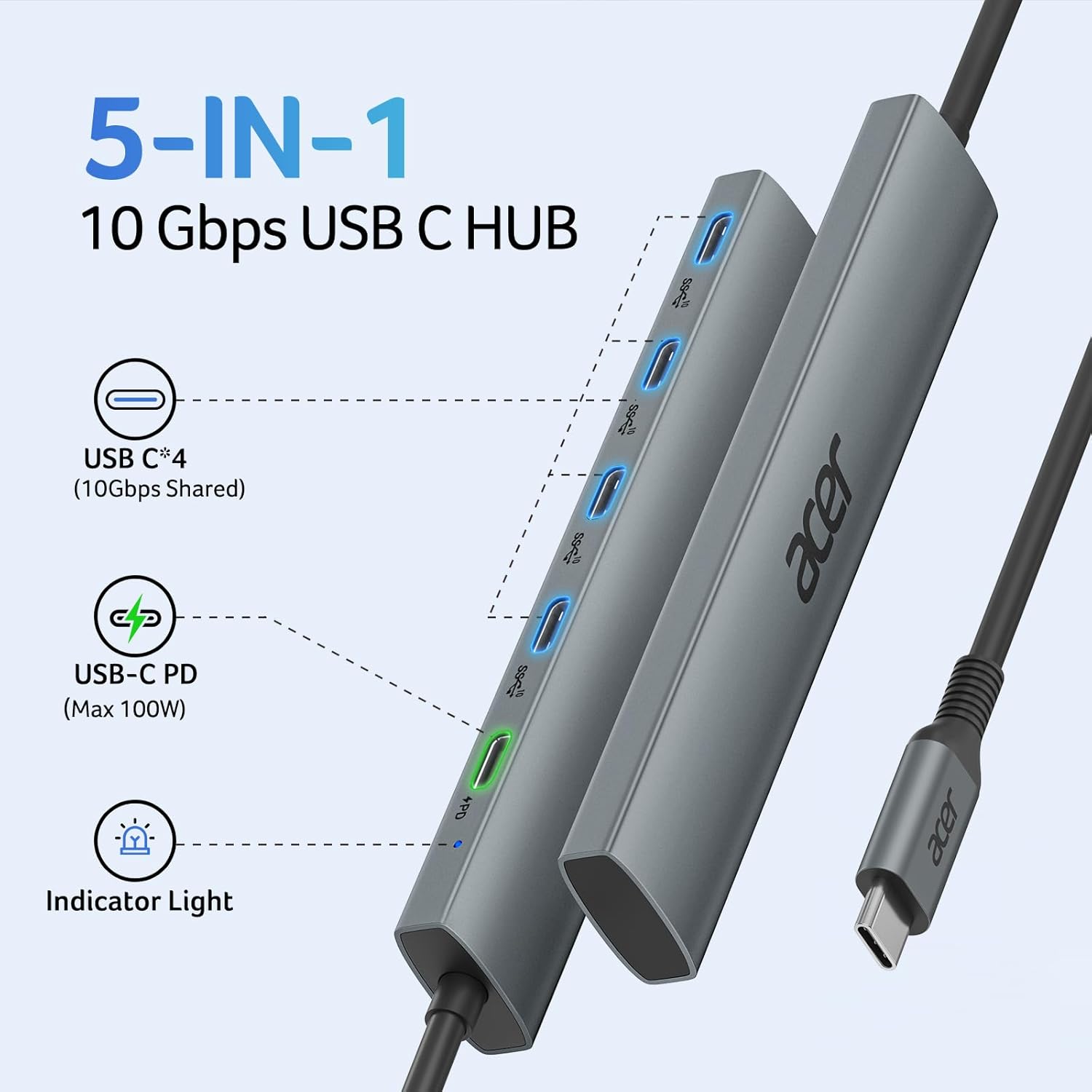
Figure 2: Detailed diagram of the Acer USB C Hub's ports, including 4 USB-C 3.2 Gen 2 data ports and 1 USB-C PD 100W charging port.
۱. دستورالعملهای راهاندازی
Setting up your Acer USB C Hub is quick and easy due to its plug-and-play design.
- اتصال به دستگاه میزبان: کابل USB-C داخلی هاب را به پورت USB-C موجود در لپتاپ، تبلت یا تلفن هوشمند خود وصل کنید.
- اتصال برق (اختیاری): If you require charging for your host device, connect a USB-C power adapter (65W or higher recommended) to the 100W PD port on the hub.
- تشخیص دستگاه: Your operating system (Windows, macOS, Linux, iPadOS, iOS, Android) should automatically detect and configure the hub. No additional drivers are typically needed.
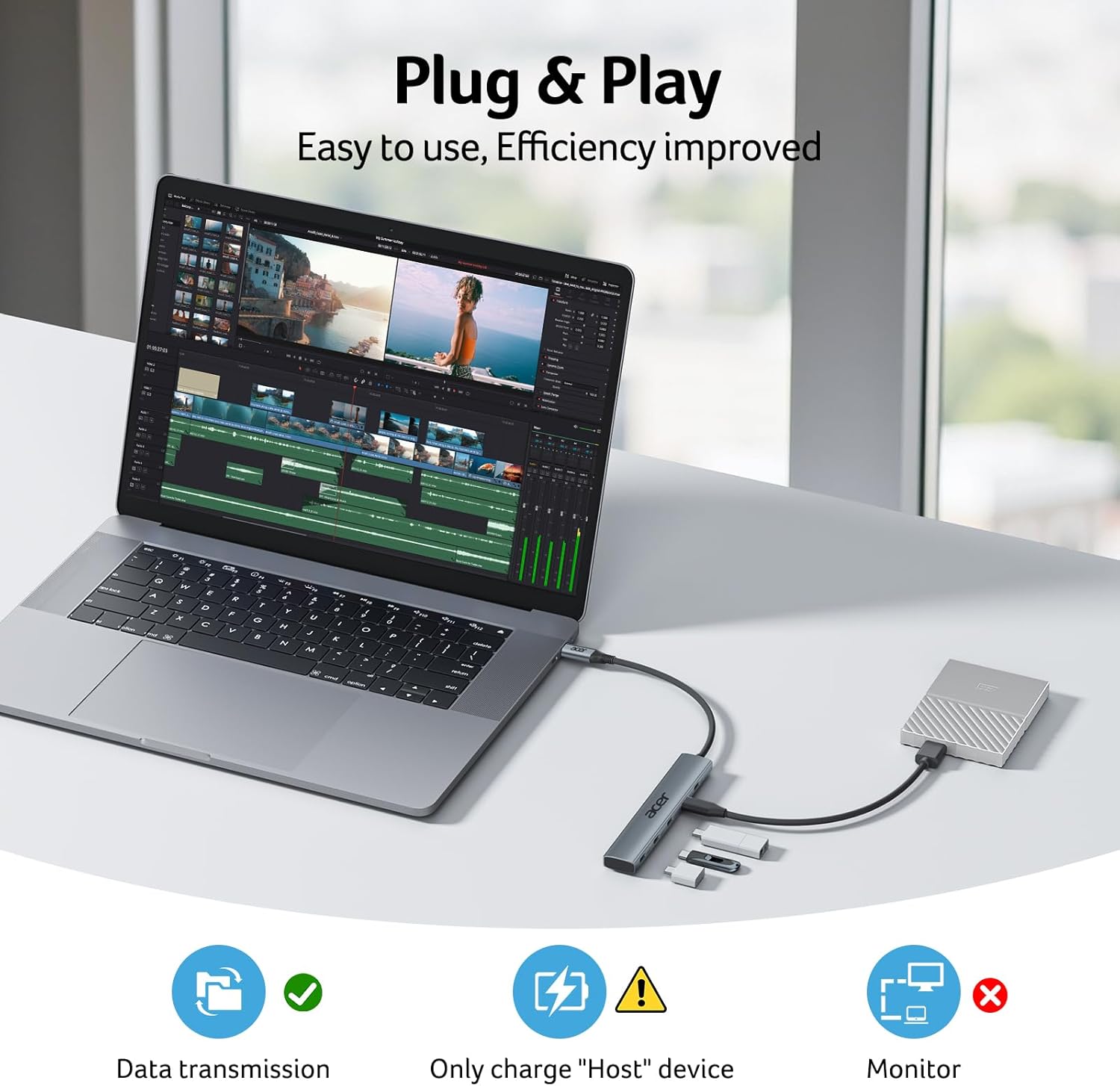
Figure 3: The Acer USB C Hub connected to a laptop, ready for use. Note the data transmission and charging icons.
4. دستورالعمل های عملیاتی
Once set up, the Acer USB C Hub allows you to connect multiple USB-C devices simultaneously.
- انتقال داده: Connect your USB-C storage devices (e.g., external SSDs, flash drives) to any of the 4 USB-C 3.2 Gen 2 data ports. Enjoy transfer speeds up to 10Gbps. For optimal speed, connect one or two external USB hard drives or SSD drives at a time.
- دستگاه شارژ: Use the dedicated 100W PD port to charge your host device. This port is for power input only and does not support data transfer.
- سازگاری: The hub is compatible with various USB-C peripherals such as keyboards, mice, and other low-power devices.
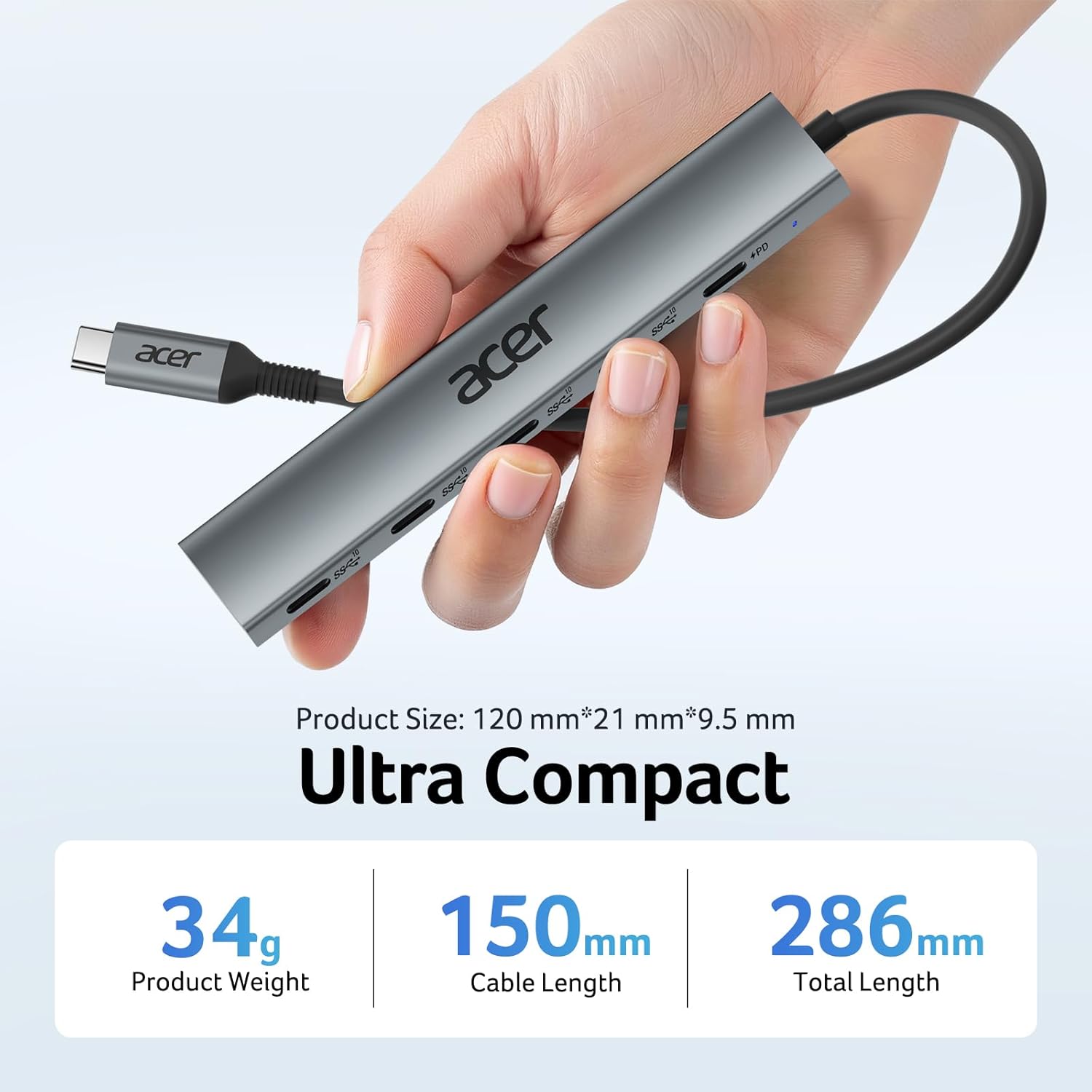
Figure 4: A user connecting an external SSD to one of the USB-C data ports on the hub, demonstrating its use for high-speed storage.

Figure 5: The Acer USB C Hub providing 100W Power Delivery to a connected laptop via a power adapter.
5. تعمیر و نگهداری
To ensure the longevity and optimal performance of your Acer USB C Hub, follow these maintenance guidelines:
- تمیز کردن: برای تمیز کردن هاب از یک پارچه نرم و خشک استفاده کنید. از پاک کننده های مایع یا مواد ساینده خودداری کنید.
- ذخیره سازی: هاب را در جای خشک و خنک و دور از نور مستقیم خورشید و دمای شدید نگهداری کنید.
- رسیدگی: Avoid dropping the hub or subjecting it to strong impacts. Do not bend the integrated cable excessively.
- اتلاف حرارت: آلومینیوم سیasing is designed for efficient heat dissipation. Ensure the hub is not covered or placed in an enclosed space during operation to allow for proper airflow.
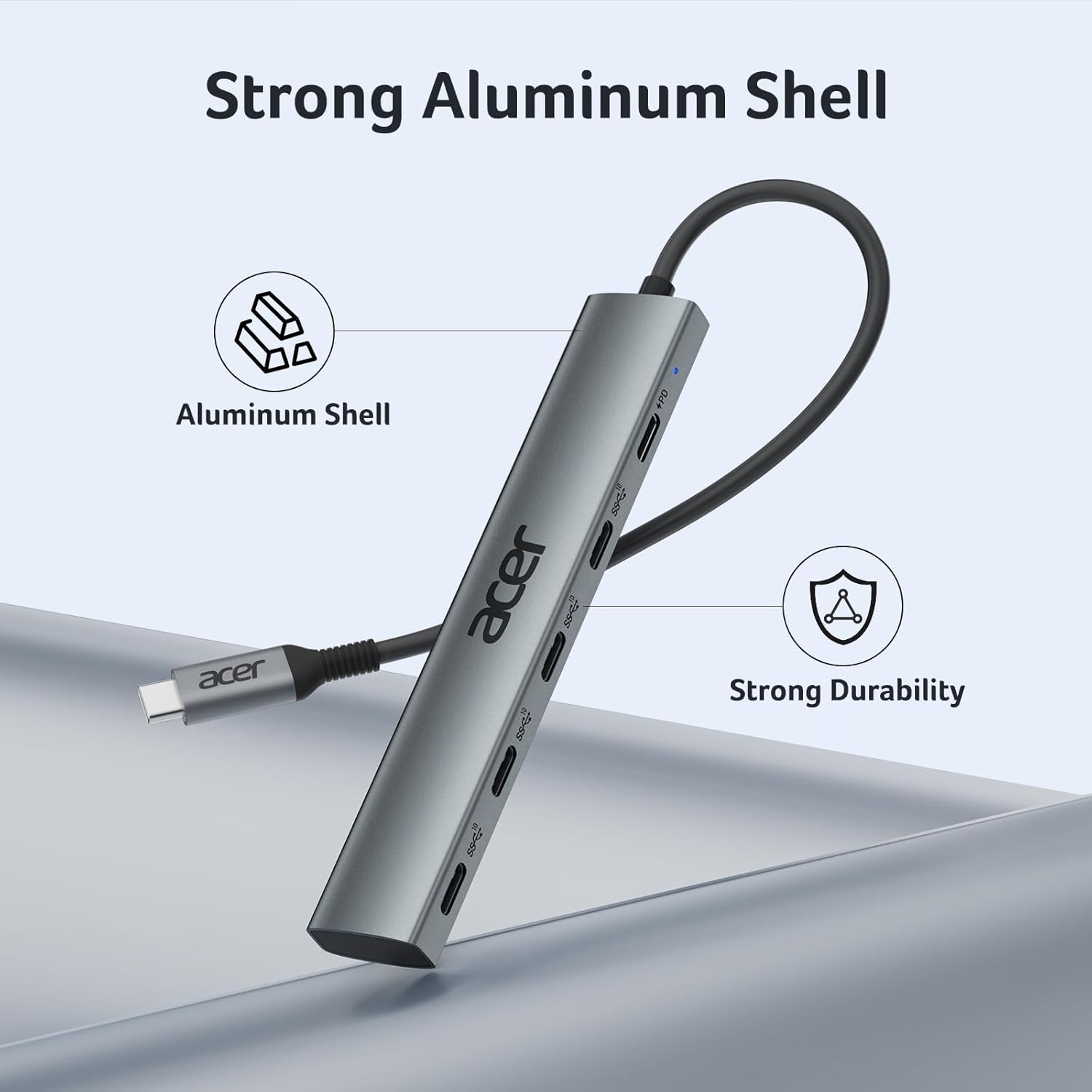
شکل 6: نمای نزدیک view of the Acer USB C Hub's durable aluminum shell, designed for effective heat management.
6 عیب یابی
If you encounter issues with your Acer USB C Hub, please refer to the following common solutions:
- دستگاه شناسایی نشد: Ensure the hub's USB-C connector is fully inserted into your host device. Try connecting to a different USB-C port on your host device if available. Restart your host device.
- انتقال داده کند: Verify that both your host device's USB-C port and the connected peripheral support USB 3.2 Gen 2 (10Gbps). Using multiple high-bandwidth devices simultaneously may reduce individual port speeds.
- مشکلات شارژ: Confirm that your power adapter is connected to the hub's PD port and that the power adapter itself is functioning correctly. Ensure your host device's USB-C port supports Power Delivery.
- بدون خروجی ویدیو: This hub does NOT support video output. This is a normal function of this specific model. If you require video output, please consider a different hub model.

Figure 7: Visual confirmation that the Acer USB C Hub does not support external monitor connections for video output.
7. مشخصات
| ویژگی | جزئیات |
|---|---|
| شماره مدل | ODK4L0 |
| پورت ها | 4 x USB-C 3.2 Gen 2 (10Gbps Data), 1 x USB-C PD (Max 100W) |
| سرعت انتقال داده | تا 10 گیگابیت بر ثانیه |
| تحویل برق | تا ۱۰۰ وات (ورودی) |
| سازگاری | Windows, macOS, Linux, iPadOS, iOS, Android |
| مواد | آلیاژ آلومینیوم |
| ابعاد | 6.06 x 4.65 x 0.47 اینچ |
| وزن مورد | 2.11 اونس |
8. گارانتی و پشتیبانی
برای اطلاعات گارانتی و پشتیبانی فنی، لطفاً به مستندات ارائه شده همراه محصول خود مراجعه کنید یا از پشتیبانی رسمی ایسر دیدن کنید webسایت رسید خرید خود را برای ادعای گارانتی نگه دارید.


