مقدمه
This manual provides essential information for setting up, operating, maintaining, and troubleshooting your ASUS ROG Strix 17.3-inch Gaming Laptop. Please read this guide thoroughly to ensure optimal performance and longevity of your device.
1. راه اندازی
۲.۱ جعبهگشایی و بررسی اولیه
Carefully remove the laptop and all accessories from the packaging. Inspect the laptop for any signs of damage during transit. The package should contain the ASUS ROG Strix laptop, power adapter, and any bundled accessories.
۲.۲ اتصال آداپتور برق
Connect the power adapter to the laptop's power input port and then plug the adapter into a grounded electrical outlet. It is recommended to fully charge the battery before initial use.
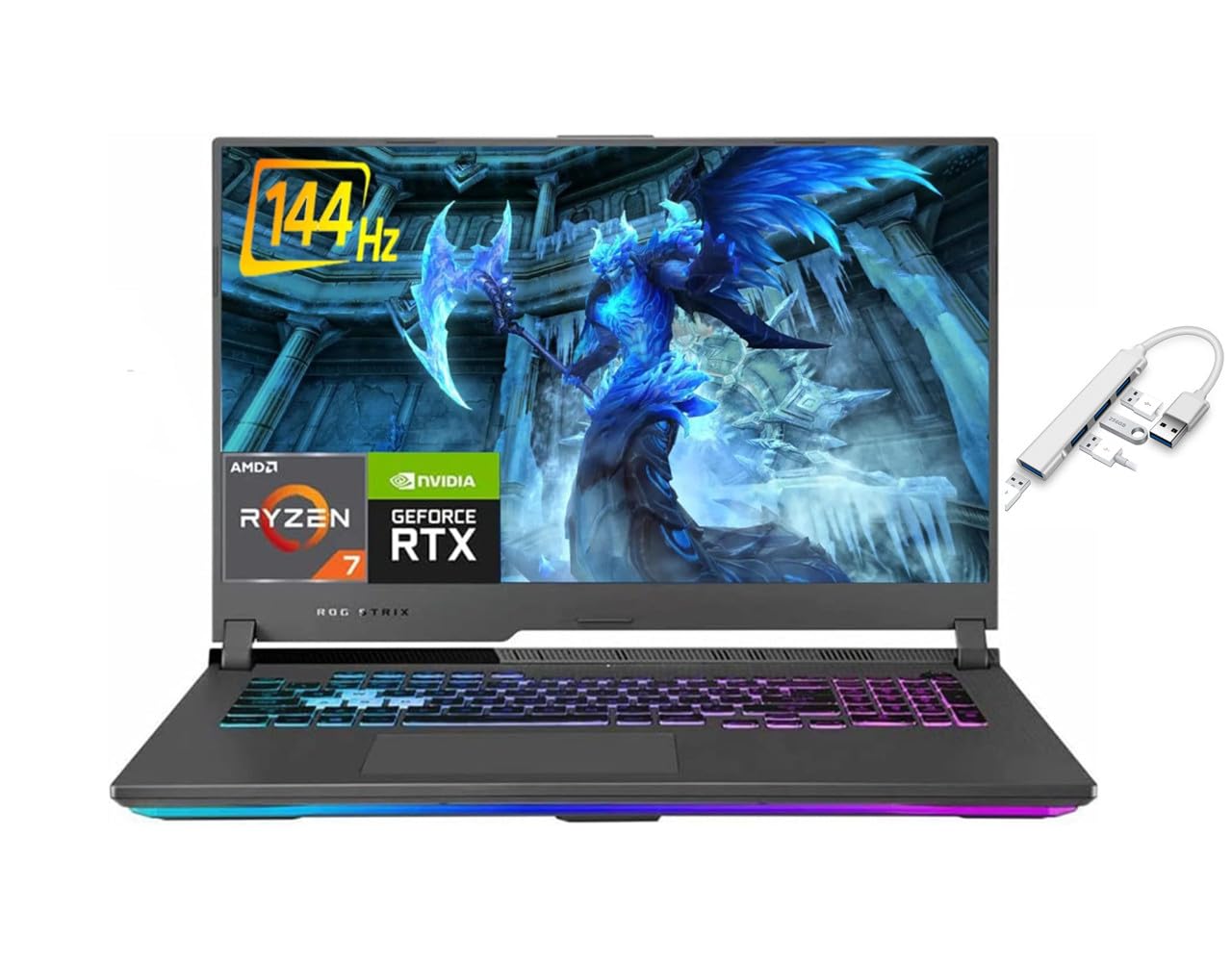
شکل 1: ASUS ROG Strix laptop powered on, showing the Windows 10 desktop environment. This image illustrates the laptop's display and keyboard layout.
۲.۳ روشن کردن و راهاندازی اولیه ویندوز
Press the power button located on the laptop to turn it on. The laptop will guide you through the initial Windows 10 Home setup process. Follow the on-screen instructions to configure your language, region, network settings, and user account.
۳. کار کردن با لپتاپ
۳.۵ صفحه کلید و تاچپد
The ASUS ROG Strix features a full-sized backlit keyboard. The touchpad supports multi-touch gestures for navigation. Refer to Windows settings for customizing touchpad sensitivity and gestures.

شکل 2: به تفصیل view of the ASUS ROG Strix keyboard, highlighting the RGB backlighting and key layout. This image shows the dedicated numeric keypad and function keys.
۳.۲ اتصال دستگاههای خارجی
لپتاپ شما به پورتهای مختلفی برای اتصال دستگاههای خارجی مجهز است:
- یواسبی ۳.۲ نسل ۱ نوع C: برای انتقال داده با سرعت بالا و نمایش خروجی.
- USB 3.2 نسل اول نوع A: برای اتصال دستگاههای USB استاندارد مانند ماوس، کیبورد و درایوهای خارجی.
- HDMI 2.0b: برای اتصال به مانیتورهای خارجی یا تلویزیون.
- اترنت (RJ45): برای اتصالات شبکه سیمی
- Mic/Headphone Combo Jack: برای اتصال هدست یا میکروفون خارجی.

شکل 3: Left side of the ASUS ROG Strix laptop, illustrating the placement of USB ports and the audio jack. This view helps identify connection points for peripherals.

شکل 4: Right side of the ASUS ROG Strix laptop, showing additional USB ports and ventilation. This image provides a comprehensive look at the laptop's connectivity options.
۵.۶ اتصال به شبکه
The laptop supports Wi-Fi 6 (802.11ax) for wireless internet access and Bluetooth 5.1 for connecting wireless peripherals. To connect to a Wi-Fi network, click the Wi-Fi icon in the taskbar, select your network, and enter the password. For Bluetooth devices, go to Windows Settings > Devices > Bluetooth & other devices to pair.
3. تعمیر و نگهداری
۴.۱ تمیز کردن لپتاپ
برای حفظ عملکرد و ظاهر بهینه:
- برای تمیز کردن صفحه نمایش و شاسی از یک پارچه نرم و بدون پرز استفاده کنید.
- برای لکههای سرسخت، کمیampپارچه را با آب یا پاککننده صفحه نمایش بپوشانید.
- از پاشیدن مستقیم مایعات روی لپتاپ خودداری کنید.
- مرتباً صفحه کلید و تاچ پد را تمیز کنید تا گرد و غبار و آلودگیها از بین بروند.
- Ensure ventilation grilles are clear of obstructions to prevent overheating.
3.2 مراقبت از باتری
برای افزایش طول عمر باتری:
- از دمای شدید خودداری کنید.
- باتری را مرتباً کاملاً خالی نکنید.
- اگر لپتاپ را برای مدت طولانی انبار میکنید، باتری را حدود ۵۰ تا ۷۰ درصد شارژ کنید.
- For optimal performance during gaming or intensive tasks, keep the laptop plugged into the power adapter.
3.3 به روز رسانی نرم افزار
Regularly update your Windows operating system, drivers, and ASUS utilities to ensure system stability, security, and performance. You can check for Windows updates via Settings > Update & Security > Windows Update.
4 عیب یابی
This section addresses common issues you might encounter with your ASUS ROG Strix laptop.
۷.۱ مشکلات برق
- لپ تاپ روشن نمی شود: Ensure the power adapter is securely connected to both the laptop and a working power outlet. Check if the power adapter's indicator light is on. Try a different outlet.
- باتری شارژ نمی شود: Verify the power adapter connection. Check the battery status in Windows. If the issue persists, contact support.
4.2 مشکلات نمایش
- عدم نمایش تصویر روی صفحه نمایش: یک مانیتور خارجی را از طریق HDMI وصل کنید تا بررسی کنید که آیا مشکل از نمایشگر داخلی لپتاپ است یا خیر. اگر مانیتور خارجی کار میکند، ممکن است نمایشگر داخلی یا اتصال آن معیوب باشد.
- سوسو زدن یا اعوجاج تصویر در صفحه نمایش: Update your NVIDIA GeForce RTX 3060 graphics drivers. Adjust display refresh rate settings in Windows.
۶.۲ مشکلات عملکرد
- عملکرد کند: Close unnecessary applications. Check Task Manager for high CPU/RAM usage. Ensure adequate ventilation to prevent thermal throttling. Run a virus scan.
- گرمای بیش از حد: Ensure ventilation grilles are clear. Use the laptop on a hard, flat surface. Consider using a cooling pad for extended heavy use.
4.4 مسائل صوتی
- بدون صدا: میزان صدا را در ویندوز بررسی کنید و مطمئن شوید که بلندگوها/هدفونها به درستی وصل شدهاند. تأیید کنید که درایورهای صوتی نصب و بهروز هستند.
5. مشخصات
Key technical specifications for the ASUS ROG Strix 17.3-inch Gaming Laptop:
| ویژگی | مشخصات |
|---|---|
| مدل | ASUS ROG Strix |
| نمایش | 17.3-inch Full HD (1920 x 1080) IPS, 144Hz Refresh Rate |
| پردازنده | AMD Ryzen 7 4800H (2.9 GHz base, up to 4.2 GHz boost) |
| گرافیک | کارت گرافیک انویدیا جیفورس RTX 3060 (با ۸ گیگابایت حافظه GDDR6) |
| RAM | 32 گیگابایت DDR4 |
| ذخیره سازی | 512 گیگابایت SSD |
| سیستم عامل | ویندوز 10 صفحه اصلی |
| اتصال بی سیم | وایفای ۶ (۸۰۲.۱۱ax)، بلوتوث ۵.۱ |
| پورت ها | 1x USB 3.2 Gen 2 Type-C, 3x USB 3.2 Gen 1 Type-A, 1x HDMI 2.0b, 1x Ethernet (RJ45), 1x Mic/Headphone Combo Jack |
| باتری | 4-cell Lithium Ion, 90WHrs |
| ابعاد (LxWxH) | 15.55 x 11.1 x 1.11 اینچ |
| وزن | 5.95 پوند |
6. گارانتی و پشتیبانی
6.1 اطلاعات گارانتی
Your ASUS ROG Strix laptop comes with a limited manufacturer's warranty. Please refer to the warranty card included in your product packaging or visit the official ASUS support webبرای مشاهده شرایط و ضوابط دقیق به سایت مراجعه کنید. رسید خرید خود را برای موارد گارانتی نگه دارید.
6.2 پشتیبانی فنی
برای کمک فنی، دانلود درایور یا عیبیابی بیشتر، لطفاً از پشتیبانی رسمی ایسوس دیدن کنید website or contact ASUS customer service. You will need your laptop's serial number, which can usually be found on a sticker on the bottom of the laptop or in the BIOS/UEFI settings.
پشتیبانی ایسوس Webسایت: https://www.asus.com/support/


