1. مقدمه
This user manual provides detailed instructions for the setup, operation, maintenance, and troubleshooting of your Z-EDGE U28I4K 4K Monitor. Please read this manual thoroughly before using the product to ensure proper functionality and to prevent damage.
ویژگی های محصول:
- وضوح تصویر 4K UHD (3840x2160): Delivers stunningly clear and lifelike images with exceptional detail.
- نرخ تازهسازی ۲۴۰ هرتز و زمان پاسخدهی ۱ میلیثانیه: Ensures smooth, crisp visuals and reduces motion blur, ideal for gaming.
- پنل IPS: Provides wide 178° viewing angles and consistent, accurate color reproduction.
- فناوری HDR10: Enhances picture quality with deeper blacks and brighter whites.
- چندین گزینه اتصال: Two HDMI inputs and two DisplayPort inputs for versatile device connection.
- فناوری مراقبت از چشم: Features low blue light and flicker-free technology to reduce eye strain.
- VESA Mount سازگار: Supports 100x100mm VESA mounting for flexible installation.
2. محتویات بسته
Please check the package contents upon unboxing. If any items are missing or damaged, contact Z-EDGE customer support.
- Z-EDGE U28I4K 4K Monitor
- پایه مانیتور (پایه و گردن)
- آداپتور برق و کابل برق
- کابل HDMI
- کابل DisplayPort
- راهنمای کاربر
- Screws and Screwdriver for stand assembly
3. راه اندازی
3.1 مونتاژ پایه
- مانیتور را با دقت از بستهبندی آن خارج کنید و آن را روی یک سطح نرم و صاف محافظت کنید.
- Attach the stand neck to the monitor's rear panel using the provided screws. Ensure it is securely fastened.
- Connect the stand base to the stand neck and tighten the thumb screw or use the provided screwdriver to secure it.
- Gently place the assembled monitor on a stable, flat desk.

3.2 اتصال به یک دستگاه
The Z-EDGE U28I4K monitor supports multiple input types. Choose the appropriate cable for your device.
- اتصال HDMI: Connect one end of the HDMI cable to the HDMI port on your computer/device and the other end to an HDMI input port (HDMI 1 or HDMI 2) on the monitor.
- اتصال DisplayPort: Connect one end of the DisplayPort cable to the DisplayPort on your computer/device and the other end to a DisplayPort input port (DP 1 or DP 2) on the monitor.
- خروجی صدا: Connect external speakers or headphones to the 3.5mm audio output jack on the monitor if desired.

3.3 اتصال برق
Connect the power adapter to the DC 12V input on the monitor, then plug the power cable into a wall outlet.
Important: Use only the power adapter provided with your monitor.
4. کار با مانیتور
4.1 روشن/خاموش
Press the power button located on the back or bottom of the monitor to turn it on or off. The power indicator light will illuminate when the monitor is on.
4.2 منوی نمایش روی صفحه (OSD).
The OSD menu allows you to adjust various monitor settings. Navigate the menu using the buttons typically found on the back or bottom right of the monitor.
تنظیمات رایج OSD:
- روشنایی/کنتراست: روشنایی کلی و نسبت کنتراست را تنظیم کنید.
- تنظیمات رنگ: دمای رنگ، گاما و سطوح RGB را به صورت جداگانه تغییر دهید.
- منبع ورودی: Manually select between HDMI 1, HDMI 2, DP 1, or DP 2.
- حالت تصویر: Select preset display modes (e.g., Standard, Game, Movie, Text).
- Response Time/Overdrive: Adjust the pixel response time for faster transitions.
- همگامسازی تطبیقی/FreeSync: Enable or disable adaptive synchronization technology.
- نور آبی کم: کاهش انتشار نور آبی برای به حداقل رساندن خستگی چشم
- بدون سوسو زدن: Ensure the display is free from visible flickering.
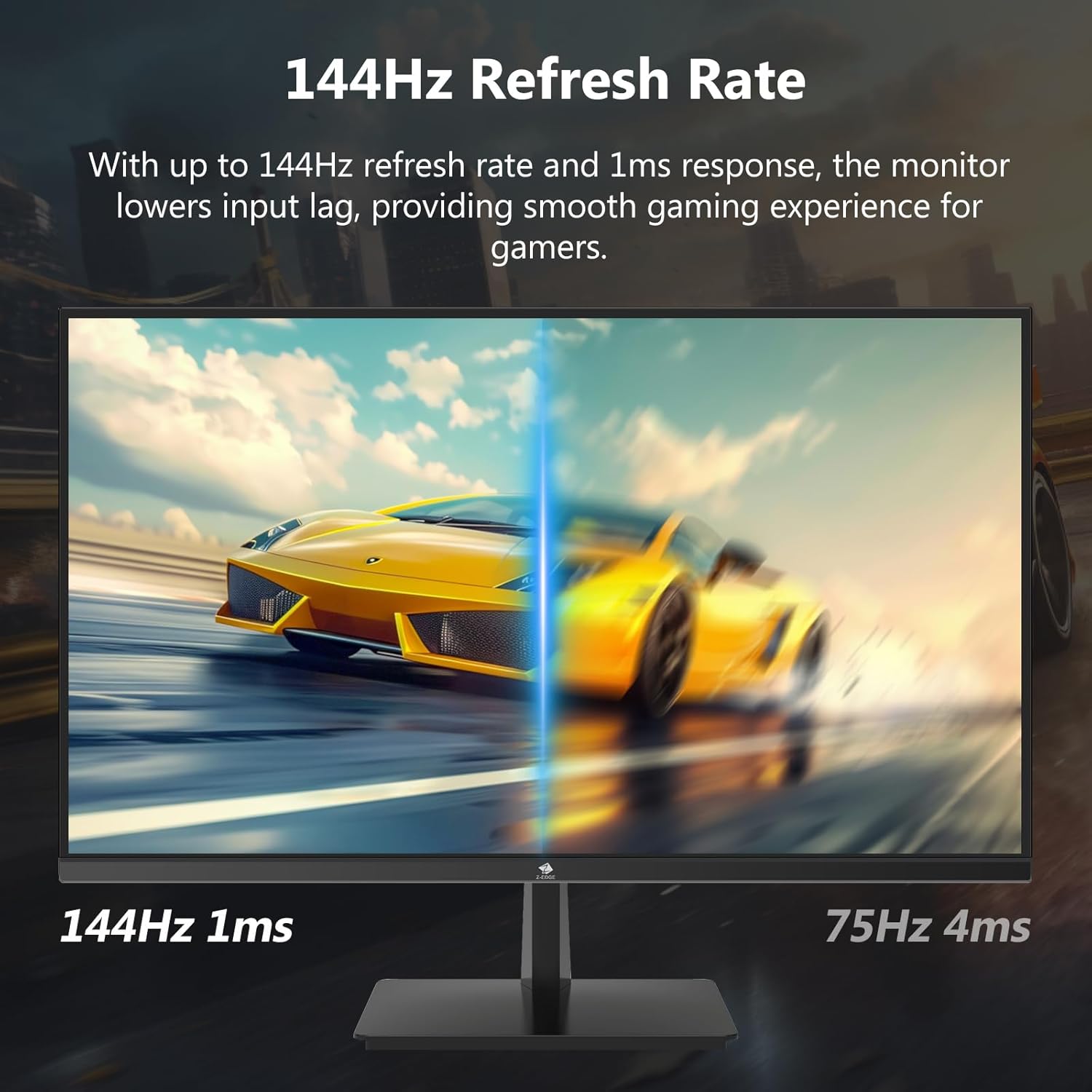

۵.۳ نرخ تازهسازی و زمان پاسخ
The monitor supports up to a 144Hz refresh rate and 1ms response time for optimal performance in fast-paced applications and gaming.
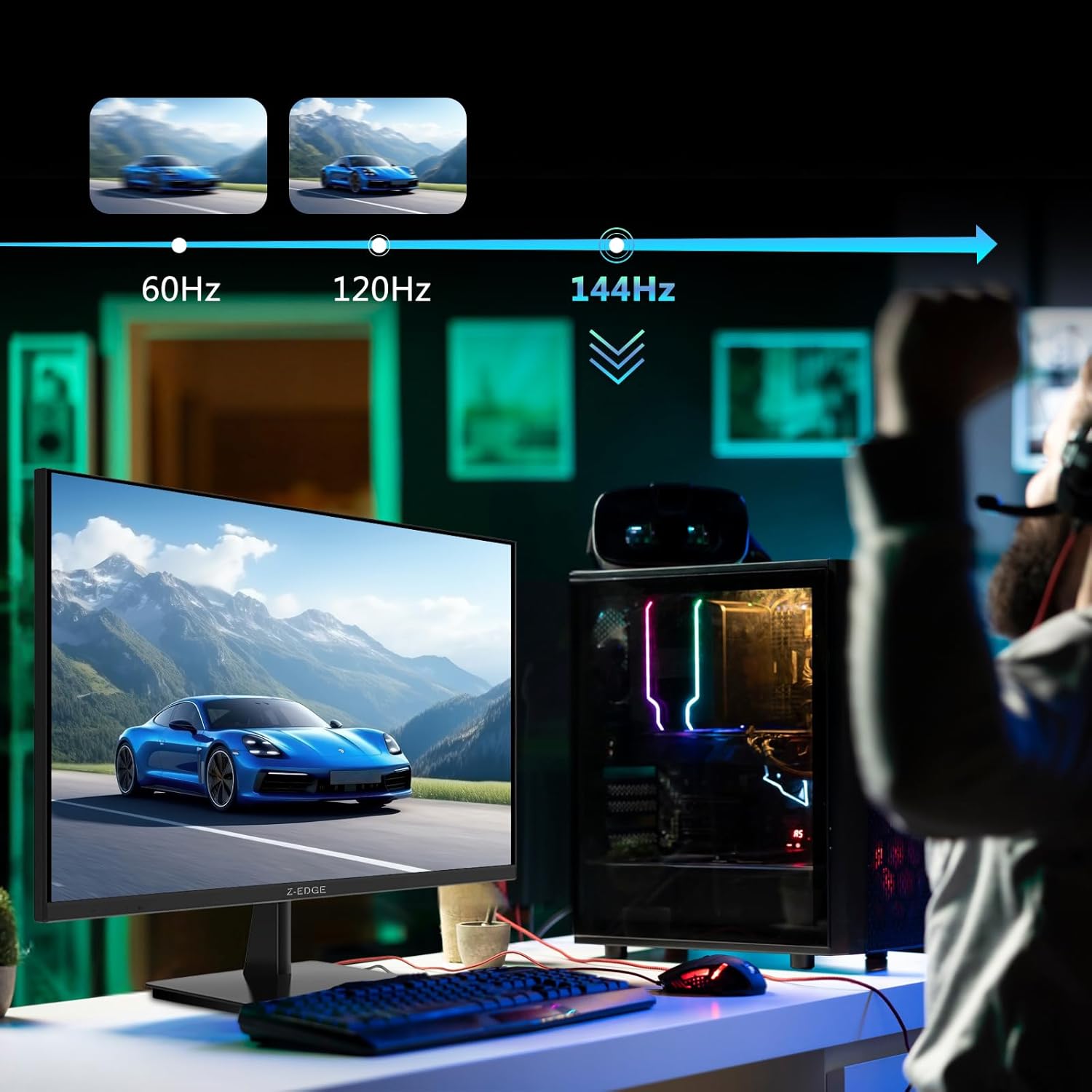

5. تعمیر و نگهداری
5.1 تمیز کردن مانیتور
- همیشه قبل از تمیز کردن، مانیتور را از پریز برق جدا کنید.
- کمی d از یک پارچه نرم و بدون پرز استفاده کنیدampبا آب یا یک پاککنندهی صفحه نمایش غیر ساینده، آغشته شده است.
- پاککننده را مستقیماً روی صفحه نمایش اسپری نکنید.
- از استفاده از بنزن، تینر، آمونیاک یا پاککنندههای ساینده خودداری کنید، زیرا این مواد میتوانند به سطح مانیتور آسیب برسانند.
5.2 ذخیره سازی
هنگام نگهداری طولانی مدت مانیتور، مطمئن شوید که خاموش و از تمام کابلها جدا شده است. آن را در جای خشک و خنک، ترجیحاً در بستهبندی اصلی خود نگهداری کنید تا از گرد و غبار و آسیب فیزیکی محافظت شود.
6 عیب یابی
| مشکل | علت احتمالی | راه حل |
|---|---|---|
| بدون قدرت | کابل برق وصل نیست؛ پریز برق ایراد دارد؛ آداپتور برق ایراد دارد. | Ensure power cable is securely connected to monitor and outlet. Test outlet with another device. Contact support if adapter is suspected faulty. |
| بدون سیگنال | Input cable not connected; Incorrect input source selected; Computer/device not outputting signal. | Check HDMI/DisplayPort cable connections. Select correct input source via OSD menu. Restart computer/device. |
| سوسو زدن صفحه نمایش | Loose cable connection; Refresh rate mismatch; DCR (Dynamic Contrast Ratio) enabled. | Ensure cables are firmly connected. Adjust refresh rate in display settings. Disable DCR in OSD menu. |
| Poor Image Quality (Blurry/Distorted) | Incorrect resolution; Cable quality; Graphics driver issues. | Set display resolution to 3840x2160. Try a different high-quality cable. Update graphics drivers. |
| No Audio from Monitor | Volume too low; Incorrect audio output selected on computer; External speakers not connected/powered. | Increase monitor volume via OSD. Select monitor as audio output device in OS settings. Ensure external speakers are connected and powered. |
If the problem persists after trying these solutions, please contact Z-EDGE customer support.
7. مشخصات
| ویژگی | جزئیات |
|---|---|
| شماره مدل | U28I4K |
| اندازه صفحه نمایش | 28 اینچ |
| نوع پنل | IPS |
| قطعنامه | ۳۸۴۰x۲۱۶۰ (۴K UHD) |
| نرخ تازه سازی | 144 هرتز |
| زمان پاسخگویی | 1 میلیثانیه (MPRT) |
| روشنایی | 300 سی دی در متر مربع |
| نسبت کنتراست | 1000:1 |
| پشتیبانی از رنگ | ۱۶.۷ میلیون رنگ (۸ بیتی) |
| Viewing angle | 178 درجه (H/V) |
| پشتیبانی از HDR | HDR10 |
| قابلیت اتصال | 2x HDMI 2.1, 2x DisplayPort 1.4, 1x Audio Out (3.5mm) |
| کوه VESA | 100x100 میلی متر |
| ابعاد (با پایه) | 19 × 64 × 46 سانتی متر |
| وزن (با پایه) | 5.96 کیلوگرم |
| ورودی برق | DC 12 ولت |
8. گارانتی و پشتیبانی
8.1 اطلاعات گارانتی
Z-EDGE products typically come with a limited manufacturer's warranty. Please refer to the warranty card included in your product packaging or visit the official Z-EDGE webبرای مشاهده شرایط و ضوابط دقیق گارانتی به سایت مراجعه کنید. رسید خرید خود را به عنوان مدرک خرید برای درخواستهای گارانتی نگه دارید.
8.2 پشتیبانی مشتری
For technical assistance, troubleshooting, or warranty inquiries, please contact Z-EDGE customer support:
- Webسایت: www.z-edge.com (Check for support contact details, FAQs, and driver downloads)
- ایمیل: رجوع به رسمی شود webسایتی برای جدیدترین آدرس ایمیل پشتیبانی.
- تلفن: رجوع به رسمی شود website for the most current support phone number.
When contacting support, please have your monitor's model number (U28I4K) and serial number ready.


