1. مقدمه
Thank you for choosing the Arboleaf Smart Kitchen Scale, Model CK10G. This advanced kitchen scale is designed to provide precise measurements for your culinary needs and assist with nutritional tracking through its smart connectivity features. With a maximum capacity of 10kg and an accuracy of 0.5g, it is an ideal tool for cooking, baking, pet food portioning, and managing dietary intake.
This manual provides detailed instructions on how to set up, operate, and maintain your Arboleaf Smart Kitchen Scale to ensure optimal performance and longevity.
2. راهنمای راه اندازی
۲.۱ جعبهگشایی و بررسی اولیه
تمام قطعات را با دقت از بستهبندی خارج کنید. بررسی کنید که تمام قطعات موجود و بدون آسیب باشند. بستهبندی باید شامل موارد زیر باشد:
- Arboleaf Smart Kitchen Scale (Model CK10G)
- کابل شارژ USB
- راهنمای کاربر (این سند)
۲.۱ شارژ کردن ترازو
The Arboleaf Smart Kitchen Scale features a built-in rechargeable battery. Before first use, fully charge the device.
- Locate the USB charging port on the side or back of the scale.
- Connect the provided USB charging cable to the scale and plug the other end into a standard USB power adapter (not included) or a computer USB port.
- The LED display will indicate charging status. The scale can be used while charging.
- A full charge typically provides up to two months of use, depending on frequency.

Figure 2.1: Arboleaf Smart Kitchen Scale with USB charging cables and app interface.
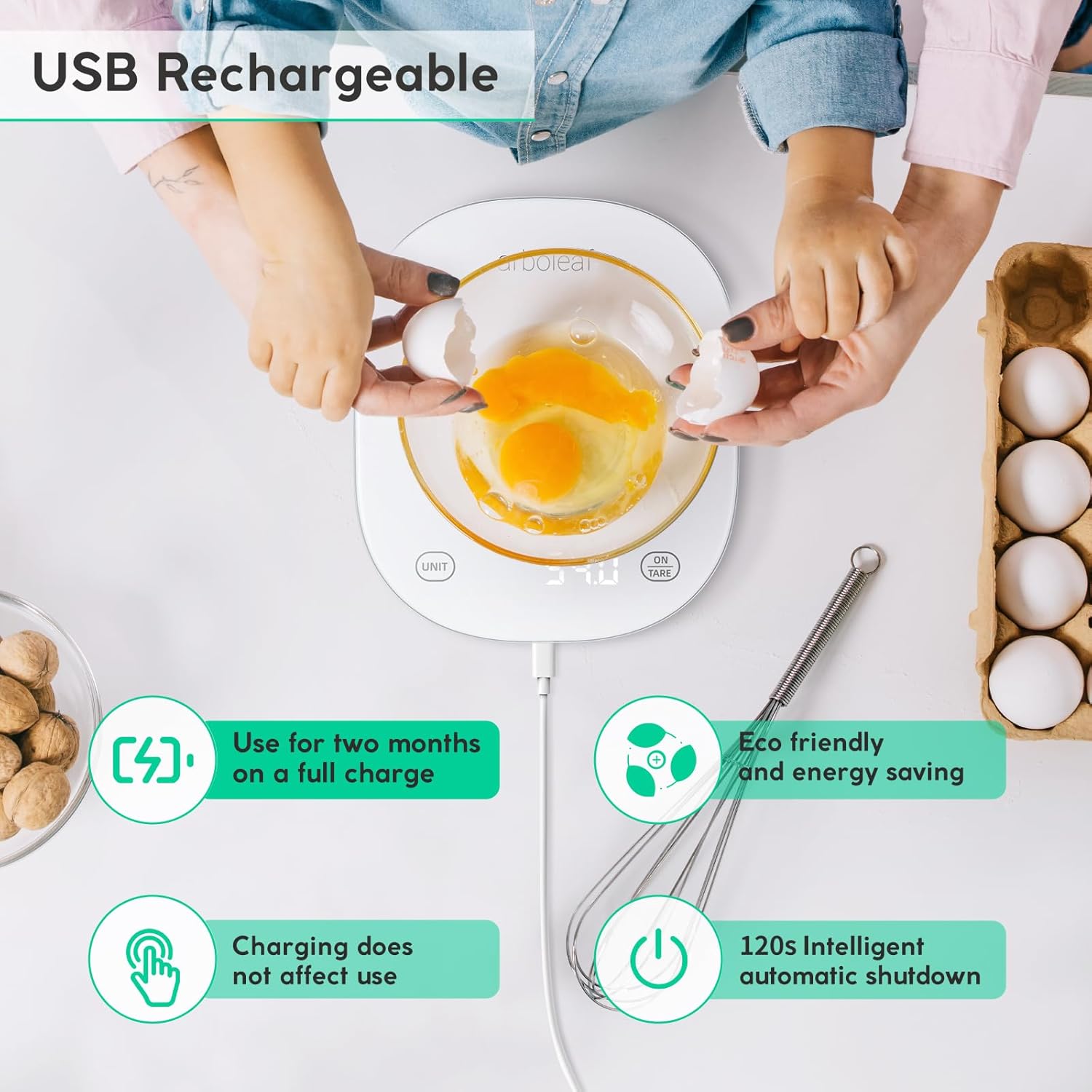
Figure 2.2: USB Rechargeable feature of the scale, highlighting its long battery life and eco-friendliness.
2.3 Installing the Foodiet App
To unlock the full potential of your smart kitchen scale, download and install the "Foodiet" application on your smartphone or tablet.
- Scan the QR code provided in the packaging or search for "Foodiet" in your device's app store (App Store for iOS, Google Play Store for Android).
- اپلیکیشن را دانلود و نصب کنید.
- بلوتوث را در تلفن هوشمند/تبلت خود فعال کنید.
- Open the Foodiet app and follow the on-screen instructions to pair your scale. Ensure the scale is turned on.
3. دستورالعمل های عملیاتی
۵.۱ توزین پایه
- ترازو را روی یک سطح صاف و پایدار قرار دهید.
- Press the "ON/TARE" button to turn on the scale. The display will show "0.0g" when ready.
- Place the item you wish to weigh directly onto the center of the scale platform.
- The weight will be displayed on the LED screen.

Figure 3.1: Easy-to-read display and app integration for weighing ingredients.
3.2 تبدیل واحد
The scale supports multiple units of measurement. You can switch between units using the "UNIT" button on the scale or through the Foodiet app.
- Press the "UNIT" button repeatedly to cycle through available units: grams (g), pounds:ounces (lb:oz), fluid ounces (fl:oz), milliliters (ml), and milk milliliters (ml with milk icon).
- Alternatively, open the Foodiet app and select your desired unit from the interface. The app also allows you to view the weight even if a large plate obstructs the scale's display.

Figure 3.2: Multiple unit options and sensor technology.

Figure 3.3: Scale displaying weight in grams with unit options.

Figure 3.4: Using the Foodiet app to select units and view measurements when the scale display is obstructed.
3.3 تابع تار
تابع وزن کردن به شما این امکان را میدهد که چندین ماده را در یک ظرف وزن کنید یا وزن یک ظرف را از هم کم کنید.
- یک ظرف خالی را روی ترازو قرار دهید. صفحه نمایش وزن آن را نشان میدهد.
- Press the "ON/TARE" button. The display will reset to "0.0g".
- Add your first ingredient to the container. The display will show the weight of the ingredient only.
- To add another ingredient, press "ON/TARE" again to reset the display to "0.0g", then add the next ingredient. Repeat as needed.

Figure 3.5: Step-by-step guide for using the Tare Function.

Figure 3.6: Scale display after applying the tare function.
3.4 Using the Foodiet App for Nutritional Tracking
The Foodiet app is a powerful tool for managing your dietary intake and tracking nutritional information.
- Ingredient Analysis: Weigh your food on the scale, and the app will display detailed nutritional facts (calories, fat, protein, carbs, etc.) for over 19 food elements.
- Daily Intake Tracking: Record and track your daily, weekly, monthly, and annual consumption.
- همگام سازی داده ها: Sync your data with popular health management software like Fitbit and Apple Health.
- Customizable Auto-Shutdown: Adjust the auto-shutdown time (120 seconds, 3.5 minutes, 5 minutes) via the app to conserve battery life.

Figure 3.7: Managing ingredients and tracking nutrition with the Foodiet app.

Figure 3.8: Obtaining ingredient and food content details from the Foodiet App.

Figure 3.9: Various options for Auto Shutdown time settings in the Foodiet app.
4. تعمیر و نگهداری
4.1 تمیز کردن
The scale features a waterproof surface for easy cleaning.
- سطح رسوب را با یک پارچه نرم و لطیف پاک کنید.amp پارچه
- از پاککنندههای ساینده استفاده نکنید و ترازو را در آب فرو نبرید.
- Ensure the scale is dry before storage.

Figure 4.1: Easy to Clean Waterproof Surface.
4.2 ذخیره سازی
ترازو را در جای خشک و خنک و دور از نور مستقیم خورشید و دمای شدید نگهداری کنید. از قرار دادن اشیاء سنگین روی ترازو در مواقع عدم استفاده خودداری کنید.
5 عیب یابی
| مشکل | علت احتمالی | راه حل |
|---|---|---|
| مقیاس روشن نمی شود. | باتری کم یا بدون شارژ. | ترازو را با استفاده از کابل USB ارائه شده شارژ کنید. |
| قرائت های نادرست | ترازو روی سطح صاف نیست؛ بیش از حد بارگذاری شده؛ حسگرها کثیف هستند. | Place on a stable, flat surface. Do not exceed 10kg. Clean the scale. Recalibrate if necessary (refer to app instructions). |
| «ارر» نمایش داده شد. | Overload error (weight exceeds 10kg). | Remove items from the scale immediately. Do not exceed maximum capacity. |
| «لو» نمایش داده شد. | باتری کم. | ترازو را دوباره شارژ کنید. |
| Cannot connect to Foodiet app. | Bluetooth off; scale not on; app issue. | Ensure Bluetooth is enabled on your device. Turn the scale off and on again. Restart the app. Re-pair the device in the app settings. |

Figure 5.1: Scale display showing 'CHAR' during charging.

Figure 5.2: 'Err' display indicating overload.

Figure 5.3: 'Lo' display indicating low battery.
6. مشخصات
| ویژگی | جزئیات |
|---|---|
| شماره مدل | CK10G |
| نام تجاری | برگ آربول |
| حداکثر ظرفیت | 10 کیلوگرم (22 پوند) |
| Accuracy / Increment | 0.5 گرم |
| حداقل وزن توصیه شده | 2 گرم |
| واحدهای اندازه گیری | g, lb:oz, fl:oz, ml, milk ml |
| نوع نمایشگر | نور پس زمینه LED |
| منبع تغذیه | Rechargeable Lithium-polymer battery (included) |
| قابلیت اتصال | Bluetooth (Foodiet App) |
| مواد | Acrylonitrile Butadiene Styrene Glass |
| ابعاد (L x W x H) | ۱۳.۹۷ × ۲.۴۹ × ۱۱.۵۱ سانتیمتر (تقریباً ۵.۵ × ۰.۹۸ × ۴.۵۳ اینچ) |
| وزن مورد | ۴۵۷ گرم (تقریباً ۱.۰۱ پوند) |
| رنگ | سفید |
| کشور مبدا | چین |
7. ضمانت و پشتیبانی
7.1 اطلاعات گارانتی
Arboleaf products are manufactured with high-quality materials and are thoroughly tested before shipment. This product comes with a standard manufacturer's warranty against defects in materials and workmanship from the date of purchase. Please retain your proof of purchase for warranty claims.
The warranty does not cover damage caused by misuse, accident, unauthorized modification, or failure to follow the instructions in this manual. For specific warranty terms and conditions, please refer to the documentation included with your purchase or contact Arboleaf customer support.
7.2 پشتیبانی مشتری
If you encounter any issues or have questions regarding your Arboleaf Smart Kitchen Scale, please contact our customer support team. For the most up-to-date contact information, please visit the official Arboleaf webسایت یا به بستهبندی محصول خود مراجعه کنید.
منابع آنلاین: For FAQs, troubleshooting guides, and app updates, please visit the Arboleaf official webسایت
پشتیبانی ایمیل: رجوع شود به webسایت
پشتیبانی تلفنی: رجوع شود به webسایت
When contacting support, please have your product model number (CK10G) and purchase details ready.


