1. مقدمه
This manual provides detailed instructions for the setup, operation, and maintenance of your Bytech BYMCWC101BLK PC Web Camera. Please read this manual thoroughly before using the product to ensure proper functionality and longevity.
2. محتویات بسته
مطمئن شوید که تمام موارد ذکر شده در زیر در بسته محصول شما موجود است:
- Bytech BYMCWC101BLK PC Web دوربین
- راهنمای کاربر (این سند)
- کابل USB یکپارچه
3. راه اندازی
Follow these steps to set up your Bytech BYMCWC101BLK PC Web دوربین:
- قرار دادن: موقعیت webcam on top of your computer monitor, laptop screen, or a flat surface. The adjustable clip allows for secure attachment.
- اتصال به کامپیوتر: کابل USB یکپارچه را از webبادامک را به یک پورت USB موجود در رایانه خود وارد کنید.
- نصب درایور: را webcam is typically plug-and-play. Your operating system (Windows, macOS, Linux) should automatically detect and install the necessary drivers. Wait for the installation to complete.
- تایید: Open a video conferencing application (e.g., Zoom, Skype, Microsoft Teams) or your computer's camera application to confirm the webcam is recognized and displaying video.
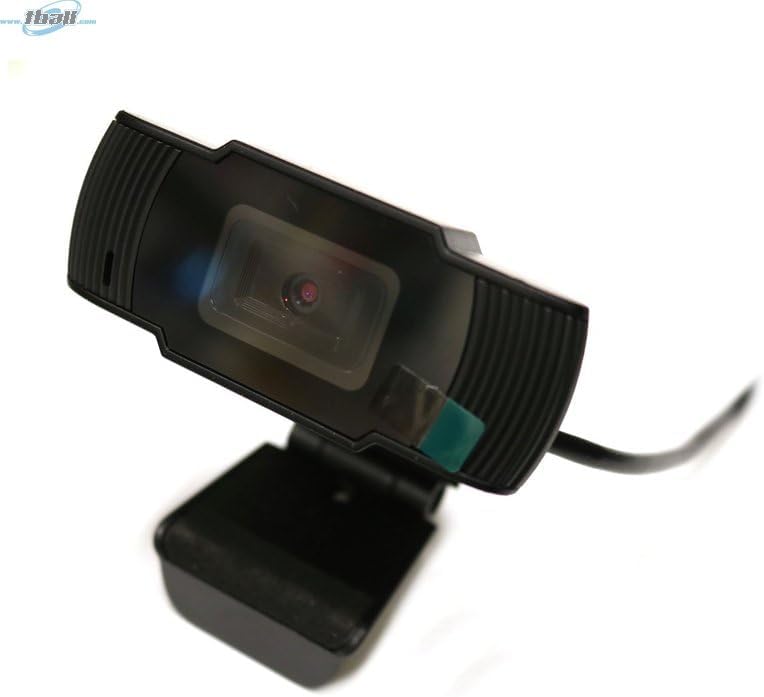
Image: The Bytech BYMCWC101BLK PC Web Camera securely mounted on top of a computer monitor, demonstrating its adjustable clip design.
4. دستورالعمل های عملیاتی
Once installed, the Bytech BYMCWC101BLK PC Web Camera can be used with various applications:
- ویدئو کنفرانس: Select the Bytech webcam as your video input device within your preferred video conferencing software (e.g., Zoom, Skype, Google Meet).
- پخش جریانی: For live streaming platforms, configure the webcam as your primary video source in your streaming software (e.g., OBS Studio).
- ضبط: Use your computer's built-in camera application or third-party software to record video.
- عملکرد کم نور: را webcam features BSI CMOS photo sensor technology and is designed to perform effectively in low-light conditions, providing clear video even with limited ambient lighting.
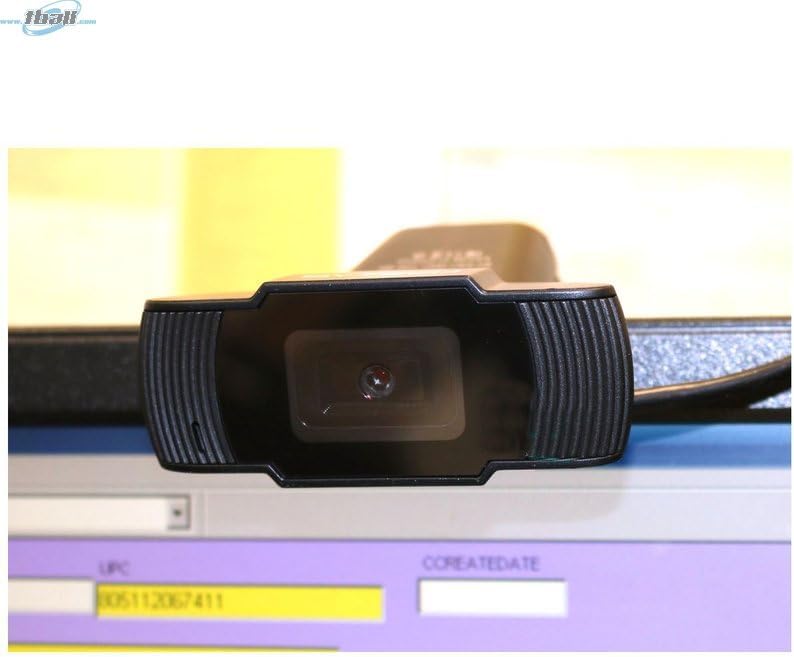
تصویر: نمای نزدیک view of the Bytech BYMCWC101BLK PC Web Camera's lens, highlighting its design and integrated privacy cover (if applicable, otherwise just lens).
5. تعمیر و نگهداری
To ensure optimal performance and extend the lifespan of your webطب مکمل و جایگزین:
- تمیز کردن: Gently wipe the lens with a soft, lint-free cloth. Avoid using harsh chemicals or abrasive materials.
- ذخیره سازی: وقتی استفاده نمی شود ، آن را ذخیره کنید webcam in a clean, dry environment away from direct sunlight and extreme temperatures.
- مراقبت از کابل: کابل USB را بیش از حد خم یا چین ندهید.
6 عیب یابی
اگر با مشکلاتی در رابطه خود مواجه شدید webcam، به مشکلات و راهحلهای رایج زیر مراجعه کنید:
- بدون تصویر/ویدئو:
- مطمئن شوید که کابل USB به طور محکم به هر دو دستگاه متصل است. webدوربین و کامپیوتر شما.
- سعی کنید وصل کنید webبه پورت USB دیگری متصل شوید
- کامپیوتر خود را مجددا راه اندازی کنید.
- Check your application settings to ensure the Bytech webدوربین به عنوان دستگاه ورودی تصویر انتخاب شده است.
- کیفیت ضعیف ویدیو:
- از نور کافی در محیط خود اطمینان حاصل کنید.
- را تمیز کنید webلنز دوربین را با یک پارچه نرم تمیز کنید.
- Check your application's video settings for resolution and frame rate.
- Microphone Not Working (if applicable):
- بررسی کنید که webcam's microphone is selected as the audio input device in your computer's sound settings and within your application.
- Ensure the microphone is not muted in your system or application.
7. مشخصات
| ویژگی | جزئیات |
|---|---|
| نام مدل | BYMCWC101BLK |
| نام تجاری | بایتک |
| فناوری اتصال | USB |
| فناوری حسگر عکس | CMOS BSI |
| فرمت فیلمبرداری | MP4 |
| ویژگی خاص | نور کم |
| رنگ | مشکی |
| وزن مورد | 4.9 اونس |
| ابعاد بسته بندی | 7.76 x 4.65 x 2.44 اینچ |
8. گارانتی و پشتیبانی
For warranty information or technical support, please refer to the documentation included with your purchase or contact your retailer. Keep your proof of purchase for warranty claims.


