1. اطلاعات ایمنی
لطفاً قبل از استفاده از مانیتور، این دستورالعملهای ایمنی را با دقت مطالعه کنید. این دفترچه راهنما را برای مراجعات بعدی نگه دارید.
- مانیتور را روی میز، پایه یا چرخ ناپایدار قرار ندهید.
- دهانه های تهویه را مسدود نکنید.
- در نزدیکی آب یا در محیطهای با رطوبت بالا استفاده نکنید.
- فقط از سیم برق و آداپتور ارائه شده توسط سازنده استفاده کنید.
- تمام خدمات را به پرسنل خدمات واجد شرایط ارجاع دهید.
۲. چه چیزهایی در جعبه است؟
بررسی کنید که آیا همه اجزا وجود دارند یا خیر:
- Acer Predator Z35 bmiphz Display
- پایه مانیتور (پایه و گردن)
- سیم برق
- کابل DisplayPort
- کابل HDMI
- کابل بالادست USB 3.0
3. راه اندازی
۱. مونتاژ پایه مانیتور
Carefully remove the monitor and stand components from the packaging. Attach the stand neck to the display panel, then secure the base to the neck. Ensure all screws are tightened securely.
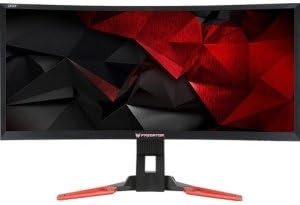
تصویر: کنار view of the Acer Predator Z35 monitor, illustrating the attached stand.
3.2. اتصال مانیتور
Connect the necessary cables to the monitor and your computer. The Acer Predator Z35 bmiphz features multiple input options.

تصویر: عقب view of the Acer Predator Z35 monitor, highlighting the various input ports for connectivity.
- اتصال برق: سیم برق را به ورودی برق مانیتور و سپس به پریز برق وصل کنید.
- ارتباط تصویری:
- For optimal performance, especially for 200Hz refresh rate, connect using the DisplayPort 1.2 کابل.
- Alternatively, connect using the HDMI 1.4 کابل.
- اتصال USB: Connect the USB 3.0 upstream cable from the monitor to your computer to enable the monitor's USB 2.0 ports.
4. عملیات
4.1. روشن/خاموش
دکمه پاور روی مانیتور را فشار دهید تا روشن یا خاموش شود. وقتی مانیتور فعال است، چراغ نشانگر پاور روشن میشود.
4.2. روی صفحه نمایش (OSD) ناوبری
Use the buttons on the monitor's bezel to access and navigate the On-Screen Display (OSD) menu. This menu allows you to adjust various settings such as brightness, contrast, color, and input source.
۴.۳ ویژگیها و تنظیمات کلیدی
- NVIDIA G-SYNC Technology: This monitor supports NVIDIA G-SYNC, which synchronizes the display's refresh rate to the GPU's frame rate. This eliminates screen tearing and minimizes display stutter and input lag, providing a smoother gaming experience. Ensure your graphics card supports G-SYNC and the feature is enabled in your NVIDIA control panel.
- نرخ تازه سازی بالا: The monitor offers a native refresh rate of 144Hz and can be overclocked to 200Hz when connected via DisplayPort. This higher refresh rate provides fluid motion and reduced input lag, beneficial for fast-paced gaming.
- Gaming Modes (GameView): The monitor includes three customizable gaming modes (G1, G2, G3) that allow you to save and quickly switch between preferred display settings optimized for different game genres. These modes can be accessed via the OSD.
- تقویت تاریکی: Adjust the black level settings to enhance visibility in dark scenes, allowing you to spot details that might otherwise be hidden.
- Aim Points: Selectable on-screen aim points can be enabled through the GameView settings to assist with targeting in games.
- DTS Sound Speakers: Integrated DTS Sound speakers provide immersive audio directly from the monitor.
ویدئو: تمام شدview of the Acer Predator Z35 bmiphz monitor's key features, including G-SYNC, refresh rate, gaming modes, and DTS Sound speakers.
5. تعمیر و نگهداری
برای اطمینان از طول عمر و عملکرد بهینه مانیتور خود، این دستورالعملهای نگهداری را دنبال کنید:
- تمیز کردن صفحه نمایش: صفحه نمایش را به آرامی با یک پارچه نرم و بدون پرز پاک کنید. برای لکههای سرسخت، به آرامی ...ampپارچه را با آب یا محلول تمیزکننده مخصوص صفحه نمایش بپوشانید. از مواد شیمیایی قوی خودداری کنید.
- تمیز کردن سیasing: برای تمیز کردن مانیتور از یک پارچه نرم و خشک استفاده کنید.asing.
- تهویه: Ensure the ventilation openings on the monitor are not obstructed to prevent overheating.
- خاموش شدن در هنگام عدم استفاده: برای صرفهجویی در مصرف انرژی و افزایش طول عمر مانیتور، آن را در مواقع عدم استفاده خاموش کنید.
6 عیب یابی
اگر با مانیتور خود با مشکل مواجه شدید، به مشکلات و راهحلهای رایج زیر مراجعه کنید:
- بدون برق:
- بررسی کنید که آیا سیم برق به طور محکم به مانیتور و پریز برق وصل شده است یا خیر.
- با وصل کردن دستگاه دیگری به پریز برق، از سالم بودن آن اطمینان حاصل کنید.
- بدون تصویر/صفحه سیاه:
- مطمئن شوید که کابل ویدیو (DisplayPort یا HDMI) به طور محکم به مانیتور و کارت گرافیک رایانه شما وصل شده است.
- بررسی کنید که آیا منبع ورودی صحیح در منوی OSD مانیتور انتخاب شده است یا خیر.
- کامپیوتر خود را مجددا راه اندازی کنید.
- سوسو زدن/پارگی تصویر:
- Ensure NVIDIA G-SYNC is enabled in your NVIDIA control panel and the monitor's OSD.
- Verify your graphics drivers are up to date.
- کابل ویدیو را از نظر آسیب یا اتصالات شل بررسی کنید.
- بدون صدا:
- تنظیمات صدا را هم در مانیتور و هم در کامپیوتر خود بررسی کنید.
- مطمئن شوید که خروجی صدا در تنظیمات صدای رایانهتان به درستی به مانیتور هدایت میشود.
7. مشخصات

تصویر: جلو view of the Acer Predator Z35 monitor, showcasing its curved ultrawide display.
| ویژگی | توضیحات |
|---|---|
| شماره مدل | Z35 bmiphz |
| اندازه صفحه نمایش | 35 اینچ |
| نوع پنل | منحنی UltraWide |
| قطعنامه | 2560 x 1080 (Full HD) |
| نسبت تصویر | 21:9 |
| نرخ تازه سازی | 144Hz (Up to 200Hz Overclock via DisplayPort) |
| زمان پاسخگویی | 4 میلیثانیه |
| Synchronization Technology | NVIDIA G-SYNC |
| ورودی های ویدیویی | ۱ عدد DisplayPort 1.2، ۲ عدد HDMI 1.4 |
| پورت های USB | 4 عدد پورت USB 2.0 |
| صوتی | Integrated DTS Sound Speakers |
| ابعاد (LxWxH) | 33.2 x 11.8 x 21.8 اینچ |
| وزن | 16.76 پوند |
8. گارانتی و پشتیبانی
This Acer product comes with a standard manufacturer's warranty. For detailed warranty terms and conditions, please refer to the warranty card included with your product or visit the official Acer support webسایت
For technical assistance, troubleshooting beyond this manual, or to inquire about service, please contact Acer customer support through their official channels. Keep your product's serial number and proof of purchase readily available when contacting support.


