مقدمه
ممنون از خریدتونasing the Samsung 34-Inch Curved Screen LED-Lit Monitor S34E790C. This monitor features an ultra WQHD resolution (3440x1440) and a 21:9 curved panel designed to provide an immersive viewing experience. It includes an ergonomic, height-adjustable stand with tilt functionality and a 4-port USB hub for convenient peripheral access. This manual provides essential information for setting up, operating, maintaining, and troubleshooting your monitor.

شکل 1: جلو view of the Samsung S34E790C monitor, showcasinصفحه نمایش منحنی و طراحی شیک آن.
راه اندازی
1. باز کردن بسته بندی
تمام قطعات را با دقت از بستهبندی خارج کنید. مطمئن شوید که موارد زیر وجود دارند:
- Samsung 34-Inch Curved Screen LED-Lit Monitor
- Height Adjustable Stand With Tilt Functionality
- کابل برق
- کابل HDMI (ممکن است بسته به منطقه متفاوت باشد)
- کابل DisplayPort (ممکن است بسته به منطقه متفاوت باشد)
- کابل بالادست USB 3.0
2. مونتاژ پایه
Attach the height-adjustable stand to the monitor panel. Ensure the stand is securely fastened according to the instructions provided in the quick setup guide included in the box. Place the assembled monitor on a stable, flat surface.
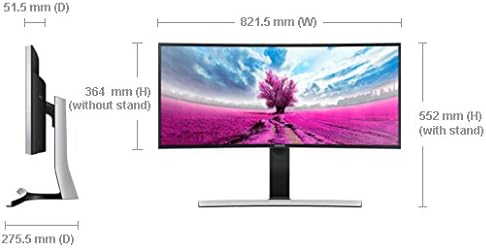
Figure 2: Dimensions of the Samsung S34E790C monitor, illustrating its width, height (with and without stand), and depth.
۵.۱ اتصال به دستگاه منبع
Connect your PC, game console, Blu-ray player, or other compatible device to the monitor using the available ports.
- اتصال HDMI: Use an HDMI cable to connect the monitor to your device's HDMI output.
- اتصال DisplayPort: Use a DisplayPort cable to connect the monitor to your device's DisplayPort output.
- هاب USB: Connect the monitor's USB 3.0 upstream port to your computer using the provided USB 3.0 upstream cable to enable the 4-port USB hub for peripherals.
4. روشن کنید
Connect the power cable to the monitor and then to a power outlet. Press the power button on the monitor to turn it on.
دستورالعمل های عملیاتی
۶.۱ کنترلهای پایه
The monitor features an intuitive joystick-style menu button, typically located on the rear or bottom-right of the display. This button allows you to navigate the On-Screen Display (OSD) menu to adjust various settings.
2. تنظیمات نمایش
Access the OSD menu to configure display settings:
- رزولوشن: The native resolution is 3440x1440 (WQHD). Ensure your connected device is set to this resolution for optimal clarity.
- نسبت تصویر: The monitor features a 21:9 aspect ratio.
- روشنایی/کنتراست: Adjust these settings to your preference. Note that in PC mode, some image adjustments might be controlled via your computer's graphics settings.
- حالت های تصویر: Select from various preset picture modes (e.g., Standard, Custom, Cinema) to optimize viewing for different content types.
3. Picture-by-Picture (PBP) Functionality
The S34E790C supports Picture-by-Picture (PBP), allowing you to view content from two different sources simultaneously on the screen. This feature is ideal for multitasking or comparing content side-by-side.
- Connect two source devices to the monitor (e.g., one via HDMI, one via DisplayPort).
- Access the OSD menu and navigate to the PBP settings.
- Select the desired input sources for each side of the screen.
- Adjust the layout as needed.
۳. تنظیمات ارگونومیک
The monitor stand allows for height and tilt adjustments to optimize your viewing comfort and reduce strain.
- تنظیم ارتفاع: برای تنظیم ارتفاع، پنل مانیتور را به آرامی به بالا یا پایین فشار دهید یا بکشید.
- تنظیم شیب: برای پیدا کردن حالت دلخواه خود، پنل مانیتور را به جلو یا عقب کج کنید viewزاویه
تعمیر و نگهداری
۳. تمیز کردن صفحه نمایش
برای تمیز کردن صفحه نمایش، آن را به آرامی با یک پارچه نرم و بدون پرز پاک کنید. برای لکههای سرسخت، به آرامی ...ampپارچه را با آب یا یک پاککننده مخصوص صفحه نمایش بشویید. از استفاده از مواد شیمیایی قوی، مواد ساینده یا اسپری کردن مستقیم مایع روی صفحه نمایش خودداری کنید.
۲. تمیز کردن مانیتور Casing
مانیتور را پاک کنیدasing with a soft, dry cloth. If necessary, use a slightly damp پارچه از حلال ها یا پاک کننده های ساینده استفاده نکنید.
3. مراقبت عمومی
- از قرار دادن اشیاء سنگین روی مانیتور یا کابلهای آن خودداری کنید.
- Do not expose the monitor to direct sunlight, high temperatures, or excessive humidity.
- از تهویه مناسب اطراف مانیتور برای جلوگیری از گرم شدن بیش از حد اطمینان حاصل کنید.
عیب یابی
اگر با مانیتور خود با مشکل مواجه شدید، به مراحل عیبیابی رایج زیر مراجعه کنید:
- بدون برق: مطمئن شوید که کابل برق به طور محکم به مانیتور و پریز برق وصل شده است. بررسی کنید که پریز برق کار میکند یا خیر.
- بدون سیگنال: Verify that the video cable (HDMI or DisplayPort) is correctly connected to both the monitor and the source device. Ensure the correct input source is selected on the monitor via the OSD menu. Check if the source device is powered on and outputting a signal.
- مشکلات نمایشگر (مثلاً سوسو زدن، تصویر تحریف شده): Check the video cable for damage. Try a different cable or port. Ensure your computer's graphics drivers are up to date. Adjust the resolution and refresh rate settings on your computer to match the monitor's specifications.
- مشکلات صدا: If using the monitor's built-in speakers, ensure the volume is not muted and is set to an audible level in both the monitor's OSD and your computer's sound settings.
- Picture-by-Picture (PBP) Not Working: Confirm both source devices are connected and active. Ensure the PBP function is correctly configured in the OSD menu.
For more complex issues or persistent problems, please refer to the full user manual available on the Samsung support webبه سایت مراجعه کنید یا با خدمات مشتریان سامسونگ تماس بگیرید.
مشخصات
| ویژگی | مشخصات |
|---|---|
| شماره مدل | S34E790C |
| اندازه صفحه نمایش | 34 اینچ |
| وضوح صفحه نمایش | ۳۴۴۰ در ۱۴۴۰ پیکسل (WQHD) |
| نسبت تصویر | 21:9 |
| نوع پنل | Curved LED-Lit |
| قابلیت اتصال | پورتهای HDMI، DisplayPort، و ۴ عدد پورت USB 3.0 |
| وزن مورد | ۲ پوند (تقریباً ۰.۹۱ کیلوگرم) |
| ابعاد محصول (LxWxH) | 32.37 x 10.84 x 21.73 اینچ (82.22 x 27.53 x 55.19 سانتیمتر) |
| رنگ | Black High Glossy |
| سازنده | Samsung IT |
| اولین تاریخ در دسترس | 2 آگوست 2013 |
گارانتی و پشتیبانی
Your Samsung S34E790C monitor is covered by a limited warranty. For detailed information regarding warranty terms, conditions, and duration, please refer to the warranty card included with your product or visit the official Samsung support webسایت
For technical assistance, product registration, or to download the latest drivers and software, please visit the پشتیبانی سامسونگ webسایت یا مستقیماً با خدمات مشتریان سامسونگ تماس بگیرید.


