1. مقدمه
This manual provides essential instructions for the setup, operation, and maintenance of your Samsung Xpress SL-M2070FW Multifunctional Printer. This device offers 4-in-1 functionality, including printing, copying, scanning, and faxing, designed to streamline your workflow. It supports wireless connectivity via NFC, Wi-Fi Direct, and Google Cloud Print for convenient use.

شکل 1.1: جلو view of the Samsung Xpress SL-M2070FW Multifunctional Printer, showing the paper tray and output area.
2. راه اندازی
۴.۱ باز کردن بستهبندی و جایگذاری اولیه
- چاپگر را با دقت از بسته بندی آن جدا کنید.
- تمام نوارهای محافظ و مواد بستهبندی را از چاپگر جدا کنید.
- چاپگر را روی یک سطح پایدار و صاف با تهویه مناسب قرار دهید.
2.2 اتصال برق
- سیم برق را به چاپگر و سپس به پریز برق دارای اتصال زمین وصل کنید.
- دکمه پاور را فشار دهید تا چاپگر روشن شود.
۲.۴ نصب کارتریج تونر
- درب جلوی چاپگر را باز کنید.
- Remove the toner cartridge from its packaging and gently shake it side to side to distribute the toner.
- کارتریج تونر را داخل چاپگر قرار دهید تا زمانی که با صدای کلیک در جای خود قرار گیرد.
- درپوش جلو را ببندید.
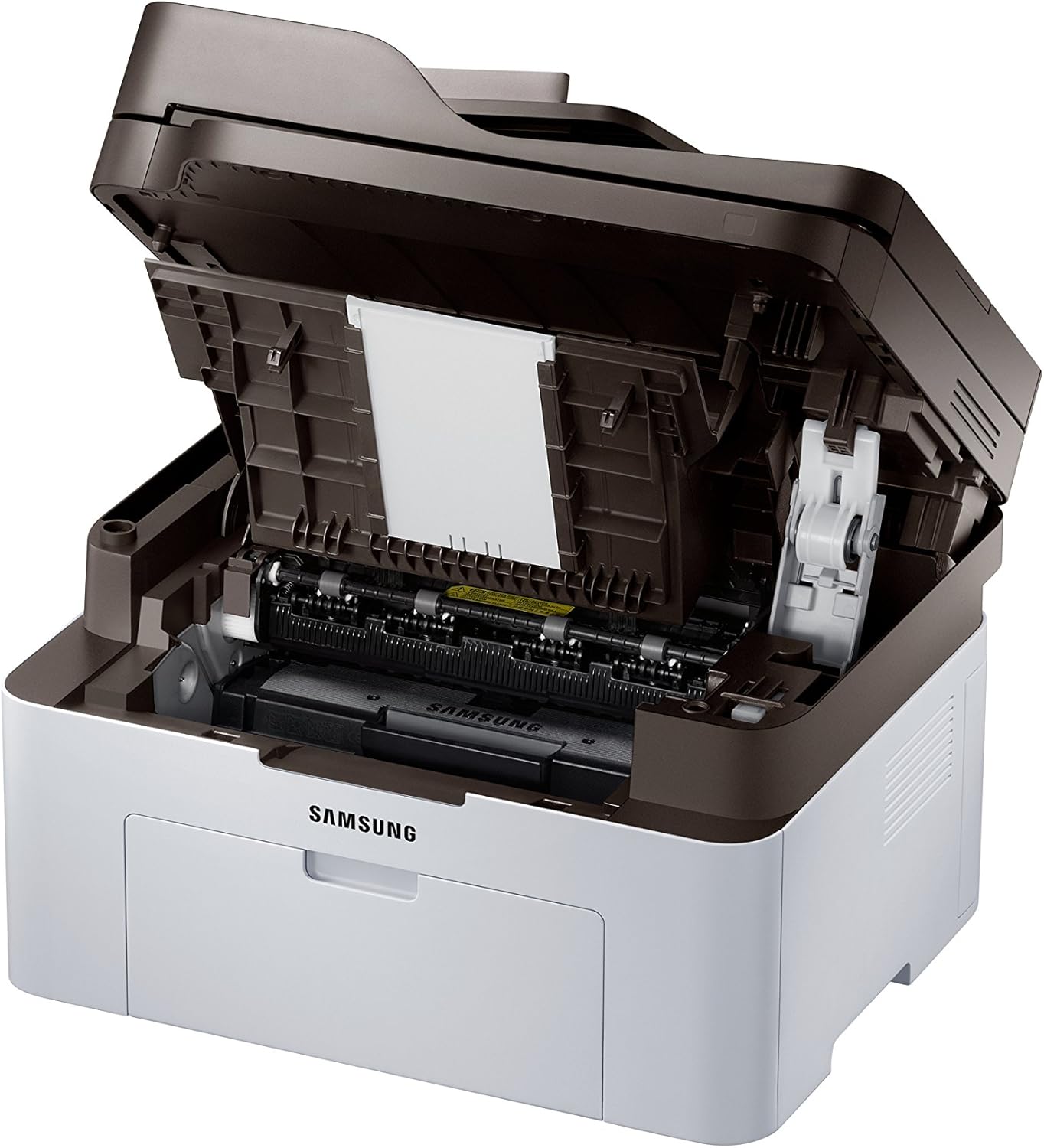
شکل 2.1: Front cover open, revealing the toner cartridge slot for installation or replacement.
۲.۴ نصب و اتصال نرمافزار
- Insert the provided installation CD into your computer's CD-ROM drive, or download the latest drivers from the Samsung support webسایت
- Follow the on-screen instructions to install the printer software.
- For wireless setup, follow the prompts to connect the printer to your Wi-Fi network. The printer supports NFC for easy pairing with compatible devices.
- For USB connection, connect the printer to your computer using a USB cable (not always included).
3. دستورالعمل های عملیاتی

شکل 3.1: زاویه دار view showing the control panel with display and function buttons.
۴.۱ چاپ اسناد
- مطمئن شوید که چاپگر روشن است و به رایانه یا شبکه شما متصل است.
- کاغذ را در سینی ورودی قرار دهید.
- از رایانه خود، سندی را که میخواهید چاپ کنید باز کنید.
- انتخاب کنید چاپ کنید از منوی برنامه (مثلاً File > چاپ).
- Choose the Samsung Xpress SL-M2070FW from the list of available printers.
- Adjust print settings as needed (e.g., number of copies, paper size, quality).
- کلیک کنید چاپ کنید.
۳.۴ کپی کردن اسناد
- سند را رو به پایین روی شیشه اسکنر یا رو به بالا در تغذیه کننده خودکار اسناد (ADF) قرار دهید.
- روی صفحه کنترل چاپگر، دکمه را فشار دهید کپی کنید دکمه
- Use the navigation buttons to select copy options (e.g., number of copies, darkness, original size).
- را فشار دهید شروع کنید را فشار دهید تا شروع به کپی کنید.
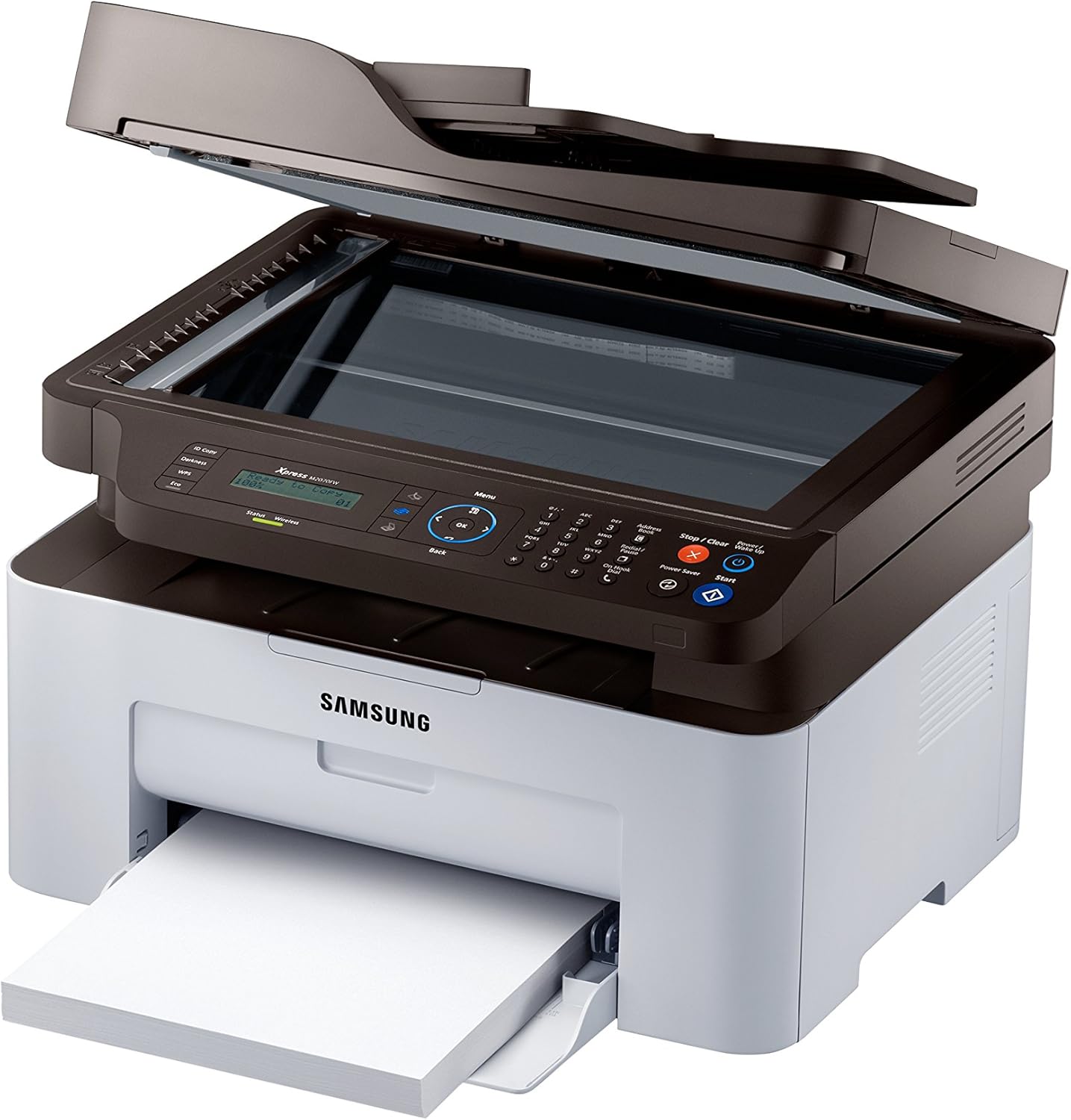
شکل 3.2: Top cover open, showing the flatbed scanner glass for copying and scanning.
۳.۳ اسکن اسناد
- سند را روی شیشه اسکنر یا در ADF قرار دهید.
- From your computer, open the Samsung Easy Document Creator software or a similar scanning application.
- انتخاب کنید اسکن کنید and choose your desired settings (e.g., resolution, color mode, destination).
- کلیک کنید اسکن کنید برای شروع فرآیند
3.4 Sending Faxes
- Load the document into the ADF or place it on the scanner glass.
- روی صفحه کنترل چاپگر، دکمه را فشار دهید فکس دکمه
- شماره فکس گیرنده را با استفاده از صفحه کلید عددی وارد کنید.
- در صورت لزوم تنظیمات فکس را تنظیم کنید.
- را فشار دهید شروع کنید دکمه ارسال فکس
3.5 Wireless Printing (NFC, Wi-Fi Direct, Google Cloud Print)
- NFC: Tap your NFC-enabled smartphone or tablet to the NFC tag on the printer to establish a direct connection and print.
- وای فای دایرکت: Connect your mobile device directly to the printer's Wi-Fi Direct network without needing a router.
- چاپ ابری گوگل: Register your printer with Google Cloud Print to print from anywhere using your Google account. Refer to the online manual for detailed registration steps.
4. تعمیر و نگهداری
۵.۱ تعویض کارتریج تونر
- When the toner low message appears on the display, order a new toner cartridge.
- درب جلوی چاپگر را باز کنید.
- کارتریج تونر قدیمی را با دقت بیرون بکشید.
- Unpack the new toner cartridge and shake it gently.
- کارتریج جدید را تا زمانی که در جای خود قفل شود، وارد کنید.
- درپوش جلو را ببندید.
4.2 تمیز کردن چاپگر
- نمای بیرونی: قسمت بیرونی چاپگر را با یک پارچه نرم و بدون پرز پاک کنید. از پاک کننده های ساینده استفاده نکنید.
- شیشه اسکنر: Gently clean the scanner glass with a soft cloth dampبا شیشه پاک کن بپوشانید. مطمئن شوید که هیچ اثری از آن باقی نماند.
- داخلی: Periodically open the front cover and gently remove any paper dust or debris with a dry, lint-free cloth.
5 عیب یابی
| مشکل | علت احتمالی | راه حل |
|---|---|---|
| چاپگر روشن نمیشود. | سیم برق به درستی وصل نشده است. | Check power cord connections to the printer and wall outlet. Ensure the outlet is functional. |
| گیر کردن کاغذ. | Incorrect paper loading; foreign objects in paper path. | Remove all paper from the tray and reload correctly. Open covers and carefully remove any jammed paper or obstructions. |
| کیفیت چاپ ضعیف | Low toner; dirty print head/drum; incorrect print settings. | Replace toner cartridge. Clean the interior of the printer. Adjust print quality settings in the printer driver. |
| Cannot connect wirelessly. | رمز عبور وایفای اشتباه است؛ چاپگر خیلی از روتر دور است؛ مشکلات شبکه. | Verify Wi-Fi password. Move printer closer to the router. Restart printer and router. Reconfigure wireless settings. |
6. مشخصات
- نام مدل: SL-M2070FW
- توابع: پرینت، کپی، اسکن، فکس
- فناوری چاپ: لیزر (تک رنگ)
- حداکثر سرعت چاپ (تک رنگ): ۴۶ برگ در دقیقه (ppm)
- حداکثر سرعت کپی (سیاه و سفید): 14 پی پی ام
- حداکثر وضوح کپی (سیاه و سفید): 600 نقطه در اینچ
- نوع اسکنر: تخت تخت
- فناوری اتصال: USB, Wireless (Wi-Fi, NFC, Wi-Fi Direct, Ethernet)
- رابط سخت افزاری: اترنت، USB
- ظرفیت ذخیره سازی حافظه: 128 مگابایت
- مصرف برق: ۷۰۰ وات (در حال کار)
- ابعاد محصول: 15.98 x 14.16 x 12.15 اینچ
- وزن مورد: 18.92 پوند (8.6 کیلوگرم)
- اجزای شامل: Scanner Glass, Fax Machine, Paper Tray
7. گارانتی و پشتیبانی
Your Samsung Xpress SL-M2070FW Multifunctional Printer comes with a limited warranty. For detailed information regarding warranty terms and conditions, please refer to the warranty card included with your product or visit the official Samsung support webسایت
For technical assistance, driver downloads, or further support, please visit the Samsung support webسایت یا با خدمات مشتریان آنها تماس بگیرید.
- پشتیبانی آنلاین: www.samsung.com/support/
- نوع گارانتی: گارانتی محدود