Sarrera
This manual provides comprehensive instructions for the setup, operation, maintenance, and troubleshooting of your MageGee Moon104 Wireless Mechanical Keyboard. Please read this manual thoroughly to ensure optimal performance and longevity of your device.

Image: The MageGee Moon104 Wireless Mechanical Keyboard, showcasinbere diseinu osoa eta barneko USB hargailua barne.
Paketearen edukia
Paketea irekitzean, egiaztatu elementu guztiak bertan daudela:
- MageGee Moon104 Wireless Mechanical Keyboard
- USB-C USB-A kablea
- 2.4 GHz USB hargailua
- Erabiltzailearen eskuliburua (dokumentu hau)
Zehaztapenak
| Ezaugarri | Xehetasuna |
|---|---|
| Eredua | Moon104 |
| Neurriak (L x W x H) | 16.73" x 16.73" x 0.98" (42.49 cm x 42.49 cm x 2.49 cm) |
| Elementuaren pisua | 2.33 libra (1.06 kg) |
| Konektibitatea | USB-C kable bidezkoa, 2.4 GHz haririk gabekoa, Bluetooth 3.0/5.0 |
| Teklatu mota | Mekanikoa, Low Profile |
| Etengailuak | Marroi koloreko etengailu mekanikoak |
| Atzeko argiztapena | RGB Backlit (Seven-color breathing system) |
| Bateragarritasuna | Windows, macOS |
| Erabilera gomendatua | Bulegoa |

Irudia: Gehiagoview of the MageGee Moon104 keyboard's key features, including its tri-mode connectivity, low-profile switches, RGB backlighting, and ergonomic design.
Konfigurazioa
1. Teklatua kargatzea
Before first use, it is recommended to fully charge the keyboard using the provided USB-C cable. Connect the USB-C end to the keyboard and the USB-A end to a powered USB port on your computer or a wall adapter.

Irudia: Gertutik view of the MageGee Moon104 keyboard showing the detachable USB-C cable connected to its port.
2. Teklatua konektatzea
The MageGee Moon104 supports three connection modes: USB-C Wired, 2.4GHz Wireless, and Bluetooth.

Image: The MageGee Moon104 keyboard demonstrating its tri-mode connection capabilities, showing both wired USB-C and the 2.4GHz receiver in use.
2.1. USB-C kable bidezko konexioa
- Connect the USB-C end of the cable to the keyboard's port.
- Connect the USB-A end to an available USB port on your computer.
- Teklatua automatikoki ezagutuko da eta erabiltzeko prest egongo da.
2.2. 2.4 GHz-ko haririk gabeko konexioa
- Locate the 2.4GHz USB receiver (usually stored in a compartment on the keyboard or included separately).
- Konektatu USB hargailua zure ordenagailuko USB ataka erabilgarri batean.
- Teklatuan, sakatu Fn + Q to switch to 2.4GHz wireless mode. The indicator light will confirm the connection.
2.3. Bluetooth konexioa
- Teklatuan, sakatu Fn + W or Fn + E to select a Bluetooth channel (BT1 or BT2). The indicator light will flash, indicating pairing mode.
- On your device (computer, laptop, smart TV), enable Bluetooth and search for new devices.
- Select "MageGee Moon104" from the list of available devices to pair.
- Behin parekatuta, teklatuko adierazle-argia finko piztuta egongo da.
Funtzionamendu-argibideak
1. Konexio moduen artean aldatzea
To switch between the three connection modes, use the following key combinations:
- Fn + TAB: Switch to USB-C Wired Mode
- Fn + Q: Switch to 2.4GHz Wireless Mode
- Fn + W: Switch to Bluetooth Channel 1 (BT1)
- Fn + E: Switch to Bluetooth Channel 2 (BT2)
2. RGB atzeko argiaren kontrola
The keyboard features an RGB backlight system with multiple effects and brightness levels.

Image: The MageGee Moon104 keyboard displaying its vibrant RGB backlighting across the keys.
- Distira doitzea: Erabili Fn + ↑ (increase brightness) and Fn + ↓ (decrease brightness).
- Argiztapen moduak aldatzea: Erabili Fn + → or Fn + ← to cycle through different RGB effects.
- Abiadura doitzea: Erabili Fn + - (decrease speed) and Fn + = (increase speed) for dynamic lighting effects.
3. Windows/macOS Compatibility Switch
The keyboard includes a physical switch to toggle between Windows and macOS layouts for optimal key mapping.

Image: A close-up of the MageGee Moon104 keyboard highlighting the physical switch to select between Windows and Mac operating system compatibility.
- Kokatu IRABAZI/MAC switch on the side or back of the keyboard.
- Slide the switch to the appropriate operating system setting.
4. Funtzio-teklak (F1-F12)
The F-keys often have secondary functions accessible by pressing them in combination with the Fn key. Refer to the keycaps for specific icons indicating these functions (e.g., media control, volume, brightness).
Diseinu Ergonomikoa
The MageGee Moon104 is designed with ergonomics in mind to reduce wrist strain during extended use. It features low-profile mechanical switches and adjustable tilt feet.

Image: The MageGee Moon104 keyboard positioned on a desk, showcasing its ergonomic profile and comfortable typing angle.
- Adjustable Tilt Feet: Extend the feet on the underside of the keyboard to adjust the typing angle to your preference.
- Pro baxuafile Etengailuak: Behe-profile design of the mechanical switches contributes to a flatter keyboard, reducing the need for excessive wrist extension.
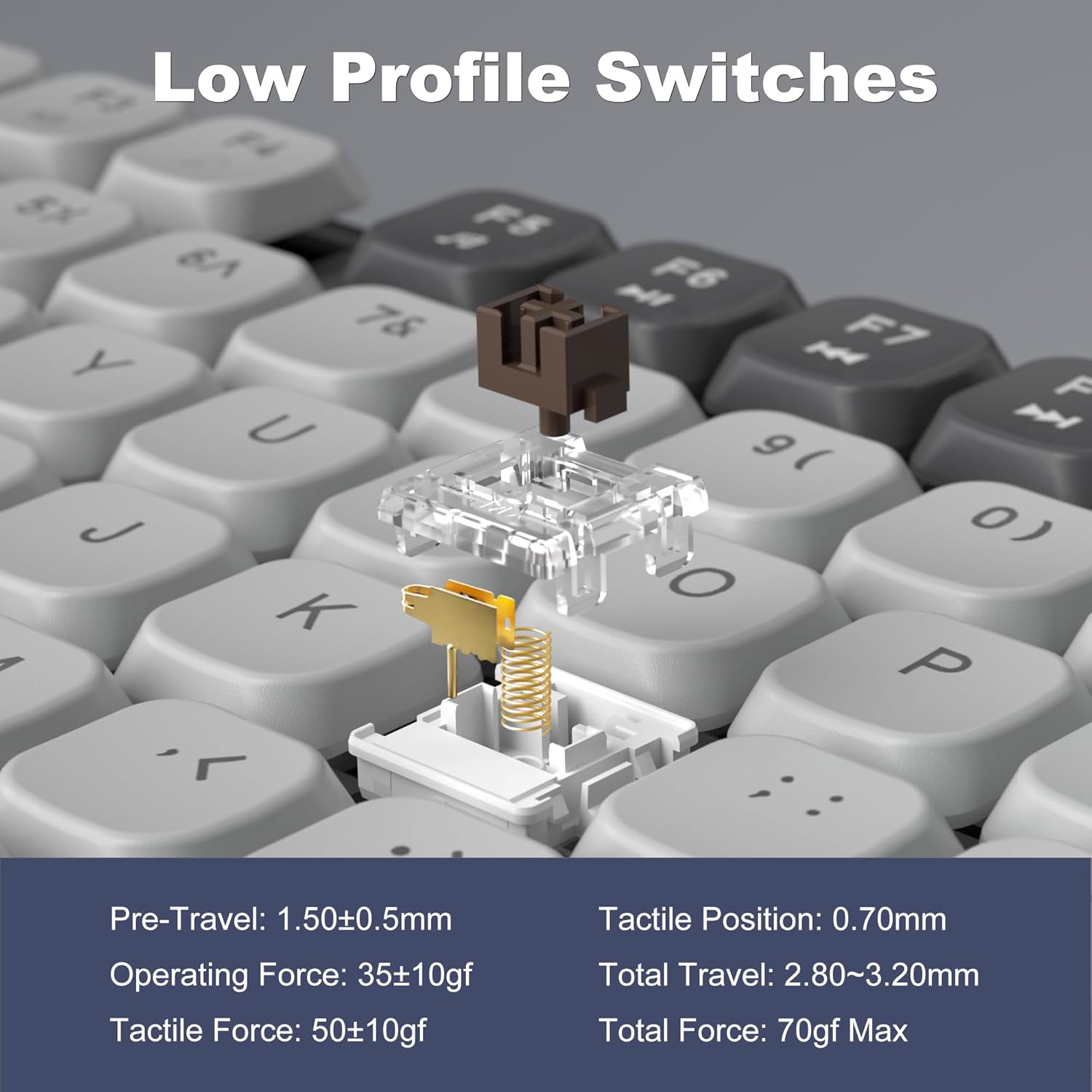
Image: A detailed diagram illustrating the internal structure and operational specifications of the low-profile mechanical switches used in the MageGee Moon104 keyboard.
Mantentzea
Zure teklatuaren iraupena eta errendimendu optimoa bermatzeko, jarraitu mantentze-jarraibide hauek:
- Garbiketa: Erabili zapi leun eta lehor bat teklatuaren gainazala garbitzeko. Garbiketa sakonago bat egiteko, erabili aire konprimatua teklatuen arteko hautsa eta hondakinak kentzeko. Saihestu produktu kimiko gogorrak edo material urratzaileak erabiltzea.
- Biltegiratzea: Denbora luzez erabiltzen ez duzunean, gorde teklatua leku fresko eta lehor batean, eguzki-argitik eta muturreko tenperaturetatik babestuta.
- Bateria zaintzea: Saihestu bateria maiz erabat deskargatzea. Kargatu teklatua aldizka bateriaren osasuna mantentzeko.
Arazoak konpontzea
If you encounter issues with your MageGee Moon104 keyboard, refer to the following common solutions:
- Teklatuak ez du erantzuten:
- Ziurtatu teklatua kargatuta dagoela.
- Verify the correct connection mode is selected (Wired, 2.4GHz, or Bluetooth).
- 2.4 GHz-rako, ziurtatu USB hartzailea ondo konektatuta dagoela.
- For Bluetooth, ensure the keyboard is paired and within range of your device. Try re-pairing if necessary.
- If using wired mode, try a different USB port or cable.
- Atzeko argia ez dabil edo ez dabil ondo:
- Check backlight brightness settings using Fn + ↑.
- Argiztapen moduen artean txandakatu erabiliz Fn + → or Fn + ←.
- Ziurtatu teklatuaren bateriak nahikoa karga duela.
- Keys Not Registering or Double Typing:
- Clean the affected key with compressed air to remove any debris.
- Ziurtatu teklatua guztiz kargatuta dagoela.
- If the issue persists, try connecting the keyboard to a different device to rule out software or driver issues on your primary computer.
- Function Keys (F1-F12) Not Working:
- Ziurtatu botoia sakatzen ari zarela Fn key in combination with the desired F-key for secondary functions.
- Verify the keyboard is set to the correct operating system (Windows/Mac) using the physical switch.
Bermea eta Laguntza
MageGee provides a 1-year warranty for the Moon104 Wireless Mechanical Keyboard. If you encounter any product issues or have questions, please contact MageGee customer support via Amazon email. They aim to reply within 24 hours and provide a satisfactory solution.
Laguntza behar baduzu, bisitatu MageGee Store on Amazon or contact their customer service directly through your Amazon order details.


