Sissejuhatus
The Linksys 5G AX1800 Mobile Hotspot is a portable device designed to provide high-speed 5G and WiFi 6 connectivity for multiple devices. With its ultra-thin design and long battery capacity, it allows you to stay connected on the go. This manual provides essential information for the proper setup, operation, maintenance, and troubleshooting of your mobile hotspot.
Põhifunktsioonide hulka kuuluvad:
- Portable 5G supersonic speed and bandwidth.
- WiFi 6 speeds up to 1.8 Gbps (AX1800).
- Supports connection for 15+ devices simultaneously.
- Ultra-thin and lightweight design for maximum convenience.
- Kauakestev aku pikemaks kasutamiseks.
- Powered by leading-edge 5G technology by Qualcomm.
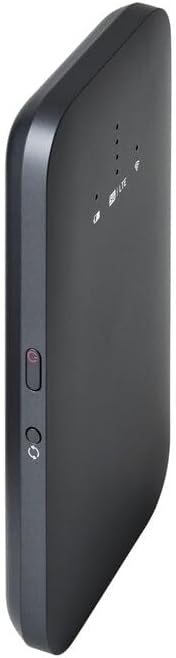
Joonis 1: Esiosa view of the Linksys 5G AX1800 Mobile Hotspot, showing LED indicators for battery, 5G/LTE, and Wi-Fi status.
Seadistamine
1. Paigaldage SIM-kaart
The Linksys 5G AX1800 Mobile Hotspot requires a Nano-SIM card for 5G/LTE connectivity. Ensure the device is powered off before inserting the SIM card.
- Leidke seadme küljelt SIM-kaardi pesa kate.
- Avage kaas õrnalt.
- Insert the Nano-SIM card into the slot with the gold contacts facing down and the notched corner aligned correctly.
- Sulgege SIM-kaardi pesa kate kindlalt.

Joonis 2: Külg view of the mobile hotspot, highlighting the SIM card slot cover.
2. Laadige seadet
Before first use, fully charge the mobile hotspot. Use the provided charging cable and a compatible USB power adapter.
- Connect one end of the USB cable to the charging port on the device.
- Ühendage teine ots USB-toiteadapteri või arvuti USB-porti.
- The battery indicator LED will show charging status. Allow several hours for a full charge.

Joonis 3: Alt view of the mobile hotspot, showing the USB-C charging port.
3. Toide sisse/välja
To power on the device, press and hold the power button located on the side until the LED indicators light up. To power off, press and hold the power button again until the indicators turn off.

Joonis 4: Külg view of the mobile hotspot, indicating the location of the power button.
Kasutusjuhised
1. Seadmete ühendamine WiFi-ga
Once powered on, the mobile hotspot will broadcast a Wi-Fi network. You can connect up to 15+ devices simultaneously.
- Avage oma seadmes (nutitelefon, sülearvuti, tahvelarvuti) WiFi-seaded.
- Otsi saadaolevad WiFi-võrgud.
- Select the network name (SSID) of your Linksys Mobile Hotspot. The default SSID and password are usually found on a sticker inside the device or on its packaging.
- Kui küsitakse, sisestage Wi-Fi parool.
- Teie seade peaks nüüd olema mobiilse leviala kaudu internetiga ühendatud.
2. LED-indikaatorite mõistmine
The LED indicators on the front of the device provide important status information:
- Aku indikaator: Näitab aku praegust taset ja laadimise olekut.
- 5G/LTE Indicator: Indicates the mobile network connection status (e.g., solid blue for 5G, solid green for LTE, blinking for searching).
- Wi-Fi indikaator: Shows if the Wi-Fi network is active and broadcasting.
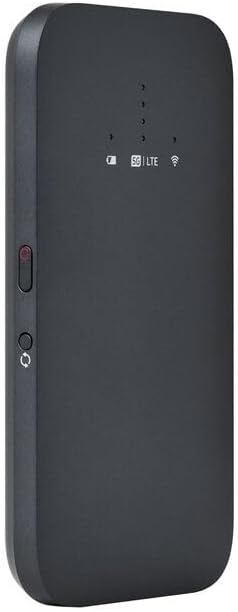
Joonis 5: Nurga all olev esiosa view of the mobile hotspot, clearly showing the LED indicators for battery, 5G/LTE, and Wi-Fi.
3. Juurdepääs Web Haldusliides
For advanced settings, such as changing the Wi-Fi name or password, managing connected devices, or checking data usage, you can access the device's web haldusliides.
- Ensure your device is connected to the mobile hotspot's Wi-Fi network.
- Avage a web brauser (nt Chrome, Firefox, Safari).
- Enter the default IP address for the hotspot (usually
192.168.1.1or192.168.0.1, refer to the device's documentation or sticker for the exact address) into the address bar and press Enter. - Log in using the default username and password (also found on the device sticker or documentation). It is highly recommended to change the default password for security.
Hooldus
1. Aku hooldus
- Vältige seadme kokkupuudet äärmuslike temperatuuridega.
- Ärge jätke seadet pikaks ajaks täiesti tühjaks.
- Kasutage ainult originaalseid või sertifitseeritud ühilduvaid laadimistarvikuid.
2. Puhastamine
Wipe the device with a soft, dry, lint-free cloth. Do not use liquid cleaners or aerosols directly on the device.
3. Püsivara värskendused
Kontrollige regulaarselt püsivara värskendusi web management interface. Keeping the firmware updated ensures optimal performance and security.
Veaotsing
Interneti-ühendus puudub
- Veenduge, et SIM-kaart oleks õigesti sisestatud ja andmesidepaketiga aktiveeritud.
- Check the 5G/LTE indicator on the device. If it's blinking or off, the device may be searching for a network or have no signal.
- Restart the mobile hotspot and your connected device.
- Verify that your data plan has not been exhausted.
Aeglane WiFi kiirus
- Move closer to the mobile hotspot to improve signal strength.
- Reduce the number of connected devices or data-intensive activities.
- Kontrollige oma piirkonnas võrgu ülekoormust.
Device Not Connecting to Hotspot
- Ensure the Wi-Fi indicator on the hotspot is active.
- Kontrollige WiFi-parooli üle.
- Taaskäivitage nii leviala kui ka seade, millega proovite ühendust luua.
Tehaseseaded
If issues persist, you may perform a factory reset. This will revert all settings to their default values, including Wi-Fi name and password. Refer to the device's specific instructions for the reset procedure, usually involving a small reset button.
Tehnilised andmed
| Funktsioon | Detail |
|---|---|
| Kaubamärk | Linksys |
| Mudeli nimi | FGHSAX1800 |
| Kauba mudeli number | FGHSAX1800-AH |
| Ühenduvustehnoloogia | 5G |
| Tavaline WiFi | WiFi 6 (AX1800) |
| Andmeedastuskiirus | Kuni 1.8 gigabitti sekundis |
| Sagedusriba klass | Kaheribaline |
| Antenni tüüp | Sisemine |
| Eriomadused | Pöörduspunkti režiim |
| Kaasatud komponendid | SIM-KAARDI PESA |
| Voltage | 12 volti |
| Pakendi mõõtmed | 14 x 7.5 x 1.55 cm |
| Kauba kaal | 185 g |
Garantii ja tugi
For warranty information and technical support, please refer to the warranty card included with your product or visit the official Linksys support websait. Tavaliselt leiate sealt KKK-d, draiverite allalaadimise võimaluse ja klienditeeninduse kontaktandmed.
Linksys Official Support: https://www.linksys.com/support


