Introducción
Gracias por la compraasing the Matbip Multi-Platform Wireless Gaming Controller. This controller is designed to enhance your gaming experience across various platforms, including Nintendo Switch, Android, iOS, and PC. It features advanced functions such as TURBO burst, macro programming, customizable RGB lighting, and HD vibration, providing precise control and immersive feedback. Please read this manual carefully before use to ensure proper operation and to fully utilize all features.
Producto terminadoview
Familiarize yourself with the various components and buttons of your Matbip controller.
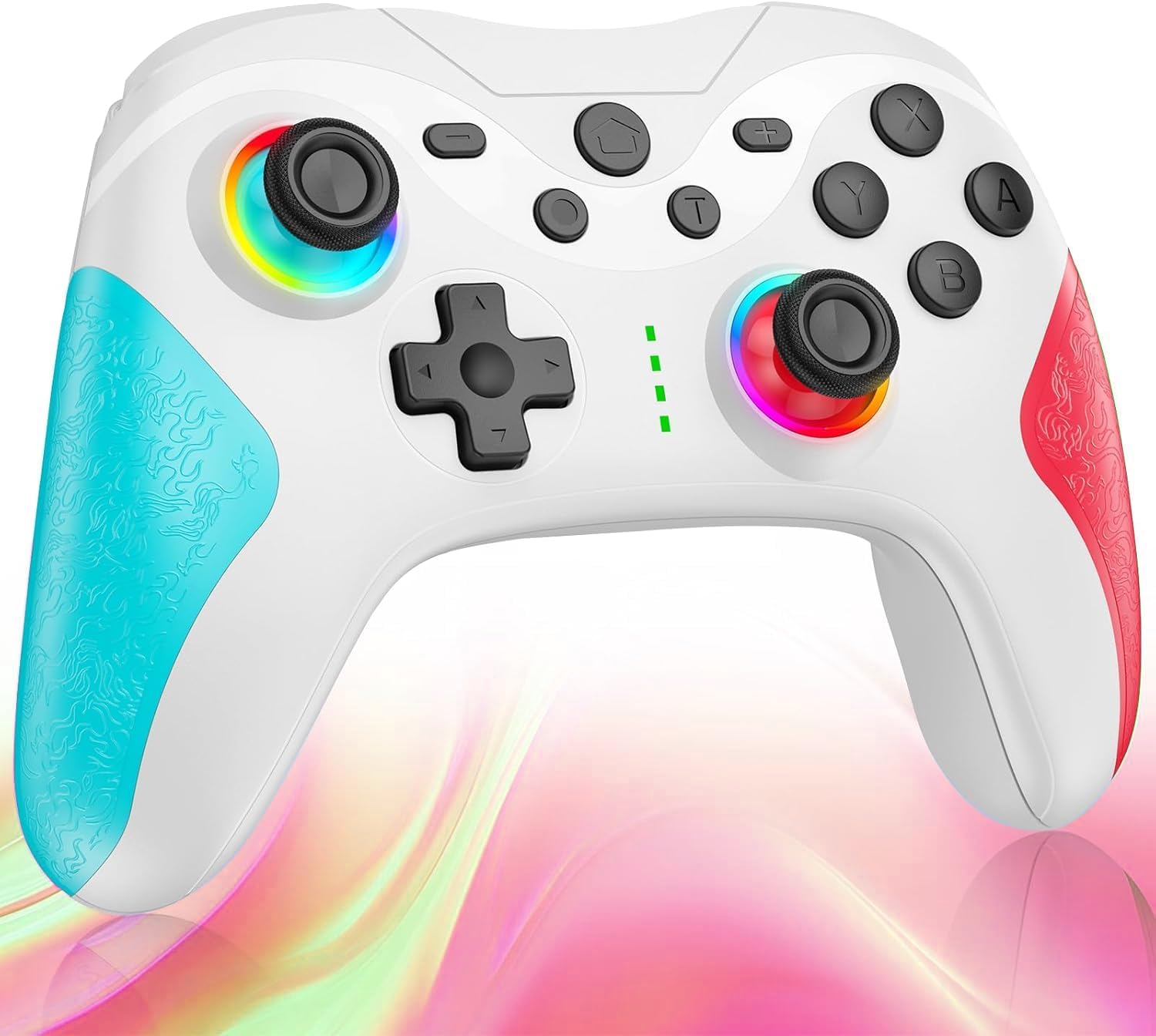
Imagen: Frente view of the Matbip Multi-Platform Wireless Gaming Controller. It features a white body with blue textured grips on the left and red textured grips on the right. The joysticks are illuminated with a rainbow RGB light. Standard buttons (A, B, X, Y), a D-pad, and central function buttons (Home, Plus, Minus, T) are visible.
Componentes clave:
- Joysticks izquierdo/derecho: For directional control, with customizable RGB lighting.
- Almohadilla direccional: Para una entrada direccional precisa.
- Botones de acción (A/B/X/Y): Botones de entrada de juego estándar.
- Shoulder Buttons (L/R/ZL/ZR): Top-mounted trigger and bumper buttons.
- Botones de retroceso: Additional programmable buttons on the rear for strategic gameplay.
- Botón de inicio: Regresa a la pantalla de inicio del sistema.
- Botones más (+) / menos (-): System-specific function buttons.
- T Button (TURBO): Activates and manages the TURBO burst function.
- Puerto de carga: Puerto USB-C para cargar.
- Luces indicadoras: Muestra el estado de la conexión y el nivel de la batería.
Configuración
1. Carga del controlador
Before first use, fully charge the controller. Connect the provided USB-C cable to the controller's charging port and the other end to a USB power source (e.g., console, PC, or USB wall adapter). The indicator lights will show charging status and turn off when fully charged.
2. Emparejamiento con dispositivos
The controller supports Bluetooth wireless connection across multiple platforms.
Para Nintendo Switch:
- On the Switch HOME Menu, select Controladores > Cambiar agarre/orden.
- Mantenga pulsado el Botón de inicio on the Matbip controller for 3-5 seconds until the indicator lights flash rapidly.
- Una vez emparejado, las luces indicadoras del controlador permanecerán fijas.
Para dispositivos Android/iOS:
- Habilite Bluetooth en su dispositivo Android o iOS.
- Mantenga pulsado el Botón de inicio on the Matbip controller for 3-5 seconds until the indicator lights flash rapidly.
- On your device's Bluetooth settings, select the controller (e.g., "Matbip Controller") from the list of available devices to pair.
Para PC (Windows):
- Ensure your PC has Bluetooth enabled. Go to Ajustes > Dispositivos > Bluetooth y otros dispositivos.
- Hacer clic Agregar Bluetooth u otro dispositivo > Bluetooth.
- Mantenga pulsado el Botón de inicio on the Matbip controller for 3-5 seconds until the indicator lights flash rapidly.
- Select the controller from the list of devices to pair.
Instrucciones de funcionamiento
TURBO Burst Function:
The TURBO function allows for rapid, automatic button presses, ideal for combat games.
- Para activar TURBO: Mantenga pulsado el botón T, then press the desired action button (e.g., A, B, X, Y, L, R, ZL, ZR). The button will now continuously activate when held down.
- Para ajustar la velocidad TURBO: Mientras sostiene el botón T, mover el right joystick up or down to cycle through 3 different burst speeds.
- Para desactivar TURBO: Mantenga pulsado el botón T, then press the same action button again.
Función macro:
Program a sequence of button presses to a single back button for complex actions.
- Specific instructions for macro programming will be detailed in the full manual. Generally, this involves entering a programming mode, pressing the sequence, and assigning it to a back button.
Iluminación RGB personalizable:
The joysticks feature 9-color RGB lighting to enhance your gaming atmosphere.
- To change RGB color/mode: Press a specific button combination (e.g., T + Left Joystick click) to cycle through different colors and lighting effects.
HD Vibration Adjustment:
Adjust the intensity of the HD vibration feedback to your preference (4 levels).
- Para ajustar la vibración: Press a specific button combination (e.g., T + D-Pad Up/Down) to cycle through the 4 vibration levels.
Sensor giroscópico:
The high-precision gyro sensor enables intuitive motion control in supported games.
- The gyro sensor is automatically active when connected to a compatible device (e.g., Nintendo Switch) and used in games that support motion controls.
Sleep Wake-up Function:
The controller supports waking up your Nintendo Switch console from sleep mode.
- When the Switch is in sleep mode, simply press the Botón de inicio on the controller to wake it up and reconnect.
Mantenimiento
Un mantenimiento adecuado garantiza la longevidad y el rendimiento óptimo de su controlador.
- Limpieza: Utilice un paño suave y seco para limpiar el mando. Para suciedad difícil de eliminar, limpie ligeramenteampEnjuague el paño con agua. No utilice productos químicos agresivos ni limpiadores abrasivos.
- Almacenamiento: Guarde el controlador en un lugar fresco y seco, alejado de la luz solar directa, temperaturas extremas y humedad.
- Cuidado de la batería: Avoid fully discharging the battery frequently. If storing for a long period, charge the controller to about 50% every few months.
- Evite las gotas: Proteja el controlador de caídas e impactos que puedan dañar los componentes internos.
Solución de problemas
If you encounter issues with your controller, please refer to the following common solutions:
| Problema | Posible solución |
|---|---|
| El controlador no se enciende. | Asegúrate de que el mando esté cargado. Conéctalo a una fuente de alimentación mediante el cable USB-C. |
| El controlador no se empareja. | Ensure Bluetooth is enabled on your device. Make sure the controller is in pairing mode (flashing lights). Try restarting both the controller and the device. |
| Retraso de entrada o desconexión. | Ensure there are no strong wireless interferences nearby. Move closer to the device. Re-pair the controller. |
| Los botones o joysticks no responden. | Try resetting the controller (refer to the full manual for reset instructions, usually a small pinhole button). Ensure no debris is obstructing the buttons. |
| La vibración no funciona. | Check if vibration is enabled in the game or system settings. Adjust the vibration intensity on the controller. |
Presupuesto
| Característica | Detalle |
|---|---|
| Dimensiones del producto | 10 x 15 x 6.5 cm |
| Peso | 300 gramos |
| Conectividad | Bluetooth inalámbrico |
| Compatibilidad | Nintendo Switch, Android, iOS, PC (Windows) |
| Características especiales | TURBO Burst, Macro Function, 9-Color RGB Lighting, 4-Level HD Vibration, Gyro Sensor, Back Buttons, Sleep Wake-up |
| ASIN | B0FHWRK7CQ |
| Fecha de lanzamiento | 16 de julio de 2025 |
Garantía y soporte
Matbip is committed to providing high-quality products and customer satisfaction. This product comes with a standard manufacturer's warranty. For detailed warranty information, please refer to the documentation included with your purchase or contact Matbip customer support.
If you require further assistance, have questions, or encounter issues not covered in this manual, please contact our customer support team. A Japanese instruction manual is included with the product to ensure ease of use for first-time users.
Información del contacto: Please refer to the packaging or the official Matbip webSitio para obtener los detalles de contacto de atención al cliente más actualizados.


