1. Introducción
The Epson EW-056A is a compact A4 inkjet multifunction printer designed for home and small office use. It combines printing, copying, and scanning functionalities with convenient Wi-Fi connectivity. This model features a 4-color independent ink cartridge system, allowing for economical replacement of individual colors.
This manual provides essential information for the safe and efficient use of your printer. Please read it thoroughly before operation and keep it for future reference.

Image: The Epson EW-056A printer in white, demonstrating its compact size and ability to print documents. Text on the image indicates "Compact body with full basic functions" and "Simple model".

Image: The Epson EW-056A printer positioned on a light wooden desk, alongside a laptop and a small potted plant, illustrating its seamless integration into a modern workspace.
2. Configuración
2.1 Desembalaje y colocación inicial
Carefully remove the printer from its packaging. Ensure all protective tapes and materials are removed before connecting to power. Place the printer on a stable, flat surface with adequate space for paper loading and output.
2.2 Conexión de alimentación
Conecte el cable de alimentación a la impresora y luego a una toma de corriente. Presione el botón de encendido para encender la impresora.
2.3 Instalación del cartucho de tinta
Open the ink cartridge cover. Install the four independent ink cartridges (Black, Yellow, Magenta, Cyan) into their respective slots. Ensure they click into place. Close the cover.

Imagen: Un detalle view of the printer's ink compartment, displaying the four individual ink cartridges. The text highlights "Economical with independent ink cartridges" and "Only replace the color that runs out!".
2.4 Wi-Fi Connection (Epson Smart Panel App)
For easy setup and operation, download the Epson Smart Panel app on your smartphone or tablet. The app guides you through connecting the printer to your Wi-Fi network using Bluetooth LE and Wi-Fi Direct.
- Descargue y abra el Aplicación Epson Smart Panel.
- Follow the on-screen instructions in the app to connect to your printer.
- Tap the product name in the app to initiate connection.
- Allow connection on the printer's control panel when prompted.
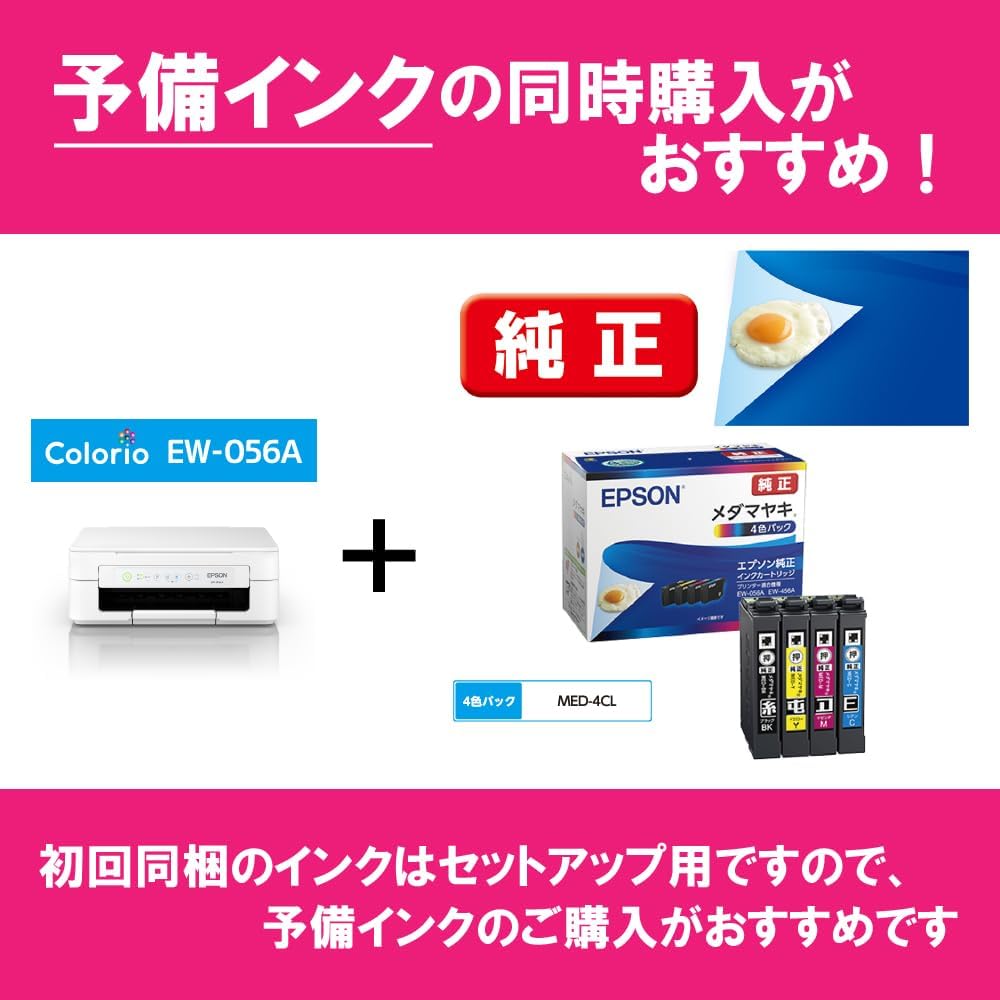
Image: A smartphone displaying the Epson Smart Panel app, illustrating the process of connecting to the printer using Bluetooth LE and Wi-Fi Direct. Instructions on the image prompt the user to "Tap product name" and "Allow connection on main unit panel".
3. Instrucciones de funcionamiento
3.1 Printing from a Smartphone/Tablet
Using the Epson Smart Panel app, you can easily print photos, PDF documents, and other files directly from your mobile device. The app also allows for basic printer operations and maintenance.

Image: A smartphone with the Epson Smart Panel app open, positioned beside the EW-056A printer which is actively printing a document. The image text indicates "Operate with smartphone - Print immediately!" and highlights print, copy, and scan functions.
- Imprimir: Select the document or photo from your device, choose print settings, and send to the printer.
- Copiar: Place the document on the scanner glass, select copy options from the app, and initiate copying.
- Escanear: Place the document on the scanner glass, select scan options in the app, and save the scanned image to your device.
3.2 Impresión desde una computadora
Install the printer drivers on your computer from the provided software disc or Epson's official website. Once drivers are installed and the printer is connected to your network, you can print from any application.
3.3 Voice Command Printing
The printer supports voice commands through compatible smart home devices. Link your printer to your voice assistant (e.g., Amazon Alexa) to initiate printing with simple voice commands.

Image: A graphic depicting a user giving a voice command to a smart speaker, which then transmits the instruction to the Epson printer for printing. The speech bubble says "Print XX with Epson printer!".
4. Mantenimiento
4.1 Reemplazo de cartuchos de tinta
When an ink cartridge is low or empty, a message will appear on the printer's display or in the Epson Smart Panel app. Follow these steps to replace:
- Asegúrese de que la impresora esté encendida.
- Open the scanner unit/printer cover. The print head will move to the replacement position.
- Presione la pestaña del cartucho vacío y levántelo.
- Desembale un nuevo cartucho de tinta original Epson y retire la cinta amarilla.
- Inserte el nuevo cartucho firmemente hasta que encaje en su lugar.
- Close the scanner unit/printer cover. The printer will prepare the ink system.
Video: This video demonstrates the process of replacing ink cartridges in an Epson printer. It shows how to open the printer, remove old cartridges, and install new ones correctly.
Important: Use genuine Epson ink cartridges for optimal performance and to avoid potential damage to your printer.
4.2 Limpieza del cabezal de impresión
If print quality declines (e.g., missing lines, streaking), perform a print head cleaning. This can be done through the printer's control panel or the Epson Smart Panel app.
- From the printer panel: Navigate to Maintenance > Head Cleaning.
- From the app: Go to Maintenance and select Head Cleaning.
4.3 Ink Absorption Pad
The printer has an internal ink absorption pad that collects waste ink. When this pad approaches its capacity limit, a warning message will appear. If borderless printing is causing this, you may be able to continue using the printer for bordered prints. However, eventually, the pad will need servicing by a qualified technician.

Image: A flowchart explaining the warning for the ink absorption pad. It shows that if the absorption amount is nearing its limit, and the issue is related to borderless printing, continued use for bordered printing might be possible.
5. Solución de problemas
Esta sección aborda problemas comunes que puede encontrar con su impresora Epson EW-056A.
5.1 La impresora no responde
- Verifique las conexiones eléctricas.
- Asegúrese de que la impresora esté encendida.
- Verify Wi-Fi connection status on both the printer and your device.
- Restart the printer and your computer/smartphone.
- If using USB, ensure the cable is securely connected.
5.2 Mala calidad de impresión
- Realice una limpieza del cabezal de impresión (consulte la Sección 4.2).
- Verifique los niveles de tinta y reemplace los cartuchos que estén bajos o vacíos.
- Asegúrese de utilizar papel apropiado para su configuración de impresión.
- Ejecute un patrón de verificación de boquillas para identificar boquillas obstruidas.
5.3 Atascos de papel
- Apague la impresora y desconéctela.
- Carefully open all covers and remove any jammed paper. Avoid tearing the paper.
- Asegúrese de que no queden pequeños trozos de papel en el interior.
- Cierre todas las cubiertas, enchufe y encienda la impresora.
6. Especificaciones
Below are the technical specifications for the Epson EW-056A printer:

Image: A diagram illustrating the physical dimensions of the Epson EW-056A printer: 390mm (width), 300mm (depth), and 146mm (height).
| Característica | Detalle |
|---|---|
| Marca | Epson |
| Número de modelo | EW-056A |
| Dimensiones del producto (W x D x H) | 390 x 300 x 146 mm |
| Peso del artículo | 4 kilogramos |
| Tamaño máximo de medios | A4 |
| Tecnología de impresión | Chorro de tinta |
| Tecnología de conectividad | USB, Wi-Fi |
| Resolución máxima de impresión (color) | 5760 puntos por pulgada |
| Velocidad máxima de impresión (color) | 0.81 páginas / minuto |
| Tipo de escáner | Foto |
| Capacidad máxima de hojas | 50 hojas |
| Impresión dúplex | No |
| Dispositivos compatibles | Teléfonos inteligentes |
| Componentes incluidos | Ink bottles, start guide (paper), software disc, warranty card, power cord |
7. Garantía y soporte
7.1 Garantía del producto
The Epson EW-056A printer comes with a limited warranty. Please refer to the warranty card included in the packaging for specific terms and conditions, including the warranty period and coverage details.
7.2 Optional Service Support: Colorio Smile Plus
Epson offers an extended 5-year service support plan called "Colorio Smile Plus" for enhanced peace of mind. This service can be purchased within the product's initial warranty period.
- Full Support Plan: Covers full repair costs.
- Half Support Plan: Covers half of the repair costs.
Both plans typically include free pickup and delivery services for repairs, with no limit on usage frequency. For detailed information and to purchase the service, please visit the official Epson websitio o póngase en contacto con el servicio de atención al cliente.

Image: A table outlining the benefits of Epson's 5-year service support, "Colorio Smile Plus," detailing full and half support plans for repair costs, and free pickup/delivery services.
7.3 Atención al cliente
For further assistance, technical support, or inquiries regarding your Epson EW-056A printer, please visit the official Epson support website or contact their customer service hotline. You can find contact details on the Epson websitio web o en la documentación de su producto.
Note: USB cable is not included with the printer and must be purchased separately if needed.