Introducción
This manual provides essential information for setting up, operating, and maintaining your HP Essential 17t Laptop TPN-I139. Please read these instructions carefully to ensure proper use and to maximize the lifespan of your device.
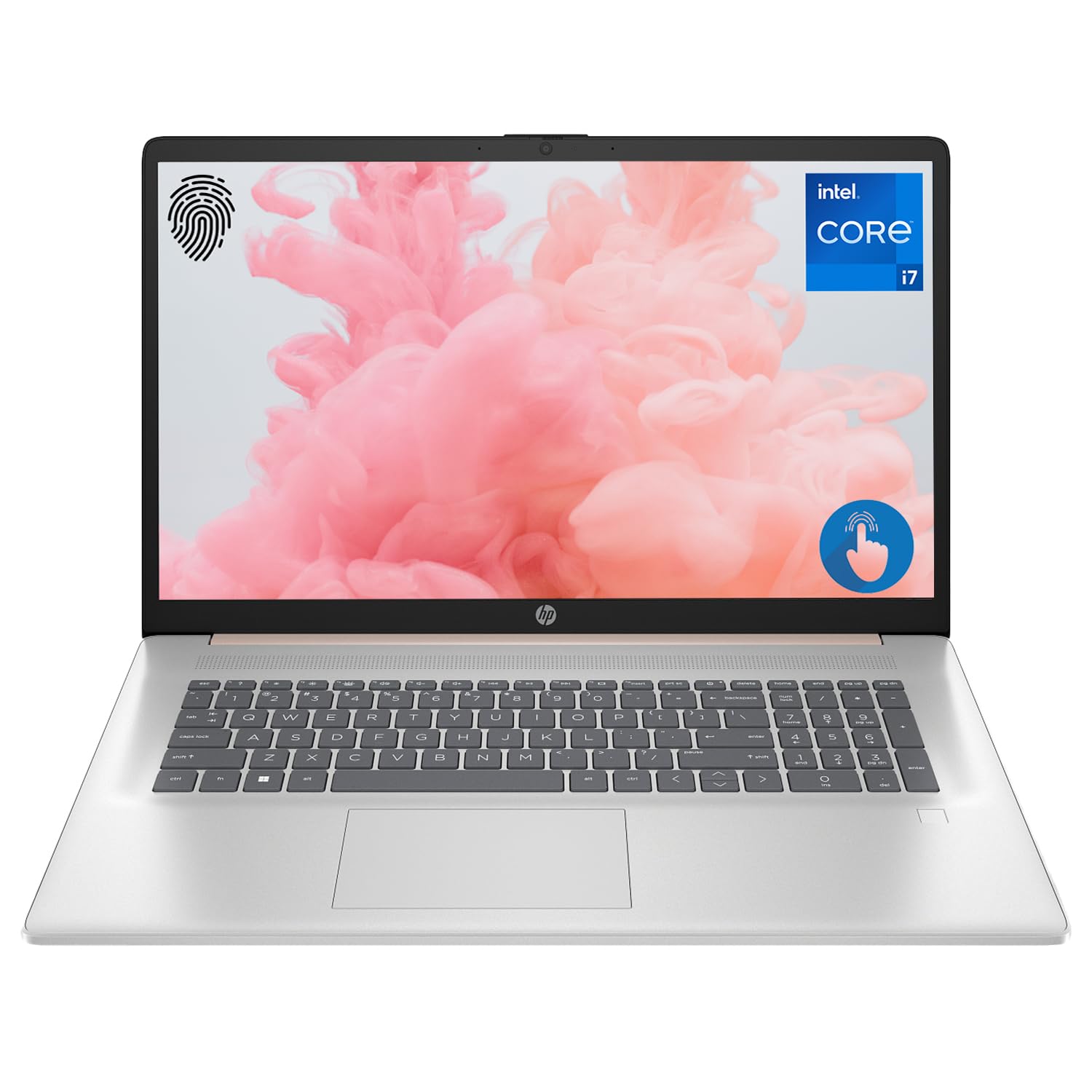
Figure 1: HP Essential 17t Laptop
The HP Essential 17t Laptop is designed for productivity and everyday use, featuring a 17.3-inch HD+ touchscreen, an Intel Core i7-1355U processor, 64GB of RAM, and a 2TB SSD. It comes pre-installed with Windows 11 Home.
Empezando
1. ¿Qué hay en la caja?
- HP Essential Touchscreen Laptop
- Adaptador de corriente alterna
- Guía de inicio rápido (si está incluida)
2. Encendido y configuración inicial
- Connect the AC power adapter to the laptop and a power outlet.
- Abra la tapa de la computadora portátil y presione el botón de encendido, generalmente ubicado en la plataforma del teclado.
- Follow the on-screen instructions to complete the Windows 11 Home setup. This includes selecting your region, connecting to a Wi-Fi network, creating a user account, and accepting the license agreement.

Figure 2: Windows 11 Home Interface
Hardware terminadoview
Puertos y conectores
Familiarícese con los distintos puertos de su computadora portátil para conectar dispositivos externos.

Figure 3: Laptop Ports and Connectors
- USB tipo A de alta velocidad (velocidad de señalización de 5 Gbps): Para conectar dispositivos USB como ratones, teclados o unidades externas.
- HDMI 1.4b: Para conectar a pantallas o proyectores externos.
- USB tipo C de alta velocidad (velocidad de señalización de 5 Gbps): Un puerto versátil para la transferencia de datos y la conexión de dispositivos compatibles.
- Conector combinado para auriculares y micrófono (3.5 mm): Para conectar auriculares, altavoces externos o unos auriculares con micrófono.
Teclado y panel táctil
The laptop features a full-size backlit keyboard for comfortable typing in various lighting conditions and a responsive touchpad for navigation.
Mostrar
Your HP Essential 17t Laptop is equipped with a 17.3-inch HD+ (1600 x 900) touchscreen display, offering intuitive interaction with Windows 11.

Figure 4: 17.3" HD+ Touchscreen Display
Operación de su computadora portátil
Gestión de energía
- Encendido/apagado: Presione el botón de encendido para encender la laptop. Para apagarla, haga clic en el botón Inicio y luego en Inicio > Apagar.
- Modo de sueño: Close the lid or click the Start button, then Power > Sleep to put the laptop into a low-power state.
- Cuidado de la batería: The laptop supports battery fast charge, reaching approximately 50% charge in 45 minutes. For optimal battery health, avoid consistently draining the battery to 0% or keeping it at 100% for extended periods.
Uso de la pantalla táctil
Interact with your laptop directly on the screen using touch gestures. Common gestures include tapping to select, pinching to zoom, and swiping to scroll.
Usando el lector de huellas digitales
The integrated fingerprint reader allows for secure and quick login. Set up your fingerprints through Windows Hello in the Windows Settings app (Accounts > Sign-in options).
Conectarse a Wi-Fi
To connect to a wireless network, click the Wi-Fi icon in the taskbar, select your desired network, and enter the password if prompted. The laptop supports Wi-Fi 6 for fast and reliable wireless connectivity.
Funciones de productividad
This laptop integrates Copilot + AI capabilities to enhance productivity. These features can assist with scheduling, drafting emails, summarizing documents, and more, streamlining your workflow.

Figure 5: Copilot + AI for Enhanced Productivity
Mantenimiento y cuidado
Limpieza de su computadora portátil
- Utilice un paño suave y sin pelusa ligeramente seco.ampLimpie con agua o un limpiador de pantallas para limpiar la pantalla.
- Para el teclado y el chasis, utilice un paño suave y seco. Evite productos químicos agresivos o materiales abrasivos.
- Asegúrese de que la computadora portátil esté apagada y desenchufada antes de limpiarla.
Actualizaciones de software
Revise e instale periódicamente las actualizaciones de Windows para asegurarse de que su sistema cuente con los parches de seguridad y las mejoras de rendimiento más recientes. Vaya a Configuración > Windows Update.
Solución de problemas
Si tiene problemas con su computadora portátil, pruebe los siguientes pasos básicos de solución de problemas:
- Sin energía: Asegúrese de que el adaptador de CA esté bien conectado tanto a la computadora portátil como a una toma de corriente que funcione. Pruebe con otra toma de corriente.
- Problemas de visualización: Si la pantalla está en blanco, intente conectar un monitor externo para verificar si el problema está con la pantalla de la computadora portátil.
- Conectividad Wi-Fi: Restart your router and modem. Ensure Wi-Fi is enabled on your laptop.
- Rendimiento lento: Close unnecessary applications. Check for available Windows updates.
Para problemas más complejos, consulte el soporte de HP. websitio o comuníquese con el servicio de atención al cliente de HP.
Presupuesto
Below are the key technical specifications for the HP Essential 17t Laptop TPN-I139:

Figure 6: Intel Core i7-1355U Processor
| Característica | Especificación |
|---|---|
| Nombre del modelo | TPN-I139 |
| Procesador | 13th Gen Intel Core i7-1355U (10 Cores, 12 Threads, up to 5.0 GHz) |
| RAM | 64 GB de SDRAM DDR4 (3200 MHz) |
| Almacenamiento | SSD PCIe NVMe M.2 de 2 TB |
| Mostrar | 17.3" HD+ (1600 x 900) Touchscreen, BrightView, 250 nits |
| Gráficos | Gráficos Intel Iris Xe |
| Sistema operativo | Inicio de Windows 11 |
| Conectividad inalámbrica | Wi-Fi 6 (802.11ax) |
| Puertos | 1x SuperSpeed USB Type-C (5Gbps), 2x SuperSpeed USB Type-A (5Gbps), 1x HDMI 1.4b, 1x Headphone/Microphone Combo |
| Características especiales | Teclado retroiluminado, lector de huellas dactilares |
| Dimensiones (LxAnxAl) | 15.78 x 10.15 x 0.78 pulgadas |
| Peso | 5.25 libras |

Figure 7: Intel Iris Xe Graphics
Garantía y soporte
Your HP Essential 17t Laptop comes with a standard manufacturer's warranty. For detailed warranty terms and conditions, please refer to the documentation included with your product or visit the official HP support website. For technical assistance, driver downloads, or service requests, please contact HP customer support directly.
Producto terminadoview Video
Mira este video para tener una idea visualview of the HP Essential 17t Laptop's features and capabilities.
Video 1: HP Essential 17 Touchscreen 13th Gen i7 Laptop Overview by PCOnline US. This video highlights key features and design aspects of the laptop.