1. Introducción
The Comfast CF-WU720N is a compact 150Mbps Wireless USB Adapter designed to provide high-speed wireless connectivity for your desktop or notebook computer. It allows you to connect to a wireless network and access the internet, share files, and enjoy online gaming at speeds up to 150Mbps. This adapter is compliant with IEEE 802.11b/g/n standards and supports USB 2.0 for efficient data transfer.
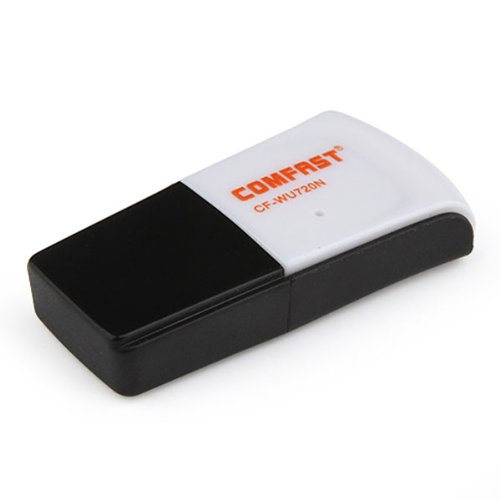
Image 1.1: The Comfast CF-WU720N Wireless USB Adapter, a compact device for wireless connectivity.
2. Características del producto
- Meets IEEE 802.11b/g/n wireless standards.
- Supports USB 2.0 interface for broad compatibility.
- Utilizes Realtek 8191 SU chipset for reliable performance.
- Achieves wireless connection rates up to 150Mbps.
- Supports wireless roaming technology for seamless connectivity.
- Strong compatibility with various popular operating systems.
- Compact size: approximately 39 x 12 x 7mm (1.5 x 0.7 x 0.3 inches).
- Lightweight design: approximately 5g.
3. Contenido del paquete
Por favor verifique que todos los artículos estén presentes en el paquete:
- 1 x Comfast CF-WU720N Wireless USB Adapter
- 1 x Guía de instalación rápida
- 1 x CD-ROM Driver
- 1 x Tarjeta de garantía

Image 3.1: The retail packaging for the Comfast CF-WU720N, showing the adapter inside.
4. Configuración e instalación
4.1. Instalación del controlador
Before connecting the USB adapter, it is recommended to install the necessary drivers from the provided CD-ROM. This ensures proper functionality and compatibility with your operating system.
- Insert the driver CD-ROM into your computer's optical drive.
- If the installer does not launch automatically, navigate to "My Computer" or "This PC," open the CD-ROM drive, and run the setup executable (e.g., "setup.exe" or "autorun.exe").
- Follow the on-screen instructions to complete the driver installation. You may be prompted to restart your computer after installation.
- Nota: If your computer does not have an optical drive, you may need to download the latest drivers from the manufacturer's official websitio.
4.2. Conexión del adaptador USB
Once the drivers are installed, you can connect the Comfast CF-WU720N Wireless USB Adapter to your computer.
- Locate an available USB 2.0 or 3.0 port on your desktop or laptop computer.
- Carefully insert the Comfast CF-WU720N adapter into the USB port. Ensure it is fully seated.
- The operating system should automatically detect the adapter and configure it using the installed drivers. A small LED indicator on the adapter may light up or blink, indicating activity.
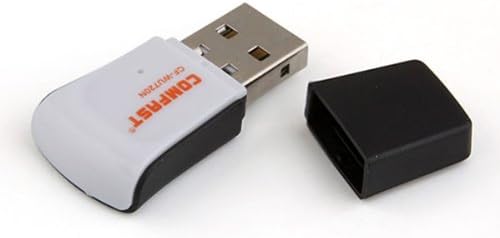
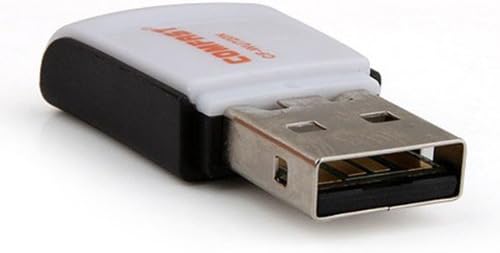
Image 4.1: The Comfast CF-WU720N adapter with its protective cap removed, revealing the USB connector. Image 4.2: A side view of the adapter, highlighting its compact design and USB interface.
5. Instrucciones de funcionamiento
After successful driver installation and adapter connection, you can now connect to a wireless network.
- Acceder a la configuración de red:
- Ventanas: Click the wireless network icon in the system tray (usually bottom-right corner).
- Mac OS: Haga clic en el icono de Wi-Fi en la barra de menú (generalmente en la esquina superior derecha).
- Linux: Acceda a la configuración de red a través del administrador de red de su entorno de escritorio.
- Seleccione su red: A list of available wireless networks (SSIDs) will appear. Select the name of your desired network.
- Conectar: Click "Connect" or "Join." If the network is secured, you will be prompted to enter the network security key (password).
- Confirmar conexión: Once connected, the network icon will typically change to indicate a successful connection, and you should be able to access the internet.
6. Mantenimiento
To ensure optimal performance and longevity of your Comfast CF-WU720N Wireless USB Adapter, follow these simple maintenance guidelines:
- Manténlo limpio: Limpie suavemente el adaptador con un paño suave y seco para eliminar el polvo. Evite usar limpiadores líquidos o disolventes.
- Protege el conector USB: When not in use, keep the protective cap on the USB connector to prevent dust and damage.
- Evite condiciones extremas: No exponga el adaptador a temperaturas extremas, humedad o luz solar directa.
- Manejar con cuidado: Evite dejar caer o someter el adaptador a impactos fuertes.
- Actualizaciones de controladores: Revise periódicamente las instrucciones del fabricante. webSitio para controladores actualizados para garantizar el mejor rendimiento y compatibilidad.
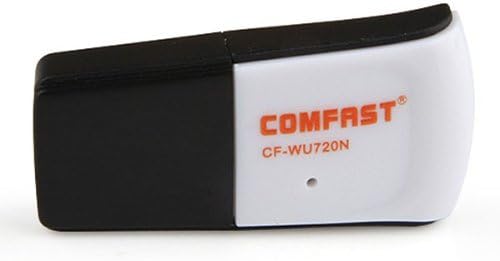
Image 6.1: The Comfast CF-WU720N adapter with its protective cap in place, ready for storage or transport.
7. Solución de problemas
If you encounter issues with your Comfast CF-WU720N Wireless USB Adapter, refer to the following common solutions:
| Problema | Posible solución |
|---|---|
| Adaptador no detectado / No hay redes Wi-Fi visibles. |
|
| No se puede conectar a una red Wi-Fi específica. |
|
| Velocidad de conexión lenta o desconexiones frecuentes. |
|
8. Especificaciones
| Característica | Detalle |
|---|---|
| Modelo | CF-WU720N |
| Estándares inalámbricos | IEEE 802.11b/g/n |
| Interfaz | USB 2.0 |
| Conjunto de chips | Realtek 8191 SU |
| Velocidad inalámbrica | Hasta 150 Mbps |
| Rango de frecuencia | 2.4 GHz |
| Características de seguridad | WPA/WPA2, WPA-PSK/WPA2-PSK, 64/128-bit WEP |
| Sistemas operativos | Windows XP/Vista/7/8/10, macOS, Linux (driver dependent) |
| Dimensiones (L x An x Al) | Aprox. 39 x 12 x 7 mm (1.5 x 0.7 x 0.3 pulgadas) |
| Peso | Aprox. 5 g |
9. Garantía y soporte
This product comes with a warranty as specified on the included Warranty Card. Please refer to the card for details regarding warranty period, terms, and conditions.
For technical support, driver updates, or further assistance, please visit the official Comfast webSitio web o contacte con su departamento de atención al cliente. La información de contacto suele encontrarse en el empaque del producto o en la información del fabricante. websitio.
Conserve el recibo de compra para fines de garantía.


