1. Εισαγωγή
Thank you for choosing the Alacrity 1D CCD Barcode Scanner. This device is designed for efficient and versatile barcode scanning, offering three connection methods and multiple scanning modes to suit various operational needs. Its hands-free automatic scanning feature, coupled with a stable stand, enhances productivity in environments such as retail, warehouses, and libraries.
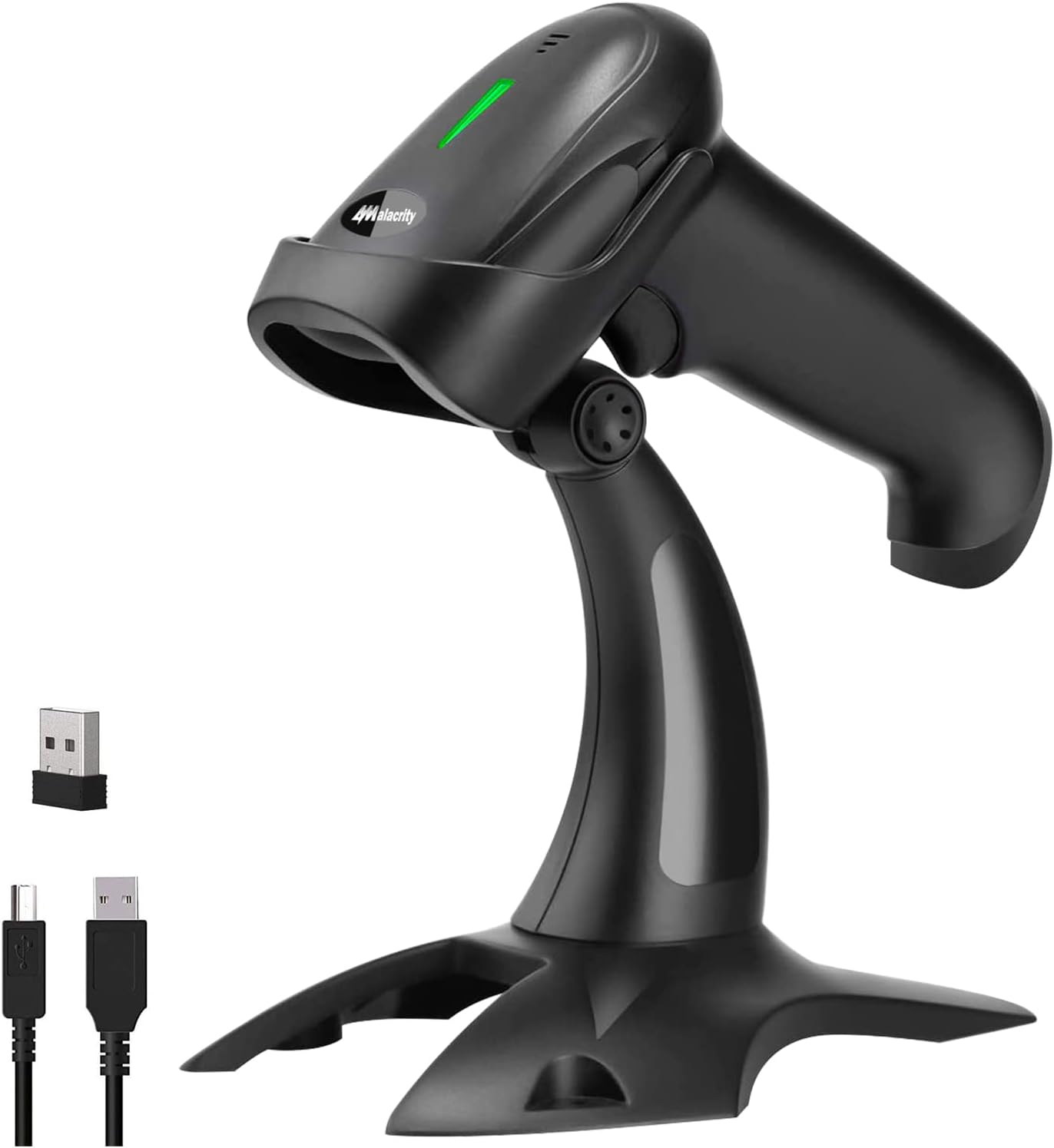
The Alacrity barcode scanner, showcasing its included stand, USB wireless dongle, and USB wired connection cable.
2. Το προϊόν τελείωσεview
The Alacrity barcode scanner is a 3-in-1 device supporting Bluetooth, 2.4GHz wireless, and USB wired connections. It features hands-free automatic scanning when placed on its adjustable stand, allowing for seamless operation. The scanner is capable of reading 1D barcodes from both printed materials and digital screens.

The scanner's adjustable stand enables hands-free automatic scanning, improving workflow efficiency.

Visual representation of the three versatile connection modes: USB Wired, 2.4GHz Wireless, and Bluetooth.
3. Ρύθμιση και σύνδεση
The Alacrity barcode scanner offers plug-and-play functionality, requiring no driver or software installation for basic operation.
3.1. Ενσύρματη σύνδεση USB
Connect the scanner directly to your computer or POS machine using the provided USB cable. The scanner will power on and be ready for use. This mode also charges the scanner's internal battery.
3.2. Ασύρματη σύνδεση 2.4 GHz
Insert the 2.4GHz wireless dongle into an available USB port on your PC or POS machine. The scanner will automatically pair with the dongle. This connection offers a transmission distance of 15-30 meters (49.2-98.4 feet) indoors and 50-80 meters (164-262.5 feet) outdoors.
3.3. Σύνδεση Bluetooth
To connect via Bluetooth, ensure Bluetooth is enabled on your smartphone, tablet, or laptop. The scanner supports BLE and SPP modes, with HID mode as the factory default. Αναζήτηση για the barcode scanner in your device's Bluetooth settings and pair with it. The Bluetooth transmission distance is approximately 10 meters (33 feet).

Connection methods and compatibility with various operating systems including iOS, Android, Windows, Mac OS, and Linux.
This video demonstrates the product's appearance and its auto-sensing scanning function when connected via USB wired and Bluetooth, showcasing its ease of use with various items.
4. Τρόποι λειτουργίας
4.1. Λειτουργίες σάρωσης
The scanner supports three distinct scanning modes:
- Λειτουργία χειροκίνητης ενεργοποίησης: Press the trigger button to scan barcodes.
- Συνεχής λειτουργία: The scanner's light remains constantly on, allowing for continuous scanning without pressing the trigger.
- Automatic Sensing Mode: The scanner will automatically activate and scan when a barcode is presented within its scanning window, ideal for hands-free operation with the stand.

Visual guide to the three scanning modes, including how to activate them using setting codes from the user manual.
4.2. Λειτουργίες μεταφόρτωσης δεδομένων
Ο σαρωτής προσφέρει δύο λειτουργίες μεταφόρτωσης δεδομένων:
- Λειτουργία άμεσης μεταφόρτωσης: Barcode data is transmitted to your connected device immediately after scanning.
- Λειτουργία αποθήκευσης: Barcode data is stored in the scanner's internal 16MB memory (up to 50,000+ barcodes). Data can be uploaded to your device later by scanning a specific setting code in the user manual.

Explanation of how data is uploaded, either instantly or stored for later batch upload.
4.3. Υποστηριζόμενοι τύποι γραμμωτού κώδικα
This 1D CCD barcode scanner supports a wide range of printed and screen barcodes, including but not limited to:
- EAN-8, EAN-13, Codabar, CODE 39, CODE 93, CODE 128, China Post, GS1-128, UPC-A, UPC-E, ISBN/ISSN, ISBT, Interleaved 2 of 5, Standard 2 of 5, Matrix 2 of 5, Industrial 2 of 5, MSI, RSS, ITF14, Telepen.

The scanner's capability to read 1D barcodes from both physical labels and digital screens.
5. Συντήρηση
5.1. Πληροφορίες μπαταρίας
The scanner is equipped with an 1800mAh rechargeable lithium battery. A full charge takes approximately 3.5 hours and provides up to 18 hours of continuous working time or 30 days of standby time. The battery life is estimated to be over 3 years.

Information on battery charge level indicators and detailed battery performance metrics.
5.2. Φυσική Φροντίδα
The scanner features an anti-shock silicone protective cover (IP54 rated) designed to prevent scratches to the glass window and provide cushioning against falls from up to 6.56 feet (2 meters). To maintain optimal performance, keep the scanning window clean and free of dust or debris. Avoid exposing the device to extreme temperatures or direct moisture.
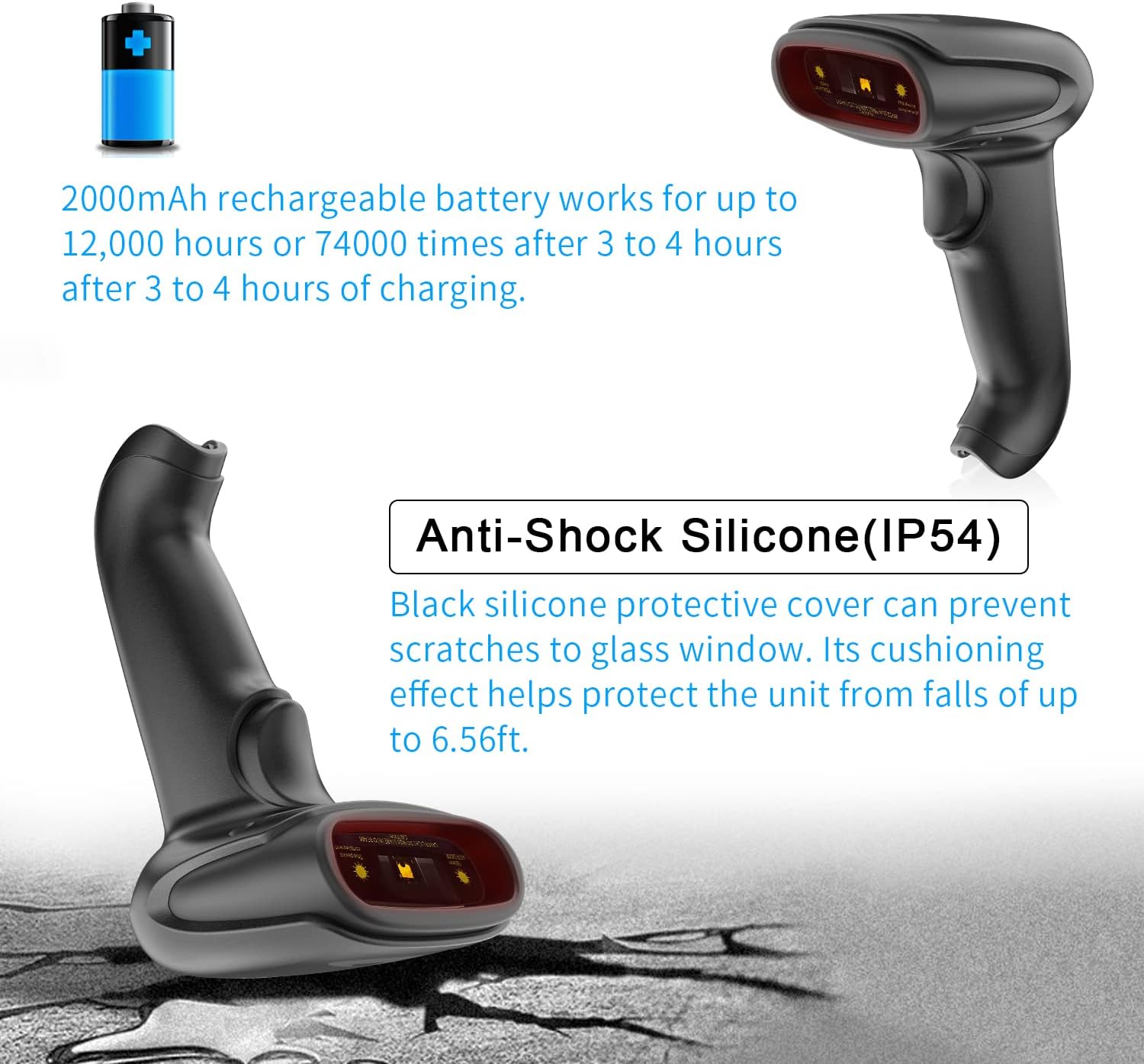
Details on the scanner's durable design, including anti-shock silicone and IP54 protection.
6. Προδιαγραφές
| Χαρακτηριστικό | Λεπτομέρεια |
|---|---|
| Διαστάσεις προϊόντος | 6.5 x 3.94 x 3.07 ίντσες (16.5 x 10 x 7.8 cm) |
| Βάρος αντικειμένου | 15.2 ουγγιές |
| Μπαταρίες | Απαιτείται 1 μπαταρία πολυμερούς λιθίου (περιλαμβάνεται) |
| Πηγή ισχύος | Τροφοδοτείται από μπαταρία |
| Τεχνολογία Συνδεσιμότητας | Bluetooth, ασύρματο 2.4 GHz, καλώδιο USB |
| Συμβατές Συσκευές | Smartphones, Laptops, Tablets, PCs, POS machines |
| Κατασκευαστής | προθυμία |
| Ημερομηνία πρώτης διαθεσιμότητας | 19 Φεβρουαρίου 2022 |

Detailed dimensions of the Alacrity barcode scanner for reference.
7. Αντιμετώπιση Προβλημάτων
- Problem: Scanner does not connect or maintain connection.
- Διάλυμα: Ensure the scanner is fully charged. For 2.4GHz wireless, verify the dongle is securely inserted and within range. For Bluetooth, ensure the scanner is paired correctly in your device's Bluetooth settings and no other devices are interfering. Try re-pairing the scanner. If using a smartphone, be aware that connecting the scanner as an input device might disable the on-screen keyboard; disconnect the scanner to type.
- Problem: Scanner does not read barcodes.
- Διάλυμα: Ensure the barcode is clean and not damaged. Check that the scanner is in the correct scanning mode (manual, continuous, or auto-sensing). Verify the barcode type is supported by the scanner. Adjust the distance between the scanner and the barcode. Clean the scanning window if it's dirty.
- Problem: Data is not appearing on the computer/device.
- Διάλυμα: Check the connection type (USB, 2.4GHz, Bluetooth) and ensure it's active. If in storage mode, you need to scan the upload setting code from the user manual to transfer stored data. Ensure the cursor is active in the desired input field on your device.
- Problem: Scanner not compatible with specific POS software (e.g., Zettle).
- Διάλυμα: While the scanner is generally compatible with most systems, specific software applications may have unique requirements. Refer to your POS software's documentation for compatible hardware. The manufacturer provides an SDK for secondary development, which may allow for custom integration if needed.
8. Εγγύηση και υποστήριξη
For warranty information, please refer to the documentation provided with your purchase or contact Alacrity customer support directly. Alacrity offers complete SDK for secondary development, enabling advanced integration and customization for specific applications.
For further assistance or technical support, please visit the official Alacrity webστον ιστότοπο ή επικοινωνήστε με την ομάδα εξυπηρέτησης πελατών τους.


