1. Einleitung
This user manual provides comprehensive instructions for the NEC VersaPro VH-1 laptop. It covers setup, operation, maintenance, and troubleshooting to ensure optimal performance and user experience. Please read this manual thoroughly before using your device.
The NEC VersaPro VH-1 is a lightweight and high-performance 12.5-inch Full HD laptop, featuring a 7th Generation Intel Core i5-7Y54 processor. It is designed for efficient web browsing, business applications, and remote work. With pre-installed Windows 11 Pro and MS Office 2019, it is ready for immediate use upon arrival.
2. Produktüberschreitungview
2.1 Hauptmerkmale
- Lightweight & Thin Design: Weighing approximately 921g, this 12.5-inch FHD laptop is highly portable, fitting easily into a backpack for commuting, business trips, or mobile work.
- 7th Gen Intel Core i5-7Y54 Processor: Equipped with an efficient and power-saving Intel Core i5-7Y54 (up to 3.2GHz) processor, offering sufficient performance for browsing, online meetings, and Office applications. It also features quiet operation and low heat generation.
- High-Speed SSD Storage: Features an SSD for fast boot-up and smooth operation, handling large files and multiple applications without lag.
- Rich Connectivity & Type-C Expansion: Enthält einen Web camera, Wi-Fi, Bluetooth, HDMI, and a Type-C port for versatile connections to peripherals and external monitors. The Type-C port supports future expansion.
- Pre-installed Software: Comes with Windows 11 Pro and MS Office 2019 pre-installed, allowing immediate document creation, report preparation, and web Konferenzen.
2.2 Komponentenidentifikation
Familiarize yourself with the various parts of your NEC VersaPro VH-1 laptop.

Abbildung: Verschiedene views of the NEC VersaPro VH-1 laptop, showing the front, back, top, and keyboard layout.

Abbildung: Seite view of the laptop highlighting available ports including USB 3.0, LAN, Headphone Jack, HDMI, SD Card Slot, and Power Connector.
3. Einrichtung
3.1 Erstes Einschalten
- Strom anschließen: Stecken Sie das Netzteil in den Stromanschluss des Laptops und anschließend in eine Wandsteckdose.
- Einschalten: Open the laptop lid and press the power button. The laptop will begin the initial boot process.
- Windows Setup: Folgen Sie den Anweisungen auf dem Bildschirm, um die Einrichtung von Windows 11 Pro abzuschließen, einschließlich Sprache, Region, Netzwerkverbindung und Erstellung des Benutzerkontos.
3.2 Softwareaktivierung
Your laptop comes with MS Office 2019 pre-installed. Follow the prompts to activate your Office suite using your Microsoft account or product key.

Image: The laptop displaying the Windows 11 interface, with logos indicating Windows 11 Pro and MS Office 2019 are installed and ready for use.
4. Bedienungsanleitung
4.1 Grundlegende Verwendung
- Tastatur: The laptop features a Japanese layout keyboard designed for comfortable and accurate typing.
- Touchpad: Nutzen Sie das integrierte Touchpad für Navigation und Gesten.
- Web Kamera: Die eingebaute web camera and dual microphones are ideal for remote work, online meetings, and video calls.

Image: A user engaged in a video conference call on the NEC VersaPro VH-1 laptop, demonstrating its web camera and dual microphone capabilities for remote work and online learning.
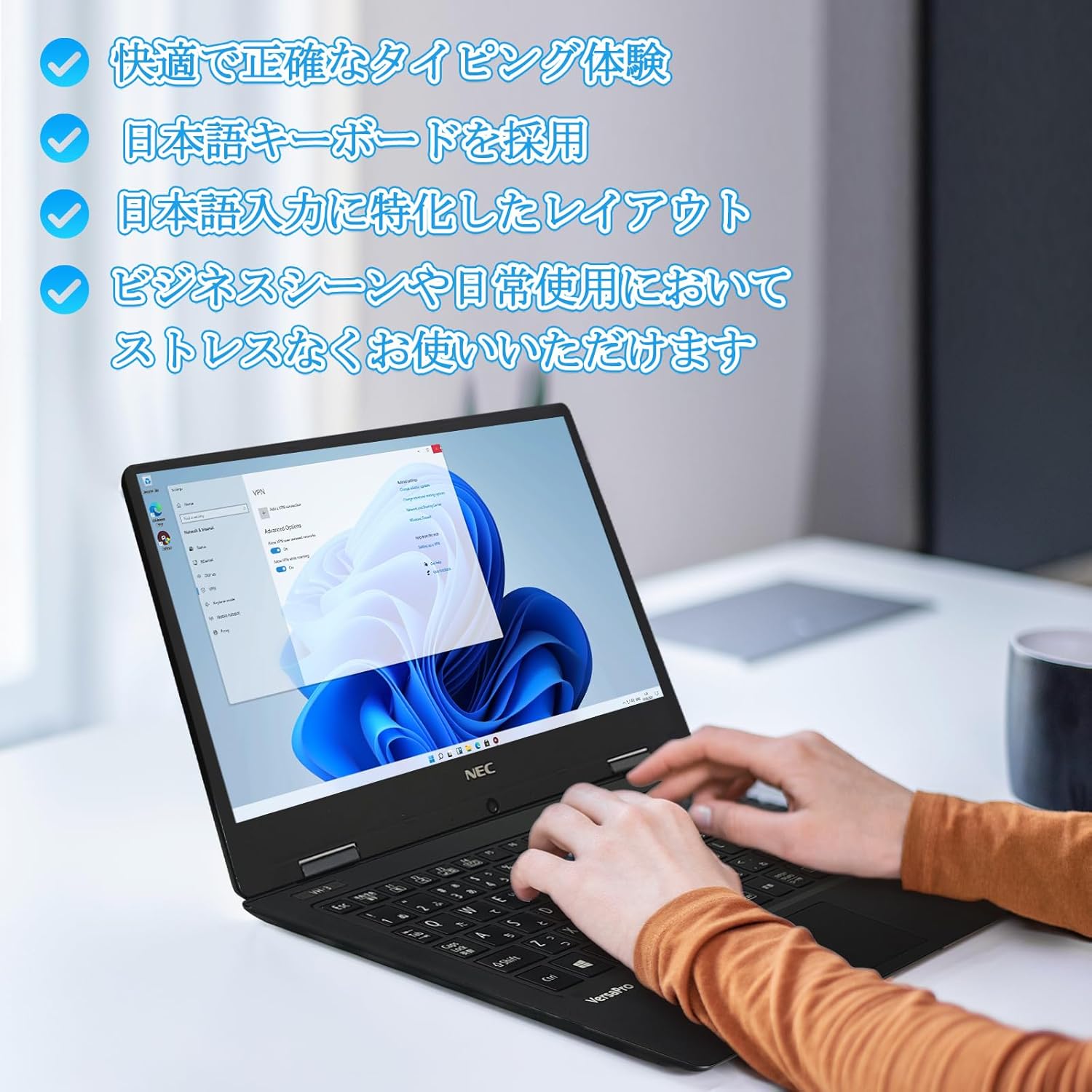
Image: Close-up of hands typing on the laptop's keyboard, illustrating the comfortable and precise typing experience provided by the Japanese layout keyboard.
4.2 Konnektivität
- W-lan: Stellen Sie eine Verbindung zu drahtlosen Netzwerken her, um auf das Internet zuzugreifen.
- Bluetooth: Pair with Bluetooth-enabled devices such as headphones or mice.
- HDMI: Anschluss an externe Displays oder Projektoren.
- Typ-C: Use the Type-C port for data transfer, charging compatible devices, or connecting to a USB-C hub for additional ports.
5. Wartung
5.1 Reinigung
- Bildschirm: Mit einem weichen, fusselfreien Tuch leichtampMit Wasser oder einem Bildschirmreiniger abspülen. Flüssigkeit nicht direkt auf den Bildschirm sprühen.
- Tastatur und Gehäuse: Use a soft cloth to wipe surfaces. For stubborn dirt, a slightly damp Stoff kann verwendet werden. Vermeiden Sie aggressive Chemikalien.
5.2 Batteriepflege
- Um die Batterielebensdauer zu verlängern, sollten extreme Temperaturen vermieden werden.
- Wenn Sie den Laptop über einen längeren Zeitraum lagern, stellen Sie sicher, dass der Akku zu etwa 50-70 % geladen ist.
6. Fehlerbehebung
6.1 Häufige Probleme und Lösungen
| Ausgabe | Mögliche Lösung |
|---|---|
| Der Laptop lässt sich nicht einschalten. | Stellen Sie sicher, dass das Netzteil fest mit dem Laptop und einer funktionierenden Steckdose verbunden ist. Prüfen Sie, ob der Netzschalter ordnungsgemäß funktioniert. |
| Probleme mit der WLAN-Verbindung. | Überprüfen Sie, ob WLAN in den Windows-Einstellungen aktiviert ist. Starten Sie Ihren Router und Ihren Laptop neu. Prüfen Sie, ob aktualisierte Netzwerktreiber verfügbar sind. |
| Externes Display nicht erkannt. | Ensure the HDMI cable is securely connected. Press Windows key + P to cycle through display modes. Check external display input settings. |
| Langsame Leistung. | Schließen Sie unnötige Anwendungen. Prüfen Sie, ob Hintergrundprozesse Ressourcen verbrauchen. Stellen Sie sicher, dass ausreichend Speicherplatz auf der SSD vorhanden ist. Führen Sie einen Systemscan auf Schadsoftware durch. |
Sollten Sie auf Probleme stoßen, die hier nicht aufgeführt sind, oder weitere Unterstützung benötigen, konsultieren Sie bitte den Support-Bereich.
7. Spezifikationen
| Besonderheit | Detail |
|---|---|
| Marke | NEC |
| Modellname | VasaPro VH-1 |
| Produktmodellnummer | VKT12 |
| Bildschirmgröße | 12.5 Zoll |
| Auflösung | 1920x1080 Pixel (FHD) |
| CPU-Marke | Intel |
| CPU Typ | Core i5 7Y54 |
| CPU-Geschwindigkeit | 1.2 GHz (Max 3.2 GHz) |
| Anzahl der Prozessoren | 2 |
| RAM-Speichergröße | 4 GB |
| Maximal unterstützter Speicher | 8 GB |
| Speichertyp | DDR3 SDRAM |
| Festplattengröße | 1 TB |
| Festplattentyp | SSD |
| Grafik-Coprozessor | Intel HD-Grafik 615 |
| Beschreibung der Grafikkarte | Integriert |
| Betriebssystem | Windows 11 Pro |
| Kabelloser Typ | Bluetooth, Wi-Fi (802.11n) |
| USB 3.0-Anschlüsse | 2 |
| HDMI-Anschlüsse | 1 |
| Optischer Laufwerkstyp | Keiner |
| Artikelgewicht | 1.5 Kilograms (Shipping Weight) |
| Batterie | 1 12V battery (included), 24 Watt-hours, 4 Lithium Ion cells |
8. Garantie und Support
For warranty information and technical support, please refer to the documentation provided with your purchase or contact the retailer. Specific warranty terms may vary.


