1. Einleitung
The FIREBAT X3 Wired RGB Gaming Mouse is designed for precision and comfort, suitable for various computing tasks including gaming, office work, and general use. This manual provides detailed instructions for setting up, operating, and maintaining your mouse.

Überview of the FIREBAT X3 Wired RGB Gaming Mouse highlighting its main features.
2. Einrichtung
2.1 Anschließen der Maus
The FIREBAT X3 Gaming Mouse features a simple plug-and-play design for easy setup.
- Locate an available USB-A port on your computer or laptop.
- Insert the USB connector of the mouse into the USB-A port.
- Ihr Betriebssystem erkennt und installiert die benötigten Treiber automatisch. Für die grundlegende Funktionalität ist keine zusätzliche Softwareinstallation erforderlich.

The FIREBAT X3 mouse connects via a standard USB-A port for immediate use.
3. Bedienung
3.1 Tastenfunktionen
The FIREBAT X3 Gaming Mouse is equipped with 6 programmable buttons for enhanced control.
- Linke Taste: Standard-Klickfunktion.
- Rechter Knopf: Standardmäßige Rechtsklick-Funktion.
- Scrollrad: Scrolls up and down. Can also be pressed for a middle-click function.
- DPI-Einstelltaste: Verändert die Mausempfindlichkeit (DPI).
- Vorwärts-Taste: Navigiert vorwärts in web Browser bzw file Entdecker.
- Zurück-Schaltfläche: Navigiert rückwärts in web Browser bzw file Entdecker.

Illustration of the 6-button layout on the FIREBAT X3 Gaming Mouse.
3.2 DPI-Einstellung (Empfindlichkeit)
The mouse features 4 adjustable DPI levels to suit different tasks and preferences.
- Drücken Sie die DPI-Einstelltaste (located behind the scroll wheel) to cycle through the preset DPI settings.
- The default DPI levels are 1200, 1800, 2400, and 3600.
- Each press will switch to the next DPI level, allowing you to find the optimal sensitivity for your current activity.

The DPI adjustment key allows for quick changes in mouse sensitivity.
3.3 RGB-Beleuchtungsmodi
The FIREBAT X3 mouse features 7 dynamic RGB backlit modes to enhance your setup.
- The RGB lighting automatically cycles through its 7 distinct modes.
- There is no manual button to change the RGB mode; the mouse will continuously display various lighting effects.

The mouse features vibrant RGB lighting with multiple dynamic modes.
3.4 Ergonomisches Design und Komfort
The mouse is designed with an ergonomic shape to provide a comfortable grip and reduce hand fatigue during extended use, suitable for both right and left-hand users.

The ergonomic design ensures comfort during prolonged use.
3.5 Quiet Click Feature
The mouse incorporates a 'Heavy Bass Design' for its key sounds, ensuring soft clicks without excessive noise, which is beneficial in quiet environments.

The mouse features quiet clicks, minimizing noise during use.
4. Wartung
4.1 Reinigung
To ensure optimal performance and longevity, keep your mouse clean.
- Trennen Sie die Maus vor der Reinigung von Ihrem Computer.
- Benutzen Sie ein weiches, fusselfreies Tuch, dampWischen Sie die Oberfläche der Maus mit Wasser oder einer milden Reinigungslösung ab.
- Vermeiden Sie die Verwendung von aggressiven Chemikalien, Scheuermitteln oder übermäßiger Feuchtigkeit, da diese die Maus beschädigen können.
- For the optical sensor, use a cotton swab to gently remove any dust or debris.
4.2 Speicherung
Bewahren Sie die Maus bei Nichtgebrauch an einem sauberen, trockenen Ort fern von extremen Temperaturen und direkter Sonneneinstrahlung auf.
5. Fehlerbehebung
5.1 Maus reagiert nicht
- USB-Verbindung prüfen: Vergewissern Sie sich, dass das USB-Kabel fest an einen funktionierenden USB-Anschluss Ihres Computers angeschlossen ist. Versuchen Sie es mit einem anderen USB-Anschluss.
- Starte den Computer neu: Manchmal lassen sich Verbindungsprobleme durch einen einfachen Neustart beheben.
- Test auf einem anderen Computer: Testen Sie die Maus nach Möglichkeit an einem anderen Computer, um festzustellen, ob das Problem an der Maus oder an den Einstellungen Ihres Computers liegt.
5.2 Die Cursorbewegung ist unregelmäßig oder sprunghaft.
- Optischen Sensor reinigen: Dust or debris on the optical sensor can cause erratic movement. Refer to the cleaning instructions in the Maintenance section.
- Use a Mouse Pad: Ensure you are using the mouse on a suitable surface. Reflective, transparent, or uneven surfaces can interfere with the optical sensor.
5.3 RGB-Beleuchtung funktioniert nicht
- USB-Stromversorgung prüfen: Ensure the mouse is receiving sufficient power through the USB connection.
- Keine manuelle Steuerung: Remember that the RGB lighting cycles automatically and does not have a manual control button. If the mouse is functioning otherwise, the lighting should be active.
6. Spezifikationen
| Besonderheit | Detail |
|---|---|
| Modellnummer | X3 Gaming Mouse |
| Marke | FEUERFLEDERMAUS |
| Konnektivitätstechnologie | USB verkabelt |
| Bewegungserkennung | Optisch |
| DPI-Stufen | 1200 / 1800 / 2400 / 3600 |
| Anzahl der Tasten | 6 (Programmierbar) |
| Hintergrundbeleuchtung | 7 RGB-Modi |
| Technische Daten | 5 x 3 x 0.1 Zoll (12.7 x 7.6 x 0.25 cm) |
| Artikelgewicht | 5.1 Unzen (144.6 Gramm) |
| Ergonomie | Right or Left Hand Use |
| Hersteller | FEUERFLEDERMAUS |
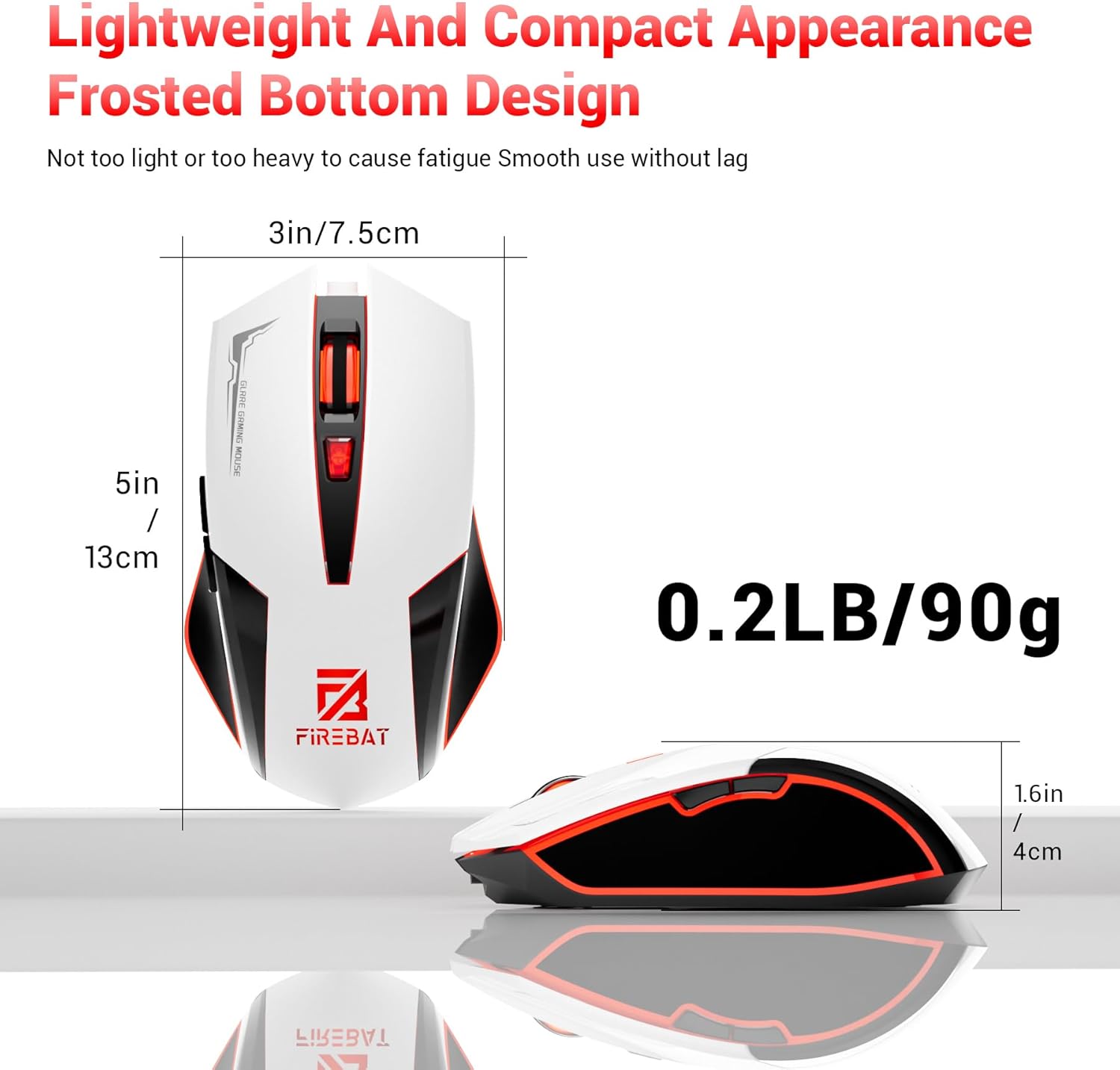
Physical dimensions and weight of the FIREBAT X3 Gaming Mouse.
7. Garantie und Support
7.1 Garantieinformationen
FIREBAT products are manufactured to high-quality standards. For specific warranty details, please refer to the warranty card included with your product or visit the official FIREBAT webAuf der Website. Typischerweise werden die Produkte mit einer eingeschränkten Garantie geliefert, die Herstellungsfehler abdeckt.
7.2 Kundendienst
If you encounter any issues or have questions regarding your FIREBAT X3 Gaming Mouse, please contact our customer support team:
- E-Mail: support@firebatpc.com
- WebWebsite: www.firebatpc.com
Please provide your product model number (X3 Gaming Mouse) and a detailed description of your issue when contacting support for faster assistance.


