1. Einleitung
This user manual provides detailed instructions for setting up, operating, maintaining, and troubleshooting your FIREBAT Mini PC. This guide covers both the MN56 model (featuring AMD Ryzen 7 8745HS) and the A6 model (featuring AMD Ryzen 7 6800H). Please read this manual thoroughly before using your device to ensure proper operation and longevity.
The FIREBAT Mini PCs are designed for a wide range of applications, from home and office use to education and light gaming, offering powerful performance in a compact form factor.

Figure 1.1: FIREBAT MN56 (white) and A6 (black) Mini PCs. The MN56 model is shown with RGB lighting and a vertical stand, while the A6 model is a compact black cube.
2. Sicherheitshinweise
To prevent injury, electric shock, fire, and damage to the device, please observe the following safety precautions:
- Use only the power adapter provided with your Mini PC.
- Das Gerät darf weder Wasser, Feuchtigkeit noch extremen Temperaturen ausgesetzt werden.
- Vermeiden Sie es, das Gerät direktem Sonnenlicht oder in der Nähe von Wärmequellen auszusetzen.
- Sorgen Sie für ausreichende Belüftung; blockieren Sie die Belüftungsöffnungen nicht.
- Versuchen Sie nicht, das Gerät selbst zu zerlegen oder zu reparieren. Überlassen Sie alle Wartungsarbeiten qualifiziertem Fachpersonal.
- Halten Sie das Gerät von starken Magnetfeldern fern.
- Gehen Sie vorsichtig mit dem Gerät um, um physische Schäden zu vermeiden.
3. Installationsanleitung
3.1. Packungsinhalt
Before proceeding, verify that all items are present in your package:
- FIREBAT Mini PC (MN56 or A6 model)
- Netzteil
- HDMI-Kabel
- Benutzerhandbuch (dieses Dokument)
- (Optional) VESA Mount Bracket and Screws
3.2. Peripheriegeräte anschließen
Follow these steps to connect your Mini PC to a display and other essential peripherals:
- Display anschließen: Use the provided HDMI cable or a DisplayPort (DP) cable to connect your monitor to the corresponding port on the Mini PC. Both models support triple display output via HDMI, DisplayPort, and USB-C.
- Tastatur und Maus anschließen: Plug your USB keyboard and mouse into any available USB-A ports on the Mini PC.
- Netzwerk verbinden (optional): For a wired internet connection, connect an Ethernet cable from your router to the LAN port(s) on the Mini PC. Both models feature 2.5Gbps LAN ports.
- Strom anschließen: Stecken Sie das Netzteil in den DC-IN-Anschluss des Mini-PCs und stecken Sie das andere Ende in eine Steckdose.
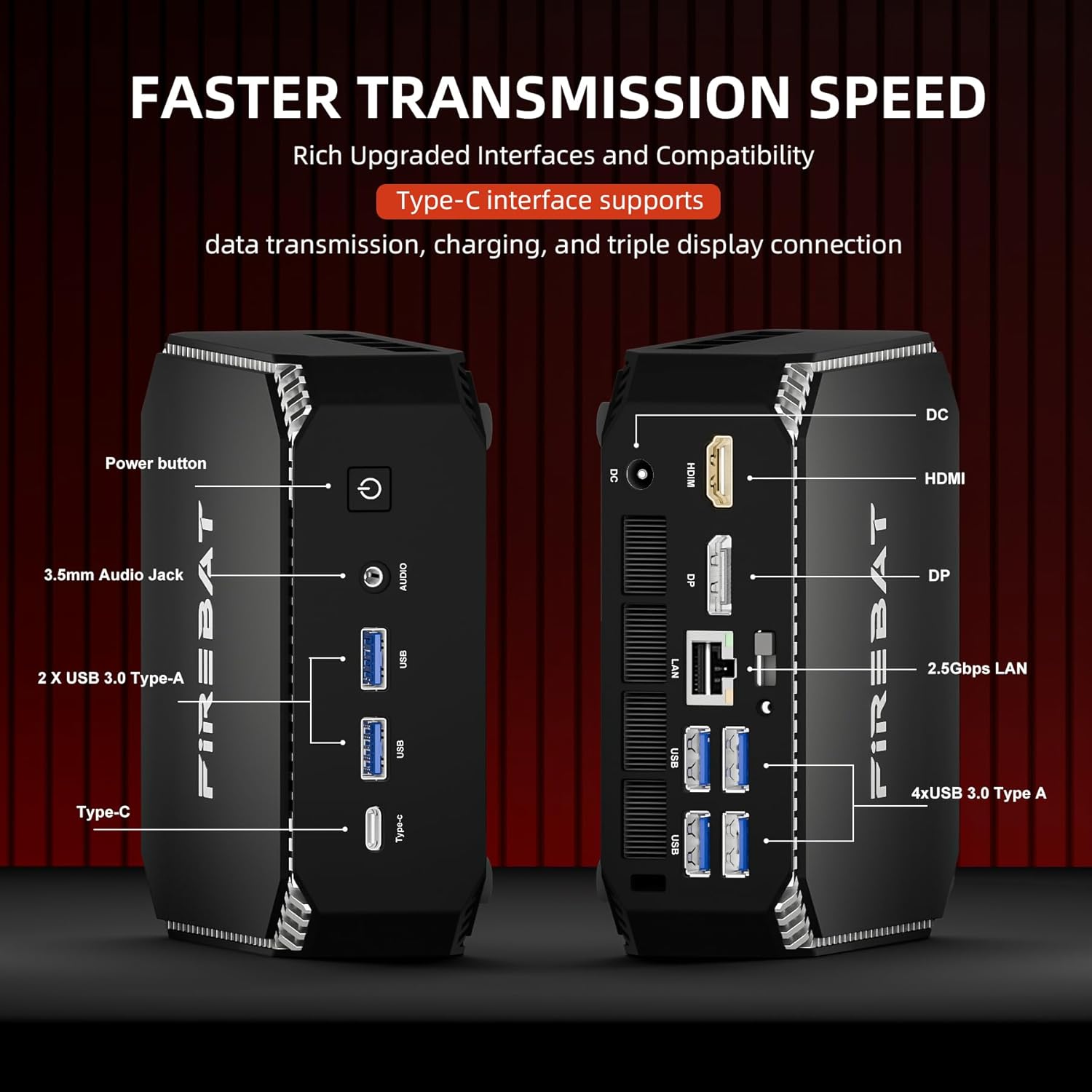
Abbildung 3.1: Überview of ports on the FIREBAT A6 Mini PC, including Power button, 3.5mm Audio Jack, USB 3.0 Type-A, Type-C, DC-IN, HDMI, DisplayPort, and 2.5Gbps LAN ports.
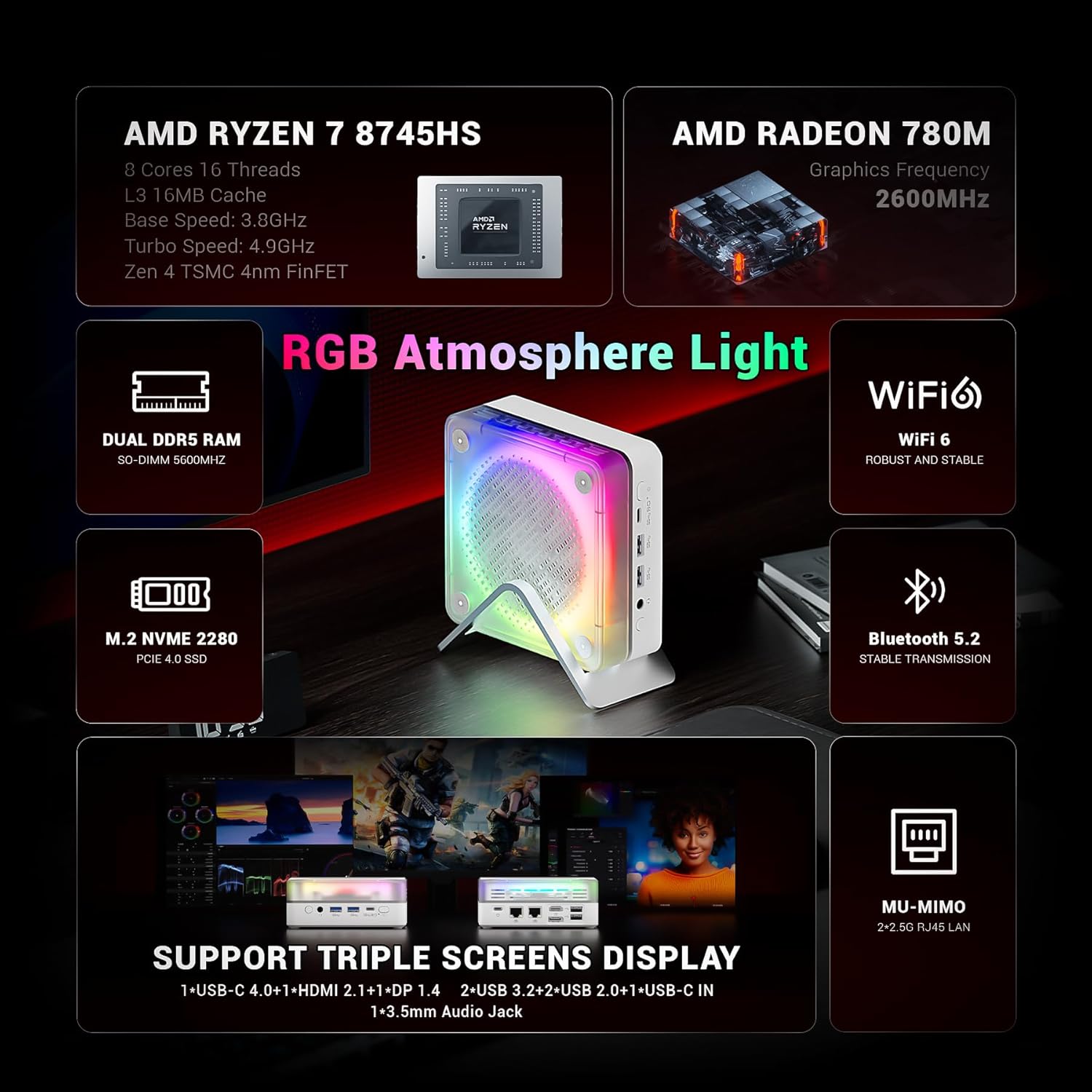
Figure 3.2: The MN56 model also features multiple USB ports, HDMI, DisplayPort, and USB-C for display output, along with dual 2.5Gbps LAN ports.
3.3. Erstes Einschalten
Nach dem Anschließen aller Peripheriegeräte:
- Press the Power button located on the Mini PC. The power indicator light will illuminate.
- The Mini PC will boot up. Follow the on-screen instructions to complete the initial Windows setup (if applicable).
4. Bedienungsanleitung
4.1. Energieverwaltung
- Einschalten: Drücken Sie die Einschalttaste.
- Abschalten: Klicken Sie in Windows auf die Schaltfläche „Start“ und wählen Sie dann „Ein/Aus“ > „Herunterfahren“.
- Neustart: Klicken Sie in Windows auf die Schaltfläche „Start“ und wählen Sie dann „Ein/Aus“ > „Neustart“.
- Schlafen: Klicken Sie in Windows auf die Schaltfläche „Start“ und wählen Sie dann „Ein/Aus“ > „Ruhezustand“.
4.2. Anzeigekonfiguration
Both MN56 and A6 models support triple display output, allowing you to connect up to three monitors simultaneously for enhanced productivity.
- Connect your monitors to the HDMI, DisplayPort, and USB-C video output ports.
- In Windows, right-click on the desktop and select "Display settings" to configure your multiple displays (extend, duplicate, or show only on one).
Figure 4.1: The MN56 Mini PC demonstrating support for triple screen display configurations via USB-C, HDMI, and DisplayPort.
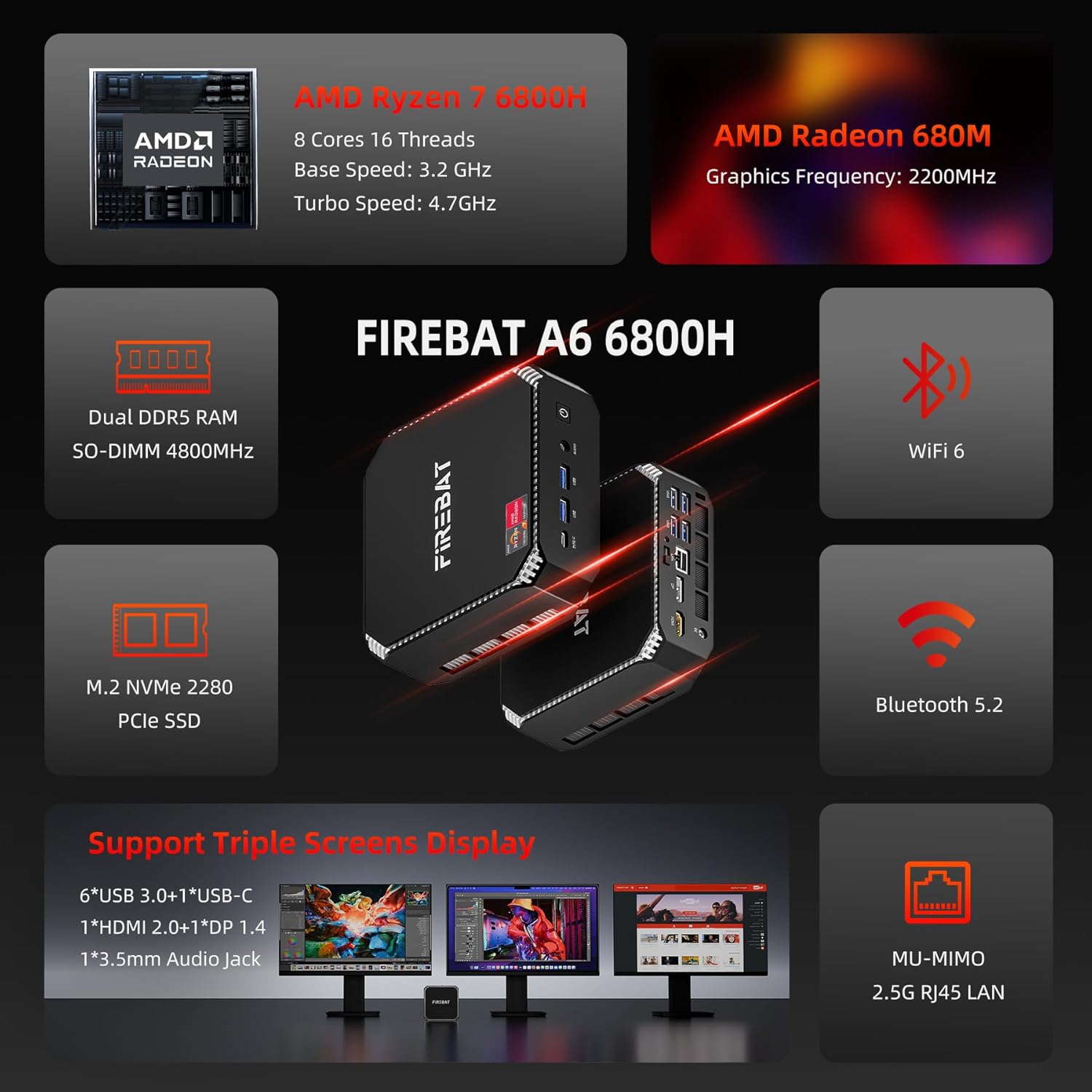
Figure 4.2: The A6 Mini PC also supports triple screen display, offering versatile connectivity options for multiple monitors.
4.3. Netzwerk und Konnektivität
- W-lan: Both models support Wi-Fi 6 for robust and stable wireless connections. To connect, click the Wi-Fi icon in the taskbar, select your network, and enter the password.
- Bluetooth: Integrated Bluetooth 5.2 allows for stable transmission to connect wireless peripherals like keyboards, mice, and headphones. Enable Bluetooth in Windows settings to pair devices.
- Kabelgebundenes LAN: Utilize the dual 2.5Gbps RJ45 LAN ports for high-speed wired network connections.
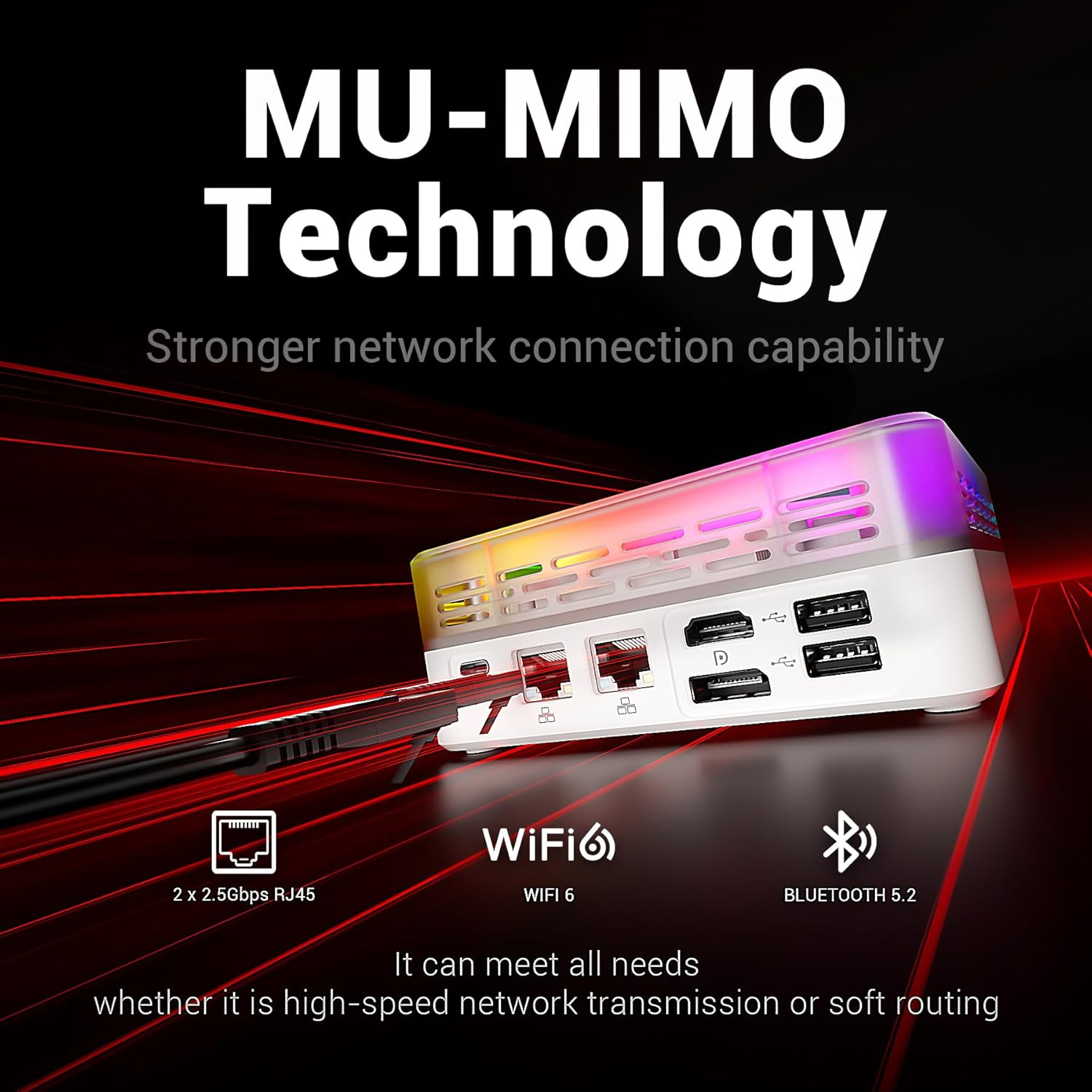
Figure 4.3: The MN56 Mini PC highlights its MU-MIMO Technology, Wi-Fi 6, Bluetooth 5.2, and dual 2.5Gbps RJ45 LAN ports for superior network connectivity.
4.4. Speichererweiterung
Both Mini PC models come with M.2 NVMe 2280 PCIe SSDs for fast storage. If you need to expand storage, consult a qualified technician or refer to the detailed upgrade guide available on the FIREBAT website for compatible M.2 SSDs.
5. Spezifikationen
5.1. FIREBAT MN56 Model (White)
| Besonderheit | Detail |
|---|---|
| Prozessor | AMD Ryzen 7 8745HS (8 Cores, 16 Threads, L3 16MB Cache, Base Speed: 3.8GHz, Turbo Speed: 4.9GHz, Zen 4 TSMC 4nm FinFET) |
| Grafik | AMD Radeon 780M (Graphics Frequency: 2600MHz, 12 graphics card cores) |
| RAM | 32GB Dual DDR5 RAM (SO-DIMM 5000MHz) |
| Lagerung | 1TB M.2 NVMe 2280 PCIe 4.0 SSD |
| Netzwerk | Wi-Fi 6, Bluetooth 5.2, 2 x 2.5Gbps RJ45 LAN |
| Videoausgang | Triple Screens Display (USB-C 4.0+HDMI 2.1+DP 1.4) |
| Häfen | USB-C 4.0, HDMI 2.1, DisplayPort 1.4, USB 3.2, USB 2.0, 3.5mm Audio Jack, DC-IN, 2x 2.5Gbps LAN |
| Kühlung | Dual Fans with High-efficiency Thermal Grease (65W stable performance release) |

Figure 5.1: Detailed specifications of the Ryzen 7 8745HS processor in the MN56 model.
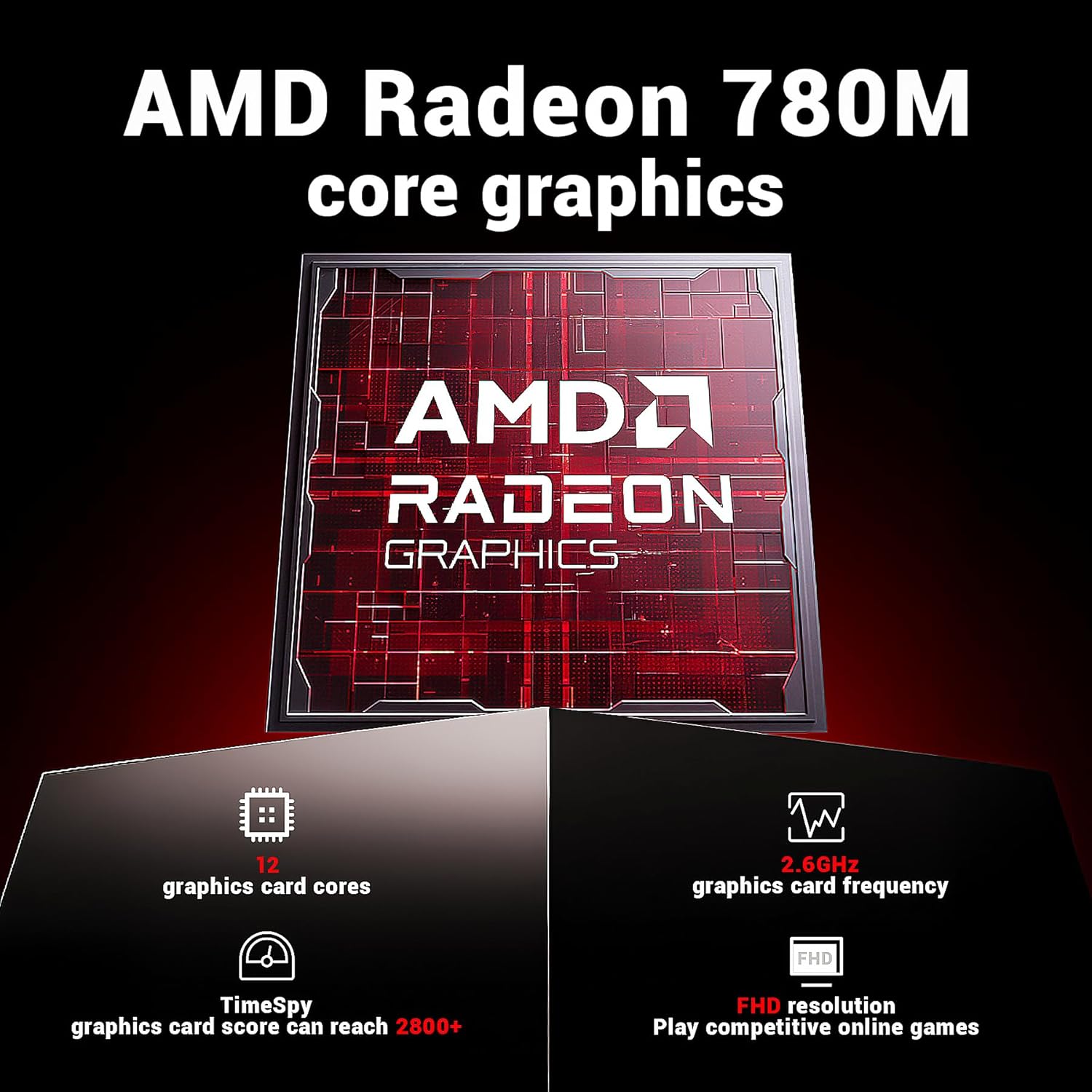
Figure 5.2: Detailed specifications of the AMD Radeon 780M core graphics in the MN56 model.

Figure 5.3: Illustration of the dual fan cooling system in the MN56 Mini PC, designed for efficient heat dissipation.
5.2. FIREBAT A6 Model (Black)
| Besonderheit | Detail |
|---|---|
| Prozessor | AMD Ryzen 7 6800H (8 Cores, 16 Threads, Base Speed: 3.2GHz, Turbo Speed: 4.7GHz) |
| Grafik | AMD Radeon 680M (Graphics Frequency: 2200MHz) |
| RAM | 16GB Dual DDR5 RAM (SO-DIMM 4800MHz) |
| Lagerung | 512GB M.2 NVMe 2280 PCIe SSD |
| Netzwerk | Wi-Fi 6, Bluetooth 5.2, 2.5G RJ45 LAN |
| Videoausgang | Triple Screens Display (6x USB 3.0+1x USB-C, 1x HDMI 2.0+1x DP 1.4) |
| Häfen | Power button, 3.5mm Audio Jack, 2x USB 3.0 Type-A, Type-C, DC-IN, HDMI, DisplayPort, 4x USB 3.0 Type-A, 2x 2.5Gbps LAN |
Abbildung 5.4: Überview of the FIREBAT A6 Mini PC's key specifications, including CPU, GPU, RAM, storage, and connectivity.
6. Wartung
Regelmäßige Wartung trägt dazu bei, die Langlebigkeit und optimale Leistung Ihres Mini-PCs zu gewährleisten.
- Reinigung: Use a soft, dry cloth to wipe the exterior of the Mini PC. For dust accumulation in vents, use compressed air. Ensure the device is powered off and unplugged before cleaning.
- Software-Updates: Regularly check for and install operating system updates (e.g., Windows Updates) and driver updates for your hardware. This improves security, performance, and compatibility.
- Wärmemanagement: Ensure the Mini PC is placed in a well-ventilated area. Do not obstruct the air vents. The dual-fan cooling system is designed to maintain optimal temperatures, but proper airflow is crucial.
- Datensicherung: Sichern Sie Ihre wichtigen Daten regelmäßig auf einer externen Festplatte oder in der Cloud, um Datenverlust zu vermeiden.
7. Fehlerbehebung
In diesem Abschnitt werden häufig auftretende Probleme behandelt und mögliche Lösungsansätze aufgezeigt.
| Problem | Mögliche Ursache | Lösung |
|---|---|---|
| Kein Strom / Gerät schaltet sich nicht ein | Netzteil nicht angeschlossen, Steckdose defekt, Netzschalter defekt. | Stellen Sie sicher, dass das Netzteil sowohl mit dem Mini-PC als auch mit einer funktionierenden Steckdose fest verbunden ist. Versuchen Sie es mit einer anderen Steckdose. |
| Kein Bild auf dem Monitor | Incorrect cable connection, monitor input not selected, display driver issue. | Überprüfen Sie die HDMI-/DP-/USB-C-Kabelverbindungen. Stellen Sie sicher, dass der Monitor auf die richtige Eingangsquelle eingestellt ist. Versuchen Sie es mit einem anderen Displaykabel oder Monitor. |
| Probleme mit der Wi-Fi-Verbindung | Incorrect Wi-Fi password, router issue, driver issue. | Verify Wi-Fi password. Restart your router. Check Wi-Fi drivers in Device Manager. |
| Langsame Leistung | Too many applications running, insufficient RAM, overheating, full storage. | Close unnecessary applications. Ensure proper ventilation. Free up disk space. Check for background processes. |
| Peripheral not recognized (USB, Bluetooth) | Driver issue, faulty peripheral, port issue. | Try a different USB port or re-pair Bluetooth device. Update drivers for the peripheral. |
If the problem persists after trying these solutions, please contact FIREBAT customer support.
8. Garantie und Support
FIREBAT is committed to providing high-quality products and excellent customer service.
- Garantieinformationen: For detailed warranty terms and conditions, please refer to the warranty card included with your product or visit the official FIREBAT webDie Garantie deckt in der Regel Material- und Verarbeitungsfehler bei normalem Gebrauch ab.
- Technische Unterstützung: If you encounter any issues not covered in this manual or require further assistance, please contact our support team.
Kontaktinformationen:
- E-Mail: support@firebatpc.com
- WebWebsite: www.firebatpc.com
When contacting support, please have your product model (MN56 or A6) and purchase information ready to expedite the process.


