1. Einleitung
Thank you for choosing the AOC Gaming 25G4SRE monitor. This manual provides essential information for setting up, operating, and maintaining your monitor. Please read it carefully before using the product to ensure proper functionality and safety. The AOC 25G4SRE is designed for competitive gaming, offering an ultra-fast 300 Hz refresh rate (overclockable to 310 Hz), a 1 ms GtG response time, and a fast IPS panel for smooth, tear-free visuals. With 0.3 ms MPRT, low input lag, and HDR10 support, every image is sharp and responsive. It features an eSports base, FlickerFree technology, and an integrated USB hub for seamless connectivity.
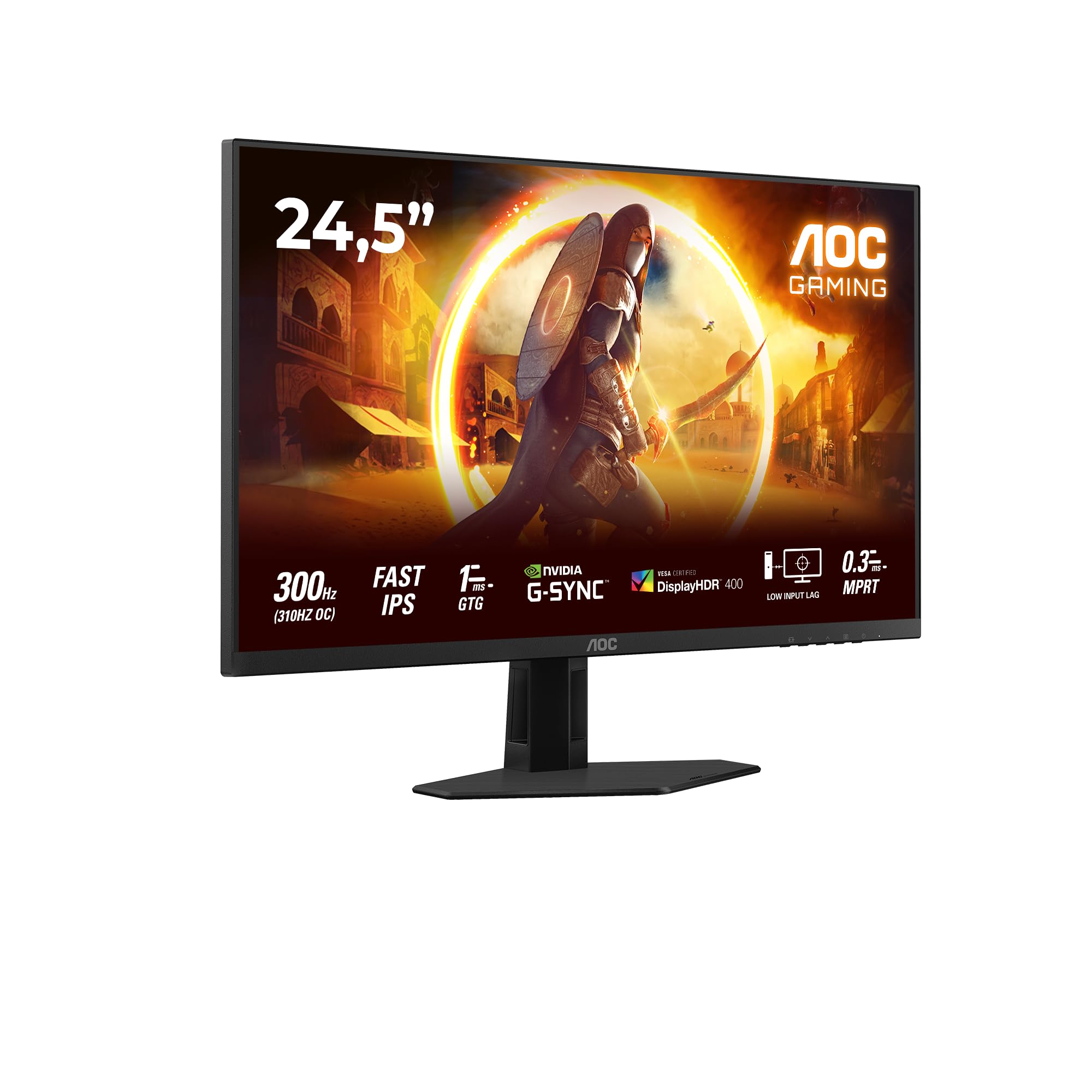
Abbildung 1.1: Vorderseite view of the AOC Gaming 25G4SRE monitor.
2. Sicherheitshinweise
Bitte beachten Sie die folgenden Sicherheitsvorkehrungen, um Schäden am Monitor zu vermeiden und Ihre persönliche Sicherheit zu gewährleisten:
- Stellen Sie den Monitor nicht auf einen instabilen Wagen, Ständer oder Tisch.
- Belüftungsöffnungen nicht blockieren.
- Verwenden Sie den Monitor nicht in der Nähe von Wasser.
- Stellen Sie keine schweren Gegenstände auf das Netzkabel.
- Verwenden Sie ausschließlich das mit dem Monitor gelieferte Netzteil.
- Unplug the monitor from the wall outlet if it will not be used for an extended period.
- Überlassen Sie sämtliche Wartungsarbeiten qualifiziertem Servicepersonal.
3. Packungsinhalt
Verify that all items are present in your package. If any items are missing or damaged, contact your dealer immediately.
- AOC Gaming 25G4SRE Monitor
- Monitorständer (Fuß und Hals)
- Stromkabel
- HDMI-Kabel
- DisplayPort-Kabel
- Kurzanleitung
4. Einrichtung
4.1 Montage des Ständers
- Legen Sie den Monitor vorsichtig mit der Vorderseite nach unten auf eine weiche, saubere Oberfläche, um Kratzer zu vermeiden.
- Befestigen Sie den Stativhals am Monitorpanel.
- Befestigen Sie den Ständerfuß mit den mitgelieferten Schrauben am Hals.
4.2 Anschließen des Monitors
Verbinden Sie den Monitor mit Ihrem Computer und der Stromversorgung mithilfe der entsprechenden Kabel.
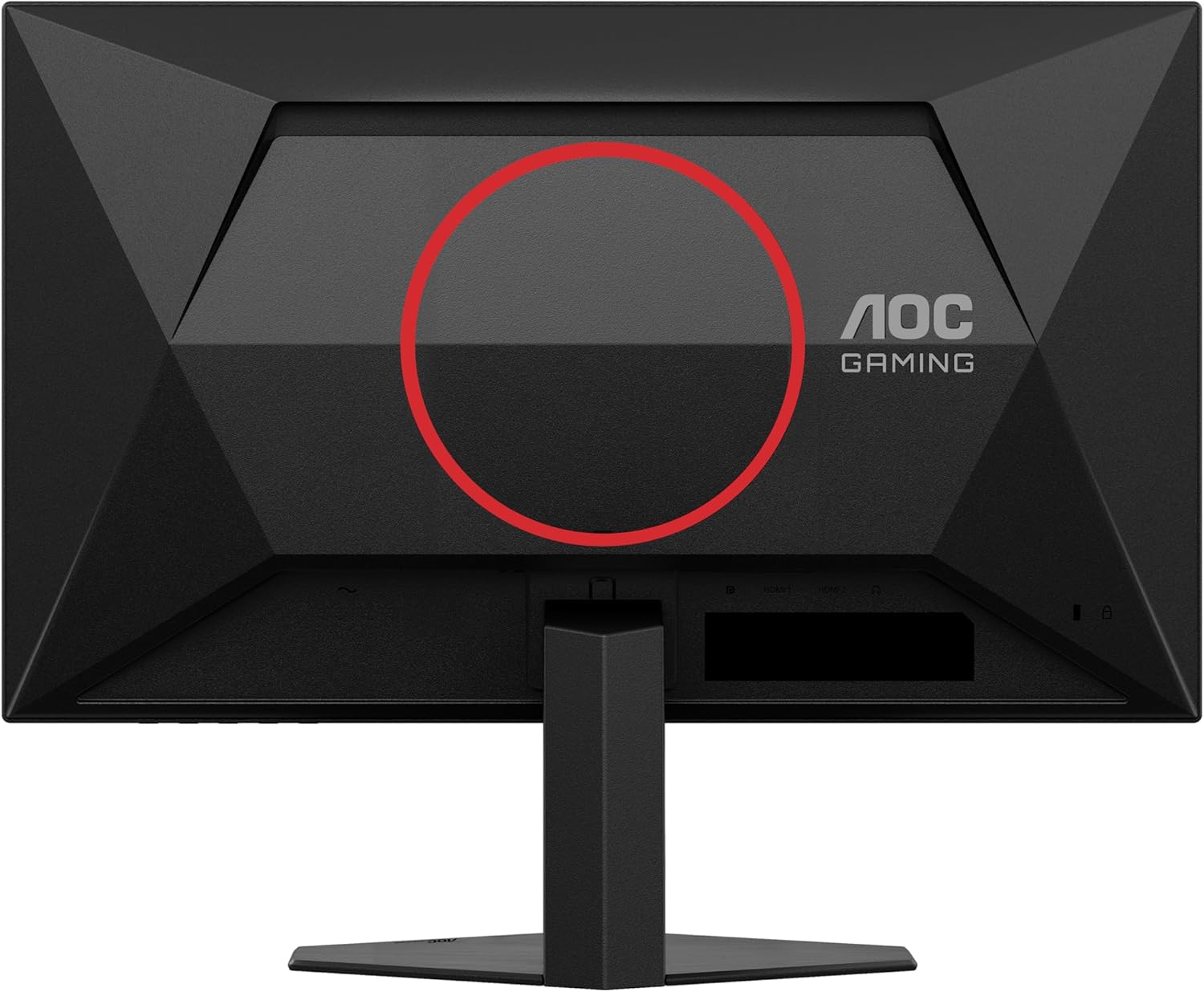
Abbildung 4.1: Rückseite view of the monitor, showing the stand attachment area and port locations.

Figure 4.2: Diagram illustrating the HDMI, DisplayPort, and Headphone Out ports.
- Stromanschluss: Schließen Sie das Netzkabel an den Stromeingang des Monitors und anschließend an eine Wandsteckdose an.
- Videoverbindung:
- For optimal performance, use the DisplayPort cable to connect the monitor to your computer's graphics card.
- Alternatively, use an HDMI cable to connect to an HDMI port on your computer. The monitor supports 2 x HDMI 2.0 inputs.
- Audioverbindung: Connect headphones or external speakers to the Headphone Out port if desired.
5. Bedienung des Monitors
5.1 Ein-/Ausschalten
Drücken Sie den Netzschalter unten rechts am Monitor, um ihn ein- oder auszuschalten.
5.2 Bildschirmmenü (OSD)
Use the buttons on the bottom bezel of the monitor to navigate the OSD menu. The OSD allows you to adjust various settings such as brightness, contrast, color temperature, input source, and gaming features.

Abbildung 5.1: Bspample des On-Screen Display (OSD)-Menüs für Monitoreinstellungen.
5.3 Hauptmerkmale und Einstellungen
- High Refresh Rate (300Hz/310Hz OC): Experience ultra-smooth gameplay. Ensure your graphics card and connection cable (DisplayPort recommended) support this refresh rate. You can enable overclocking to 310Hz via the OSD menu.
- Schnelles IPS-Panel: Enjoy wide viewing angles up to 178 degrees with consistent color and clarity from almost any perspective.
- NVIDIA G-Sync-kompatibel: Synchronizes the monitor's refresh rate with your NVIDIA GPU to eliminate screen tearing and stuttering for a fluid gaming experience. Enable this feature in your graphics card control panel.
- VESA Certified DisplayHDR 400: Provides enhanced dynamic range for improved colors and contrast, delivering a more vivid visual experience. Activate HDR in your operating system display settings.
- Geringer Input-Lag: Minimizes the delay between your input devices and the display, ensuring quick response times in fast-paced games.
- Rapid Response Time (1ms GtG / 0.3ms MPRT): Reduces motion blur and ghosting for crystal-clear images during fast-moving scenes.
- FlickerFree Technology: Reduziert das Bildschirmflimmern, um die Augenbelastung bei längerer Nutzung zu minimieren.
- Low-Blue-Light-Modus: Reduces harmful blue light emissions to decrease eye fatigue and improve viewing comfort. This can be enabled through the OSD menu.

Figure 5.2: Visual comparison demonstrating the fluidity of 300Hz refresh rate over 60Hz.

Figure 5.3: Illustration of wide viewing angles provided by the Fast IPS panel technology.

Figure 5.4: Visual representation of NVIDIA G-Sync compatibility for tear-free gaming.

Figure 5.5: Comparison showing the visual improvement with DisplayHDR 400 enabled.

Figure 5.6: Illustration demonstrating the benefit of low input lag for responsive gaming.

Figure 5.7: Visual comparison highlighting the difference between 0.3ms MPRT and 4ms response times.

Figure 5.8: Comparison showing the absence of flicker on a FlickerFree monitor versus a conventional one.
6. Wartung
6.1 Reinigung des Monitors
- Ziehen Sie vor der Reinigung immer den Stecker aus der Steckdose.
- Benutzen Sie ein weiches, fusselfreies Tuch, dampMit Wasser oder einem milden, nicht scheuernden Bildschirmreiniger abspülen.
- Verwenden Sie keinen Alkohol, Ammoniak oder Scheuermittel, da diese den Bildschirm oder die Elektronik beschädigen können.asing.
- Wischen Sie den Bildschirm vorsichtig ab, um Kratzer zu vermeiden.
6.2 Allgemeine Pflege
- Setzen Sie den Monitor weder direkter Sonneneinstrahlung noch extremen Temperaturen aus.
- Keep the monitor away from sources of heat and moisture.
- Stellen Sie keine schweren Gegenstände auf den Monitor oder dessen Kabel.
7. Fehlerbehebung
Sollten Sie Probleme mit Ihrem Monitor haben, beachten Sie bitte die folgenden häufig auftretenden Probleme und Lösungen:
| Problem | Mögliche Lösung |
|---|---|
| Kein Bild auf dem Bildschirm | Stellen Sie sicher, dass das Netzkabel fest angeschlossen ist. Prüfen Sie, ob das Videokabel (HDMI/DisplayPort) korrekt an Monitor und Computer angeschlossen ist. Wählen Sie die richtige Eingangsquelle über das OSD-Menü aus. |
| Das Bild ist unscharf oder verzerrt. | Adjust the resolution and refresh rate settings on your computer to match the monitor's native resolution (1920x1080) and desired refresh rate. Check the video cable for damage. |
| Bildschirm flackert | Ensure FlickerFree technology is enabled in the OSD. Check for loose cable connections. Update your graphics card drivers. |
| Kein Ton über Kopfhörer | Ensure headphones are fully plugged into the Headphone Out port. Check audio output settings on your computer. Adjust volume levels on both the monitor and computer. |
| G-Sync funktioniert nicht | Ensure you are using a DisplayPort cable. Verify G-Sync is enabled in the NVIDIA Control Panel. Update graphics card drivers. |
8. Spezifikationen
Detailed technical specifications for the AOC Gaming 25G4SRE monitor:
| Besonderheit | Detail |
|---|---|
| Marke | AOC |
| Modellnummer | 25G4SRE |
| Bildschirmgröße | 25 Zoll (62.2 cm) |
| Auflösung | FHD 1080p (1920 x 1080) |
| Seitenverhältnis | 16:9 |
| Bildwiederholrate | 300 Hz (310 Hz Overclock) |
| Ansprechzeit | 1 ms GtG, 0.3 ms MPRT |
| Panel-Typ | Schnelles IPS |
| HDR-Unterstützung | VESA-zertifiziertes DisplayHDR 400 |
| Adaptive Synchronisierung | Kompatibel mit NVIDIA G-Sync |
| Konnektivität | 2 x HDMI 2.0, 1 x DisplayPort 1.4, Headphone Out |
| Besondere Merkmale | Frameless, FlickerFree, Low Blue Light, Low Input Lag |
| Technische Daten | 19.4 cm (T) x 56 cm (B) x 43.8 cm (H) |
| Hersteller | AOC International |
| Ursprungsland | China |
For more detailed product information, please refer to the official product information sheet:

Figure 8.1: Product Information Sheet (English) for AOC 25G4SRE.
You can also find the EPREL registration details Hier.
9. Garantie und Support
AOC International provides comprehensive support for your monitor.
9.1 Garantieinformationen
- Minimum Guarantee Offered by Supplier: 3 Jahre
- Mindestgarantieverfügbarkeit von Ersatzteilen: 7 Jahre
- Mindestgarantierter Produktsupport: 8 Jahre
Bitte bewahren Sie Ihren Kaufbeleg für Garantieansprüche auf.
9.2 Kundendienst
For technical assistance, warranty inquiries, or other support needs, please contact AOC Customer Service:
- WebWebsite: https://eu.aoc.com
- E-Mail: kevin.yang@tpv-tech.com
- Telefon: +31 (0)20 504 6962


