Einführung
Thank you for choosing the acer OMR241 Ergonomic Wireless Vertical Mouse. This mouse is designed to provide a comfortable and efficient user experience, reducing wrist and arm strain during prolonged use. Its vertical design promotes a natural hand posture, and the wireless connectivity ensures a clutter-free workspace. This manual provides detailed instructions for setting up, operating, maintaining, and troubleshooting your new mouse.
Aufstellen
1. Packungsinhalt
- acer OMR241 Ergonomic Wireless Vertical Mouse
- USB-A-Empfänger
- USB-Ladekabel
- Bedienungsanleitung
2. Locating the USB-A Receiver
The USB-A receiver is conveniently stored within the mouse itself, typically in a compartment on the underside. Gently open the compartment to retrieve the receiver.

The USB-A receiver is located in a dedicated slot on the bottom of the mouse for secure storage and easy access.
3. Anschließen der Maus
- Take out the USB-A receiver from its storage slot on the mouse.
- Insert the USB-A receiver into an available USB-A port on your computer, laptop, or other compatible device.
- Turn on your mouse using the power switch located on the underside. The mouse will automatically connect to the receiver.

Visual guide for connecting the USB-A receiver to your device and powering on the mouse.
4. Aufladen der Maus
The mouse is equipped with a rechargeable 300mAh lithium battery. When the battery is low, the LED indicator may flash. Use the provided USB charging cable to recharge the mouse.
- Connect the USB-C end of the charging cable to the USB-C charging port on the front of the mouse.
- Verbinden Sie das USB-A-Ende des Ladekabels mit einer USB-Stromquelle (z. B. einem USB-Anschluss am Computer oder einem USB-Netzteil).
- A full charge typically takes approximately 1.5 hours and can last up to a month depending on usage.
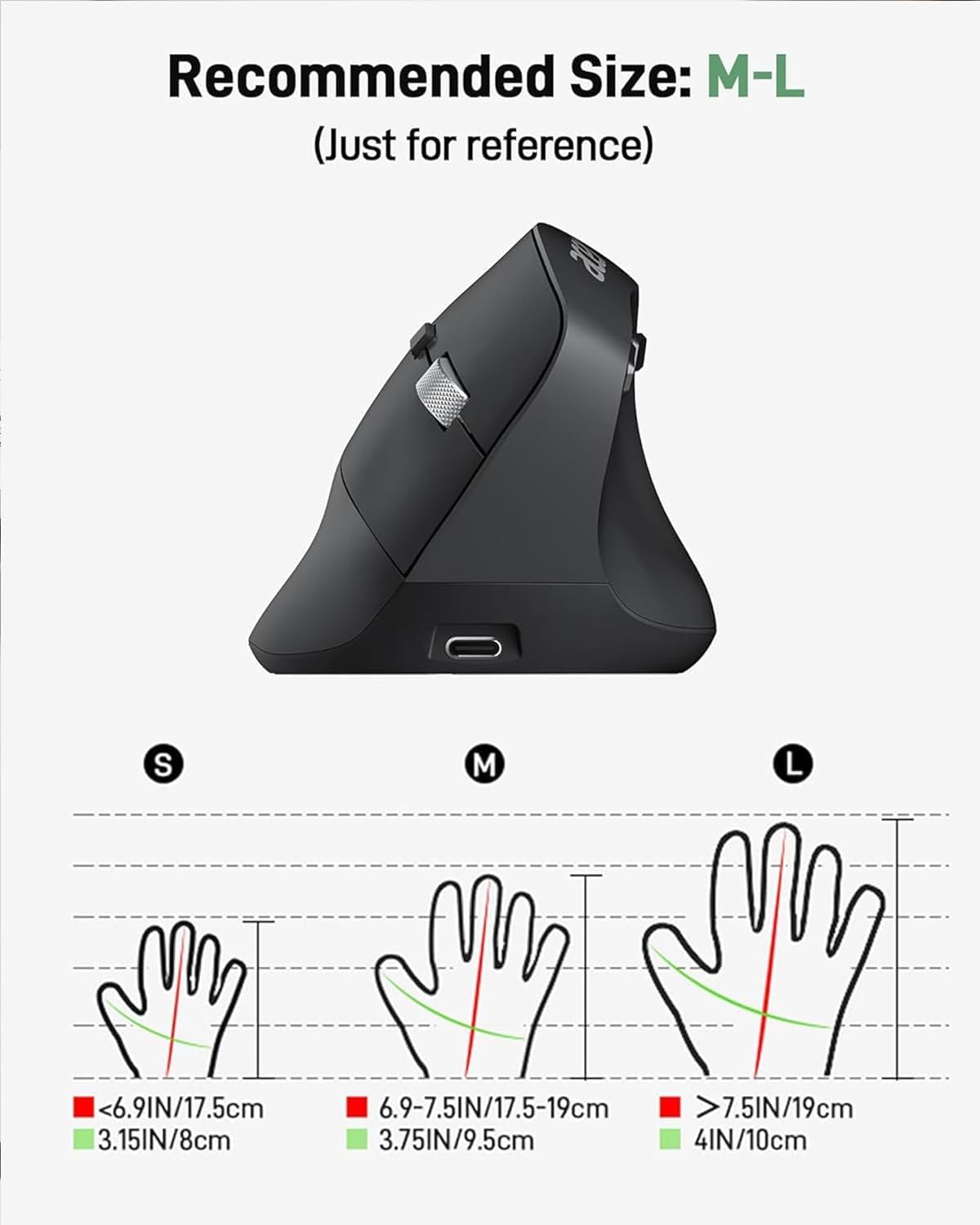
The mouse features a USB-C charging port for convenient recharging.
Bedienungsanleitung
1. Schaltflächenbeschreibung
Familiarize yourself with the various buttons and their functions:

Detaillierte view of the mouse with all buttons and features clearly labeled.
- Linke Taste: Standard-Klickfunktion.
- Rechter Knopf: Standardmäßige Rechtsklick-Funktion.
- Scrollrad: Scrollen nach oben/unten und Mittelklick-Funktion.
- DPI-Einstelltaste: Schaltet die DPI-Einstellungen durch (1000/1200/1600).
- Vorwärts-Taste: Navigiert vorwärts in web Browser bzw file Entdecker.
- Rückwärts-Taste: Navigiert rückwärts in web Browser bzw file Entdecker.
- Stromschalter: Turns the mouse On or Off.
- LED-Anzeige: Zeigt Verbindungsstatus und Akkustand an.
2. DPI-Anpassung
The mouse offers three adjustable DPI levels (1000/1200/1600) to suit your preference and task requirements. Press the DPI adjustment button, located near the scroll wheel, to cycle through the settings. Each press will change the cursor sensitivity.

Adjust cursor sensitivity by pressing the DPI button to switch between 1000, 1200, and 1600 DPI.
3. Vorwärts- und Rückwärtstasten
The dedicated forward and backward buttons on the side of the mouse allow for quick navigation through web pages and folders, enhancing your workflow efficiency.

Utilize the forward and backward buttons for efficient navigation.
4. Ergonomisches Design
The 57° vertical design of the mouse promotes a natural handshake position, reducing pronation of the forearm and wrist. This design aims to minimize muscle activity and discomfort during extended periods of use.

The 57° ergonomic design helps reduce wrist and arm pressure for greater comfort.
Wartung
1. Reinigung
Um optimale Leistung und Hygiene zu gewährleisten, reinigen Sie Ihre Maus regelmäßig:
- Trennen Sie die Maus von Ihrem Gerät und schalten Sie es aus.
- Mit einem weichen, fusselfreien Tuch leichtampWischen Sie die Oberfläche der Maus mit Wasser oder einer milden Reinigungslösung ab.
- Vermeiden Sie die Verwendung aggressiver Chemikalien, Scheuermittel oder Lösungsmittel.
- Entfernen Sie für den optischen Sensor vorsichtig Staub oder Schmutz mit einem trockenen Wattestäbchen.
2. Batteriepflege
Um die Lebensdauer des eingebauten Akkus zu verlängern:
- Vermeiden Sie häufiges vollständiges Entladen des Akkus.
- Charge the mouse when the low battery indicator appears.
- Wenn Sie die Maus über einen längeren Zeitraum lagern, laden Sie sie vor der Lagerung auf etwa 50 % auf und laden Sie sie alle paar Monate erneut auf.
3. Speicherung
Store the mouse in a cool, dry place away from direct sunlight and extreme temperatures. When transporting, ensure the USB-A receiver is securely stored in its compartment to prevent loss.
Fehlerbehebung
| Problem | Mögliche Ursache | Lösung |
|---|---|---|
| Maus reagiert nicht | Mouse is off or battery is low. USB receiver not properly connected. | Turn on the mouse and ensure it has sufficient charge. Reinsert the USB receiver into a different USB port. |
| Die Cursorbewegung ist unregelmäßig oder langsam. | Low battery. DPI setting is too low. Dirty optical sensor. | Charge the mouse. Press the DPI button to increase sensitivity. Clean the optical sensor. |
| Die Vor-/Rückwärts-Tasten funktionieren nicht auf dem Mac | Einschränkungen des Betriebssystems. | The side buttons may not be fully functional on macOS without additional software or customization. This is a known compatibility aspect. |
| Die Maus trennt häufig die Verbindung. | Distance from receiver too far. Interference. Low battery. | Ensure the mouse is within 32 feet (10 meters) of the receiver. Move away from other wireless devices. Charge the mouse. |
| Maus lädt nicht | Defektes Kabel oder fehlerhafte Stromquelle. | Try a different USB charging cable or a different USB power source. |
Technische Daten
| Besonderheit | Detail |
|---|---|
| Modellnummer | OMR241 |
| Technische Daten | 4.3 x 3.1 x 0.1 Zoll |
| Artikelgewicht | 5.1 Unzen |
| Konnektivitätstechnologie | 2.4-GHz-Funkverbindung (USB-A-Empfänger) |
| DPI-Einstellungen | 1000 / 1200 / 1600 |
| Schaltflächen | 6 (Links, Rechts, Mausrad, DPI, Vorwärts, Rückwärts) |
| Batterie | 300mAh Rechargeable Lithium Battery (included) |
| Ladeanschluss | USB-C |
| Bewegungserkennung | Optisch |
| Besondere Merkmale | Ergonomic Design, Vertical Orientation, Rechargeable |
Kompatibilität
The acer OMR241 mouse is compatible with a wide range of operating systems and devices:
- Windows (PC, Laptop)
- macOS (iMac, MacBook Pro/Air)
- Linux
- Chrome OS
The mouse offers universal compatibility across various operating systems and devices.
Garantie und Support
For warranty information, technical support, or service inquiries, please refer to the warranty card included in your product packaging or visit the official acer support webBewahren Sie Ihren Kaufbeleg als Kaufnachweis für Garantieansprüche auf.
Videoanleitung
Sehen Sie sich dieses offizielle Video an, um einen visuellen Eindruck zu erhalten.view of the acer Ergonomic Wireless Mouse, demonstrating its features and usage.