1. Einleitung
The SURFOU Smart Plug BSD33-E is a Wi-Fi enabled smart plug designed to bring convenience and energy efficiency to your home. It allows you to control your appliances remotely, monitor energy consumption, and set schedules, all through a dedicated mobile application and voice commands. This manual provides essential information for safe and effective use of your smart plug.
2. Wichtige Sicherheitshinweise
- Zerlegen oder modifizieren Sie das Gerät nicht.
- Setzen Sie das Gerät weder Wasser noch feuchten Umgebungen aus.
- Avoid extreme temperatures. Operate within 0°C to 40°C (32°F to 104°F).
- Stellen Sie sicher, dass die Nennleistung des angeschlossenen Geräts die maximale Belastbarkeit der intelligenten Steckdose (16 A, 3680 W) nicht überschreitet.
- Nur für den Innenbereich.
- Außerhalb der Reichweite von Kindern aufbewahren.
- Ensure the smart plug is fully inserted into the wall socket.

Abbildung 2.1: Safety features of the SURFOU Smart Plug BSD33-E, including fireproof casing, overload protection, and child-safe design.
3. Packungsinhalt
Bitte prüfen Sie das Paket auf folgende Artikel:
- 1 x SURFOU Smart Plug BSD33-E
- 1 x Benutzerhandbuch
4. Spezifikationen
| Modellnummer | BSD33-E |
| Abmessungen (L x B x H) | 40 x 40 x 85 mm |
| Gewicht | 90 Gramm |
| Aktuelle Bewertung | 16 A |
| Betriebslautstärketage | 250 Volt |
| Betriebsart | EIN-AUS |
| Kabellose Konnektivität | WLAN 2.4 GHz |
| Material | Plastik |
| Hersteller | ShenZhen Shi BaiShiDun Technology Co., Ltd. |

Abbildung 4.1: Physical dimensions and key features of the SURFOU Smart Plug BSD33-E.
5. Installationsanleitung
5.1. Laden Sie die eWeLink-App herunter
- Scan the QR code on the product packaging or search for "eWeLink" in your smartphone's app store (App Store for iOS, Google Play Store for Android).
- Download and install the eWeLink application.
- Registrieren Sie ein neues Konto oder melden Sie sich mit einem bestehenden Konto an.
5.2. Plug in the Smart Plug
- Plug the SURFOU Smart Plug BSD33-E into a standard wall outlet.
- Ensure the indicator light on the smart plug starts blinking, indicating it's in pairing mode. If not, press and hold the power button on the plug for 5 seconds until it blinks rapidly.
5.3. Pair the Device with the App
- Öffnen Sie die eWeLink-App auf Ihrem Smartphone.
- Tap the "+" icon at the bottom center or top right to add a new device.
- Select "Quick Pairing Mode" or the appropriate option for smart plugs.
- Confirm that the indicator light on the smart plug is blinking rapidly.
- Geben Sie den Namen (SSID) und das Passwort Ihres 2.4-GHz-WLAN-Netzwerks ein. Notiz: The smart plug only supports 2.4GHz Wi-Fi networks. If you have a dual-band router, ensure your phone is connected to the 2.4GHz network during pairing.
- Follow the on-screen instructions to complete the pairing process. Once successfully paired, the indicator light will stop blinking and remain solid.
- You can rename your smart plug within the app for easier identification (e.g., "Living Room Lamp").

Abbildung 5.1: The SURFOU Smart Plug BSD33-E shown with the eWeLink application interface, highlighting compatibility with Google Assistant and eWeLink.
6. Bedienungsanleitung
6.1. Fernbedienung
- Öffnen Sie die eWeLink-App.
- On the main screen, tap on the name of your smart plug.
- Use the toggle switch within the app to turn the connected appliance ON or OFF from anywhere with an internet connection.
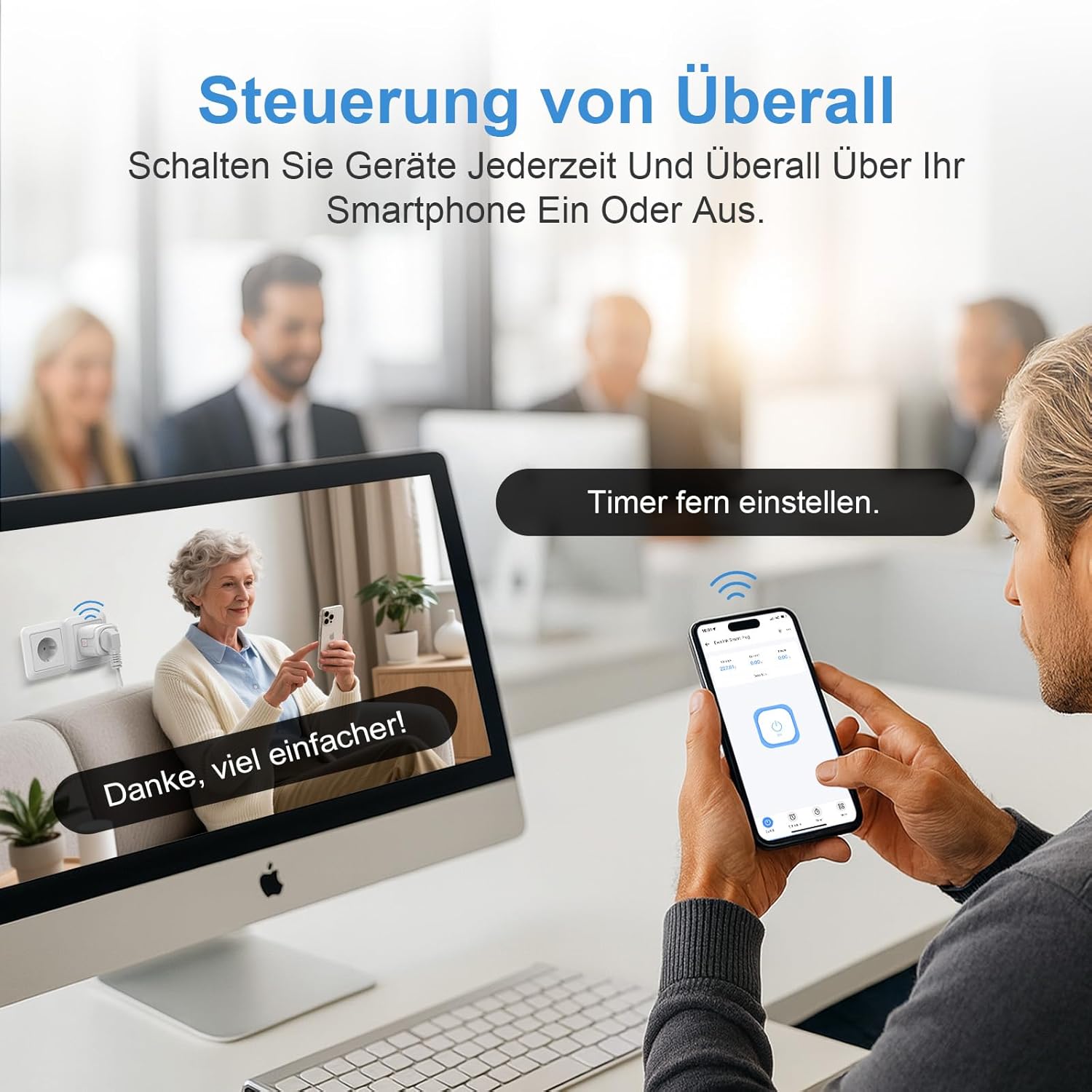
Abbildung 6.1: Remote control of appliances using the eWeLink app on a smartphone.
6.2. Sprachsteuerung
The SURFOU Smart Plug BSD33-E is compatible with various voice assistants. To enable voice control, link your eWeLink account to your preferred voice assistant (e.g., Amazon Alexa, Google Home, SmartThings) through their respective applications.
- Example-Befehle:
- "Alexa, schalte [Gerätename] ein."
- "Hey Google, schalte [Gerätename] aus."
- "Alexa, set [Device Name] to 50%" (if applicable for dimmable devices, though this plug is ON/OFF).
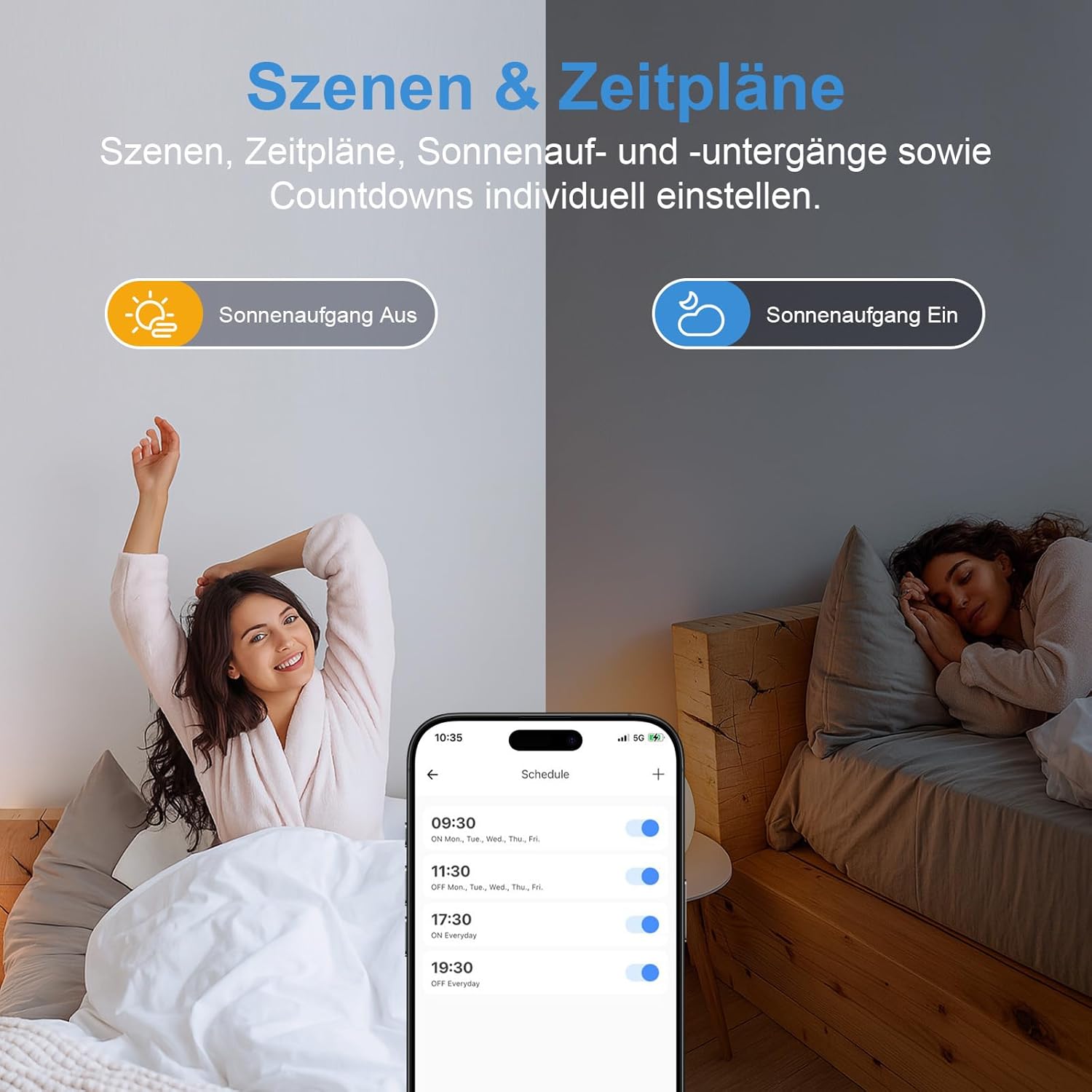
Abbildung 6.2: Hands-free voice control using Amazon Alexa and Google Assistant.
6.3. Energieüberwachung
The smart plug can monitor the real-time energy consumption of connected devices.
- In the eWeLink app, select your smart plug.
- Navigate to the "Consumption" or "Statistics" section to view daily, weekly, monthly, or yearly energy usage reports. This feature helps in understanding and optimizing energy consumption.

Abbildung 6.3: Real-time energy monitoring and historical data display in the eWeLink app.
6.4. Zeitplanung und Timer
Automate your devices by setting schedules and timers.
- In the eWeLink app, select your smart plug.
- Go to the "Schedule" or "Timer" section.
- Sie können einstellen:
- Countdown-Timer: Turn the device ON/OFF after a specified duration.
- Geplante Timer: Set specific times for the device to turn ON/OFF on selected days of the week.
- Schleifentimer: Wiederholte EIN/AUS-Zyklen.
- Szenen: Create custom scenarios that trigger actions based on conditions like sunrise/sunset or other smart devices.

Abbildung 6.4: Setting up schedules and scenes for automated control.
7. Wartung
- Reinigen Sie die smarte Steckdose mit einem trockenen, weichen Tuch. Verwenden Sie keine flüssigen Reiniger oder Sprays.
- Stellen Sie sicher, dass das Gerät vor der Reinigung vom Stromnetz getrennt ist.
- Bewahren Sie das Gerät bei Nichtgebrauch an einem kühlen, trockenen Ort auf.
8. Fehlerbehebung
8.1. Gerät verbindet sich nicht mit WLAN
- Stellen Sie sicher, dass Ihr WLAN-Netzwerk mit 2.4 GHz arbeitet. Die smarte Steckdose unterstützt kein 5-GHz-WLAN.
- Check if the Wi-Fi signal strength is adequate at the smart plug's location.
- Vergewissern Sie sich, dass Sie das richtige WLAN-Passwort eingegeben haben.
- Starten Sie Ihren Router neu und versuchen Sie den Kopplungsvorgang erneut.
- Reset the smart plug by holding the power button for 5 seconds until the indicator light blinks rapidly, then attempt pairing.
8.2. Sprachsteuerung funktioniert nicht
- Ensure your eWeLink account is correctly linked to your voice assistant (Alexa, Google Home, etc.) app.
- Check the device name in the eWeLink app and use that exact name in your voice commands.
- Vergewissern Sie sich, dass Ihr Sprachassistentengerät mit dem Internet verbunden ist.
8.3. Fernbedienung reagiert nicht
- Überprüfen Sie die Internetverbindung Ihres Smartphones.
- Ensure the smart plug is connected to your Wi-Fi network (solid indicator light).
- Starten Sie die eWeLink-App neu.
9. Garantie und Support
The SURFOU Smart Plug BSD33-E comes with a standard manufacturer's warranty. Please refer to the product packaging or the official SURFOU webAuf der Webseite finden Sie die detaillierten Garantiebedingungen.
For technical support, troubleshooting assistance, or any inquiries regarding your product, please contact SURFOU customer service through the contact information provided on the product packaging or their official webWebsite.


