1. Einleitung
This manual provides essential information for the proper installation, operation, and maintenance of your GAMEON Pro Series 27-inch Fast IPS Gaming Monitor (Model: GOAE27QHD165IPS). Please read this manual thoroughly before using the product to ensure optimal performance and safety. Keep this manual for future reference.

Bild 1.1: Vorderseite view of the GAMEON Pro Series 27-inch Fast IPS Gaming Monitor, showcasing seine schmalen Ränder und der Ständer.
The GAMEON Pro Series 27-inch Fast IPS Gaming Monitor features a QHD 2K (2560x1440p) resolution, a 165Hz refresh rate, and a 0.5ms MPRT response time. It supports Adaptive-Sync and Variable Refresh Rate (VRR) technologies for smooth, tear-free gameplay. Connectivity options include dual HDMI 2.1 ports and dual DisplayPort 1.4 ports, along with an audio-out jack and integrated speakers. This monitor is compatible with various gaming consoles and PCs, including PS5.
2. Packungsinhalt
Bitte überprüfen Sie den Packungsinhalt nach dem Auspacken. Sollten Artikel fehlen oder beschädigt sein, wenden Sie sich bitte an Ihren Händler.
- GAMEON Pro Series 27-inch Fast IPS Gaming Monitor
- Monitorständer (Fuß und Hals)
- Netzteil und Netzkabel
- HDMI-Kabel
- DisplayPort-Kabel
- Bedienungsanleitung
3. Einrichtung
3.1 Monitorbaugruppe
- Nehmen Sie den Monitor vorsichtig aus der Verpackung und achten Sie darauf, dass der Bildschirm geschützt ist.
- Befestigen Sie den Standfuß am Monitor. Achten Sie darauf, dass er sicher einrastet oder, falls vorhanden, mit den mitgelieferten Schrauben fixiert wird.
- Befestigen Sie den Stativfuß am Stativhals und ziehen Sie die Schraube an der Unterseite des Fußes fest.
- Stellen Sie den zusammengebauten Monitor auf eine stabile, ebene Fläche.
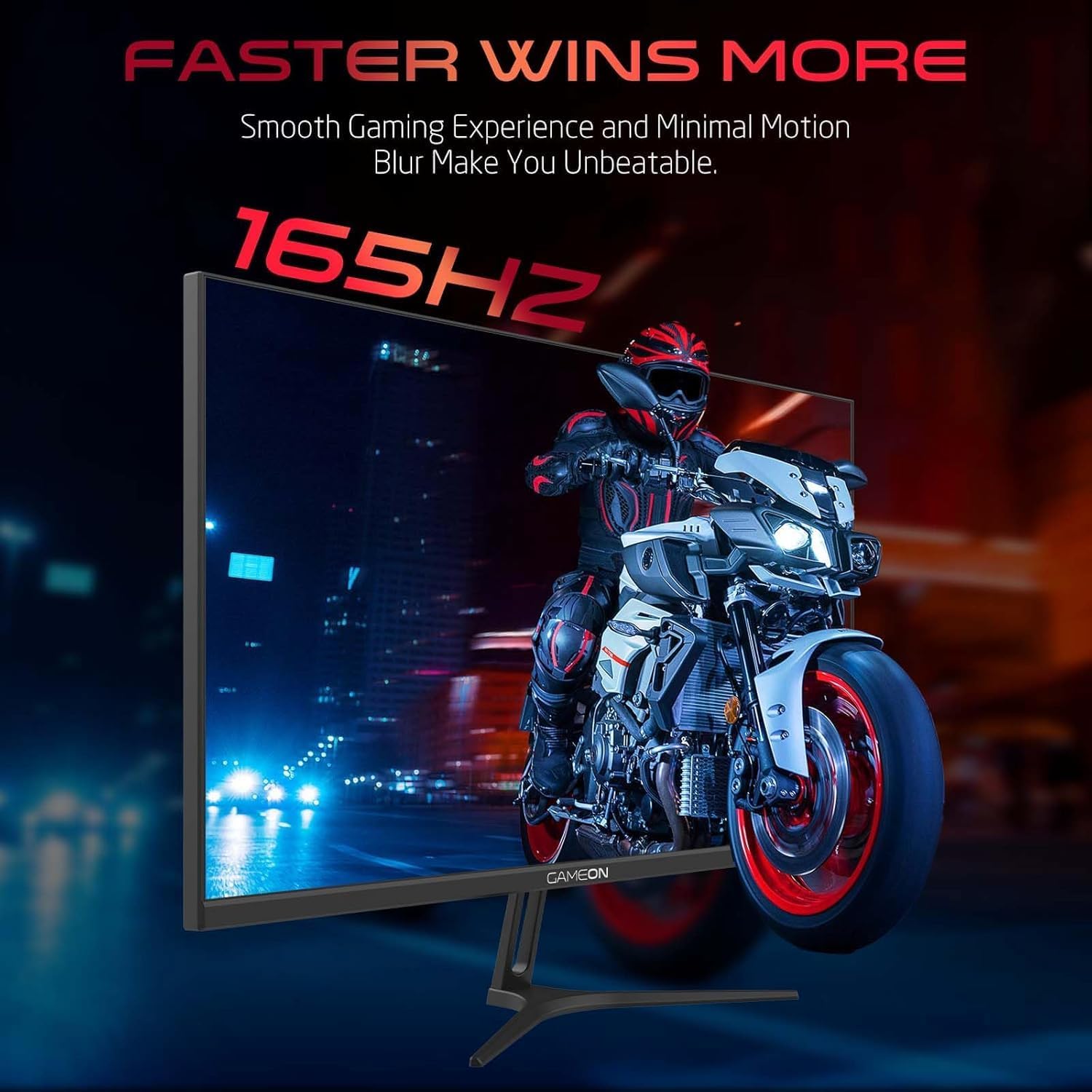
Image 3.1: Illustration of the monitor with its stand, ready for assembly.
3.2 Mit Geräten verbinden
The monitor offers multiple input options. Choose the appropriate cable for your device (PC, gaming console, etc.).

Bild 3.2: Hinten view of the monitor, highlighting the input ports and VESA mounting points.

Image 3.3: Detailed diagram illustrating the various input/output ports and their corresponding devices.
- HDMI-Verbindung: Connect one end of the HDMI cable to the HDMI output port of your device (PC, PS5, Xbox, TV box) and the other end to one of the HDMI 2.1 ports on the monitor.
- DisplayPort-Verbindung: Connect one end of the DisplayPort cable to the DisplayPort output of your PC and the other end to one of the DisplayPort 1.4 ports on the monitor.
- Audioausgang: For external audio, connect headphones or external speakers to the 3.5mm audio-out jack on the monitor.
3.3 Stromanschluss
- Schließen Sie das Netzteil an den DC IN-Anschluss des Monitors an.
- Plug the power cable into the power adapter, then plug the other end of the power cable into a power outlet.
4. Bedienungsanleitung
4.1 Ein-/Ausschalten
Drücken Sie den Netzschalter am Monitor, um ihn ein- oder auszuschalten. Die Betriebsanzeige leuchtet, wenn der Monitor eingeschaltet ist.
4.2 Bildschirmmenü (OSD)
The monitor features a menu button (often a joystick or a series of buttons) usually located on the back or bottom right of the monitor. Use this to navigate the OSD menu and adjust settings.
- Press the menu button to open the OSD menu.
- Use the navigation controls to move through menu options.
- Press the menu button again (or a designated 'Enter' button) to select an option.
- Use the navigation controls to adjust values or select sub-menus.
- Select 'Exit' or press the menu button repeatedly to close the OSD menu.
4.3 Häufige OSD-Einstellungen
- Bildeinstellungen: Passen Sie Helligkeit, Kontrast, Schärfe, Gamma und Farbtemperatur an.
- Farbeinstellungen: Feinabstimmung von RGB-Werten, Farbton und Sättigung.
- Eingabequelle: Manually select between HDMI 1, HDMI 2, DisplayPort 1, or DisplayPort 2.
- Audio: Die Lautstärke für die eingebauten Lautsprecher oder die angeschlossenen Kopfhörer anpassen.
- Spielfunktionen: Enable/disable Adaptive-Sync/FreeSync, adjust overdrive settings, and activate crosshair overlays if available.
4.4 PS5 120Hz Setup Guide
To enable 120Hz output on your PlayStation 5 with this monitor, follow these steps:

Image 4.1: Visual guide for configuring 120Hz refresh rate on a PlayStation 5 console.
- Enable 120Hz from PS5 Settings:
- Gehe zu Einstellungen > Bildschirm und Video > Videoausgang.
- Satz Enable 120Hz Output Zu Automatisch.
- Satz Auflösung Zu 1080p or Automatisch. (Note: While the monitor supports 1440p, some PS5 games may require 1080p for 120Hz output.)
- Enable Performance Mode for Gamers:
- Gehe zu Einstellungen > Save Data and Game App Settings > Spielvoreinstellungen.
- Satz Performance-Modus als Standard.
- Check In-Game Settings:
- Go to the specific game's Spieleinstellungen > Videoeinstellungen und wählen Sie 120 Bilder/s or Performance-Modus.
5. Wartung
5.1 Reinigung des Bildschirms
- Schalten Sie den Monitor aus und ziehen Sie das Netzkabel ab.
- Benutzen Sie ein weiches, fusselfreies Tuch, dampmit Wasser oder einem speziellen Bildschirmreiniger abspülen.
- Wipe the screen gently. Do not press hard or use abrasive materials.
- Avoid using alcohol, ammonia, or benzene-based cleaners, as they may damage the screen surface.
5.2 Reinigung des Casing
- Verwenden Sie ein weiches, trockenes Tuch, um den Monitor abzuwischen.asing.
- Bei hartnäckigen Flecken leicht dampDas Tuch mit Wasser und einem milden Reinigungsmittel befeuchten und anschließend trocken wischen.
6. Fehlerbehebung
Sollten Sie Probleme mit Ihrem Monitor haben, konsultieren Sie bitte die folgende Anleitung zur Fehlerbehebung:
| Problem | Mögliche Ursache | Lösung |
|---|---|---|
| Kein Bild auf dem Bildschirm | Kein Strom; Falsche Eingangsquelle; Loses Videokabel | Ensure power cable is securely connected and power outlet is active. Press power button. Check OSD menu to select correct input source (HDMI/DP). Reconnect video cable firmly. |
| Das Bild ist unscharf oder verzerrt. | Incorrect resolution; Video cable issue | Set display resolution to 2560x1440p in your device's display settings. Try a different video cable. |
| Kein Ton | Volume too low; Incorrect audio output selected; Loose audio cable | Adjust monitor volume via OSD. Ensure monitor is selected as the audio output device on your PC/console. Check external audio cable connection if using headphones/speakers. |
| Bildschirm flackert | Refresh rate mismatch; Adaptive-Sync/VRR issue | Ensure your device's refresh rate is set to 165Hz. If flickering persists with Adaptive-Sync/VRR enabled, try disabling it in the OSD or your graphics card settings. |
| Monitor not detected by PC/console | Video cable issue; Driver issue | Try a different video cable or port. Update your graphics card drivers. Restart your PC/console. |
7. Spezifikationen
Below are the technical specifications for the GAMEON Pro Series 27-inch Fast IPS Gaming Monitor (GOAE27QHD165IPS):
| Besonderheit | Spezifikation |
|---|---|
| Anzeigegröße | 27 Zoll |
| Panel-Typ | Schnelles IPS |
| Auflösung | QHD 2K (2560x1440p) |
| Bildwiederholrate | 165 Hz |
| Ansprechzeit | 0.5 ms MPRT |
| Kontrastverhältnis | 1000:1 |
| Helligkeit | 280 (±30) nits typical |
| ViewWinkel | Breit viewing angles (IPS technology) |
| Adaptive Sync-Technologie | Adaptive-Sync, FreeSync, VRR Compatible |
| Konnektivität | 2x HDMI 2.1, 2x DisplayPort 1.4, 1x Audioausgang (3.5 mm) |
| Audio | Built-in 4Ω2W speakers |
| Kompatibilität mit VESA-Halterung | 100 x 100 mm |
| Leistungsaufnahme | Externer DC 12V 4A Adapter |
| Maximaler Stromverbrauch | 48 W |
| Produktabmessungen (mit Ständer) | 16.2 x 61.4 x 45.3 cm |
| Produktgewicht | 5.84 kg |
| Modellnummer | GOAE27QHD165IPS |
8. Garantie und Support
The GAMEON Pro Series 27-inch Fast IPS Gaming Monitor comes with a 2 Jahr Garantie Diese Garantie gilt ab Kaufdatum und deckt Herstellungsfehler bei normalem Gebrauch ab. Bitte bewahren Sie Ihren Kaufbeleg für Garantieansprüche auf.
For technical support, warranty inquiries, or service requests, please contact GAMEON customer service through their official website or the retailer where the product was purchased. Provide your monitor's model number (GOAE27QHD165IPS) and a detailed description of the issue to expedite assistance.


