1. Einleitung
Thank you for choosing the FIREBAT Mini PC AK2 PLUS. This manual provides essential information for setting up, operating, maintaining, and troubleshooting your new mini PC. Please read this manual thoroughly before use to ensure optimal performance and longevity of your device.
2. Packungsinhalt
Carefully unpack your FIREBAT Mini PC and verify that all items listed below are included:
- 1 x FIREBAT AK2 N150 Mini PC
- 1 x 12V/2.5A US Adapter
- 1 x VESA-Halterung
- 1 x HDMI-Kabel
- 1 x Benutzerhandbuch (dieses Dokument)

Image: Contents of the FIREBAT Mini PC AK2 PLUS package, including the mini PC, power adapter, VESA mount, HDMI cable, and user manual.
3. Produktüberschreitungview
The FIREBAT Mini PC AK2 PLUS is a compact and powerful desktop computer designed for various applications, from office work to home entertainment. It features an Intel 13th Gen N150 processor, ample Speicher und vielseitige Anschlussmöglichkeiten.
3.1 Hauptmerkmale
- Prozessor: Intel 13th Gen Twin Lake N150 (4 cores/4 threads, up to 3.6GHz)
- Erinnerung: 16 GB DDR4 RAM
- Lagerung: 512GB M.2 2280 SSD (expandable up to 4TB with 2.5" SSD/HDD)
- Grafik: Intel UHD Graphics (1000MHz, 4K support)
- Anzeige: Supports dual HDMI output for simultaneous 4K display
- Konnektivität: Dual-band Wi-Fi, Bluetooth 4.2, Gigabit Ethernet
- Häfen: Multiple USB 2.0 and USB 3.0 ports, HDMI, LAN
- Kühlung: Ultra-quiet fans with intelligent cooling technology

Abbildung: Vorder- und Rückseite view of the FIREBAT Mini PC AK2 PLUS, highlighting its compact design and various ports.
3.2 Anschlüsse und Schnittstellen
Machen Sie sich mit den verfügbaren Anschlüssen Ihres Mini-PCs vertraut:
- Vorderseite: Power Button, USB 3.2 Type-A ports
- Rückwand: DC Power Input, 2 x HDMI 2.0 Type-A ports, LAN RJ45 port, USB 2.0 Type-A ports

Image: Detailed diagram of the FIREBAT Mini PC AK2 PLUS interfaces, showing the location of USB, HDMI, LAN, and power ports.
3.3 Interne Komponenten und Erweiterung
The Mini PC comes with pre-installed RAM and SSD. You can expand the storage capacity:
- RAM: DDR4-SO-DIMM
- SSD: M.2 2280 SATA SSD
- Erweiterung: Supports adding a 2.5" SSD/HDD (not included) for additional storage up to 2TB.

Image: Illustration of the M.2 2280 SSD and SO-DIMM DDR4 memory modules used in the Mini PC.
4. Installationsanleitung
Follow these steps to set up your FIREBAT Mini PC:
4.1 Anschließen von Peripheriegeräten
- Display anschließen: Use the provided HDMI cable to connect the Mini PC to your monitor or TV. The Mini PC supports dual display output via its two HDMI ports.
- Tastatur und Maus anschließen: Plug your USB keyboard and mouse into the available USB ports on the Mini PC.
- Netzwerk verbinden (optional): For a wired connection, connect an Ethernet cable from your router/modem to the LAN RJ45 port on the Mini PC. For wireless, ensure your Wi-Fi network is available.
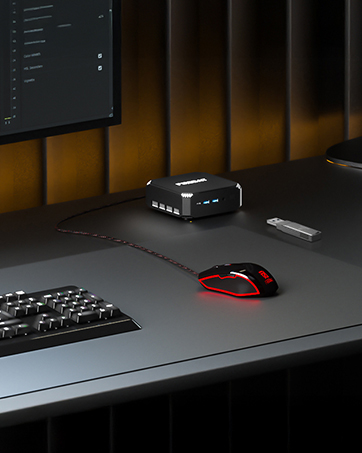
Image: The Mini PC connected to a monitor, keyboard, and mouse on a desk, illustrating a typical setup.
4.2 Einschalten
- Netzteil anschließen: Plug the 12V/2.5A US Adapter into the DC power input port on the Mini PC, then plug the adapter into a power outlet.
- Einschalten: Drücken Sie den Netzschalter an der Vorderseite des Mini-PCs. Die Betriebsanzeigeleuchte leuchtet auf.

Image: The Mini PC connected to its power adapter, demonstrating the correct power connection.

Image: Close-up of the Mini PC's power button, indicating its location for powering on the device.
4.3 VESA-Halterung (optional)
Dank der mitgelieferten VESA-Halterung lässt sich der Mini-PC an der Rückseite eines kompatiblen Monitors oder an einer Wand befestigen, wodurch Platz auf dem Schreibtisch gespart wird.
- Befestigen Sie die VESA-Halterung mit geeigneten Schrauben an der Rückseite Ihres Monitors oder der gewünschten Oberfläche.
- Schieben Sie den Mini-PC auf die VESA-Halterung, bis er sicher einrastet.

Image: The Mini PC shown with its VESA mount, demonstrating how it can be attached to the back of a monitor for a space-saving setup.
5. Bedienungsanleitung
5.1 Erster Start und Einrichtung des Betriebssystems
Upon first power-on, the Mini PC may guide you through the initial setup of its default operating system. Follow the on-screen prompts to configure language, region, network, and user accounts.
5.2 Dual-Display-Setup
So nutzen Sie die Dual-Display-Funktion:
- Connect two monitors to the two HDMI ports on the rear of the Mini PC.
- Sobald beide Monitore angeschlossen und eingeschaltet sind, sollte das Betriebssystem sie automatisch erkennen.
- Adjust display settings (e.g., extend, duplicate, resolution) through your operating system's display configuration panel.

Image: The Mini PC connected to two monitors via HDMI, demonstrating its dual display capability for enhanced productivity.
5.3 Netzwerkverbindungen
Der Mini-PC unterstützt sowohl kabelgebundene als auch drahtlose Netzwerkverbindungen:
- Kabelgebunden (Ethernet): Connect an Ethernet cable to the RJ45 port. The connection will be established automatically.
- Drahtlos (Wi-Fi): Rufen Sie die Netzwerkeinstellungen Ihres Betriebssystems auf, wählen Sie Ihr WLAN-Netzwerk aus und geben Sie das Passwort ein, um die Verbindung herzustellen.
- Bluetooth: Aktivieren Sie Bluetooth in den Einstellungen Ihres Betriebssystems, um kompatible Geräte wie Kopfhörer, Tastaturen oder Mäuse zu koppeln.
6. Wartung
Durch sachgemäße Wartung wird die Langlebigkeit und optimale Leistung Ihres Mini-PCs sichergestellt.
6.1 Reinigung
- Reinigen Sie die Außenseite des Mini-PCs regelmäßig mit einem weichen, trockenen Tuch.
- Use compressed air to gently clear dust from the ventilation openings to maintain proper airflow and cooling.
- Do not use liquid cleaners or sprays directly on the device.

Image: An illustration showing the internal cooling fan of the Mini PC, emphasizing the importance of keeping ventilation clear for efficient heat dissipation.
6.2 Lagerung und Umgebung
- Bewahren Sie den Mini-PC an einem kühlen, trockenen Ort fern von direkter Sonneneinstrahlung und extremen Temperaturen auf.
- Avoid placing the device in dusty environments or near sources of moisture.
- Ensure adequate ventilation around the Mini PC during operation.
7. Fehlerbehebung
If you encounter issues with your FIREBAT Mini PC, refer to the following common problems and solutions:
| Problem | Mögliche Ursache | Lösung |
|---|---|---|
| Kein Strom/Schaltet sich nicht ein | Netzteil nicht angeschlossen oder defekt; Problem mit der Steckdose. | Stellen Sie sicher, dass das Netzteil sowohl mit dem Mini-PC als auch mit einer funktionierenden Steckdose fest verbunden ist. Versuchen Sie es mit einer anderen Steckdose. |
| Kein Bild auf dem Monitor | HDMI cable loose or faulty; Monitor input not selected correctly; Monitor not powered on. | Check HDMI cable connections. Ensure monitor is powered on and set to the correct input source (HDMI). Try a different HDMI cable or monitor. |
| Keine Internetverbindung (WLAN) | Incorrect Wi-Fi password; Router issue; Wi-Fi adapter disabled. | Verify Wi-Fi password. Restart your router. Check operating system settings to ensure Wi-Fi is enabled. |
| No internet connection (Wired) | Ethernet cable loose or faulty; Router issue; Network adapter disabled. | Check Ethernet cable connections. Restart your router. Check operating system settings to ensure the wired network adapter is enabled. |
| Das System ist langsam oder reagiert nicht. | Zu viele Anwendungen laufen gleichzeitig; zu wenig Festplattenspeicher; Überhitzung. | Close unnecessary applications. Free up disk space. Ensure proper ventilation and clean dust from vents. Restart the Mini PC. |
If the problem persists after trying these solutions, please contact FIREBAT customer support.
8. Spezifikationen
Detailed technical specifications for the FIREBAT Mini PC AK2 PLUS:
| Besonderheit | Spezifikation |
|---|---|
| Modellnummer | AK2 PLUS |
| Prozessor | Intel Twin Lake N150 der 13. Generation (4 Kerne, 4 Threads, bis zu 3.6 GHz) |
| RAM | 16 GB DDR4 SDRAM |
| Lagerung | 512GB M.2 2280 SSD (eSATA interface) |
| Grafik-Coprozessor | Intel UHD Graphics (Integrated, 1000MHz) |
| Maximale Bildschirmauflösung | 4096 x 2160 Pixel (4K) |
| Kabellose Konnektivität | 802.11a/b/g/n/ac (Dual-band Wi-Fi), Bluetooth 4.2 |
| USB-Anschlüsse | 2 x USB 2.0, 2 x USB 3.0 |
| Videoausgang | 2 x HDMI |
| LAN-Anschluss | RJ45 Gigabit Ethernet |
| Betriebssystem | Default (Pre-installed) |
| Artikelgewicht | 12.8 Unzen (ca. 0.36 kg) |
| Technische Daten | 5.5 x 5.5 x 1.9 Zoll (ca. 14 x 14 x 4.8 cm) |
| Farbe | Grau |
9. Garantie und Support
FIREBAT is committed to providing quality products and excellent customer service. Your Mini PC comes with a standard warranty. For specific warranty terms and conditions, please refer to the documentation included with your purchase or visit the official FIREBAT webWebsite.
9.1 Kundendienst
If you require technical assistance, have questions about your product, or need to claim warranty service, please contact FIREBAT customer support:
- E-Mail: support@firebatpc.com
- WebWebsite: www.firebatpc.com
Please provide your product model (AK2 PLUS) and a detailed description of the issue when contacting support to facilitate a quicker resolution.


