1. Einleitung
Welcome to the user manual for your BOSGAME M2 Mini PC. This document provides essential information for the proper setup, operation, maintenance, and troubleshooting of your device. Please read this manual thoroughly before using your Mini PC to ensure optimal performance and longevity.
Produkt überview
The BOSGAME M2 is a high-performance mini PC designed for various applications, including gaming, design, office work, and entertainment. It features an AMD Ryzen 9 7940HS processor, AMD Radeon 780M graphics, and extensive connectivity options.

Bild: Vorderseite view des BOSGAME M2 Mini-PCs, gezeigtasing dank seines kompakten Designs und der Anschlüsse an der Vorderseite.
2. Packungsinhalt
Bitte überprüfen Sie beim Auspacken, ob alle unten aufgeführten Artikel vorhanden und in gutem Zustand sind.
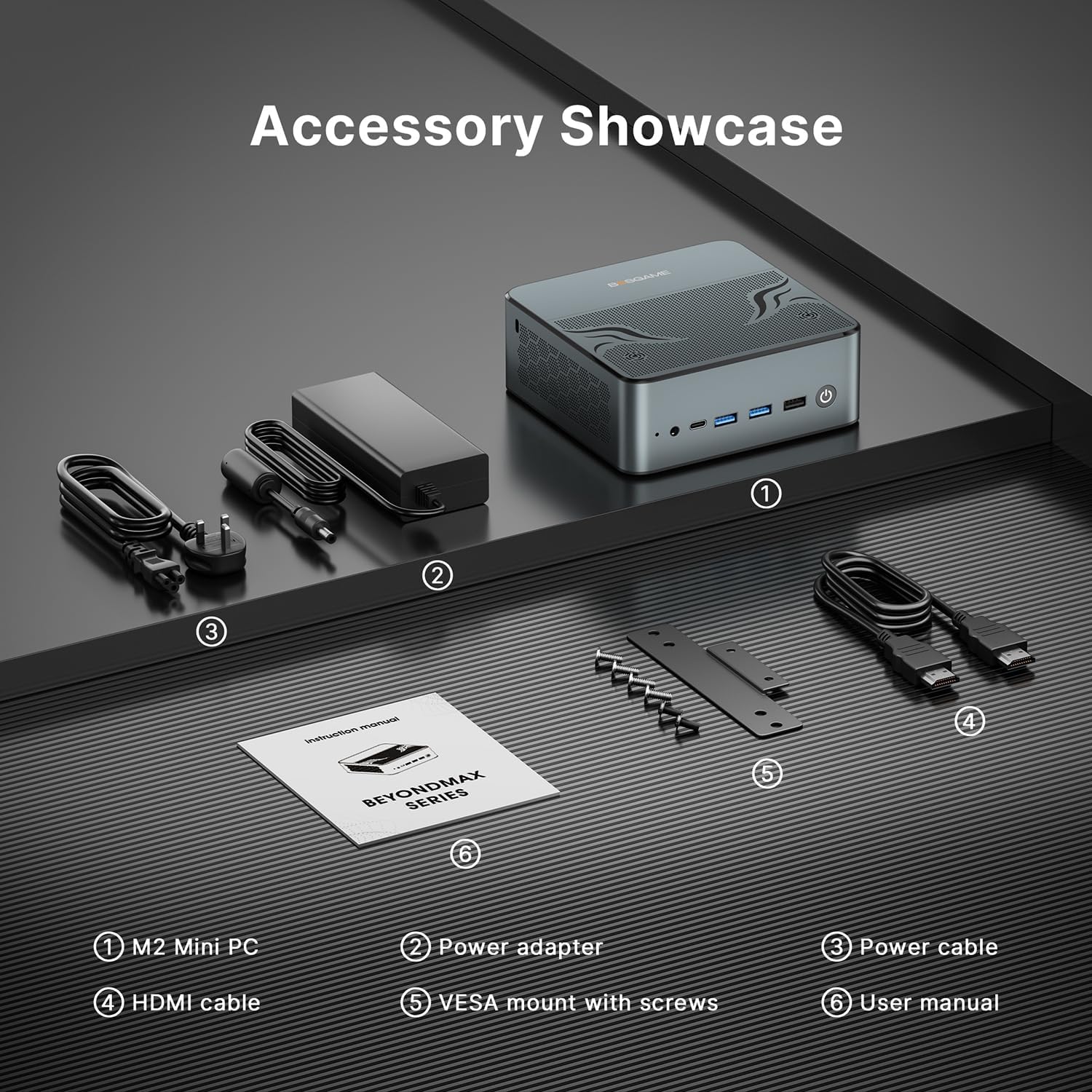
Image: Display of the BOSGAME M2 Mini PC and its included accessories.
- BOSGAME M2 Mini-PC
- Netzteil
- Stromkabel
- HDMI-Kabel
- VESA-Halterung mit Schrauben
- Benutzerhandbuch (dieses Dokument)
- Mouse (as per product details, though not shown in accessory image)
3. Installationsanleitung
3.1 Anschließen von Peripheriegeräten
- Display anschließen: Use the provided HDMI cable or a DisplayPort cable to connect your monitor to the Mini PC's HDMI 2.0 or DP 1.4 port. For USB-C displays, use a compatible USB4 cable.
- Tastatur und Maus anschließen: Schließen Sie Ihre USB-Tastatur und -Maus an die verfügbaren USB 3.2- oder USB 2.0-Anschlüsse an.
- Netzwerk verbinden (optional): For a wired connection, connect an Ethernet cable from your router to one of the 2.5GbE LAN ports. For wireless, Wi-Fi 6E is built-in.
- Strom anschließen: Stecken Sie den Netzadapter in den DC-Eingang des Mini-PCs und verbinden Sie dann das Netzkabel mit einer Steckdose.

Bild: Detailliert view of the BOSGAME M2 Mini PC's front and rear ports, including USB, HDMI, DisplayPort, USB-C, and LAN ports.
3.2 Erstes Einschalten
After connecting all necessary peripherals and power, press the power button located on the front of the Mini PC. The system will boot up. Follow the on-screen instructions to complete the operating system setup (e.g., Windows or Linux).
4. Bedienungsanleitung
4.1 Energieverwaltung
- Einschalten: Drücken Sie die Einschalttaste.
- Abschalten: Nutzen Sie die Herunterfahrfunktion des Betriebssystems.
- Neustart: Nutzen Sie die Neustartfunktion des Betriebssystems.
- Schlafmodus: Nutzen Sie die Energiesparfunktion des Betriebssystems.
4.2 Anzeigekonfiguration
The BOSGAME M2 supports up to four displays simultaneously via its HDMI 2.0, DisplayPort 1.4, and two USB4 (Type-C) ports.
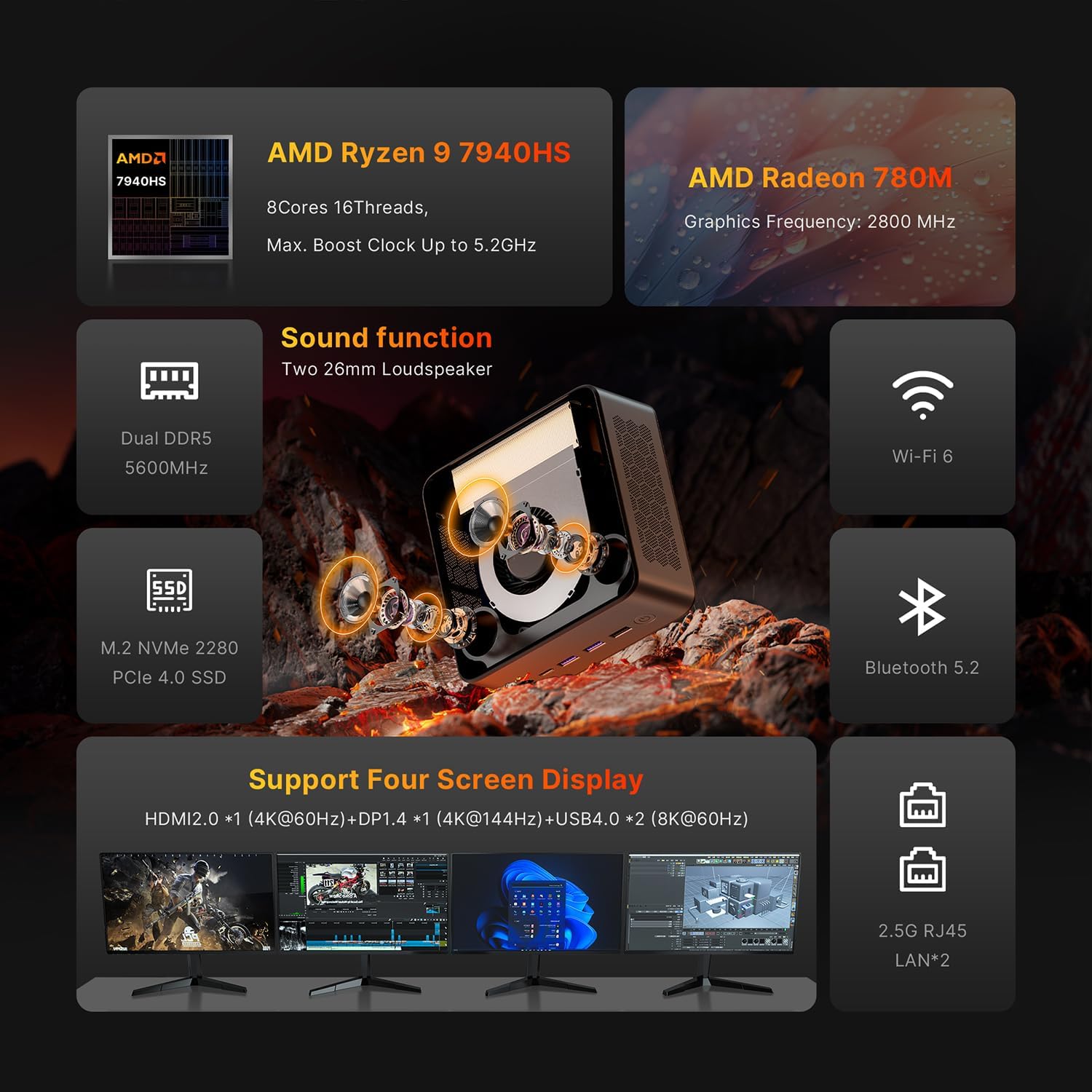
Bild: Überview of the BOSGAME M2 Mini PC's features, including its ability to support four screen displays.
- HDMI 2.0: Unterstützt Auflösungen bis zu 4K bei 60 Hz.
- DisplayPort 1.4: Unterstützt Auflösungen bis zu 4K bei 144 Hz.
- USB4 (Type-C): Each port supports up to 8K resolution at 60Hz, compatible with Thunderbolt accessories.
To configure multiple displays, access your operating system's display settings.
4.3 Netzwerkverbindungen
- WLAN 6E: Connect to wireless networks through your operating system's network settings.
- Bluetooth 5.2: Pair Bluetooth devices such as headphones, keyboards, or mice via your operating system's Bluetooth settings.
- 2.5-GbE-LAN: For wired connections, ensure an Ethernet cable is securely connected to one of the two LAN ports.
4.4 Audioausgang
The Mini PC features built-in dual speakers for stereo audio. For external audio, connect headphones or speakers to the 3.5mm audio jack on the front panel. Audio can also be routed through HDMI or DisplayPort to compatible monitors or receivers.
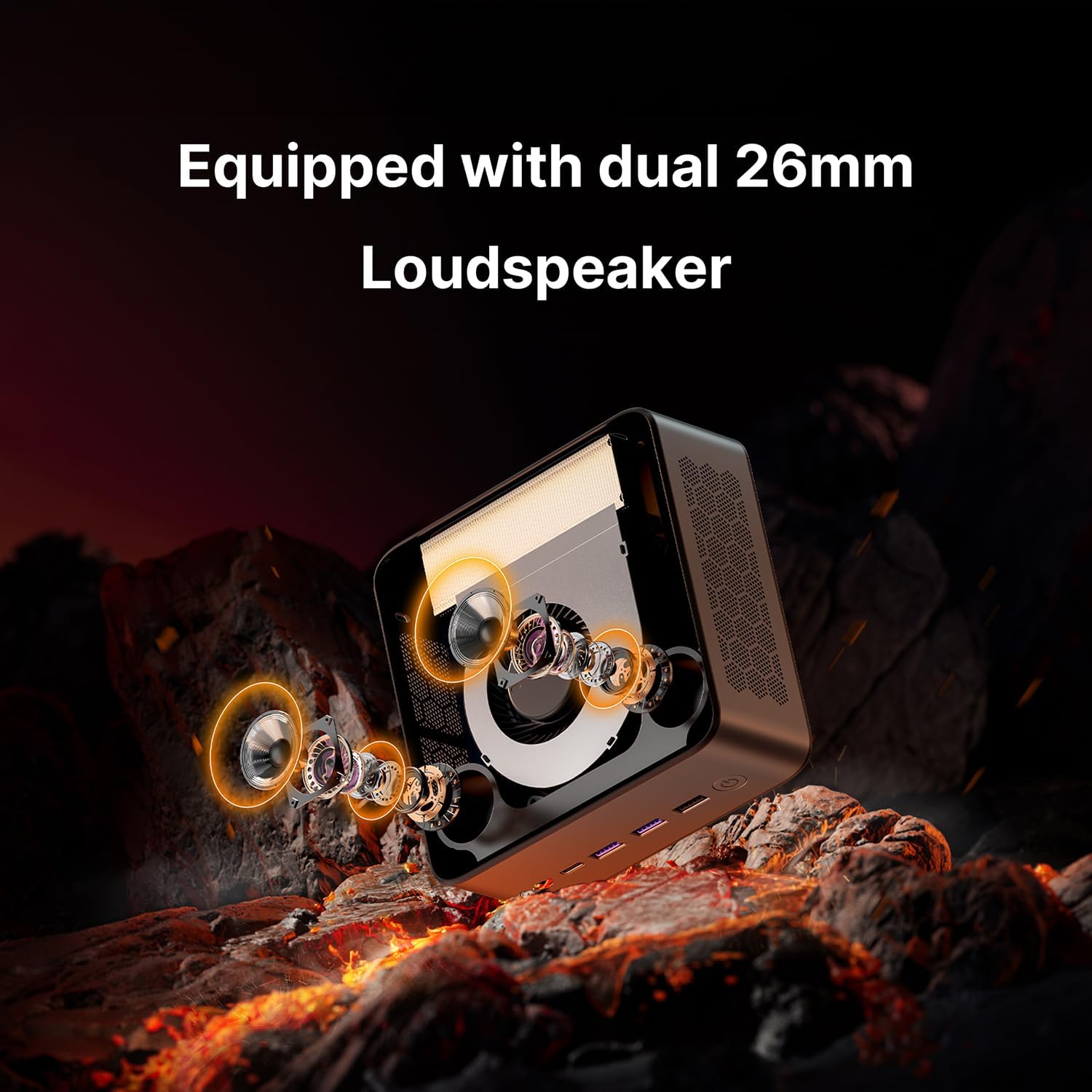
Bild: Intern view highlighting the dual 26mm loudspeakers within the BOSGAME M2 Mini PC.
4.5 Speichererweiterung
The BOSGAME M2 comes with a 1TB M.2 2280 PCIe 4.0 SSD and supports dual slot expansion for additional M.2 2280 PCIe 4.0 SSDs, up to 8TB total (additional SSDs not included).
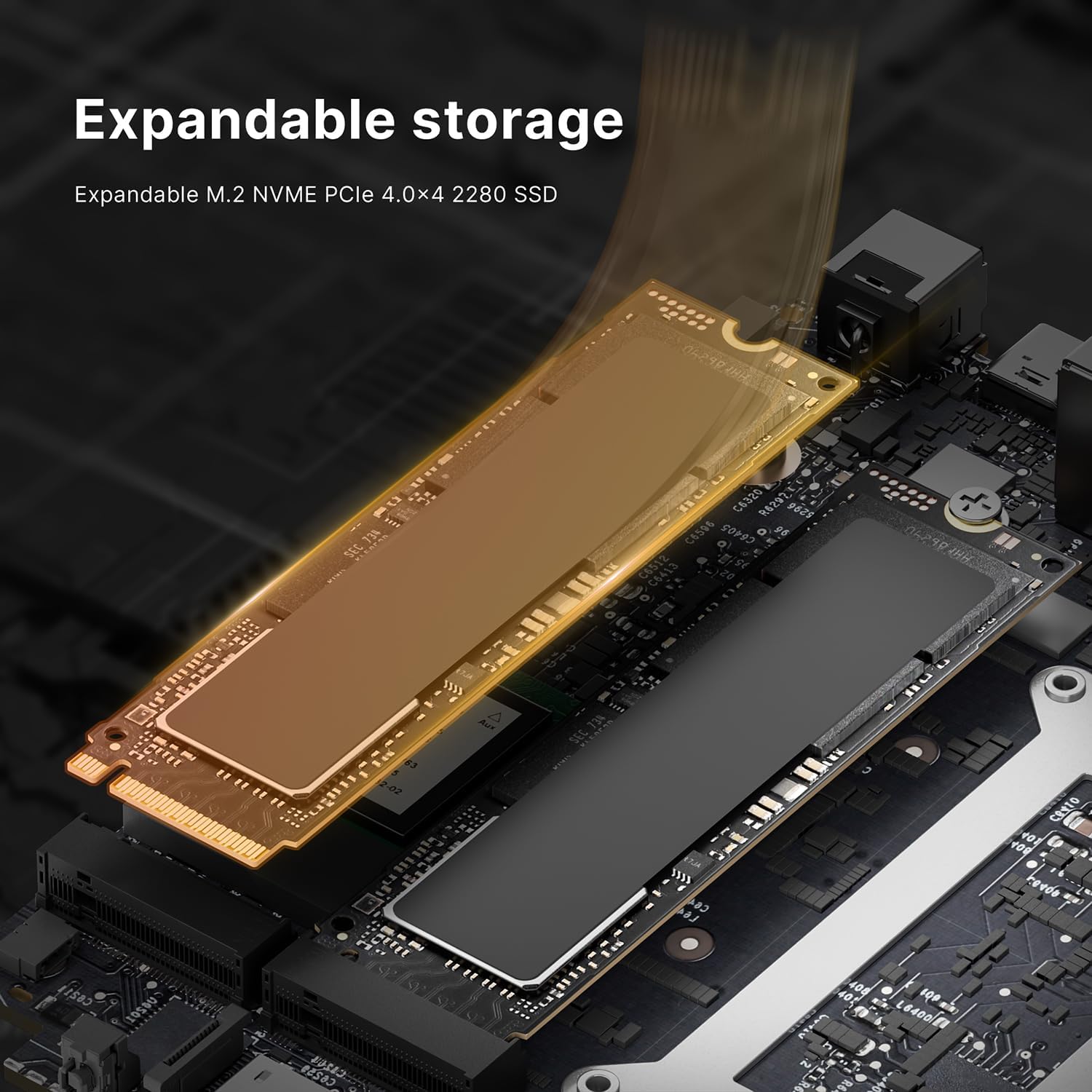
Image: Diagram illustrating the expandable M.2 NVMe PCIe 4.0x4 2280 SSD slot for storage upgrades.
5. Wartung
5.1 Reinigung
Regularly clean the exterior of the Mini PC with a soft, dry cloth. Use compressed air to gently clear dust from ventilation openings to ensure proper airflow and cooling. Do not use liquid cleaners directly on the device.
5.2 Softwareaktualisierungen
Keep your operating system and drivers updated to ensure optimal performance, security, and compatibility. Refer to your operating system's documentation for instructions on checking and installing updates.
5.3-Kühlsystem
The M2 Mini PC features a dual-layer cooling structure and an advanced VC heat sink solution designed for efficient heat dissipation. Ensure the ventilation areas are not obstructed to maintain effective cooling.

Image: Graph showing CPU temperature changes over 14 hours and noise levels during various software operations, demonstrating efficient cooling and quiet operation.
6. Fehlerbehebung
- Kein Strom:
- Stellen Sie sicher, dass das Netzteil sowohl mit dem Mini-PC als auch mit einer funktionierenden Steckdose fest verbunden ist.
- Prüfen Sie, ob das Stromkabel beschädigt ist.
- Kein Bildschirm:
- Prüfen Sie, ob das HDMI-, DisplayPort- oder USB-C-Kabel fest mit dem Mini-PC und dem Monitor verbunden ist.
- Stellen Sie sicher, dass der Monitor eingeschaltet und auf die richtige Eingangsquelle eingestellt ist.
- Versuchen Sie es gegebenenfalls mit einem anderen Displaykabel oder Monitor.
- Keine Netzwerkverbindung:
- Bei kabelgebundenen Verbindungen überprüfen Sie bitte den Status des Ethernet-Kabels und des Routers.
- Stellen Sie bei WLAN-Verbindungen sicher, dass WLAN im Betriebssystem aktiviert ist und Sie mit dem richtigen Netzwerk und dem richtigen Passwort verbunden sind.
- Kein Ton:
- Check the volume settings in your operating system.
- Ensure the correct audio output device is selected (e.g., built-in speakers, headphones, or monitor audio).
- Wenn Sie externe Lautsprecher/Kopfhörer verwenden, stellen Sie sicher, dass diese ordnungsgemäß an die 3.5-mm-Audiobuchse angeschlossen sind.
If you encounter issues not covered here, or if troubleshooting steps do not resolve the problem, please contact BOSGAME customer support.
7. Spezifikationen
| Besonderheit | Detail |
|---|---|
| Modell | M2 |
| Prozessor | AMD Ryzen 9 7940HS (8 Cores, 16 Threads, Max Boost Clock 5.2GHz) |
| Grafik | AMD Radeon 780M (Graphics Frequency: 2800 MHz) |
| RAM | 32 GB DDR5 5600 MHz (Dual Channel, erweiterbar auf bis zu 96 GB) |
| Lagerung | 1TB M.2 2280 PCIe 4.0 SSD (Dual slot expansion up to 8TB) |
| Betriebssystem | Unterstützt Windows und Linux |
| Kabellose Konnektivität | Wi-Fi 6E (802.11ax), Bluetooth 5.2 |
| Ethernet | Dual 2.5GbE LAN (RJ45) |
| Anschlüsse vorne | 2x USB 3.2 Gen2, 2x USB 3.2 Gen1, 2x USB4 (Full-featured, 40Gbps, 8K video, PD 3.0), 1x 3.5mm Audio Jack, Power Button |
| Anschlüsse an der Rückseite | 1x HDMI 2.0 (4K@60Hz), 1x DisplayPort 1.4 (4K@144Hz), 1x USB 2.0, 2x 2.5GbE LAN, DC-in |
| Anzeigeausgabe | Supports 4K Quad-Screen (USB4, DP 1.4, HDMI 2.0) |
| Audio | Built-in Dual 26mm Loudspeakers |
| Kühlsystem | Dual-layer structure, advanced VC heat sink |
| Artikelgewicht | 3.58 Pfund |
| Maße | 10.04 x 7.64 x 4.41 Zoll (Verpackung) |
8. Garantie und Support
8.1 Garantieinformationen
For detailed warranty information, please refer to the warranty card included with your product or visit the official BOSGAME webBewahren Sie Ihren Kaufbeleg für Garantieansprüche auf.
8.2 Kundendienst
If you require technical assistance or have questions regarding your BOSGAME M2 Mini PC, please visit the official BOSGAME webWebsite mit Support-Ressourcen, FAQs und Kontaktinformationen.


