1. Einleitung
Thank you for choosing the ELEGOO Saturn 4 Ultra Resin 3D Printer. This manual provides detailed instructions for the setup, operation, maintenance, and troubleshooting of your new 3D printer. Please read this manual thoroughly before operating the device to ensure safe and efficient use and to achieve optimal printing results.

Image 1.1: The ELEGOO Saturn 4 Ultra Resin 3D Printer with a sample print.
2. Sicherheitshinweise
Operating a resin 3D printer involves certain safety considerations. Adhere to the following guidelines to prevent injury and damage to the equipment:
- Beim Umgang mit Harz ist stets geeignete persönliche Schutzausrüstung (PSA), einschließlich Handschuhen und Schutzbrille, zu tragen.
- Betreiben Sie den Drucker in einem gut belüfteten Bereich, um die Belastung durch Harzdämpfe zu minimieren.
- Das Harz sollte vor direkter Sonneneinstrahlung und Wärmequellen geschützt werden. Lagern Sie es an einem kühlen, dunklen Ort.
- Do not ingest resin or allow it to come into contact with skin or eyes. In case of contact, wash thoroughly with soap and water and seek medical attention if irritation persists.
- Stellen Sie sicher, dass der Drucker auf einer stabilen, ebenen Fläche steht.
- Halten Sie Kinder und Haustiere während des Betriebs vom Drucker fern.
- Vor jeglichen Wartungs- oder Reinigungsarbeiten die Stromzufuhr unterbrechen.
3. Installationsanleitung
3.1. Auspacken und Komponentenidentifizierung
Nehmen Sie alle Komponenten vorsichtig aus der Verpackung. Überprüfen Sie, ob alle unten aufgeführten Artikel vorhanden sind:
- ELEGOO Saturn 4 Ultra 3D-Drucker
- Wifi Antenne
- Platte bauen
- Harztank
- KI-Kamera
- Tablett aus Harz
- Netzteil
- Bedienungsanleitung
- Werkzeugsatz
- USB-Laufwerk

Abbildung 3.1: Sämtliches mitgeliefertes Zubehör und alle Komponenten.
3.2. Erste Platzierung und Stromanschluss
- Place the printer on a stable, level, and well-ventilated surface.
- Schließen Sie das Netzteil an den Drucker und anschließend an eine Steckdose an.
- Attach the Wifi antenna to the designated port on the printer.
3.3. Automatische Nivellierung
The Saturn 4 Ultra features one-touch automatic leveling, eliminating the need for manual adjustments.
- Install the build plate onto the Z-axis.
- Ensure the resin tank is empty or removed during the leveling process.
- On the printer's touchscreen, navigate to the leveling function and initiate the automatic leveling process. The intelligent mechanical sensors will ensure the print platform is perfectly level.

Image 3.2: The automatic leveling mechanism in action.
3.4. Resin Tank Installation and Resin Loading
- Place the resin tank securely onto the printer's LCD screen area.
- Carefully pour the desired resin into the resin tank, ensuring it does not exceed the maximum fill line.
4. Bedienungsanleitung
4.1. Benutzeroberfläche vorbeiview
The ELEGOO Saturn 4 Ultra features an intuitive touchscreen interface for easy navigation and control of printing operations.
4.2. Preparing a Model for Printing (Slicing Software)
Before printing, 3D models must be processed using slicing software. Popular options include ChiTuBox. This software allows you to:
- Load 3D models (e.g., .STL, .OBJ fileS).
- Adjust model size, orientation, and position.
- Add support structures for complex geometries.
- Configure print parameters such as layer height, exposure time, and lift speed.
- Slice the model into layers and save it as a printable file (e.g., .CTB, .GOO).
4.3. Übertragen Files
You can transfer your sliced print files to the printer using two methods:
- USB Laufwerk: Insert the USB drive containing your print file in den USB-Anschluss des Druckers.
- Wi-Fi-Übertragung: The printer supports both 2.4G and 5G networks with transfer speeds of 6-10Mbps. Connect your printer to your local Wi-Fi network and use the compatible software to wirelessly send files.
4.4. Starten eines Druckvorgangs
- Ensure the resin tank is filled and the build plate is leveled.
- Wählen Sie Ihren gewünschten Druck aus. file from the printer's menu.
- Confirm print settings and press 'Start' to begin the printing process.
4.5. Monitoring Prints with AI Camera and Smart Features
The Saturn 4 Ultra is equipped with advanced monitoring capabilities:
- AI Camera Intelligent Detection: The integrated AI camera provides real-time monitoring of your print status and can detect smart defects. It can also capture captivating time-lapse videos of your creations.

Image 4.1: AI camera monitoring print progress.
- Smart Printing Prompts: Mechanical sensors support foreign object detection to prevent LCD screen damage and resin shortage alarms to enhance print safety and reliability.
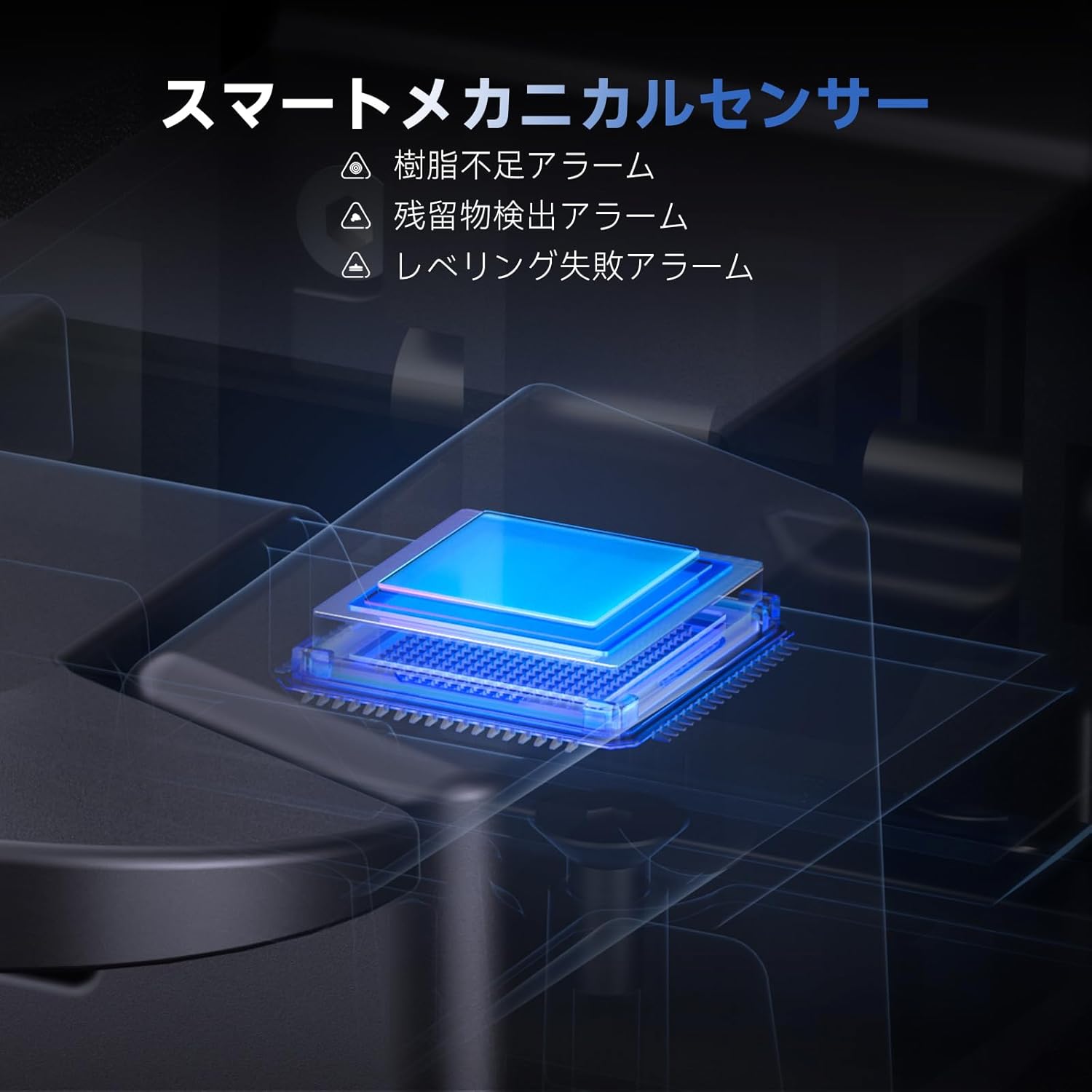
Image 4.2: Smart mechanical sensors for enhanced print safety.
4.6. High-Speed Printing with Tilt Release Technology
The printer utilizes tilt release technology to quickly peel the printed model from the release film, enabling high-speed printing up to 150mm/H. This significantly reduces overall printing time while maintaining quality.

Image 4.3: High-speed tilt release mechanism.
4.7. Print Resume Functionality
Im Falle eines Stromausfallstage, the printer can resume printing from where it left off, ensuring uninterrupted print jobs.
4.8. Cluster Printing
The Saturn 4 Ultra supports controlling network printing for multiple printers, allowing you to maximize productivity by managing several print jobs simultaneously.

Image 4.4: Multiple printers engaged in cluster printing.
5. Wartung
Regelmäßige Wartung gewährleistet die Langlebigkeit und optimale Leistung Ihres Druckers.
5.1. Cleaning the Build Plate
After each print, carefully remove the build plate and clean any residual resin using isopropyl alcohol (IPA) and a soft cloth. Scrape off cured resin with the provided plastic scraper.
5.2. Reinigung des Harztanks und der FEP-Folie
Periodically clean the resin tank. If there is cured resin at the bottom of the tank, carefully remove it. Clean the FEP film with IPA and a soft cloth. Avoid using sharp objects that could damage the film.
5.3. Printer Exterior Cleaning
Wipe down the exterior of the printer with a soft, damp Tuch. Vermeiden Sie die Verwendung scharfer Chemikalien.
5.4. Replacing the FEP Film
The FEP film in the resin tank is a consumable part and will need replacement if it becomes cloudy, scratched, or damaged. Refer to the detailed instructions provided in the tool kit or on the ELEGOO support website for replacement procedures.
5.5. Firmware-Updates
Check the ELEGOO official website periodically for firmware updates. Keeping your printer's firmware up-to-date can improve performance and add new features.
6. Fehlerbehebung
Dieser Abschnitt behandelt häufig auftretende Probleme, die während des Betriebs auftreten können.
6.1. Common Print Failures
- Failed Adhesion to Build Plate: Ensure the build plate is properly leveled. Increase bottom exposure time in slicing software. Check ambient temperature; resin prints best in warmer environments.
- Warped or Deformed Prints: Increase normal exposure time. Ensure adequate support structures. Check for proper resin mixing.
- Teilweise Ausdrucke oder fehlende Schichten: Verify the print file is not corrupted. Check for foreign objects in the resin tank or damage to the FEP film. Ensure sufficient resin in the tank.
6.2. Error Messages and Alarms
- Resin Shortage-Alarm: Indicates insufficient resin in the tank. Pause the print, add more resin, and resume.
- Fremdkörpererkennung: The printer has detected an obstruction that could damage the LCD. Remove the resin tank and inspect for any foreign objects on the LCD screen or in the resin.
- Leveling Failure Alarm: The automatic leveling process encountered an issue. Ensure the build plate is correctly installed and there are no obstructions. Re-attempt leveling.
- Temperature Detection Alarm: Notifies if the LED light temperature exceeds the set limit. Allow the printer to cool down. Ensure proper ventilation.
6.3. Verbindungsprobleme
- Probleme mit der WLAN-Verbindung: Ensure the Wi-Fi antenna is securely attached. Verify the printer is within range of your Wi-Fi router. Check network settings on the printer and router.
- USB-Laufwerk nicht erkannt: Ensure the USB drive is formatted correctly (FAT32) and contains valid print files. Try a different USB port or drive.
6.4. LCD Screen Issues
If the LCD screen is not displaying correctly or has unlit areas, it may indicate a hardware issue. Contact customer support for assistance.
7. Spezifikationen
| Besonderheit | Detail |
|---|---|
| Marke | ELEGOO |
| Modellnummer | Saturn 4 Ultra |
| Drucktechnologie | MSLA (Maskierte Stereolithographie) |
| LCD Bildschirm | 10-Zoll-12K-Monochrom-LCD |
| Maximale Druckgeschwindigkeit | 150mm/h |
| Bauvolumen (LWH) | 218.88 x 122.88 x 220 mm³ |
| Konnektivität | USB, Wi-Fi (2.4G & 5G) |
| Kompatibles Betriebssystem | Windows, Mac OS, Linux |
| Material | Metall |
| Farbe | Schwarz |
| Technische Daten | 32.9 (T) x 32.7 (B) x 54.8 (H) cm |
| Produktgewicht | 14.5 kg |
| Stromverbrauch (im Betrieb) | 180 Watt |
8. Garantie und Support
8.1. Garantieinformationen
For detailed warranty information regarding your ELEGOO Saturn 4 Ultra 3D Printer, please refer to the warranty card included with your product or visit the official ELEGOO webDie Garantie deckt in der Regel Herstellungsfehler bei normalem Gebrauch ab.
8.2. Kundendienst
If you encounter any issues not covered in this manual or require further assistance, please contact ELEGOO customer support. You can usually find contact information on the official ELEGOO website or through your purchase platform. When contacting support, please have your product model number (Saturn 4 Ultra) and purchase details ready.


