1. Einleitung
Thank you for choosing the Dexnor Keyboard Case. This manual provides essential information for setting up, operating, and maintaining your new keyboard case. Designed to enhance your Samsung Galaxy Tab experience, this case features a magnetic attachment, a precise multi-touch trackpad, a 7-color backlit QWERTZ keyboard, and convenient S Pen storage. Please read this manual thoroughly before use to ensure optimal performance and longevity of your device.
2. Kompatibilität
Diese Tastaturhülle ist exklusiv für die folgenden Samsung Galaxy Tab Modelle konzipiert:
- Samsung Galaxy Tab S10 Lite (Model SM-X400, SM-X406B)
- Samsung Galaxy Tab S10 FE 10.9" 2025 (Model SM-X520, SM-X526, SM-X526B)
- Samsung Galaxy Tab S9 FE 10.9" 2023 (Model SM-X510/SM-X516B/SM-X518U)
- Samsung Galaxy Tab S9 11" 2023 (Model SM-X710/SM-X716B/SM-X718U)
Note: This case is NOT compatible with Samsung Galaxy Tab S9+/S9 FE+ 12.4" or Samsung Galaxy Tab S11 (2025) 11". Please verify your tablet model before purchase.

Figure 2.1: Compatible and incompatible tablet models.
3. Packungsinhalt
Bitte prüfen Sie das Paket auf folgende Artikel:
- Dexnor Keyboard Case
- USB-C-Ladekabel
- Kurzanleitung
- Benutzerhandbuch (dieses Dokument)
4. Einrichtung
4.1 Anschließen Ihres Tablets
The keyboard case features a strong magnetic hinge for secure attachment. Simply align your Samsung Galaxy Tab with the magnetic area on the case. The tablet will snap into place, transforming your device into a laptop-like setup.

Figure 4.1: Magnetic attachment and adjustable viewing-Winkel.
4.2 Koppeln der Tastatur über Bluetooth
- Stellen Sie sicher, dass die Tastatur ausreichend geladen ist.
- Turn on the keyboard by pressing the power button (usually located on the side or top edge of the keyboard). The indicator light will flash, indicating it's in pairing mode.
- Gehen Sie auf Ihrem Samsung Galaxy Tab zu Einstellungen > Verbundene Geräte > Bluetooth und schalten Sie Bluetooth ein.
- Your tablet will search for available devices. Select "Dexnor Keyboard" (or similar name) from the list.
- Folgen Sie den Anweisungen auf dem Bildschirm, um den Kopplungsvorgang abzuschließen. Sobald die Kopplung erfolgreich war, hört die Kontrollleuchte auf der Tastatur auf zu blinken.
5. Bedienungsanleitung
5.1 Einstellen ViewWinkel
The robust aluminum alloy hinge allows for flexible viewing angles, transforming your tablet into a versatile workstation. Adjust the tablet's position to your preferred angle for typing, reading, or viewInhalt.

Figure 5.1: Tablet in floating cantilever position for optimal viewing.
5.2-Zoll-Multi-Touch-Trackpad
The integrated high-precision multi-touch trackpad supports various gestures for seamless navigation. Use multi-finger gestures for actions such as scrolling, swiping, and zooming, enhancing your productivity.

Figure 5.2: Multi-touch trackpad for precise control.
5.3 Tastatur mit Hintergrundbeleuchtung
The keyboard features 7 different backlight colors and 3 adjustable brightness levels for comfortable typing in any lighting condition. Use the dedicated backlight key (often a sun icon or Fn + light key combination) to cycle through colors and adjust brightness.

Figure 5.3: Backlit QWERTZ keyboard with adjustable colors.
5.4 S Stifthalter
The case provides two convenient locations for your S Pen: an integrated magnetic holder within the keyboard for secure storage and a cutout slot at the rear of the case for charging and additional storage. This design ensures quick access and prevents loss.
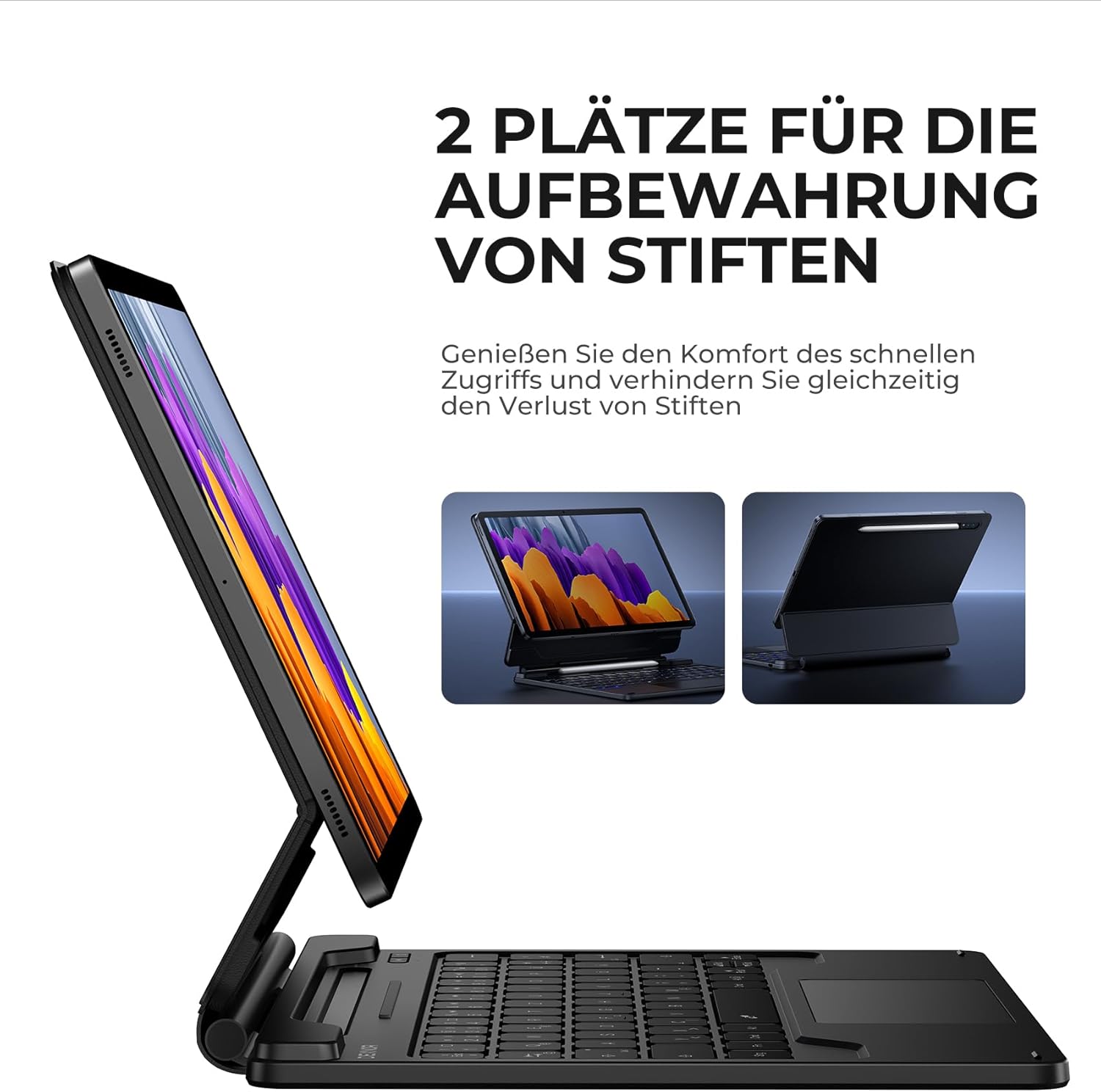
Figure 5.4: Dual S Pen storage options.
5.5 DEX Mode
Combine your tablet with the keyboard case and activate Samsung DEX mode to transform your tablet into a desktop-like experience. This allows for enhanced multitasking and productivity, similar to a traditional laptop setup.
5.6 Tastenkombinationen
The keyboard includes a series of convenient shortcut keys for quick control over media playback, volume, and other tablet functions. Refer to the keyboard layout for specific key functions.

Figure 5.5: Keyboard layout with shortcut keys.
5.7 Automatische Schlaf-/Wachfunktion
The case supports automatic sleep/wake functionality. Closing the case will put your tablet to sleep, and opening it will wake it up, conserving battery life for both your tablet and the keyboard.
6. Aufladen der Tastatur
The keyboard is equipped with a long-lasting 650 mAh battery. To charge the keyboard:
- Schließen Sie das mitgelieferte USB-C-Ladekabel an den Ladeanschluss der Tastatur an.
- Verbinden Sie das andere Ende des Kabels mit einem USB-Netzteil (nicht im Lieferumfang enthalten) oder einem USB-Anschluss Ihres Computers.
- The charging indicator light will illuminate during charging and turn off once fully charged. A full charge takes approximately 3.5 hours.
A single charge provides up to 200 hours of working time and 1200 hours of standby time.

Abbildung 6.1: USB-C-Ladeanschluss.
7. Wartung
To ensure the longevity and optimal performance of your Dexnor Keyboard Case:
- Reinigung: Verwenden Sie ein weiches,amp cloth to wipe the exterior of the case. For the keyboard keys, use a soft, dry cloth or a specialized keyboard cleaner. Avoid harsh chemicals or abrasive materials.
- Lagerung: When not in use for extended periods, store the keyboard case in a cool, dry place. Ensure the case is closed to protect the tablet and keyboard.
- Vermeiden Sie Flüssigkeiten: Um Schäden an den internen Bauteilen zu vermeiden, sollte die Tastatur nicht mit Flüssigkeiten in Berührung kommen.
- Vorsichtig handhaben: While durable, avoid dropping the case or subjecting it to excessive force.
8. Fehlerbehebung
8.1 Tastatur verbindet sich nicht
- Batterie prüfen: Stellen Sie sicher, dass die Tastatur aufgeladen ist.
- Reparatur: Delete the keyboard from your tablet's Bluetooth device list and attempt to pair it again (refer to Section 4.2).
- Geräte neu starten: Starten Sie sowohl Ihr Tablet als auch die Tastatur neu.
- Interferenz: Entfernen Sie sich von anderen drahtlosen Geräten, die Störungen verursachen könnten.
8.2 Trackpad reagiert nicht
- Verbindung prüfen: Stellen Sie sicher, dass die Tastatur ordnungsgemäß über Bluetooth verbunden ist.
- Trackpad reinigen: Stellen Sie sicher, dass die Oberfläche des Trackpads sauber und frei von Verunreinigungen ist.
- Neustart: Starten Sie Tastatur und Tablet neu.
8.3 Hintergrundbeleuchtung funktioniert nicht
- Batterie prüfen: Low battery can affect backlight functionality. Charge the keyboard.
- Hintergrundbeleuchtung umschalten: Press the backlight key (or Fn + backlight key) to ensure it's not turned off or at the lowest brightness setting.
8.4 Ladeprobleme
- Kabel überprüfen: Ensure the USB-C cable is securely connected to both the keyboard and the power source. Try a different USB-C cable if available.
- Energiequelle: Versuchen Sie es mit einem anderen USB-Netzteil oder Anschluss.
9. Spezifikationen
| Marke | Dexnor |
| Modellnummer | DK005 |
| Konnektivitätstechnologie | Bluetooth |
| Besondere Merkmale | Multi-Touch Trackpad, Backlit Keyboard, S Pen Holder |
| Kompatible Geräte | Samsung Galaxy Tab S10 Lite 10.9", Samsung Galaxy Tab S9 11", Samsung Galaxy Tab S9 FE/S10 FE 10.9" |
| Batteriezusammensetzung | Lithium-Ionen |
| Batteriekapazität | 650 mAh |
| Ladezeit | Ca. 3.5 Stunden |
| Arbeitszeit | Bis zu 200 Stunden |
| Standby-Zeit | Bis zu 1200 Stunden |
| Tastaturlayout | QWERTZ (Deutsch) |
| Technische Daten | 25.9 L x 20.5 B x 1.9 H cm |
10. Garantie und Support
Dexnor provides a 1-year manufacturer's warranty for this product. Additionally, lifetime technical support is available.
For warranty claims, technical assistance, or any product-related inquiries, please contact Dexnor customer support through the retailer's platform or visit the official Dexnor webWebsite für Kontaktinformationen.