1. Einleitung
This manual provides essential information for the proper setup, operation, and maintenance of your TECLAST T40HD 10.4-inch Android 13 Tablet. Please read this manual thoroughly before using the device to ensure optimal performance and longevity. Keep this manual for future reference.

Abbildung 1.1: Vorder- und Rückseite view of the TECLAST T40HD tablet, showcasing its slim design and camera module.
2. Packungsinhalt
Bitte überprüfen Sie, ob alle unten aufgeführten Artikel in Ihrer Produktverpackung enthalten sind:
- TECLAST T40HD Tablet
- Netzteil (kann je nach Region variieren)
- Datenkabel (USB Typ-C)
- Drive Out Pin (for SIM/Micro SD tray)
- Wartungskarte
- Benutzerhandbuch (dieses Dokument)
- Screen Protector (pre-applied or included separately)

Image 2.1: Illustration of the TECLAST T40HD tablet and its standard accessories included in the box.
3. Ersteinrichtung
3.1 Aufladen des Tablets
Before first use, fully charge the tablet using the provided power adapter and USB Type-C cable. Connect the cable to the tablet's USB-C port and the adapter to a power outlet. The charging indicator will typically show progress on the screen.

Image 3.1: The tablet connected to a charger, indicating battery status, and a user operating the tablet while traveling.
3.2 Ein-/Ausschalten
- So schalten Sie das Gerät ein: Halten Sie den Ein-/Ausschalter (an der Seite) gedrückt, bis das TECLAST-Logo auf dem Bildschirm erscheint.
- So schalten Sie das Gerät aus: Halten Sie die Ein-/Aus-Taste gedrückt, bis das Menü mit den Energieoptionen erscheint. Wählen Sie „Ausschalten“.
- Neustarten: Wählen Sie im Menü „Energieoptionen“ die Option „Neustart“.
3.3 Einlegen von SIM- und Micro-SD-Karten
The TECLAST T40HD supports dual SIM cards and a Micro SD card for expanded storage. Use the provided drive out pin to open the card tray.
- Suchen Sie den SIM-/Micro-SD-Kartensteckplatz an der Seite des Tablets.
- Insert the drive out pin into the small hole next to the tray and press gently until the tray ejects.
- Ziehen Sie die Schale vorsichtig heraus.
- Legen Sie Ihre Nano-SIM-Karten und/oder Ihre Micro-SD-Karte in die dafür vorgesehenen Schlitze des Kartenfachs ein und achten Sie dabei auf die richtige Ausrichtung.
- Drücken Sie die Schale vorsichtig wieder in das Tablet, bis sie einrastet.

Image 3.2: The SIM/Micro SD card tray, illustrating the placement of SIM cards.
3.4 Erste Android-Einrichtung
Upon first power-on, the tablet will guide you through the Android 13 setup process. This includes selecting your language, connecting to Wi-Fi, setting up your Google account, and configuring security options like face unlock.
4. Bedienung des Tablets
4.1 Navigation und Gesten
The TECLAST T40HD runs on Android 13, offering intuitive navigation through gestures and on-screen buttons. Common gestures include:
- Klopfen: Wählen Sie ein Element aus oder öffnen Sie eine App.
- Wischen: Durchblättern von Seiten oder Listen.
- Pinch-to-Zoom: Inhalte auf dem Bildschirm vergrößern oder verkleinern.
- Von unten nach oben wischen: Go to Home screen or open app drawer.
- Swipe from left/right edge: Geh zurück.
4.2 Verbindung zu Netzwerken
- W-lan: Go to Settings > Network & internet > Wi-Fi. Select your network and enter the password.
- Mobile Daten (4G LTE): If a SIM card is inserted, enable mobile data in Settings > Network & internet > Mobile network.
- Bluetooth: Pair with Bluetooth devices (e.g., headphones, keyboards) via Settings > Connected devices > Bluetooth.
4.3 Multimedia and Gaming
The tablet's 2K HD display and Unisoc T606 Octa-core processor provide a smooth experience for media consumption and gaming.
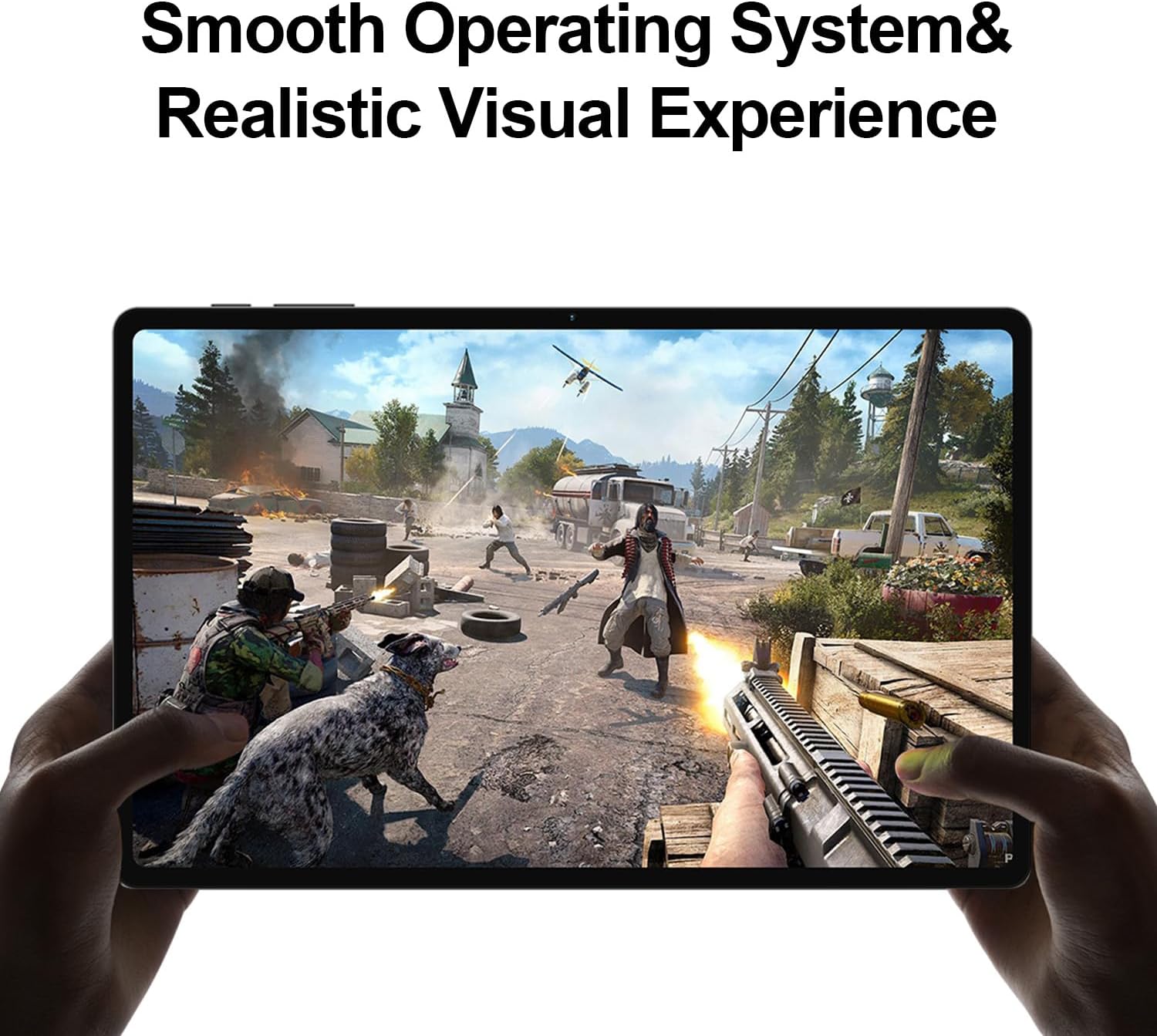
Image 4.1: The tablet displaying a high-fidelity video game, demonstrating its graphical capabilities.

Abbildung 4.2: Die Tablet-Showcasing its battery performance for different usage scenarios.
4.4 Multitasking
Android 13 supports split-screen mode, allowing you to use two apps simultaneously. To activate, open an app, then swipe up slightly from the bottom of the screen to reveal the recent apps. Tap the app icon at the top of the window and select 'Split top'. Choose another app to fill the second half of the screen.

Image 4.3: The tablet demonstrating split-screen functionality for enhanced productivity.
4.5 Kindersicherung
Utilize Android's built-in parental control features to manage screen time, restrict app access, and filter content. Access these settings through the Google Family Link app or directly in the tablet's Settings menu under 'Digital Wellbeing & parental controls'.

Image 4.4: Parental control features displayed on the tablet, enabling management of usage for children.
4.6 GPS-Navigation
The integrated GPS functionality allows for precise location tracking and navigation. Use pre-installed map applications or download your preferred navigation apps from the Google Play Store.

Image 4.5: The tablet used for GPS navigation in a vehicle.
4.7 Android 13 Features Overview
The TECLAST T40HD operates on Android 13, offering enhanced privacy controls, improved battery efficiency, smoother overall operation, and various user interface improvements. It also expands compatibility with a wide range of devices and applications.

Image 4.6: Visual representation of the Android 13 operating system interface on the tablet.
4.8 Offizielles Produktvideo
Video 4.1: An official product video from Teclast USA Official Store, showcasing the key features and design of the TECLAST T40HD Android 13 Tablet.
5. Wartung
- Reinigung: Reinigen Sie Bildschirm und Gehäuse mit einem weichen, fusselfreien Tuch. Vermeiden Sie scheuernde Materialien und aggressive Chemikalien.
- Software-Updates: Um optimale Leistung und Sicherheit zu gewährleisten, sollten Sie regelmäßig nach Systemaktualisierungen suchen und diese installieren. Gehen Sie dazu zu Einstellungen > System > Systemaktualisierung.
- Batteriepflege: Um die Lebensdauer des Akkus zu verlängern, vermeiden Sie extreme Temperaturen und lassen Sie den Akku nicht häufig vollständig entladen.
- Speicherverwaltung: Löschen Sie regelmäßig unnötige files und deinstallieren Sie nicht verwendete Apps, um Speicherplatz freizugeben.
6. Fehlerbehebung
| Ausgabe | Mögliche Lösung |
|---|---|
| Das Tablet lässt sich nicht einschalten. | Ensure the tablet is charged. Connect to the charger for at least 30 minutes before attempting to power on again. |
| Der Bildschirm reagiert nicht | Perform a force restart by holding the Power button for approximately 10-15 seconds. If the issue persists, contact support. |
| Probleme mit der Wi-Fi-Verbindung | Starten Sie Ihr Tablet und Ihren WLAN-Router neu. Entfernen Sie das Netzwerk aus den WLAN-Einstellungen und stellen Sie die Verbindung erneut her. Stellen Sie sicher, dass Sie sich in Reichweite befinden. |
| Apps stürzen ab oder frieren ein. | Clear the cache for the problematic app (Settings > Apps > [App Name] > Storage & cache > Clear cache). Update the app or uninstall and reinstall it. Ensure sufficient free storage. |
| Langsame Leistung | Nicht benötigte Hintergrund-Apps schließen. Cache und temporäre Dateien löschen. files. Consider a factory reset if performance issues are severe and persistent (back up data first). |
| SIM-Karte nicht erkannt | Ensure the SIM card is correctly inserted into the tray. Restart the tablet. Verify that mobile data is enabled in settings. |
7. Spezifikationen

Bild 7.1: Überview of the TECLAST T40HD tablet's key technical specifications.
| Besonderheit | Detail |
|---|---|
| Modell | T40HD |
| Betriebssystem | Android 13 (GMS-zertifiziert) |
| Anzeige | 10.4-inch 2K (2000x1200) TDDI IPS, TÜV Rheinland Certified |
| Prozessor | Unisoc T606 Octa-Core (1.6 GHz) |
| RAM | 16 GB (8 GB physisch + 8 GB erweiterbar) |
| Interner Speicher | 128GB UMCP |
| Erweiterbarer Speicher | Micro-SD-Karte bis zu 1 TB |
| Rückfahrkamera | 13MP + 30W auxiliary camera |
| Frontkamera | 8 Megapixel |
| Batterie | 7200 mAh Lithium-Polymer |
| Konnektivität | 4G LTE (Dual SIM), 5G WiFi (2.4/5GHz), Bluetooth 5.0, GPS |
| Häfen | USB Typ-C, 3.5-mm-Kopfhöreranschluss |
| Abmessungen (LxBxH) | 10.4 x 6 x 0.6 Zoll |
| Gewicht | 1.9 Pfund |
8. Garantie und Support
8.1 Garantieinformationen
TECLAST products typically come with a 1-year warranty from the date of purchase. This warranty covers manufacturing defects. Please refer to the 'Maintenance Card' included in your package for specific warranty terms and conditions. Keep your proof of purchase for warranty claims.
8.2 Kundendienst
For technical assistance, troubleshooting, or warranty inquiries, please contact TECLAST customer support. You can typically find contact information on the official TECLAST website or through the retailer where you purchased the device. TECLAST aims to respond to inquiries within one working day and offers a 1-year unconditional replacement service for eligible issues.
Wichtiger Hinweis: It is recommended to charge the product for more than 30 minutes before turning it on for the first time.


