1. Produktüberschreitungview
The AMROOLOO P24 is an advanced car head-up display designed to provide real-time vehicle data directly in your line of sight. It integrates both OBD2 and GPS systems, offering broad compatibility across various car models. Additionally, it features a built-in slope meter for real-time driving angle monitoring. The device enhances driving safety and convenience by presenting critical information clearly and concisely.

Figure 1.1: AMROOLOO P24 Head-Up Display Unit
Hauptmerkmale:
- Duales System: Unterstützt sowohl OBD2- als auch GPS-Modi für eine breite Fahrzeugkompatibilität.
- Multifunktionsdisplay: Shows vehicle speed, engine RPM, water temperature, voltage, driving time, distance, and more.
- Neigungsmesser: Real-time display of vehicle pitch and roll angles.
- Sicherheitshinweise: Includes overspeed, RPM, engine water temperature, and other customizable alerts.
- Umgebungslicht: Adjustable ambient lighting for enhanced visual appeal.
- Mehrsprachige Unterstützung: Displays information in multiple languages.
Produktfunktionen Überview:
The P24 displays a wide array of vehicle data, which can be switched and customized according to user preference.

Abbildung 1.2: Überview of various data points displayed by the P24, including speed, voltage, water temperature, RPM, fuel consumption, and more.
Prompt Functions:
The device includes several prompt functions to alert the driver to potential issues or conditions, ensuring a safer driving experience.
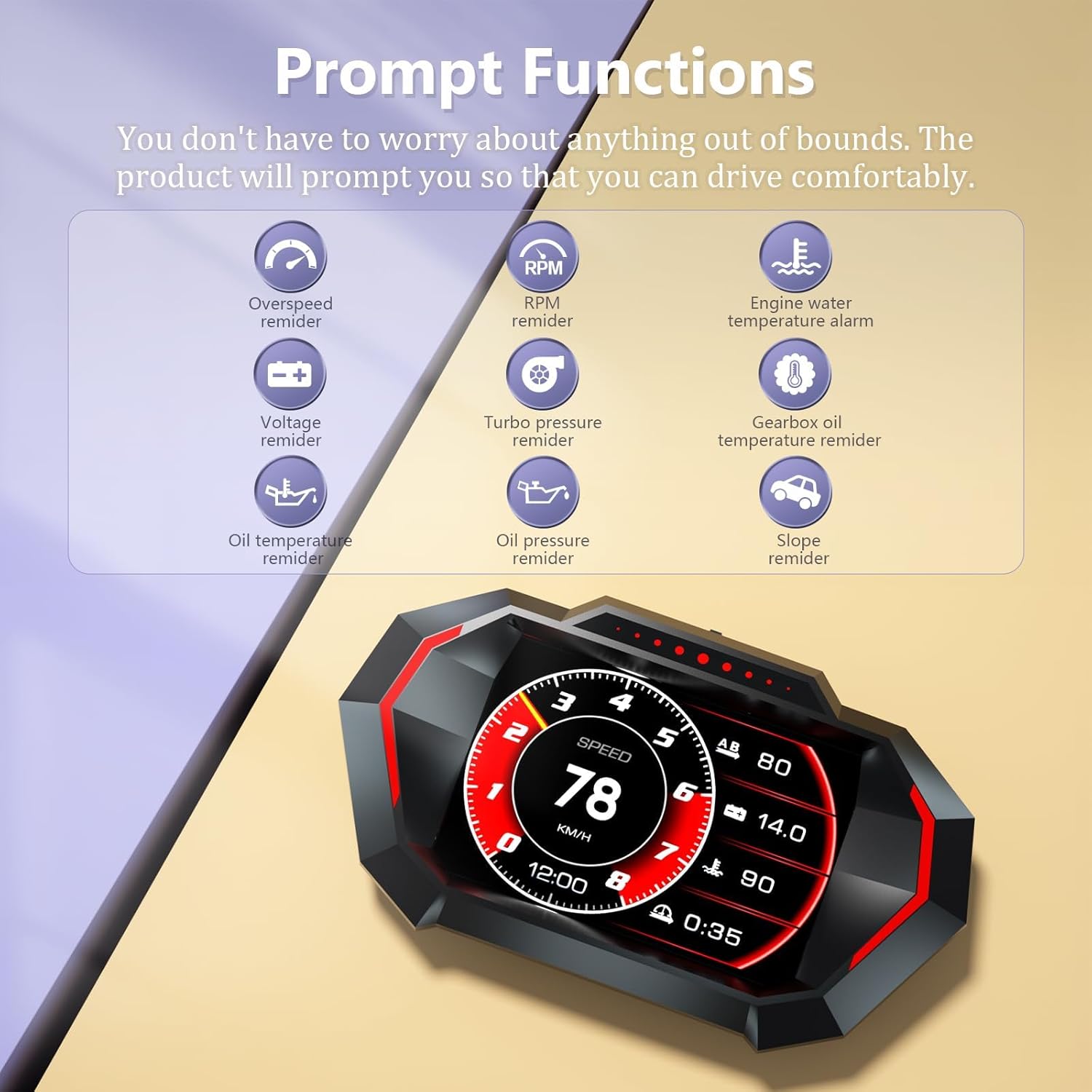
Figure 1.3: Visual representation of prompt functions such as overspeed reminder, RPM reminder, engine water temperature alarm, and more.
2. Einrichtung und Installation
Follow these steps to properly set up and install your AMROOLOO P24 Head-Up Display.
2.1 Packungsinhalt:
Vor der Installation sicherstellen, dass alle Komponenten vorhanden sind:
- P24 Monitor Unit
- Rotatable Support Bracket
- OBD-Kabel
- Anti-Rutsch-Pad
- Bedienungsanleitung

Figure 2.1: Included accessories: P24 monitor, anti-slip pad, OBD cable, rotatable support, and manual.
2.2 Placement and Connection:
- Wählen Sie eine geeignete, ebene Fläche auf Ihrem Armaturenbrett, die Ihre Sicht nicht behindert. view der Straße.
- Place the anti-slip pad on the chosen surface.
- Attach the P24 monitor to the rotatable support bracket and place it on the anti-slip pad.
- Connect the OBD cable to the Type-C interface on the P24 unit.
- Locate your vehicle's OBD2 port (usually under the dashboard near the steering wheel) and plug in the other end of the OBD cable.

Abbildung 2.2: Ausführlich view of the P24 unit showing the light sensor, toggle key, bracket hole, rotatable bracket, and Type-C interface for connection.

Figure 2.3: The P24 Head-Up Display installed on a car dashboard, showing its compact size and clear display.
2.3 Systemmodusauswahl:
The P24 supports both OBD and GPS modes. The device will automatically attempt to connect via OBD first. If your vehicle is not OBD2 compatible (e.g., older models before 2008), or if the OBD mode causes issues, the device can be switched to GPS mode.
- OBD-Modus: Applicable to most OBD2 compliant vehicles manufactured after 2008. Provides comprehensive vehicle data.
- GPS-Modus: Compatible with all car models as it receives signals from satellites. Displays speed, altitude, time, and other GPS-derived data.
The mode can be switched during boot-up or via the system settings. Refer to the 'Operating Instructions' section for detailed steps on switching modes.

Figure 2.4: The P24 supports three modes: OBD, GPS, and Slope Meter, which can be switched as needed.

Figure 2.5: Illustrates the broad compatibility of the P24, with OBD for newer vehicles and GPS for all models.
3. Bedienungsanleitung
This section details how to operate your AMROOLOO P24 Head-Up Display and utilize its various functions.
3.1 Ein-/Ausschalten:
- The device powers on automatically when the vehicle's ignition is turned on.
- It powers off automatically when the vehicle's ignition is turned off.
3.2 Navigating Menus (Toggle Key):
The toggle key (refer to Figure 2.2) is used to navigate through menus and adjust settings.
- Kurzes Drücken: Confirms selection or switches display interfaces.
- Lange drücken: Enters or exits menu settings.
- Nach links/rechts drücken: Navigiert durch Menüoptionen oder passt Werte an.
3.3 Switching Display Modes:
To switch between OBD and GPS modes:
- With the device powered on, long press the toggle key to enter the system settings.
- Push the toggle key left/right to navigate to the 'System Selection' option.
- Short press to select, then choose 'OBD' or 'GPS'.
- Long press to exit the settings.
3.4 Changing Speed Units (KM/H, MPH):
The P24 allows you to switch between kilometers per hour (KM/H) and miles per hour (MPH).
- Long press the toggle key to enter the system settings.
- Navigate to the 'Speed Unit' option.
- Short press to select, then choose 'KM/H' or 'MPH'.
- Long press to exit the settings.

Figure 3.1: The display showing speed in KM/H, illustrating the unit change capability.
3.5 Slope Meter Calibration:
If the slope meter readings are inaccurate, you can calibrate it:
- Drive your car onto a flat, level road.
- Gently push the toggle key to the left or right to initiate calibration. The display will indicate when calibration is complete.

Figure 3.2: The slope meter display showing pitch and roll angles, indicating the need for calibration on a flat surface.
3.6 Ambient Light Adjustment:
The P24 features ambient lighting that can be adjusted to your preferred color and intensity.
- Long press the toggle key to enter the system settings.
- Navigate to the 'Ambient Light' option.
- Short press to select, then push the toggle key left/right to cycle through color options or adjust brightness.
- Long press to exit the settings.

Figure 3.3: Comparison of the P24 display visibility during daytime and nighttime driving conditions.
Video 3.1: Demonstration of the P24 display changing modes and showing various data points while driving.
4. Wartung
To ensure the longevity and optimal performance of your AMROOLOO P24 Head-Up Display, follow these maintenance guidelines:
- Reinigung: Use a soft, dry cloth to clean the display screen and the unit's exterior. Avoid using abrasive cleaners, solvents, or spray directly onto the device.
- Lagerung: If not in use for an extended period, store the device in a cool, dry place away from direct sunlight and extreme temperatures.
- Handhabung: Behandeln Sie das Gerät mit Sorgfalt. Vermeiden Sie es, es fallen zu lassen oder starken Stößen auszusetzen.
- Kabelpflege: Ensure the OBD cable is not pinched or excessively bent, which could damage the internal wires.
5. Fehlerbehebung
This section addresses common issues you might encounter with your P24 Head-Up Display.
5.1 Device Does Not Power On:
- Verbindung prüfen: Ensure the OBD cable is securely plugged into both the P24 unit and the vehicle's OBD2 port.
- Fahrzeugzündung: Confirm the vehicle's ignition is on. The device powers on with the car.
- Kabelintegrität: Inspect the OBD cable for any visible damage.
5.2 No Data Displayed in OBD Mode:
- Fahrzeugkompatibilität: OBD mode is generally compatible with vehicles manufactured after 2008. If your car is older, it might not support OBD2 or a specific protocol.
- Switch to GPS Mode: If OBD mode is not working, switch the device to GPS mode. The GPS system is universally compatible as it relies on satellite signals.
- Funktionalität des OBD-Anschlusses: Ensure your vehicle's OBD2 port is functioning correctly. You can test it with another OBD device if available.
5.3 Inaccurate Slope Meter Readings:
- Kalibrierung: Calibrate the slope meter on a flat, level surface as described in Section 3.5.
- Fahrzeugbewegung: Ensure the vehicle is stationary and on a truly flat surface during calibration.
5.4 Compass/Direction Display is Unstable:
- Interferenz: Magnetic interference from other electronic devices or strong magnetic fields in the vehicle can affect the compass. Try repositioning the device slightly.
- GPS-Signal: Stellen Sie sicher, dass das Gerät frei ist view of the sky for optimal GPS signal reception, which is crucial for accurate direction.
Video 5.1: Example of the compass display, which might appear sensitive to minor movements or interference.
6. Spezifikationen
| Besonderheit | Spezifikation |
|---|---|
| Marke | AMROOLOO |
| Modellnummer | P24 |
| Abmessungen (L x B x H) | 12.3 x 5.1 x 7.3 cm |
| Gewicht | 76 Gramm |
| Material | Plastik |
| Bildschirmgröße | 5.13 Zoll |
| Konnektivität | OBD2, GPS |
| UPC | 723497757027 |
| Ursprungsland | China |
7. Garantie und Support
AMROOLOO is committed to providing high-quality products. While specific warranty details are not provided in this manual, please retain your purchase receipt for any warranty claims. For product support, technical assistance, or inquiries, please contact AMROOLOO customer service through the platform where you purchased the product.
Thank you for choosing AMROOLOO products. Your satisfaction is our priority.