1. Einleitung
Thank you for choosing the Delton Ergonomic Vertical Rechargeable Wireless Mouse S12. This manual provides detailed instructions for setting up, operating, and maintaining your new mouse. Designed for comfort and efficiency, this vertical mouse promotes a more natural hand and wrist posture, reducing strain during extended computer use.
Please read this manual thoroughly before use to ensure optimal performance and longevity of your device.
2. Packungsinhalt
Überprüfen Sie, ob alle Artikel in Ihrem Paket vorhanden sind:
- Delton Ergonomic Vertical Wireless Mouse
- USB Dongle (2.4GHz receiver)
- USB-Ladekabel
- Benutzerhandbuch (dieses Dokument)
3. Produktüberschreitungview
The Delton S12 mouse features an ergonomic vertical design, six programmable buttons, and adjustable DPI settings for precise control. It connects wirelessly via a 2.4GHz USB dongle and is powered by a rechargeable battery.

Image: The Delton S12 Ergonomic Vertical Wireless Mouse, shown with its accompanying USB dongle.
3.1 Ergonomisches Design
The vertical orientation of the mouse is designed to align your hand and wrist in a natural handshake position, which can help reduce muscle strain and discomfort often associated with traditional mice.

Image: A hand comfortably gripping the Delton vertical mouse, demonstrating the natural, ergonomic wrist position it promotes.
3.2 Drahtlose Konnektivität
The mouse connects wirelessly to your device via a 2.4GHz USB dongle, offering a stable connection up to 30 feet (10 meters). This provides flexibility and reduces cable clutter.

Image: The Delton vertical mouse wirelessly connected to a laptop, with the USB dongle inserted into the laptop's port.
3.3 Akku
Equipped with a built-in rechargeable Lithium-Ion battery, the mouse offers up to 30 days of daily use and 12 months of standby time on a single charge. It can also be used while charging.

Image: The Delton vertical mouse being charged via a USB cable, illustrating its rechargeable feature.
3.4 Six Buttons Functionality
The mouse features six responsive buttons for enhanced productivity:
- Linksklick
- Rechtsklick
- Scrollrad (mit Klickfunktion)
- DPI-Umschalttaste
- Weiter-Taste
- Zurück-Taste

Image: A detailed diagram highlighting the location and function of the six buttons on the Delton vertical mouse.
3.5 Customizable DPI Levels
Adjust the mouse sensitivity with three DPI settings: 800, 1200, and 2400. An indicator light changes color to show the current DPI level.
- Blau: 800 DPI
- Rot: 1200 DPI
- Grün: 2400 DPI
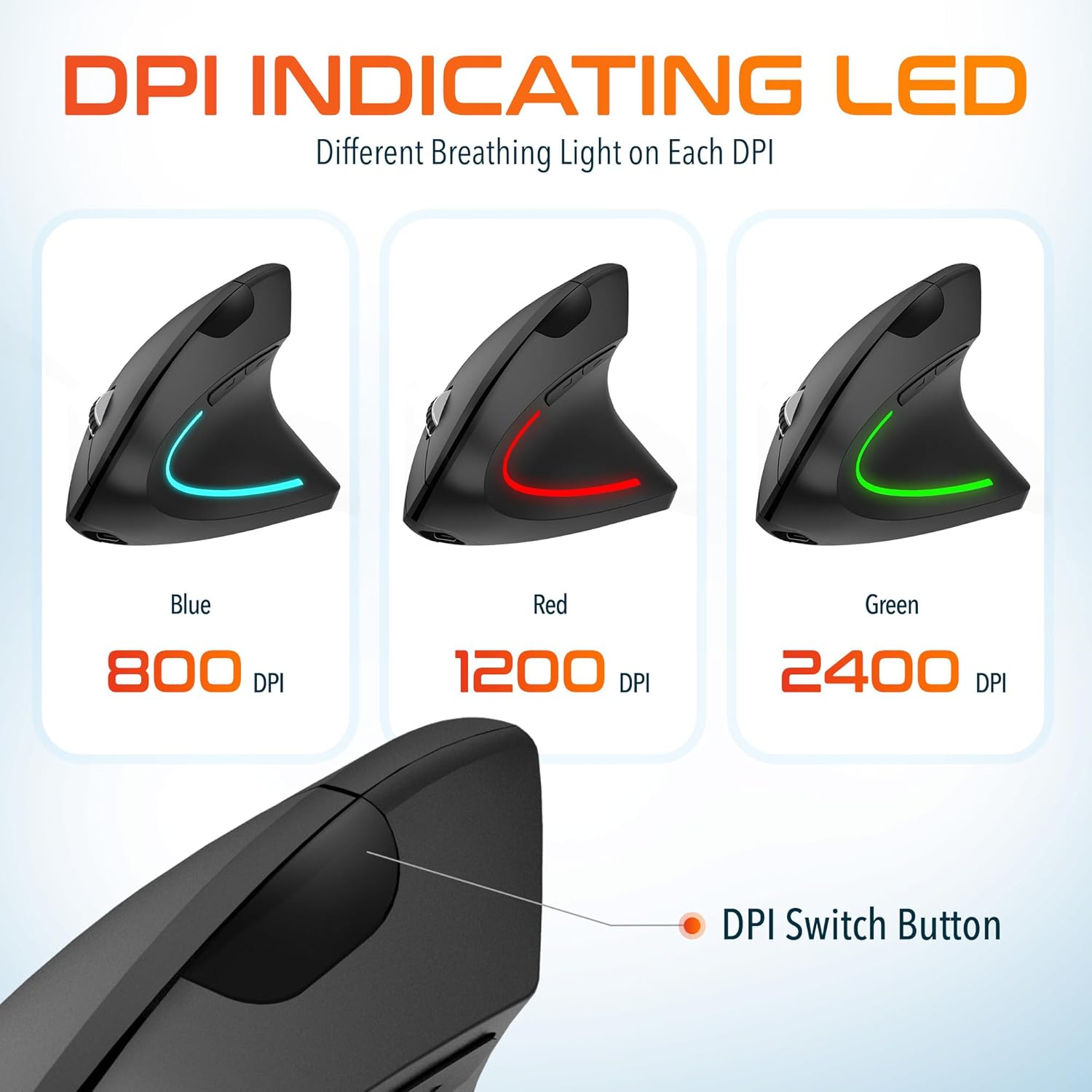
Image: The Delton vertical mouse displaying its LED indicator in blue (800 DPI), red (1200 DPI), and green (2400 DPI) to show current sensitivity settings.
4. Einrichtungsanweisungen
4.1 Aufladen der Maus
- Schließen Sie das mitgelieferte USB-Ladekabel an den Ladeanschluss an der Vorderseite der Maus an.
- Plug the other end of the USB cable into a USB power source (e.g., computer USB port, wall adapter, power bank).
- The LED indicator will illuminate during charging and turn off when fully charged. A full charge typically takes approximately 1 hour.
4.2 Connecting the USB Dongle
- Locate the USB dongle, usually stored in a compartment on the underside of the mouse.
- Insert the USB dongle into an available USB port on your computer (PC, Laptop, Mac, Chromebook).
- The system will automatically detect and install the necessary drivers. This process may take a few moments.
4.3 Ein-/Ausschalten
Locate the power switch on the underside of the mouse. Slide the switch to the 'ON' position to power on the mouse. Slide it to 'OFF' when not in use to conserve battery life.
5. Bedienungsanleitung
5.1 DPI-Anpassung
To change the mouse sensitivity (DPI), press the DPI switch button located on the top of the mouse, behind the scroll wheel. Each press cycles through the available DPI settings (800, 1200, 2400), indicated by the changing color of the LED light.
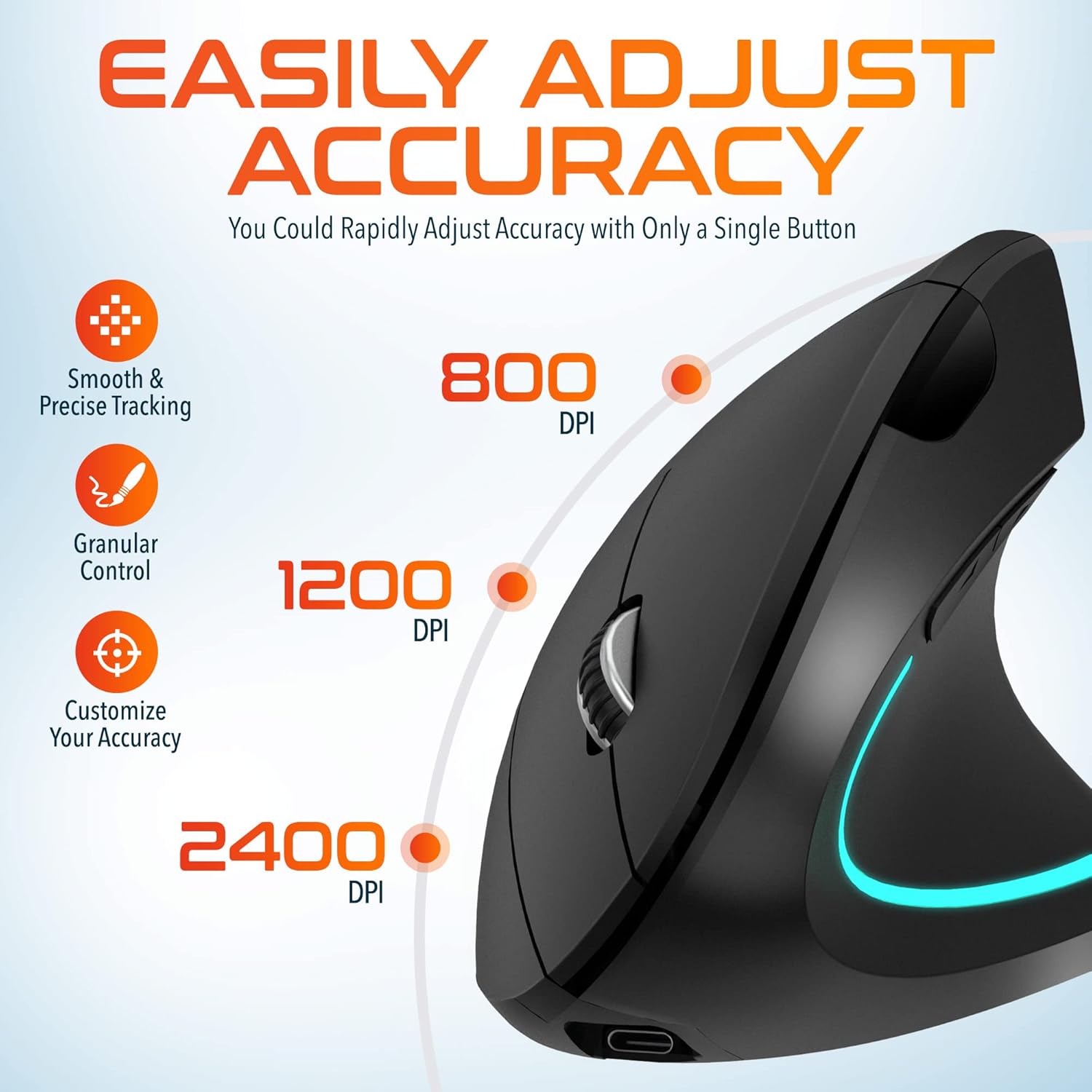
Image: A visual representation of the three adjustable DPI settings (800, 1200, 2400) and their corresponding cursor precision levels.
5.2 Tastenfunktionen
- Links Klick: Standardmäßige primäre Klickfunktion.
- Rechtsklick: Standardmäßige Sekundärklickfunktion.
- Scrollrad: Scrollen Sie in den Dokumenten nach oben oder unten und web Seiten. Durch Drücken des Scrollrades wird ein Mittelklick ausgelöst.
- Vorwärts-Taste: Navigiert vorwärts in web Browser bzw file Entdecker.
- Rückwärts-Taste: Navigiert rückwärts in web Browser bzw file Entdecker.

Bild: Eine Nahaufnahme view of the mouse's scroll wheel and the conveniently placed forward and backward shortcut keys.
6. Wartung
- Reinigung: Reinigen Sie die Maus mit einem weichen, trockenen Tuch. Bei hartnäckigem Schmutz leicht andrücken.ampBefeuchten Sie das Tuch mit Wasser. Vermeiden Sie die Verwendung von scharfen Chemikalien oder scheuernden Materialien.
- Lagerung: Bewahren Sie die Maus bei längerer Nichtbenutzung an einem kühlen, trockenen Ort auf. Stellen Sie sicher, dass der Netzschalter ausgeschaltet ist, um die Batterielebensdauer zu verlängern.
- Batteriepflege: Vermeiden Sie häufiges vollständiges Entladen des Akkus. Laden Sie die Maus regelmäßig auf, um die Akkuleistung zu erhalten.
7. Fehlerbehebung
| Problem | Mögliche Ursache | Lösung |
|---|---|---|
| Maus reagiert nicht | Low battery; USB dongle not connected; Mouse not powered on; Driver issue | Charge the mouse; Ensure dongle is securely plugged in; Turn on the mouse; Try a different USB port; Restart computer |
| Intermittierende Verbindung | Interference; Dongle too far from mouse; Low battery | Move mouse closer to dongle; Remove obstacles; Charge the mouse; Avoid using near other 2.4GHz devices |
| DPI ändert sich nicht | DPI button not pressed correctly; Mouse unresponsive | Press the DPI button firmly; Check battery and connection |
| Mauszeiger bewegt sich unregelmäßig | Dirty optical sensor; Uneven surface | Clean the optical sensor with a soft cloth; Use on a clean, flat mouse pad or surface |
8. Spezifikationen
| Besonderheit | Detail |
|---|---|
| Modellnummer | Staffel 12 |
| Konnektivität | 2.4-GHz-Funk (USB-Dongle) |
| DPI-Stufen | 800 / 1200 / 2400 |
| Schaltflächen | 6 (Links, Rechts, Mausrad, DPI, Vorwärts, Rückwärts) |
| Akku-Typ | Wiederaufladbarer Lithium-Ionen-Akku (im Lieferumfang enthalten) |
| Drahtlose Reichweite | Bis zu 30 Meter |
| Technische Daten | 5 x 2.6 x 3.25 Zoll |
| Artikelgewicht | 4.9 Unzen |
| Kompatibilität | PC, Laptop, Mac, Chromebook (Windows, macOS, iOS) |
9. Garantie und Support
Delton products are designed for reliability and performance. For warranty information or technical support, please refer to the contact details provided with your purchase or visit the official Delton webBewahren Sie Ihren Kaufbeleg als Kaufnachweis für Garantieansprüche auf.


