Einführung
Welcome to your new JOYACCESS 2.4G Wireless Keyboard and Mouse Combo. This manual provides detailed instructions for the setup, operation, maintenance, and troubleshooting of your devices. Designed for comfort and efficiency, this combo offers a stable 2.4G wireless connection and an ergonomic design for prolonged use.

Image: The JOYACCESS Wireless Keyboard and Mouse Combo, featuring an Alpine Green finish with a compact keyboard, ergonomic mouse, and the USB nano receiver.
Installationshandbuch
Packungsinhalt
- 1 x JOYACCESS Wireless Keyboard
- 1 x JOYACCESS Wireless Mouse
- 1 x USB-Nano-Empfänger
- 1 x Benutzerhandbuch
Einlegen der Batterie
Die Tastatur benötigt zwei (2) AA-Batterien, die Maus eine (1) AA-Batterie. Batterien sind nicht im Lieferumfang enthalten.
- Suchen Sie das Batteriefach an der Unterseite von Tastatur und Maus.
- Öffnen Sie die Abdeckung des Batteriefachs.
- Legen Sie die AA-Batterien ein und achten Sie dabei auf die richtige Polarität (+/-).
- Schließen Sie den Batteriefachdeckel fest.

Image: Illustration showing the mouse's battery compartment open, revealing the slot for the AA battery and the storage location for the USB Nano Receiver.
Connecting the Devices (Plug & Play)
Your JOYACCESS wireless combo uses a single USB Nano Receiver for both the keyboard and mouse, simplifying connectivity.
- Locate the USB Nano Receiver. It is typically stored within the mouse's battery compartment for convenience.
- Stecken Sie den USB-Nano-Empfänger in einen freien USB-Anschluss Ihres Computers oder Laptops.
- Turn on the power switches for both the keyboard and the mouse. The devices should automatically connect to your computer within a few seconds. No additional drivers are required for most operating systems.
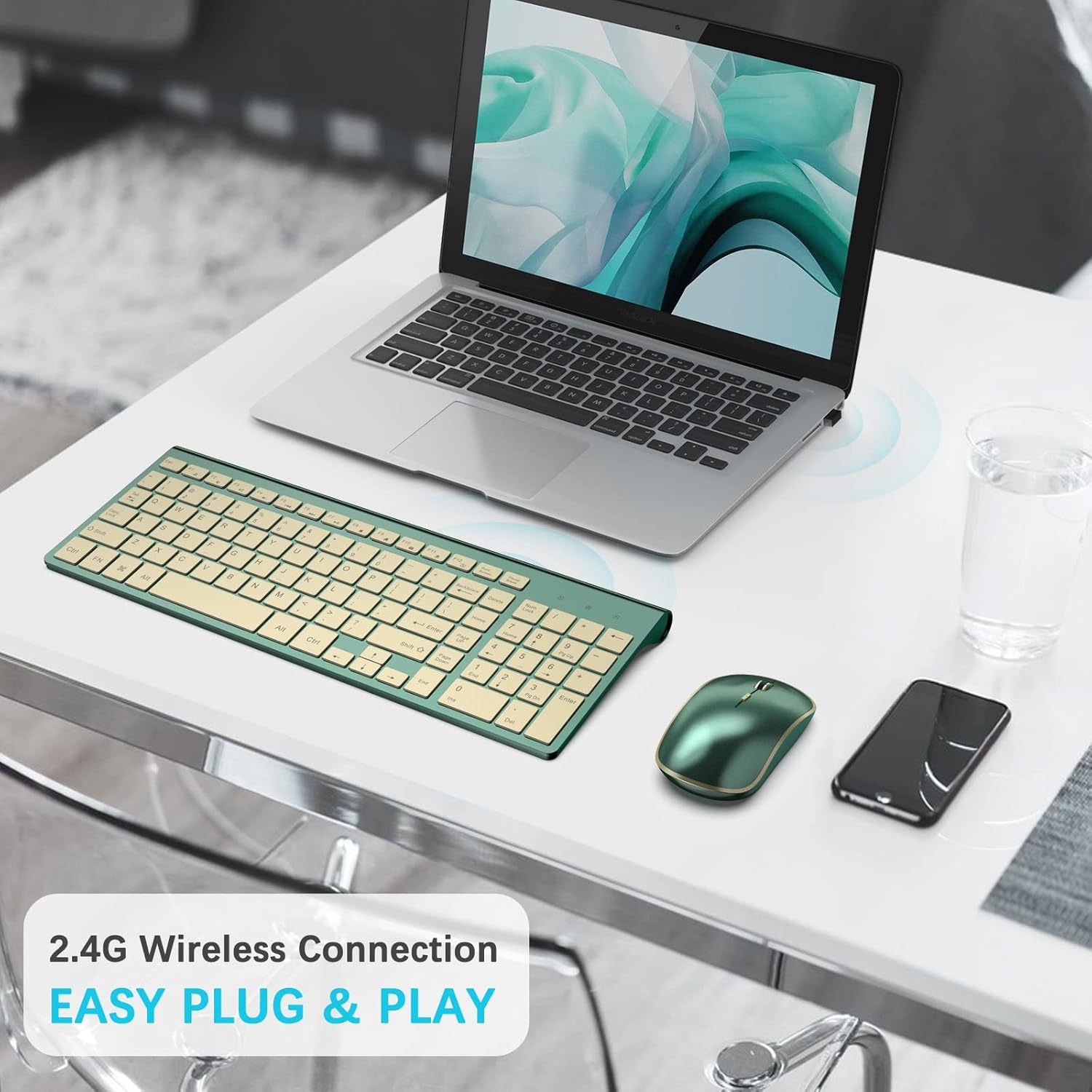
Image: A laptop with the USB Nano Receiver plugged into its side, illustrating the 2.4G wireless connection setup for the keyboard and mouse.
Bedienungsanleitung
Tastaturfunktionen
The keyboard features a scissor-cross low profile structure for responsive and quiet typing. It is designed for comfort and efficiency.
- Auto-sleep Mode: To conserve battery life, the keyboard will automatically enter sleep mode after 10 minutes of inactivity.
- Aufwachen: To wake the keyboard from sleep mode, simply press any key.
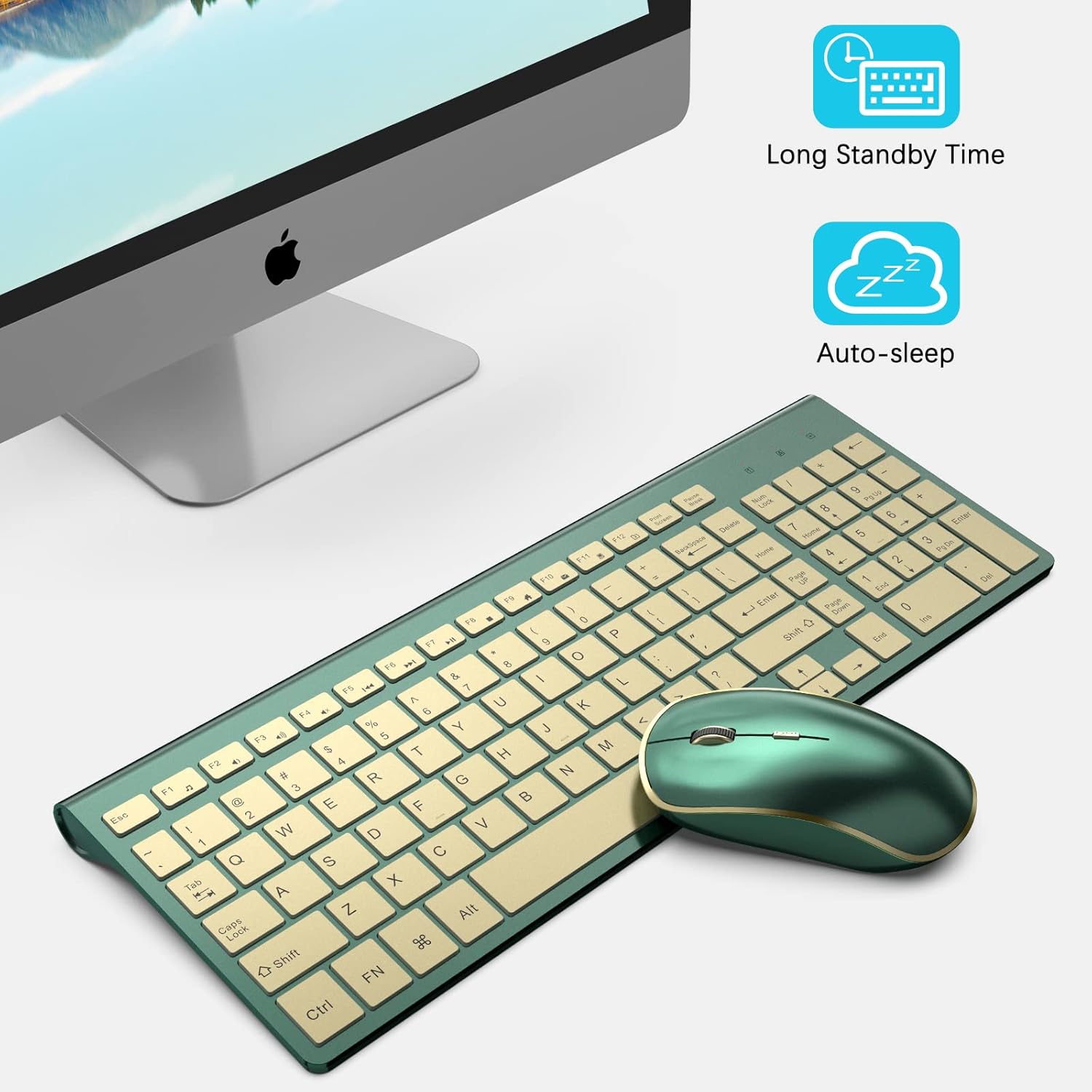
Image: An illustration demonstrating the keyboard's auto-sleep mode and how pressing any key will wake it up for continued use.

Bild: Eine Nahaufnahme view of a keyboard key, highlighting the responsive scissor switch mechanism for a comfortable typing experience.
Mausfunktionen
The contoured wireless mouse offers adjustable sensitivity and an ergonomic design.
- Einstellbare DPI-Stufen: The mouse features 5 adjustable DPI (Dots Per Inch) levels: 800, 1200, 1600, 2000, and 2400. This allows you to customize cursor sensitivity based on your activity (e.g., 1600 DPI for office work, 2000-2400 DPI for 4K monitors or gaming).
- DPI ändern: To adjust the DPI, press the right mouse button and the scroll wheel simultaneously for 3 seconds. The DPI setting will cycle through the available levels.
- Abfragerate: The mouse supports two polling rates: 125Hz and 250Hz. This can be adjusted using the same method as changing DPI (press right key and scroll wheel simultaneously for 3 seconds).
- Auto-sleep Mode: The mouse will automatically enter power-saving mode after 20 seconds of inactivity.
- Aufwachen: To wake the mouse from sleep mode, simply move it.
Bild: Eine detaillierte view of the mouse, illustrating the adjustable DPI levels (800/1200/1600/2000/2400) and the location of the USB Nano Receiver.
Wartung
Reinigung
Um das Aussehen und die Funktionalität Ihrer Tastatur und Maus zu erhalten:
- Verwenden Sie ein weiches, trockenes, fusselfreies Tuch, um die Oberflächen abzuwischen.
- Bei hartnäckigen Verschmutzungen leicht dampen the cloth with water or a mild, non-abrasive cleaner. Avoid harsh chemicals, solvents, or abrasive materials.
- Do not immerse the devices in water or allow liquids to enter the internal components.
Batteriewechsel
Replace batteries when you notice a decrease in performance, such as delayed response or intermittent connectivity. Always use fresh, high-quality AA batteries.
Fehlerbehebung
Connectivity Issues / Devices Not Responding
- Batterien prüfen: Ensure both the keyboard and mouse have fresh batteries and are inserted with correct polarity.
- Leistung überprüfen: Make sure the power switches on both devices are in the 'ON' position.
- Empfängeranschluss: Confirm the USB Nano Receiver is securely plugged into a working USB port on your computer. Try a different USB port if necessary.
- Entfernung und Interferenz: Ensure the keyboard and mouse are within the 10-meter operating range of the receiver and away from potential sources of interference (e.g., other wireless devices, large metal objects).
- Verfahren zur erneuten Kopplung: If connectivity issues persist, try the following re-pairing steps:
- Schalten Sie die Tastatur aus.
- Unplug the USB Nano Receiver from your computer.
- Turn the keyboard on and immediately hold down the ESC Und "+=" keys simultaneously until the charging LED indicator turns on.
- Quickly plug the USB Nano Receiver back into your computer. The keyboard should now be re-paired.
Mouse Lag or Unresponsiveness
- Batteriestand: Low battery can cause lag. Replace the mouse battery.
- DPI-Einstellung: Adjust the mouse DPI to a suitable level for your screen resolution and preference. Higher DPI settings can sometimes feel more responsive.
- Oberfläche: Ensure the mouse is used on a suitable surface. While the mouse works on various surfaces, an uneven or highly reflective surface might affect tracking.
Produktspezifikationen
| Besonderheit | Spezifikation |
|---|---|
| Technische Daten | 14.5 x 2 x 5.6 Zoll |
| Artikelgewicht | 1.34 Pfund |
| Batterien erforderlich | 3 AA batteries (2 for keyboard, 1 for mouse) |
| Konnektivitätstechnologie | 2.4 G USB-Wireless |
| Besondere Merkmale | Ergonomic, Lightweight, Portable, Quiet Keystrokes |
| Kompatible Geräte | Laptop, Personal Computer, Television (Windows 2000 / ME / XP / Vista / 7 / 8 / 12, Macbook, Chrome-book, PC, Smart TV) |
| Drahtlose Reichweite | Bis zu 10 Meter (33 Fuß) |
| Maus-DPI-Stufen | 800/1200/1600/2000/2400 |
| Abfragerate der Maus | 125Hz / 250Hz |

Bild: Ein überview showing the JOYACCESS keyboard and mouse compatible with PC, Laptop, Desktop, Windows, and Mac OS devices.
Garantie und Support
JOYACCESS products typically come with a standard warranty. Please refer to your purchase documentation or the product listing for specific warranty terms and duration. For technical support, troubleshooting assistance, or any inquiries regarding your product, please visit the official JOYACCESS website or contact their customer service through the retailer where the product was purchased.
Besuchen Sie auch die JOYACCESS Store on Amazon für weitere Informationen und Supportressourcen.