Einführung
The Logitech POP Mouse is a compact, wireless mouse designed for enhanced productivity and personal expression. Featuring SilentTouch Technology for quiet clicks, a customizable top button for emojis or shortcuts, and a SmartWheel that shifts between precision and speed scrolling, it offers a versatile user experience. This mouse supports multi-device connectivity via Bluetooth, allowing seamless switching between up to three devices. It is built with durability in mind, offering up to 24 months of battery life and auto-sleep power-saving features.
Lieferumfang
- Logitech POP Maus
- 1 x AA-Batterie (vorinstalliert)
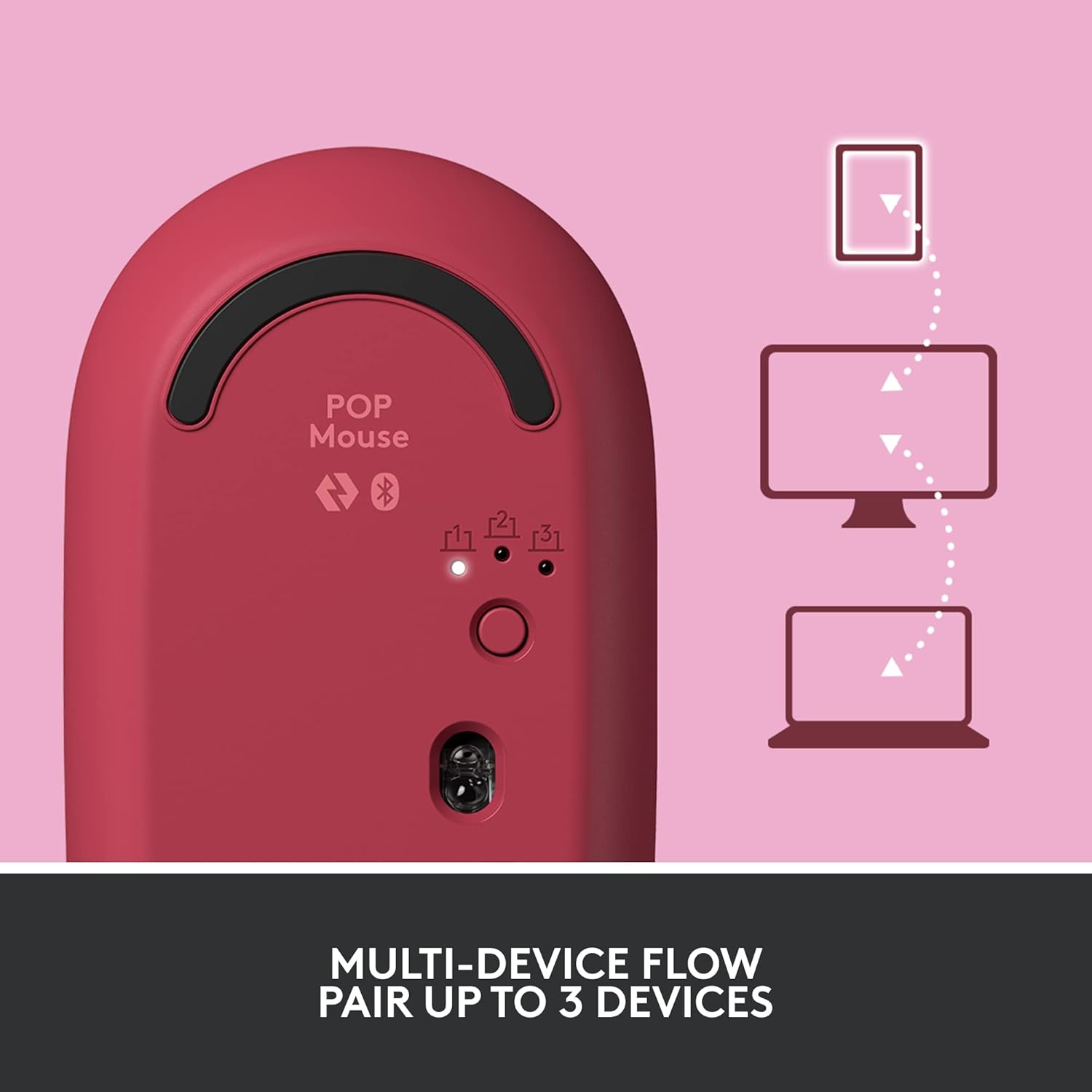
Image: The Logitech POP Mouse and an included AA battery, as typically found in the product packaging.
Aufstellen
1. Einlegen der Batterie
- Suchen Sie das Batteriefach auf der Unterseite der Maus.
- Schieben Sie die obere Abdeckung der Maus vorsichtig nach hinten, um sie zu entfernen.
- Legen Sie die mitgelieferte AA-Batterie ein und achten Sie dabei auf die richtige Polarität (+/-).
- Replace the top cover by aligning it and sliding it forward until it clicks into place.
2. Einschalten
- Flip the mouse over. Locate the On/Off switch on the bottom of the mouse.
- Slide the switch to the 'On' position (usually indicated by green color).
3. Gerätekopplung (Bluetooth)
- On the bottom of the mouse, press and hold the Easy-Switch button (labeled with 1, 2, or 3) for 3 seconds until the LED light starts blinking rapidly. This indicates pairing mode.
- On your computer, tablet, or phone, open your Bluetooth settings.
- Wählen Sie „Logitech POP Mouse“ aus der Liste der verfügbaren Geräte aus.
- Follow any on-screen prompts to complete the pairing process. The LED light on the mouse will turn solid for 5 seconds when connected.
4. Umschaltung mehrerer Geräte
- The POP Mouse can be paired with up to three devices. To switch between paired devices, simply press the Easy-Switch button on the bottom of the mouse. The corresponding LED (1, 2, or 3) will light up to indicate the active device.
Image: The Logitech POP Mouse can seamlessly connect and switch between up to three different devices, such as a tablet, desktop computer, and laptop.
Bedienung der Maus
1. Grundfunktionen
- Links Klick: Primäre Selektion und Interaktion.
- Rechtsklick: Greift auf Kontextmenüs zu.
- Scrollrad: Scrollt vertikal durch Dokumente und web Seiten.
2. SmartWheel-Technologie
- The SmartWheel automatically shifts between high-precision scrolling for detailed work and super-fast scrolling for quickly navigating long documents or web Seiten.

Image: The SmartWheel on the Logitech POP Mouse dynamically adjusts its scrolling mode for precision or speed.
3. SilentTouch-Technologie
- Enjoy a quiet working environment with SilentTouch Technology, which significantly reduces click noise without compromising tactile feedback.

Image: SilentTouch Technology ensures a quiet and comfortable user experience.
Anpassung
1. Anpassbarer oberer Knopf
- The top button, located below the scroll wheel, is customizable. By default, it opens an emoji menu for quick access to your favorite emojis.

Image: The customizable top button allows for quick access to an emoji menu on your screen.
2. Logi Options+ App
- Laden Sie die Logi Options+ App (Windows and macOS only) to personalize your POP Mouse.
- You can reassign the top button to perform various shortcuts, such as Snip Screen, Mic Mute, Voice-to-Text, or any other function you desire.
- The app also allows you to adjust pointer speed, scroll speed, and enable Flow for cross-computer control.
Wartung
- Reinigung: Verwenden Sie ein weiches,amp Verwenden Sie ein Tuch, um die Außenseite der Maus zu reinigen. Vermeiden Sie scharfe Chemikalien oder scheuernde Materialien.
- Batteriewechsel: Replace the AA battery when the low battery indicator light appears.
- Lagerung: When not in use for extended periods, turn off the mouse using the On/Off switch to conserve battery life.
Fehlerbehebung
- Maus verbindet sich nicht: Ensure the mouse is powered on and within range of your device. Check your device's Bluetooth settings to confirm it's enabled and the mouse is paired. Try re-pairing the mouse.
- Verzögerung oder unregelmäßige Bewegung: Replace the battery if it's low. Ensure there are no obstructions between the mouse and your device. Avoid using the mouse on highly reflective or uneven surfaces.
- Custom button not working: Verify that the Logi Options+ App is installed and running on your computer. Check the button assignments within the app.
Technische Daten
| Marke | Logitech |
| Modellnummer | 910-006545 |
| Konnektivitätstechnologie | Bluetooth 5.1 |
| Drahtlose Reichweite | 32.81 Fuß (10 m) |
| Sensor Technology | Logitech High Precision Optical Tracking |
| Anzahl der Tasten | 4 (Left/Right click, Scroll wheel click, Top button) |
| Anpassbare Schaltfläche | Yes (Top button, via Logi Options+ App) |
| Akku-Typ | 1 x AA-Batterie |
| Akkulaufzeit | Bis zu 24 Monate (kann je nach Nutzung variieren) |
| Betriebssystemkompatibilität | Windows 10 or later, macOS 10.15 or later, iPadOS, Chrome OS, Android |
| Artikelgewicht | 2.89 Unzen |
| Produktabmessungen (L x B x H) | 4.3 x 2.6 x 1.7 Zoll |
| Material | Plastic parts include certified post-consumer recycled plastic (Heartbreaker Rose: 29%) |
Garantie und Support
Informationen zur Garantie und technischen Unterstützung finden Sie auf der offiziellen Logitech-Supportseite. website or refer to the warranty card included with your product. You can find detailed FAQs, troubleshooting guides, and contact options for customer service.
- Online-Hilfe: Besuchen support.logi.com
- Produktregistrierung: Registrieren Sie Ihr Produkt, um Updates und Support zu erhalten.


