1. Introduktion
This manual provides detailed instructions for using your Xiaomi Pad 7 tablet. It covers everything from initial setup to advanced features, ensuring you can maximize your device's potential. Please read this guide thoroughly to understand all functionalities and maintain optimal performance of your tablet.
Note: The images included in this manual are of the "Xiaomi Pad 7 User Guide" book, which provides the content for this digital manual. They do not depict the Xiaomi Pad 7 tablet itself.
2. Indledende opsætning
Follow these steps to set up your Xiaomi Pad 7 for the first time:
- Unboxing and Power On: Carefully remove your tablet from its packaging. Press and hold the power button until the Xiaomi logo appears.
- Sprog og region: Select your preferred language and region from the on-screen prompts.
- Opret forbindelse til Wi-Fi: Choose your Wi-Fi network and enter the password to connect to the internet. This is essential for downloading updates and setting up your Google account.
- Google-kontoopsætning: Log ind med din eksisterende Google-konto, eller opret en ny. Dette giver adgang til Google Play Butik, Gmail og andre Google-tjenester.
- Xiaomi Account (Optional): Consider signing in or creating a Xiaomi account for access to Xiaomi Cloud services, device synchronization, and other exclusive features.
- Dataoverførsel: If you are upgrading from another device, follow the on-screen instructions to transfer your data.
- Sikkerhedsopsætning: Set up a screen lock method (PIN, pattern, password, fingerprint, or face unlock) to protect your device.
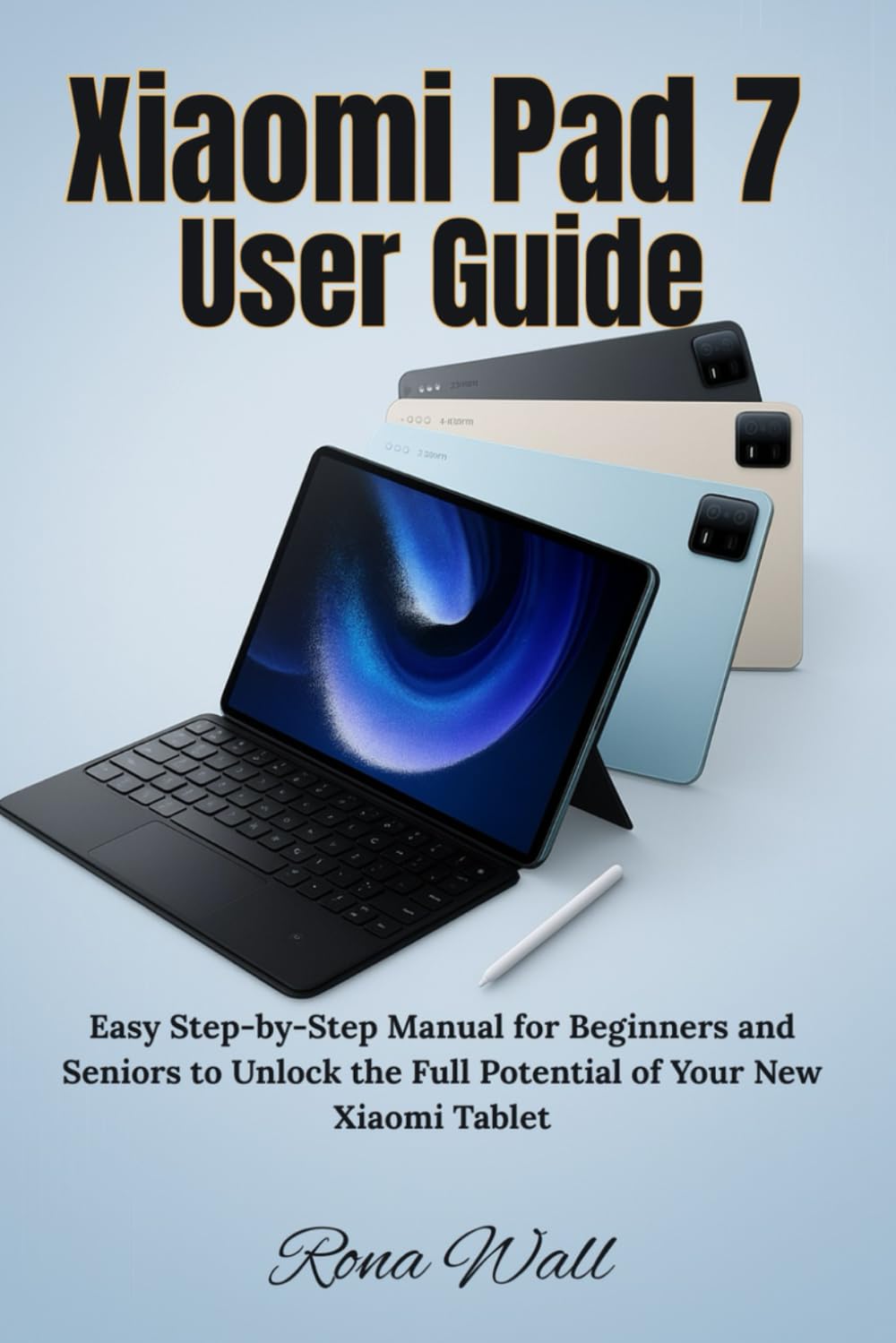
Image: Front cover of the "Xiaomi Pad 7 User Guide" book. This book provides the content for this manual.
3. Device Operation and Navigation
3.1 Fysisk layout
Familiarize yourself with the physical buttons and ports on your Xiaomi Pad 7:
- Power knap: Located on the top/side, used to turn the device on/off, lock/unlock the screen, and restart.
- Lydstyrkeknapper: Located on the side, used to adjust media volume, call volume, and notification volume.
- USB-C-port: Located at the bottom, used for charging, data transfer, and connecting accessories.
- Højttalere: Typically located on the sides for audio output.
- Mikrofoner: For voice input during calls or recordings.
3.2 Touchscreen Gestures
Naviger på din tablet ved hjælp af intuitive berøringsbevægelser:
- Tryk på: Select an item, open an app, or confirm an action.
- Langt tryk: Få adgang til kontekstmenuer eller flyt ikoner.
- Stryg: Scroll through pages, switch between home screens, or dismiss notifications.
- Knib-for-at-zoome: Forstør eller formindsk indhold som f.eks. fotos og web sider.
- Two-Finger Swipe: Often used for specific app functions or scrolling.
3.3 Notification Panel and Quick Settings
Swipe down from the top of the screen to access:
- Meddelelser: View alerts from apps and the system.
- Hurtige indstillinger: Toggle Wi-Fi, Bluetooth, screen brightness, rotation lock, and more.
4. Key Features and Customization
4.1 Personalization Tools
Customize your Xiaomi Pad 7 to reflect your style:
- Baggrunde og temaer: Change your home screen and lock screen backgrounds. Explore various themes to alter the entire look and feel of your MIUI interface.
- widgets: Tilføj widgets til din startskærm for hurtig adgang til information og appfunktioner.
- Startskærmens layout: Organize app icons, create folders, and adjust grid size.
4.2 Produktivitet og multitasking
Enhance your efficiency with these features:
- Opdelt skærm: Run two apps side-by-side simultaneously.
- Flydende vinduer: Open apps in resizable, movable windows over other applications.
- Smart Keyboard and Stylus Support: Connect compatible accessories for improved typing and drawing experiences.
4.3 Entertainment Essentials
Your Xiaomi Pad 7 is designed for immersive entertainment:
- Medieafspilning: Enjoy videos, music, and podcasts using pre-installed apps or downloaded streaming services.
- Læsetilstand: Optimize the screen for comfortable reading, reducing eye strain.
- Spil: Download and play a wide range of games from the Google Play Store.
4.4 Camera and Gallery Mastery
Capture and manage your memories:
- Tag billeder og videoer: Use the camera app to capture high-quality images and record videos. Explore various modes like Portrait, Panorama, and Pro mode.
- Gallery Features: Organize, view, and perform basic edits on your photos and videos.
- Deling: Easily share your media through social media, messaging apps, or cloud services.
4.5 Xiaomi Cloud and Account Services
Leverage Xiaomi's ecosystem for data management:
- Cloud-backup: Back up your photos, contacts, messages, and app data to Xiaomi Cloud.
- Enhedssynkronisering: Synchronize data across multiple Xiaomi devices.
- Find enhed: Locate, lock, or erase your device remotely if it's lost or stolen.
4.6 Security and Privacy Settings
Protect your tablet and personal information:
- Skærm lås: Configure PIN, pattern, password, fingerprint, or face unlock.
- App-tilladelser: Manage which apps have access to your camera, microphone, location, and other sensitive data.
- Privatlivsdashboard: Monitor app access to your privacy-sensitive data.
- Sikkerhedsopdateringer: Ensure your system is always up-to-date with the latest security patches.
4.7 Advanced Features and Tips
Explore additional functionalities for enhanced control:
- Batterioptimering: Utilize power-saving modes and monitor battery usage to extend battery life.
- Udvikler muligheder: (For advanced users) Access settings for debugging, animation scales, and other system-level controls.
- Systemopdateringer: Regularly check for and install MIUI system updates to get new features and performance improvements.
5. Vedligeholdelse
Proper maintenance ensures the longevity and optimal performance of your Xiaomi Pad 7:
- Rensning: Brug en blød, fnugfri klud til at rengøre skærmen og kabinettet. Undgå skrappe kemikalier eller slibende materialer.
- Softwareopdateringer: Always keep your operating system and apps updated to the latest versions for security and performance enhancements.
- Batteripleje: Avoid extreme temperatures. Do not let the battery drain completely regularly, and avoid keeping it at 100% charge for extended periods.
- Lagerstyring: Ryd cachen regelmæssigt, slet unødvendige filer files, og afinstaller ubrugte apps for at frigøre lagerplads.

Image: Back cover of the "Xiaomi Pad 7 User Guide" book, showing the ISBN barcode.
6. Fejlfinding af almindelige problemer
Her er løsninger på nogle almindelige problemer, du kan støde på:
- Enheden tænder ikke: Ensure the battery is charged. Connect to a charger and wait a few minutes before attempting to power on again. If unresponsive, try a forced restart (usually by holding the power button for 10-15 seconds).
- Apps der går ned eller fryser: Close the app and reopen it. Clear the app's cache and data in Settings > Apps. If the issue persists, uninstall and reinstall the app.
- Problemer med Wi-Fi/Bluetooth-forbindelse: Toggle Wi-Fi/Bluetooth off and on. Restart your tablet and your router/Bluetooth device. Forget the network/device and reconnect.
- Langsom ydeevne: Close background apps. Clear cache. Restart the device. Ensure sufficient free storage space.
- Batteriet aflades hurtigt: Check battery usage in Settings to identify power-hungry apps. Reduce screen brightness, disable unnecessary features (GPS, Bluetooth, Wi-Fi when not in use).
- Gendan fabriksindstillinger: As a last resort, if software issues persist, you can perform a factory reset (Settings > About tablet > Factory reset). Advarsel: Dette vil slette alle data på din enhed. Sikkerhedskopier vigtige data, før du fortsætter.
7. Specifikationer
Detailed technical specifications for the Xiaomi Pad 7 tablet are typically found on the official Xiaomi website, product packaging, or within the device's settings (Settings > About tablet). Key specifications generally include:
- Vise: Screen size, resolution, panel type.
- Processor: CPU model and core count.
- Hukommelse (RAM): Amount of RAM.
- Opbevaring: Internal storage capacity.
- Kameraer: Front and rear camera megapixels and features.
- Batteri: Battery capacity (mAh).
- Operativsystem: Android version and MIUI version.
- Forbindelse: Wi-Fi standards, Bluetooth version, cellular support (if applicable).
- Dimensioner og vægt: Physical size and weight of the tablet.
Please refer to the official Xiaomi product page for the most accurate and up-to-date specifications for your specific Xiaomi Pad 7 model.
8. Garanti og support
8.1 Garantioplysninger
Your Xiaomi Pad 7 comes with a limited warranty. The terms and conditions of the warranty vary by region and retailer. Please refer to the warranty card included with your product or visit the official Xiaomi webwebstedet for detaljerede garantioplysninger specifikt for dit køb.
Typically, the warranty covers manufacturing defects but does not cover damage caused by misuse, accidents, unauthorized repairs, or normal wear and tear.
8.2 Kundesupport
For technical assistance, service, or further inquiries, please contact Xiaomi customer support through one of the following channels:
- Officiel Xiaomi Webwebsted: Besøg mi.com/global/support for ofte stillede spørgsmål, fejlfindingsvejledninger og kontaktmuligheder.
- Servicecentre: Locate authorized Xiaomi service centers in your region.
- Telefonsupport: Check the Xiaomi support webhjemmeside for lokale kundeservicetelefonnumre.
Når du kontakter support, bedes du have din enheds serienummer og købsbevis klar.