Indledning
This manual provides essential information for the proper setup, operation, and maintenance of your Logitech Rally Bar Huddle and TAP IP Video Conference Equipment. Please read this manual thoroughly before using the device to ensure optimal performance and safety.
Sikkerhedsoplysninger
- Ensure all cables are securely connected to prevent accidental disconnections.
- Udsæt ikke enheden for ekstreme temperaturer, fugt eller direkte sollys.
- Undgå at placere enheden i nærheden af stærke magnetfelter.
- Use only the power adapter provided with the equipment.
- Hold enheden væk fra væsker for at undgå elektrisk stød eller skader.
Pakkens indhold
Bekræft at alle varer er til stede i din pakke:
- Logitech Rally Bar Huddle (Camera Body, Speaker)
- Logitech TAP IP (Screen)
- USB kabel
- Strømadapter
- Brugervejledning (dette dokument)
Opsætning
1. Placement of Rally Bar Huddle
Position the Rally Bar Huddle either above or below your display. Ensure it has a clear line of sight to all participants in the meeting space. The integrated mounting bracket allows for flexible placement on various display sizes.

Image: Logitech Rally Bar Huddle, a dark gray soundbar-like device with a central camera, resting on a white table.
2. Placement of TAP IP
Place the TAP IP touch controller on a table within easy reach of meeting participants. This device serves as the primary interface for managing your video conferences.
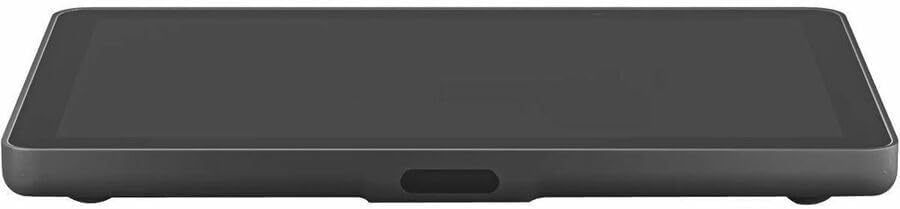
Image: Logitech TAP IP, a sleek, dark gray tablet-like touch controller, lying flat on a white surface.
3. Tilslutningskabler
- Connect the USB cable from the Rally Bar Huddle to your computer or meeting room appliance.
- Connect the Ethernet cable to the Rally Bar Huddle for network connectivity.
- Plug the power adapter into the Rally Bar Huddle and then into a power outlet.
- Connect the TAP IP to power and network as per its specific instructions (usually via Ethernet with PoE or separate power adapter).

Billede: Bagside view of the Logitech Rally Bar Huddle, showing various ports and connected cables for power, USB, and Ethernet, neatly routed through its stand.
Betjeningsvejledning
1. Start af et møde
The Logitech Rally Bar Huddle and TAP IP are designed for seamless integration with leading video conferencing platforms such as Microsoft Teams, Zoom, and Google Meet. Once connected, the TAP IP screen will display your meeting schedule or options to start a new meeting.
- Select an upcoming meeting from the schedule on the TAP IP to join.
- Tap 'New Meeting' to initiate an ad-hoc conference.
2. Camera and Audio Control
The Rally Bar Huddle features a 4K camera with advanced AI capabilities for auto-framing and speaker tracking, ensuring all participants are clearly visible. The integrated speakers and microphones provide clear audio input and output.
- Use the controls on the TAP IP to pan, tilt, and zoom the camera.
- Adjust volume and mute microphones directly from the TAP IP.
- The system automatically adjusts video lighting for optimal clarity against various backgrounds.
3. Forbindelse og ydeevne
The device supports 10/100/1000Base-T Ethernet technology, providing up to 1000Mbps data transfer rates for high-performance communication. This ensures stable and fast connectivity for your video conferences.
Opretholdelse
- Rensning: Gently wipe the surfaces of the Rally Bar Huddle and TAP IP with a soft, dry cloth. Do not use abrasive cleaners or solvents.
- Softwareopdateringer: Regularly check for and install software updates to ensure optimal performance, security, and access to new features. Updates are typically managed through the connected meeting room appliance or Logitech's device management software.
- Kabelstyring: Ensure cables are neatly organized and not strained to prevent damage and maintain a tidy meeting space.
Fejlfinding
Almindelige problemer og løsninger:
- Ingen strøm: Check all power connections. Ensure the power adapter is securely plugged into both the device and a working electrical outlet.
- Ingen video/lyd: Verify that the USB and Ethernet cables are properly connected. Check the settings on your conferencing platform to ensure the Rally Bar Huddle is selected as the primary camera, microphone, and speaker.
- Dårlig videokvalitet: Ensure adequate lighting in the meeting room. Check your conferencing platform's video settings for resolution options (e.g., 4K, 1080p, 720p).
- Audio Echo/Feedback: Adjust speaker volume or reposition microphones if necessary. Ensure no other audio devices are causing interference.
- TAP IP Not Responding: Restart the TAP IP device. Check its network and power connections.
Specifikationer
| Feature | Detalje |
|---|---|
| Mærke | Logitech |
| Modelnummer | Rally bar |
| Videooptagelsesopløsning | 4K |
| Fotosensorteknologi | CMOS |
| Forbindelsesteknologi | Ethernet (10/100/1000Base-T) |
| Understøttet lydformat | AAC, MP3 |
| Særlige funktioner | High-Speed Ethernet Connectivity, 4K UHD Display, AI Video & Audio |
| Varens vægt | 12.99 pund |
| Produktdimensioner | 10.33 x 8.61 x 3 tommer |
Garantioplysninger
This Logitech Rally Bar Huddle + TAP IP Video Conference Equipment (Renewed) comes with a standard Amazon Renewed warranty. Please refer to the Amazon Renewed program terms and conditions for specific warranty details and coverage periods. Keep your proof of purchase for any warranty claims.
Støtte
For yderligere assistance, teknisk support eller adgang til yderligere ressourcer, besøg venligst den officielle Logitech-supportside. website or the Amazon Renewed support page.


